Presentations
Share and comment
A deck is shared inside your workspace, by role, as a story is. Whoever opens it sees the figures their own data access allows: sharing a deck never shares anyone else’s numbers.
| Role | Can |
|---|---|
| Can view | Open the published version and present it |
| Can comment | Also comment, reply, mention and follow |
| Can contribute | Also read the speaker notes, add slides, edit the slides they added or were given, and present the draft |
| Can edit | Also edit any slide, its bindings and the deck’s order, publish, restore a version and export |
| Owner | Also share the deck, change roles and choose who reads it once published |
The owner is one person; workspace and company admins act as owners. A person’s workspace role is the floor and a share raises it: a role that can’t view Presentations reaches a deck only through a share.
Share a deck
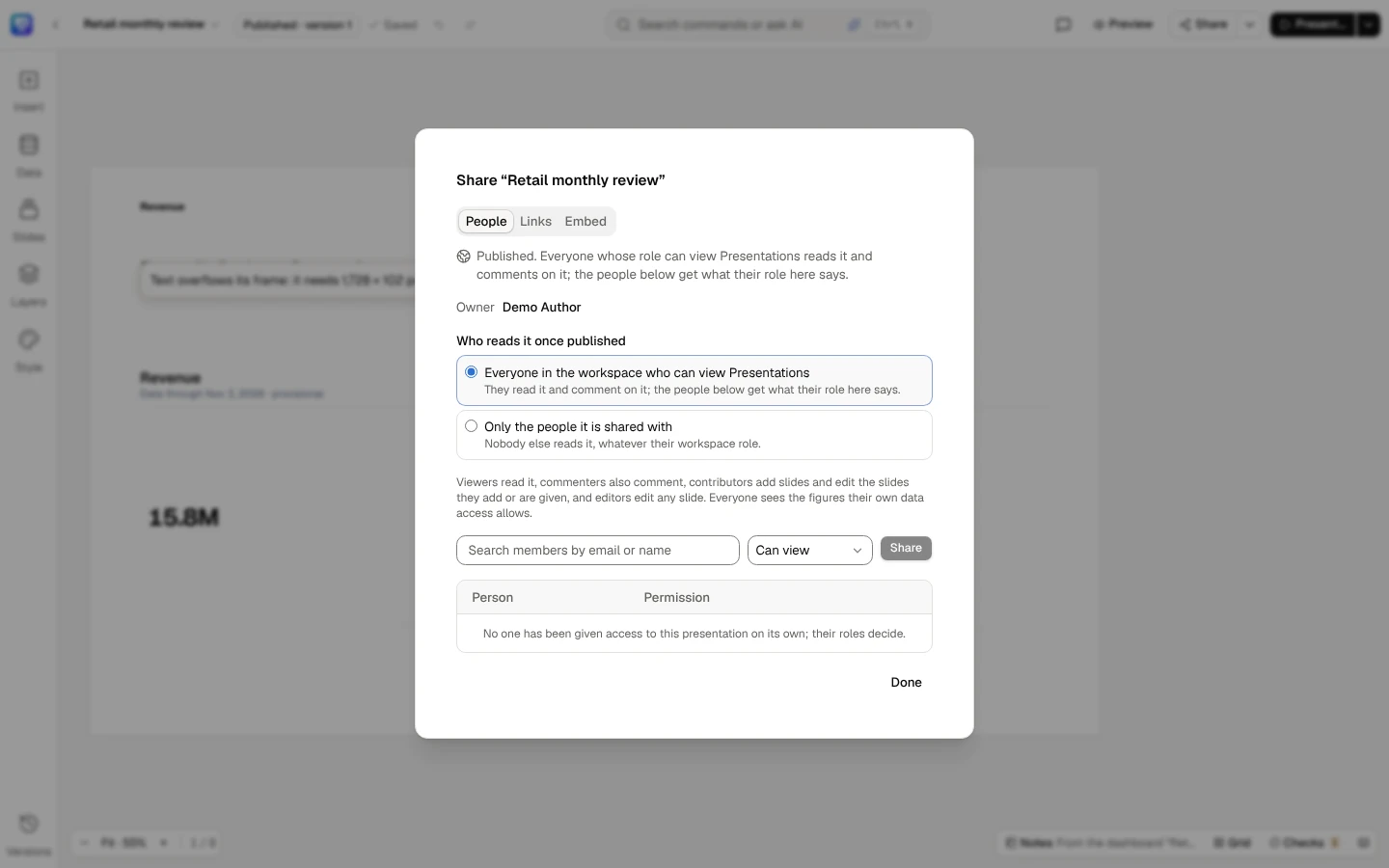
Section titled “Share a deck”Share… in the top bar, or Share in a deck’s ⋯ menu on the home, opens Share with the deck’s title. It says who can open the deck now, and who its owner is.
- Type in Search members by email or name and pick the person.
- Choose their Permission: Can view, Can comment, Can contribute or Can edit.
- Share.
Change someone’s role in the list, or Remove them (Stop sharing): their workspace role then decides whether they can still open the deck. Only the owner and admins share and change roles; anyone else is told whom to ask.
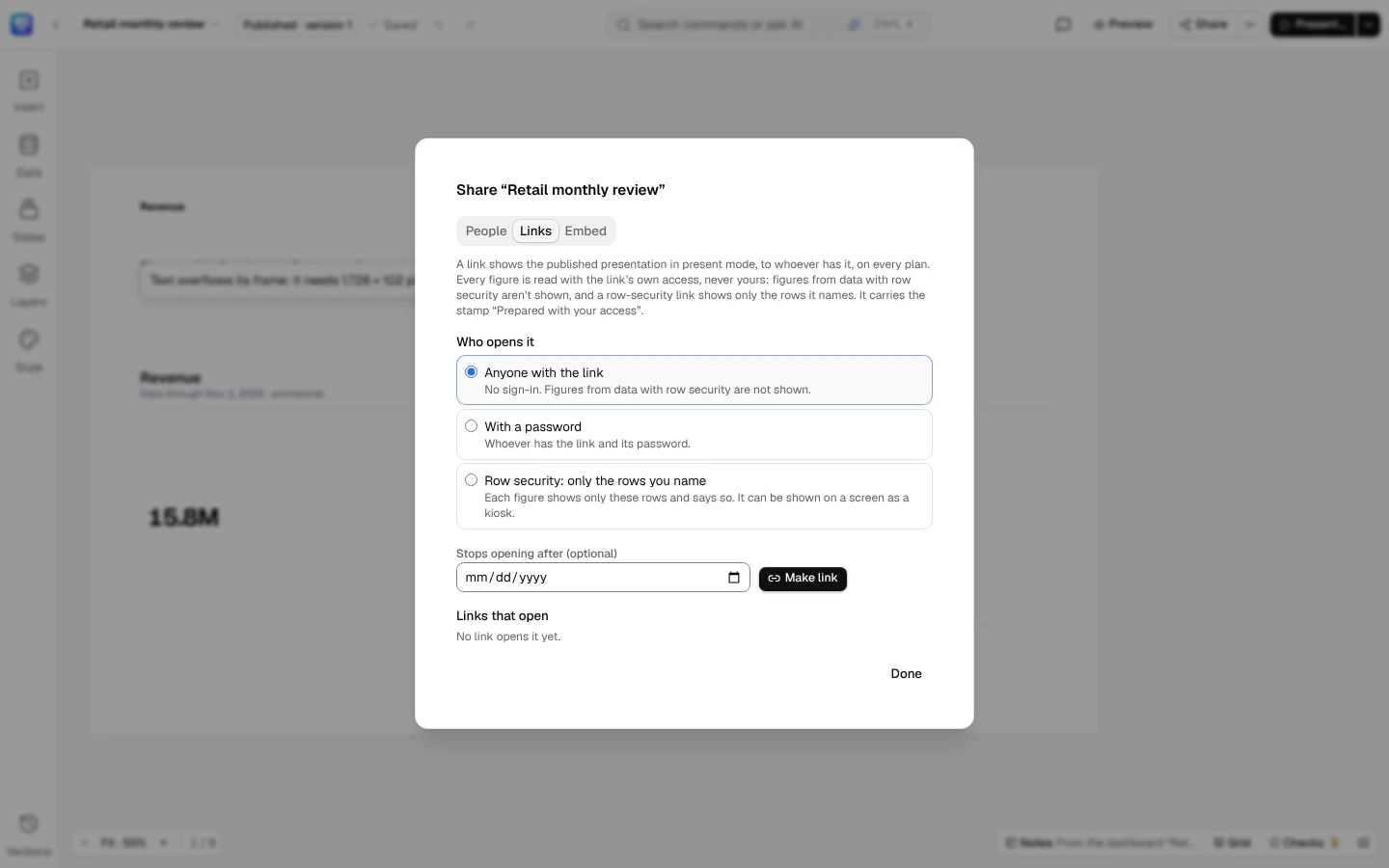
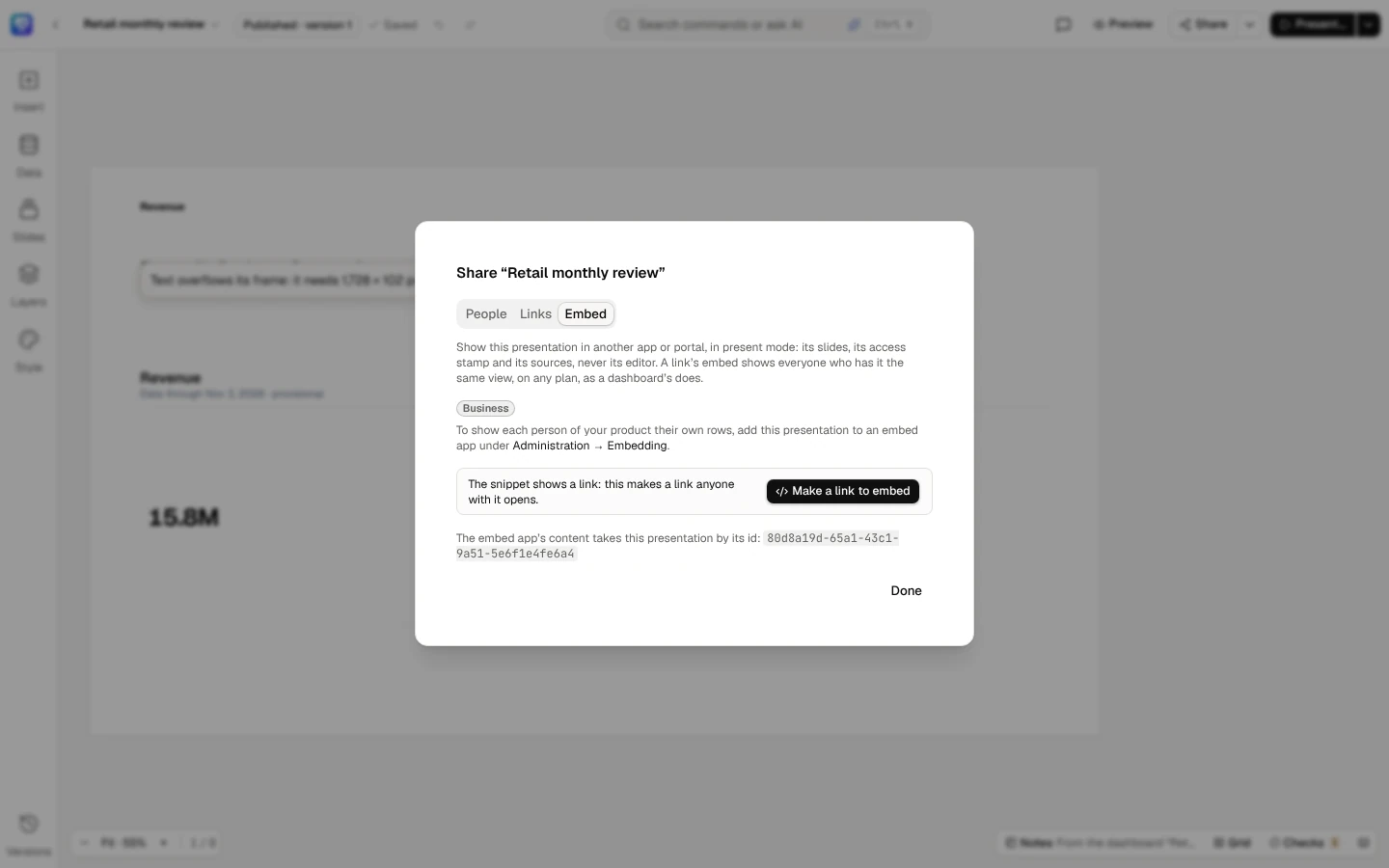
Share… has People (invite someone and choose their role, and who else reads it), Links and Embed.
Links makes a link to the published version for people outside your workspace, with its own settings.
Embed gives the code to put the deck in another site.
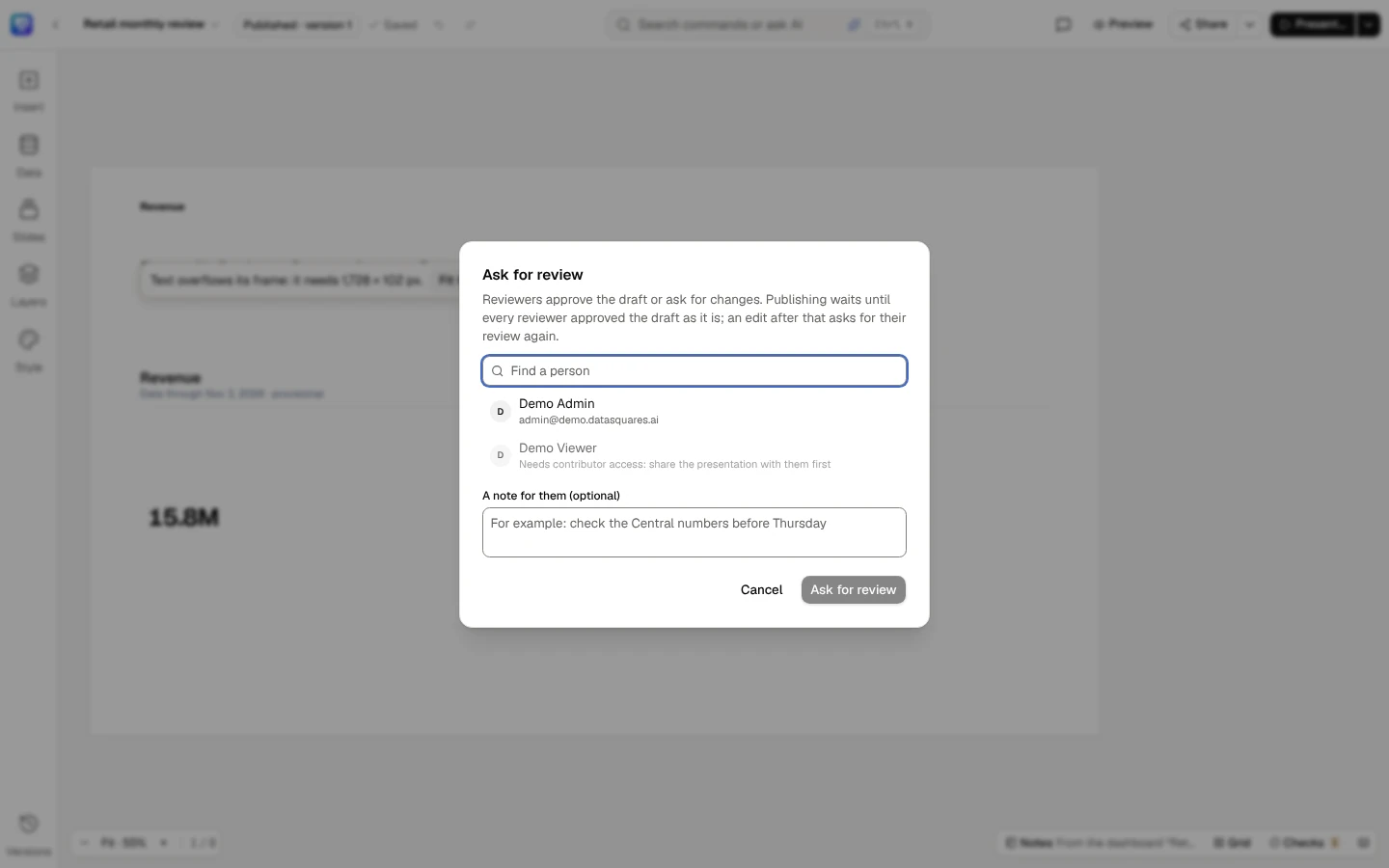
Ask for review… finds people by name; a reviewer needs contributor access or above.
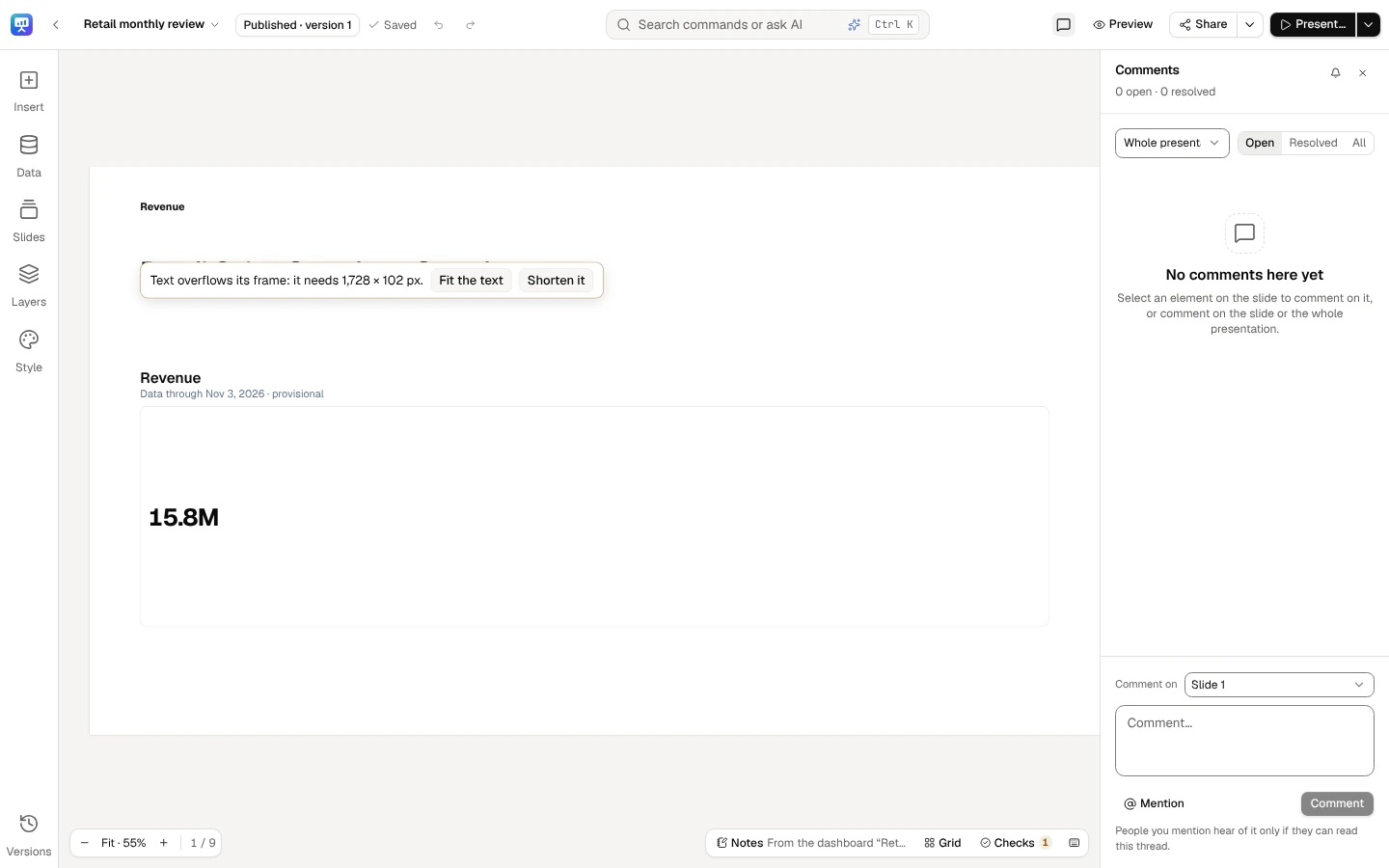
Comments opens the deck’s threads beside the slide.
Who reads it once published
Section titled “Who reads it once published”The owner chooses one:
- Everyone in the workspace who can view Presentations — they read it and comment on it, and the people it is shared with get what their role there says.
- Only the people it is shared with — nobody else reads it, whatever their workspace role.
A deck that has never been published, or is archived, opens only for its owner, admins and the contributors and editors it is shared with. Viewers and commenters open it once it is published: its figures have passed the checks by then.
Each viewer sees their own figures
Section titled “Each viewer sees their own figures”Every figure is computed for the person reading it: a figure from a metric or a model measure under their row security and masking, with the scope said on the element (EMEA only, your access); a figure from a saved query is withheld from anyone under row security. A figure they may not see is a dash with the reason. See What readers see.
To show a published deck outside the workspace — a public, password or row-security link, an embed in another app or portal, a kiosk on a screen — see Links, embedding and kiosks.
Comments
Section titled “Comments”Comments in the top bar opens the deck’s comments beside the slide, in the selection’s panel’s place; markers over the stage show where threads are. Commenters and above comment; viewers read and are told whom to ask for comment access.
- Comment on — a new thread is on the element selected on the slide, on the slide, or on the whole presentation. A thread stays with its element when the element moves or its slide is reordered; if the element or the slide is deleted, the thread says so plainly (Its element was deleted. It was on slide 4.).
- Mention someone with @. People you mention hear of it only if they can read this thread; the panel says who was not told.
- Reply, Resolve and Reopen: the thread’s author and the deck’s editors resolve it. Delete asks first, and says when the first comment would take its replies with it.
- Narrow the list to the Whole presentation, the slide shown or the selected element, and show Open, Resolved or All threads.
- Follow (the bell) sends new comments on the deck to your notifications; a notification’s link opens the deck at its thread.
Ctrl+Enter posts a comment.
Readers
Section titled “Readers”Readers… in Share…’s menu (its arrow, More sharing actions; editors and the owner, once the deck is published) opens who has read the published version, and for how long, as a story’s readers do.
- Readers, This week and Time read total it: the people who read it, those who read it in the last 7 days, and the time they spent.
- Slides lists each slide readers are shown, in order, with how many read it and for how long on average (2 readers · 3 min on average). A hidden slide is not one of theirs, so it is not listed.
- People lists each reader, newest first, 20 at a time (Show more): 4 min over 2 visits · opened 6 of 8 slides · last 26 Oct 2026, 09:12.
How it counts:
- Time counts only while a reader has a slide of the published version open and in view: their page tells DataSquares when a slide is shown and every 30 seconds after, and adds at most 30 seconds at a time. A slide’s time is the time spent on it before the next one was shown. Half an hour away starts a new visit.
- The owner’s own reading is never counted, and neither is a contributor’s or an editor’s: they read the draft, not the published version.
- A reader’s name is shown only to the deck’s editors and owner. Contributors, commenters and viewers are never shown who read it.