Presentations
Present
Presenting shows the deck’s slides to a room, each figure computed with the presenter’s access. Before the room sees anything you say whether this is a meeting or a rehearsal: a meeting’s slides are recorded, a rehearsal’s never are.
Start presenting
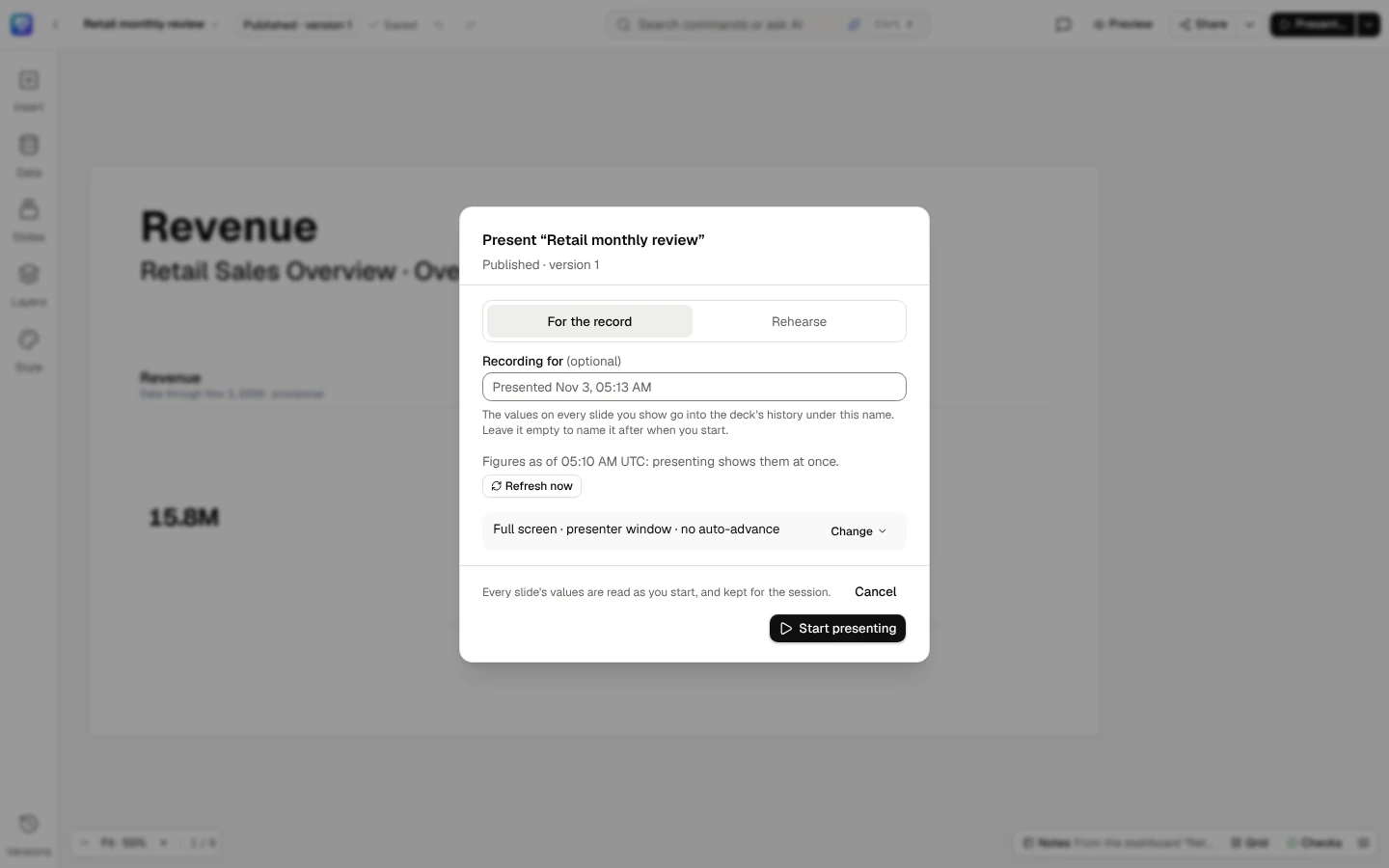
Section titled “Start presenting”Present… in the top bar opens Present with the deck’s title. It asks one thing:
- For the record (unless you choose the other) — the slides you show are recorded. Recording for (optional) is the meeting’s name, up to 200 characters (Leadership review, 24 Oct). The values on every slide you show go into the deck’s history under this name. Left empty, the meeting is named after when you start (Presented 26 Oct, 14:05).
- Rehearse — Nothing is recorded, and the slides say “Rehearsal”. A timer runs for each slide and in all. With it, Target length (optional), in whole minutes from 1 to 600, to time the rehearsal against; any other number is refused with the reason, and Start presenting waits until it is fixed. See Rehearse.
Under it, when the figures you would be shown were read, and Refresh now to read them again (see Figures ready before you present):
- Figures as of 09:40 UTC: presenting shows them at once. — read in the last 5 minutes;
- Figures as of 09:40 UTC: presenting shows them at once and reads them again. — read earlier;
- Every slide’s figures are read as you start. — none are kept for your access yet.
Every Figures as of is written in the workspace’s time zone, named.
Everything else is said in one line, such as Full screen · presenter window · no auto-advance (or In a window · no presenter window · advances every 20 seconds · loops · fade transition), and Change opens it:
-
Present the draft instead (a published deck, for its contributors, editors and owner) — your changes since the published version, as last saved. Its figures have not passed the publish check and are marked Unchecked. Anyone else presents the published version.
-
Keep for offline (the published version) — Every slide’s values, and its pictures, are kept on this device as you start, so you can present it without a network from this tab: keep it open, and don’t reload it. See Present offline. Where the browser can’t keep presentations (a private window, or its storage turned off), it isn’t offered, and the dialog says so. The line says kept for offline.
-
Where — Full screen, or In a window, for a video call, to share one window rather than a whole screen.
-
Open the presenter window — Notes, the next slide and elapsed time stay with you; the room sees only the slides.
-
Refresh figures (for the deck’s editors and owner) — how often the figures are read again: Every hour, and 15 minutes before a set meeting (unless you choose another), Every 15 minutes, Every hour, Every day at a time (with the time, in the deck’s time zone), Only before meetings or Only when I refresh. The deck remembers it with the other options below.
-
Slides — how the slides move on:
- Advance automatically, every 5 to 120 seconds (10 unless you set it). Any key or click pauses it; Resume carries on. A number outside 5 to 120 is refused with the reason, and Start presenting waits until it is fixed.
- Loop when it ends — After the last slide, the first comes again, whether it advances by itself or by hand.
- Transition — None (unless you choose another), Fade or Slide: how each slide comes in.
The dialog opens on the options the deck remembers. When the deck’s editors or owner change them, the deck remembers them for next time (This presentation remembers your choice for next time); anyone else’s apply to this presentation only. If they can’t be remembered, presenting still starts, and says so. Remembering them is not an edit: a published deck is not marked Edited since publishing for it. A Copy for next period keeps them; a template saved from the deck does not, so a deck started from it presents by hand until you choose.
Where and Open the presenter window are remembered on this device, in this browser, from the last time you started presenting.
Start presenting saves the editor’s waiting changes first (Saving your changes…), so a draft is presented as you left it. It then reads every slide’s figures, and says what it is preparing (Preparing figures: 6 of 14): present mode opens as soon as the first slide is ready, and the others follow while you talk. Cancel meanwhile ends the presenting it started: nothing opens. An archived deck must be restored before it can be presented.
While presenting
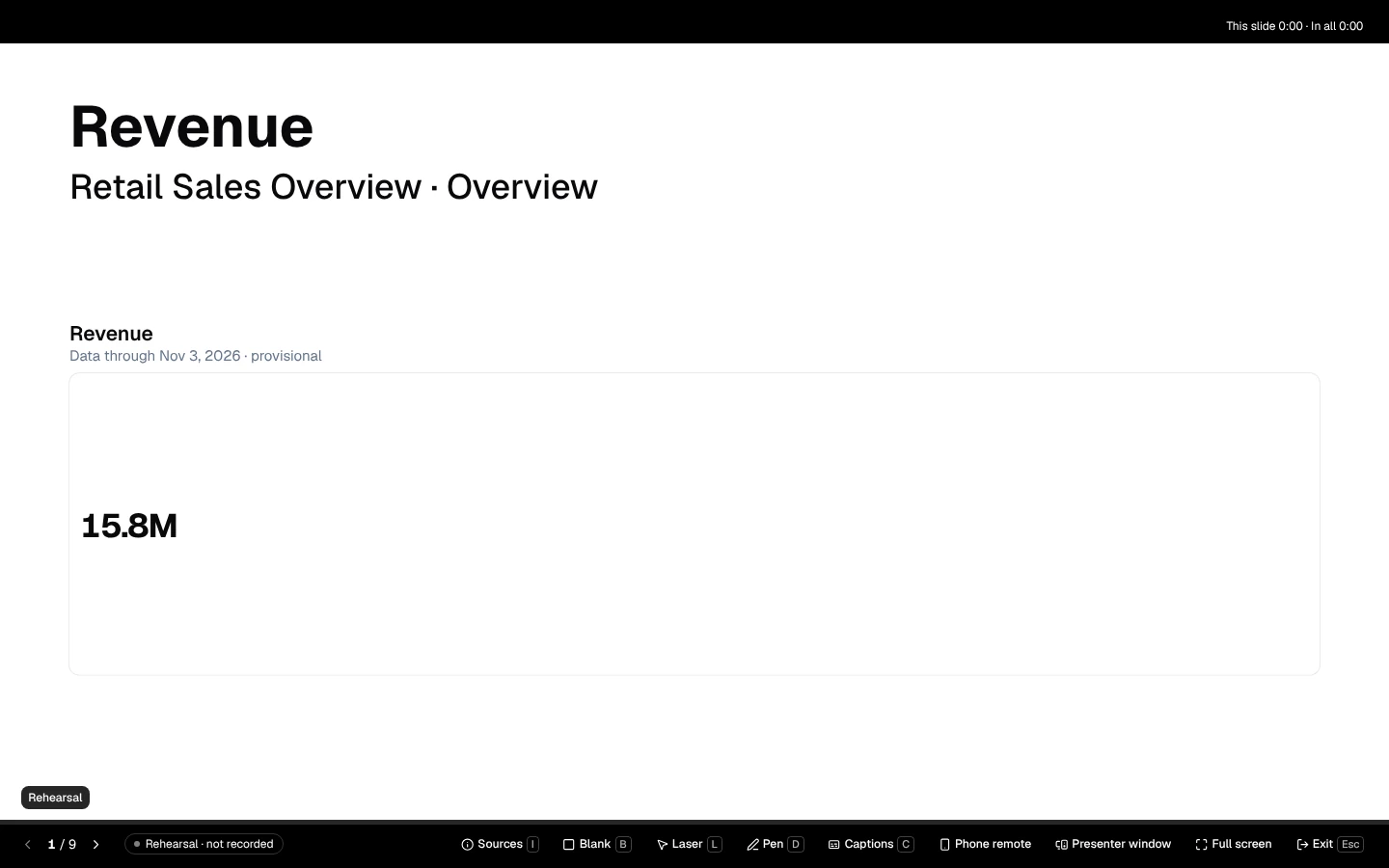
Section titled “While presenting”The slide fills the screen in the deck’s own look and shape: a 4:3, A4 or phone story deck is shown whole, with bars at the sides or above and below on a screen of another shape (see Resize a deck). The control bar at the bottom says whether you are recording (Recording · Leadership review, 24 Oct, or Rehearsal · not recorded) and offers Sources, Blank, Laser, Pen, Captions, Phone remote (· paired once a phone is; see Use your phone as a remote), Presenter window (to open it again if the browser blocked it), Full screen and Exit. It hides while the pointer is still and comes back when it moves. On a slide that builds, it says the step too: 1 / 12 · step 2 of 4.
On a touch screen, swipe to the left for the next slide (or step) and to the right to go back. A swipe on the slide is present mode’s, so Chrome and Edge never take it for their swipe back a page; one that starts at the very edge of a phone’s or tablet’s screen is the device’s own Back (Safari on an iPhone or iPad, Android’s gesture navigation), which no page can claim, and leaves present mode: start a swipe a little in from the edge. Tap the slide to show the control bar, and tap again to hide it; a tap on a figure opens its source instead. A pinch still zooms the page, and while it is zoomed in your finger moves the page, not the slides. While the pen or the laser is on, your finger draws or points and moves no slide. On a tablet, a phone or any screen you mainly use by touch, every control of the bar, the sources list, the phone remote, the pen, Explore this slide and the rehearsal summary is at least 44 pixels across.
A draft’s slides carry Unchecked: this draft has not passed the publish check, and a rehearsal’s say Rehearsal, in a corner of the slide.
Present… asks for the record or a rehearsal, names the recording, shows how fresh the figures are (Refresh now), and how you present (Change).
The presenting screen shows the slide; its control bar holds Sources, Blank, Laser, Pen, Captions, Phone remote, Presenter window, Full screen and Exit.
Slides that advance by themselves
Section titled “Slides that advance by themselves”With Advance automatically on, the next slide comes every few seconds, and stops at the last one unless Loop when it ends is on. A slide that comes by itself is shown, and recorded, exactly as one you move to. Any key or click pauses it, in either window, and so does switching the presenting window’s tab away or minimizing it, so no slide is shown, or recorded, to a room that can’t see it. The pause is announced; Resume in the control bar or the presenter window carries on. Each slide comes in with the Transition chosen; when your system asks for reduced motion, slides change without one, whatever the deck chose.
Builds
Section titled “Builds”A chart or a text box can come onto its slide a step at a time while you present: choose how in the editor, under Comes in when presenting in the selection’s panel’s Format tab (see Make a deck):
- All at once (unless you choose another) — it comes in with its slide, as every element always has.
- One series at a time or One category at a time, for a chart drawn on axes: bars, columns, stacks, lines, areas, lollipops, a pareto and a waterfall. A pie, a donut, a treemap, a funnel, a heatmap and a map come in all at once: a part of a whole shown alone would misstate its share.
- One point at a time, for a text box: each item of its lists, with the items nested under it. Its other paragraphs come in with the slide.
The slide opens with none of the parts shown: a chart shows its title, axes and legend, and a list keeps the place of the points still to come. Each Next shows the next part, in reading order, before the slide moves on; Previous takes the last one back. A slide you come back to shows whole, and a slide you go to by its number, Home or End opens as at first. Autoplay, the presenter window and your phone step the same way, one step for each press, even when several presses arrive at once: the presenting window decides what comes next.
A step once shown is never taken back. While a chart that builds is still being read, the slide waits at it: the bar says reading a chart’s figures, Next says so too, and nothing after the chart shows until it is read; Next again moves on to the next slide, so a slow read never holds you up. A slide you explore part way through its build shows whole, with the explored figures, and Next moves on.
A part comes in drawn on the final chart: a bar grows from the axis’s own zero (or from the step or the stack it stands on), and a line’s or an area’s series draws along from its start. Built one category at a time, a line shows each next point, and the segment to it, with its step. No value is ever animated through one it does not have. The axes, the legend and the layout are the final chart’s from the first step, and no tooltip shows until every part is in. When your system asks for reduced motion, the parts still come one by one, without movement. A screen reader hears each part as it comes (Step 2 of 4: EMEA: $1.32M), and the slide is read as it shows.
Builds are for presenting only. The editor, thumbnails, links and the kiosk, and the PDF and PowerPoint files show every chart and list whole, and the checks read the whole element, whatever its build.
The pen
Section titled “The pen”Pen (or D) draws on the slide, for everyone in the room: a Pen or a Highlighter in red, yellow, blue, green or white, the Eraser to take away a stroke it touches, and Clear this slide. While the pen is on, the pointer draws instead of opening a figure’s source; a mouse, a pen or a finger all draw. You can draw from the presenter window too, on the slide the room sees, and each window shows what is drawn in the other.
Ink stays with its slide while you present: go back to a slide and its ink is there. It is gone when the presentation ends, or when the presenting window reloads (both windows then show none): it is never saved into the deck, never in an export or a record, and never sent anywhere. Done, or Esc, puts the pen down; Esc again does what it always does. Every tool and colour is a button you can reach with Tab; the colours move with the arrow keys.
Rehearse
Section titled “Rehearse”A rehearsal (Rehearse when you start) shows a timer in a corner of the screen and in the presenter window: This slide 0:42 · In all 3:15 of 20:00 (with the target length, if you gave one). When you leave, a Rehearsal summary comes first: the time in all, how it came against your target (1:40 under your 20:00 target), and each slide’s time, a slide shown twice counting both times. Done (or Esc) leaves. Ended from the presenter window, the summary shows there. Nothing of it is recorded or kept: note any times you need.
The summary only shows the timings: slides that advance by themselves take one time for every slide, so there are no per-slide timings to set from a rehearsal.
Live captions
Section titled “Live captions”Captions (or C) shows what you say as captions on the room’s screen, in the deck’s language (English, US or India). They are heard by your browser’s own speech recognition, on this device: your voice never leaves it. The first time, the browser may ask to use the microphone, or offer to add speech recognition for the language to the device. A browser that cannot recognise speech on the device shows no captions and says so: Captions need a browser that can recognise speech on this device. No AI is involved, no credits are used, and nothing is recorded or kept.
Captions sit below the slide when the screen has room there, and otherwise over the top or the foot of the slide, whichever covers fewer of its figures: two lines at most, large enough to read across a room. Captions in the presenter window hears you there instead, and shows the captions on the room’s screen.
| Keys | Does |
|---|---|
| →, ↓, Page Down, Space, N, Enter | Next step of a build, then the next slide (or the sources list’s next page) |
| ←, ↑, Page Up, Shift+Space, P, Backspace | The step before, or the previous slide (or the sources list’s page before) |
| Home / End | First / last slide |
| A slide number, then Enter | Go to that slide (Backspace takes back a digit) |
| I | Open or close the sources of this slide |
| E | Explore this slide: open or close the filters you may change |
| B / W | Blank the screen black / white; again, or Esc, to come back |
| L | The laser pointer |
| D | The pen: take it up or put it down |
| C | Live captions: on or off |
| Esc, or a TV remote’s Back | Put the pen down, then close the sources, then the filters, then show a blanked screen, then leave (a rehearsal shows its summary first) |
A key held with Ctrl, Cmd or Alt is left to the browser. A TV remote’s OK is Enter: the next step or slide.
The keys that move the slides (the arrows, Page Up, Page Down, Space and Enter) move them whatever has the focus on the slide, a chart or a button on it included, so a clicker always works. Only a text field you type in keeps them; Space and Enter on a link in the slide follow it; and off the slide, on the control bar or in an open list, Space and Enter press the focused button and a list keeps its arrows. ← is always the slide before and → the next, whatever the deck’s language.
A sources slide of several pages
Section titled “A sources slide of several pages”A sources slide whose list continues is shown a page at a time, its title counting them: moving on shows the list’s next page before the next slide, and going back from the slide after it comes to its last page. The control bar says the page (12 / 12 · page 2 of 3), each page after the first is announced, and the presenter window shows the page the room sees, with the next page as what comes next. A slide you go to by its number, Home or End opens on its first page.
Figures ready before you present
Section titled “Figures ready before you present”Opening a deck in the editor, or a published deck you read, reads its figures ahead of presenting, in the background, with your own access, so Present opens with them. They are read again on the deck’s Refresh figures schedule (every hour, and 15 minutes before the meeting set on the deck, unless its editors chose another) until 14 days after someone with that access last opened or presented the deck — the schedule’s own reads don’t count — and are deleted then. Refresh now reads them again at once, from the data source itself (never an answer the app kept from a moment ago).
- Read in the last 5 minutes — presenting shows them with no new read.
- Read earlier — presenting still shows them at once and reads them again in the background; the presenter window and Start presenting say Figures as of 09:40 UTC until then. Each slide’s values change when its new read arrives, the slide is never blank meanwhile, and the change is said (The figures on this slide were read again: 2 changed.; the room’s screen counts only what it shows, the presenter window the notes too). A slide shown before its new read arrived is recorded with what the room saw, and again only when the new read changed what the room sees.
- Whose figures — figures are kept per access, as the workspace holds it now: you are shown a copy only when your access to every figure on the deck is the same as the one it was read with — the same roles, the same row security and masking on each figure’s model, the same rule for saved queries — the same rule that lets one scheduled copy of a deck go to everyone whose access is the same. Anyone else’s figures are read with their own access when they present. Right after your role changed, while the app still holds the role you signed in with, your presenting reads its own figures and keeps none for others. Figures are never kept for a link’s visitors, and a frozen version always shows its frozen values.
- When refreshing stops — the figures kept for a person are emptied, and no longer refreshed, as soon as they are removed from the workspace, from the deck’s sharing or from a group it is shared with; the schedule checks the rest in turn as a backstop. They are read again for the next person who opens or presents the deck with that access. Each read takes at most 2 minutes, waiting for the data source included; a read that fails is tried again in 15 minutes, then 1 hour, then 4 hours, then once a day, and from the third failure in a row Start presenting tells the person they are kept for why (the data source did not answer within 2 minutes). Refresh now reads them at once. When it was your own access to the figures that changed, Present says so to you. Figures of a deck deleted or archived, or of a version no longer published, are deleted.
Values stay put for the session
Section titled “Values stay put for the session”Every slide’s values are read as you start (the slide shown first; the deck’s prepared figures where your access is theirs) and kept for the whole session, so going back to a slide shows the same numbers a moment ago showed, and nothing changes while you talk, unless the figures are read again: prepared figures older than 5 minutes as you start, or Refresh now in the presenter window. If a figure can’t be read, it keeps the last value it had in this session, labeled could not refresh; one never read shows a dash. A projected slide is never blank because a source is slow. Whenever the slide shown was last read more than 5 minutes ago, the room’s screen says when on it (Figures as of 09:40 UTC, in the workspace’s time zone): a read again that found nothing changed counts as its last read.
Sources on this slide
Section titled “Sources on this slide”Click a figure, or press I, for Sources on this slide: every figure on it with its value in full, its period (and whether it rolls forward on its own), what it is compared with, the rows shown, its filters, the definition it was computed with, where the data lives, Data through (and provisional when its period is not complete), when it was loaded and computed, and EMEA only, your access where your access narrowed it. Figures typed by hand say Entered by hand · not checked against data. Copy as text copies the list. Nothing opens on hover in front of the room.
Explore this slide
Section titled “Explore this slide”When someone in the room asks “and for EMEA?”, you can answer from the slide: change a filter the deck’s authors allowed, and the slide’s figures are read again with it.
Who may. The deck’s editors and owner choose the filters, in the editor’s top bar, in Present…’s arrow (More presenting actions) under Filters presenters may change… (Filters presenters may change): up to 12, each a field the deck’s metric and model-measure figures read or a column a saved query’s figure returns (one of a field’s name is that field; a query’s columns are offered only to an editor who may read saved queries, as in the SQL editor, and an editor who may not keeps a filter another editor declared on one when saving the list), the label the slide says, One value or Several values, and, if you like, the values a presenter may choose (100 at most). Each field takes one filter, so a slide never says it applied a filter another one undid. Anyone presenting the deck may then explore a slide with them; nothing else can be changed.
How. On a slide where one of those filters applies to a figure, press E or choose Explore in the control bar, in either window. Choose a value and Apply. The slide says Exploring: Region = EMEA in both windows, and it is announced. Back to the slide as prepared undoes it; leaving the slide does too, in both windows, so going back to it shows it as prepared.
What it changes. Each metric and model-measure figure on the slide whose data has the field is read again with that field’s filter replaced by the values chosen, under your own access: your row security and masking still apply, so you never see, nor show, more than you could before. A saved query’s figure whose result returns a column of the field’s name (in any case, or the column a model field reads) is read the same way: its filter on that column is replaced, and its query is wrapped with it. Which figures are not explored:
- a dashboard visual;
- a saved query’s figure whose result doesn’t return the field, one withheld from you (row security on its source), and the column it adds up;
- a metric whose own definition already filters that field (an EMEA revenue metric explored by Region);
- a field with a sensitivity label, or one computed from a labelled field (a calculated field over it, a second field over its column), on any figure: the deck’s authors can’t offer it either.
They keep what the slide showed, and the slide says how many don’t take the filter (Exploring: Region = EMEA · 2 figures on this slide don’t take this filter), as does Sources on this slide beside each figure. Speaker notes keep their values as prepared.
Frozen decks. On a frozen deck, explored figures are read now, and the slide says Live values in both windows: the figures you did not explore keep their frozen values.
What is recorded. In a meeting, the first time an explored slide is shown it is recorded like any slide: its figures as the room saw them, each with its filters, and the filters you chose. A rehearsal records nothing. A record of an explored slide is never the one the checks and What changed compare live values with, since it is not the deck as prepared.
The presenter window
Section titled “The presenter window”The presenter window keeps in step with the presenting window, on your screen only:
- the current slide, with Blank (B), Blank white (W), Laser, Pen, Captions and Sources under it, named as the presenting window names them, and the Next slide (or The last slide); the presenting window follows what you do here, keys included;
- large Previous and Next, with Elapsed time and the clock (and, in a rehearsal, the slide’s time and the time in all), in a row of their own at the foot of the window, so they stay where they are however long the notes are; with Loop when it ends, Next on the last slide goes to the first;
- on a slide that builds, the step the room sees (Step 2 of 4), and under Next the next step, named (Step 3 of 4: India doubled.), drawn as it will show;
- when the slides advance by themselves, Next slide in 0:07 (or Advancing paused, or The last slide) with Pause or Resume;
- the slide’s Notes, with their live numbers (for the deck’s contributors, editors and owner), in a box of their own that scrolls: A+ and A− make them larger or smaller, from 14 to 40 pixels, and this browser remembers the size. Each slide’s notes open at their top. With the notes focused (Tab to them), Shift+↑ and Shift+↓ scroll them and Home and End jump to their top and end. The arrows, Page Up, Page Down and Space always move the room’s slide, whatever has the focus in this window, as a clicker’s keys do; only a text field you type in keeps them, and Enter presses the focused button;
- Data: Live. Read 2 minutes ago; data through 23 Oct. Going back shows the same numbers until they are read again., then Figures as of 09:40 UTC. with Refresh now, which reads every slide again from the data source (the presenting window shows each slide’s new values as they arrive); while they are read, Figures as of 09:40 UTC; reading them again, each slide keeps its values until the new ones arrive.;
- Record: Recording for “Leadership review, 24 Oct”. This slide is recorded., or Rehearsal: nothing is recorded., and what went wrong if a slide could not be recorded yet;
- Explore, where a filter the authors allowed applies to the slide, and what is explored now, with the figures that don’t take it;
- Jump to slide, a list of every slide.
When some figures on a slide follow your access — row security or masking narrowed them — the presenter window says so: Some figures on this slide follow your access (EMEA only): check that everyone in the room may see them. The room sees what your access shows, so check before you present restricted data to a wider audience.
Present offline
Section titled “Present offline”A deck you have opened to present can carry on when the network goes, for example in a meeting room whose Wi-Fi drops, or on a plane.
What is kept. Presenting a published version keeps what present mode needs on this device, in your browser: the version’s slides, its look, the title and chart of each dashboard card it shows, each slide’s values as they were read for you, with the time they were read, and the pictures of the slides shown. Values are kept exactly as you were shown them, masked and narrowed by your own access. With Keep for offline every slide’s values are read when you start, and every picture is kept, the logo first and then in slide order, until the pictures reach what this device keeps: the control bar says Keeping for offline · 5 of 12 slides, then Kept for offline · keep this tab open (with how many pictures were left out, if any), and this is said once to a screen reader too. If the browser keeps nothing (its storage is full, for example), the bar says Not kept for offline and why. Without Keep for offline, the slides read so far are kept. A draft is never kept, and a deck read through a link is never kept. A frozen deck’s copy holds its frozen values: freezing the version again, or going back to live, starts its copy afresh.
When the network goes while presenting. The slides carry on. Every figure read before says when it was read, Offline · from 09:12, in your own time zone, beside a KPI tile, a chart, a table or a dashboard visual, in the sources list, and in what a screen reader hears; the slide says it too. A slide not read in this presentation shows the values kept on this device earlier, marked with when those were read. A figure never read before the network went shows a dash, Not available offline, and so does a picture or a dashboard card never kept or shown before. Nothing pretends to be live: nothing is read or refreshed, and nothing is recorded while offline (the control bar says Offline · not recording, and the presenter window says so too). A slide being explored goes back to as prepared, its values marked with when they were read. Exploring a slide and opening the presenter window wait for the network. When it comes back, the marks go: slides this presentation read show its values again, as they always do, and slides shown from the copy kept earlier are read again. Present mode says so once: Back online: the figures are live again.
When there is no network to start. Present opens Present as usual, says You’re offline (or that DataSquares can’t be reached) and, when a copy of the deck is kept on this device, offers Present the kept copy, with its version and when it was kept. The kept copy is presented full screen or in a window, as you chose, with no presenter window; nothing is recorded (Kept copy · not recorded), and its figures say Offline · from 09:12. When the network comes back, its figures are read again with your access. With no copy kept, the dialog says how to keep one: present the deck once, or start it with Keep for offline, while you have a network.
Who sees a kept copy. Only you, signed in to the same company, on the same browser. Kept copies are removed when you sign out or your session ends, when someone else signs in on the browser, when you switch company, and when you can no longer open the deck. They take at most 100 MB together; past that, the copy used longest ago goes first. Present from a browser tab that has had DataSquares open since you last had a network: a tab opened or reloaded while offline has nothing to show.
Move the slides from your phone
Section titled “Move the slides from your phone”Phone remote shows a code and its QR code; a phone signed in to the DataSquares app as someone who can present the deck pairs with it, and its Next and Previous move the slides as the keys would. See Use your phone as a remote. To present from the phone itself, see Presentations on your phone.