Mobile app
Mobile app - notifications
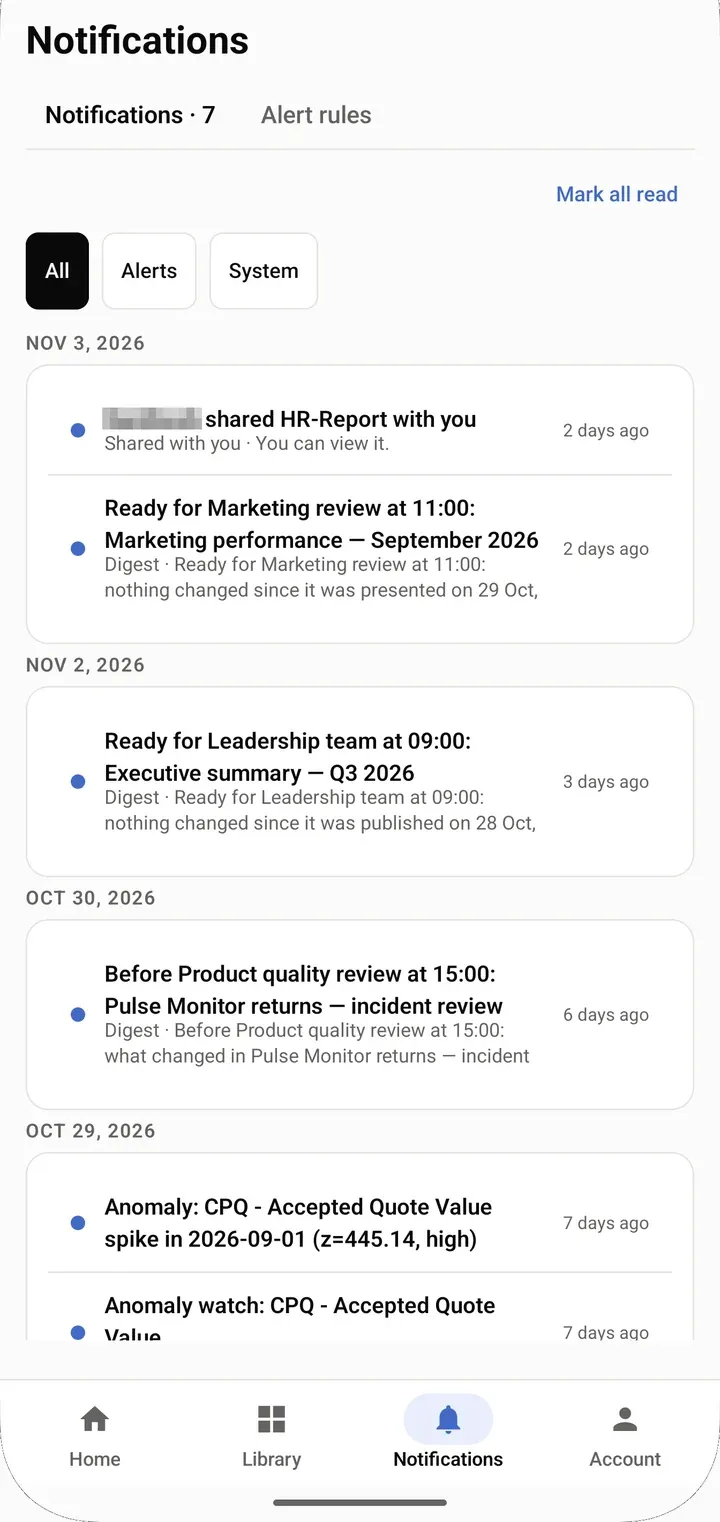
The Notifications tab collects what was sent to you: metric alerts that fired (see Alert rules), comments that mention you, items shared with you, reports delivered to you, digests, failed data refreshes and changes to stories you follow. A dot marks what is unread and the tab badge counts it. The tab shows when your role may view alerts.
Read your notifications
Section titled “Read your notifications”The tab opens on Notifications, with a count beside it (“Notifications · 7”); roles that may create alert rules also see Alert rules beside it.
- Filter the list with the chips: All is always there; Alerts (alert rules that fired), Mentions and System (shares, deliveries, digests, data refreshes, anomalies and stories you follow) show when there is something of that kind. Items are grouped by day: Today, Yesterday, then the date.
- An alert that fired shows the value and the threshold it told you (your own where row-level security binds its data), or to its creator the ones it read; anyone else sees no number. An alert on a metric is listed only when your role may open Metrics (or you are an admin), and once more for each new period it tells you of while it stays past its threshold. See Notification channels.
- Tap an item to open what it is about: a dashboard, a metric, a report or a story.
- Mark all read clears the unread dots. On one item, Mark as read or Snooze for 1 hour.
- “Couldn’t load notifications” means the list could not be read; pull down to try again. Offline, the app shows what it saved last.
Which of these also reach you as a phone notification is set under Notifications in Settings. When the app lock is on, a phone notification says only “Unlock DataSquares to view details”.
Alerts and alert rules
Section titled “Alerts and alert rules”Roles that may create alert rules also see Alert rules beside Notifications, with + New. Other roles see only the notifications.
Alert rules lists the rules you can see, with their condition and whether each is Active or Paused. Tap a rule for its options: View details, Edit, Pause or Resume, and Delete (“Delete this alert rule?”). A rule written on the web says “This rule was authored on the web — edit it there.”
View details opens the Alert rule: when it fires, how it stands, a chart of the Last 30 days and its Recent firings. Open the dashboard goes to its dashboard. A role that may read rules but not change them sees “Only editors can pause or change this alert rule.”
Snooze an alert for yourself
Section titled “Snooze an alert for yourself”On an alert rule, Snooze for me stops push and email to you for 1 hour, 8 hours, 1 day or 1 week. “It keeps firing for everyone else.” Notify me again now ends the snooze.
Create an alert rule
Section titled “Create an alert rule”- Open Notifications › Alert rules and select + New, or choose Create alert rule on a metric.
- In New alert rule, give it a Rule name (optional), search for the Metric, choose Above or Below and the Threshold.
- Under Check, choose Hourly or Daily at 6am.
- Select Create alert rule. The rule appears under Alert rules, active. The first time, Android asks to allow notifications so the phone can tell you when it fires.