Tenants
A tenant is one company on the platform. Its lifecycle state is one of Legacy, Trial, Trial ended, Active, Past due or Suspended.
Find a tenant
Section titled “Find a tenant”Choose Tenants in the sidebar. Every company on the platform is listed with its lifecycle state, where it signed up, seats, plans, revenue, AI credits and last sign-in.
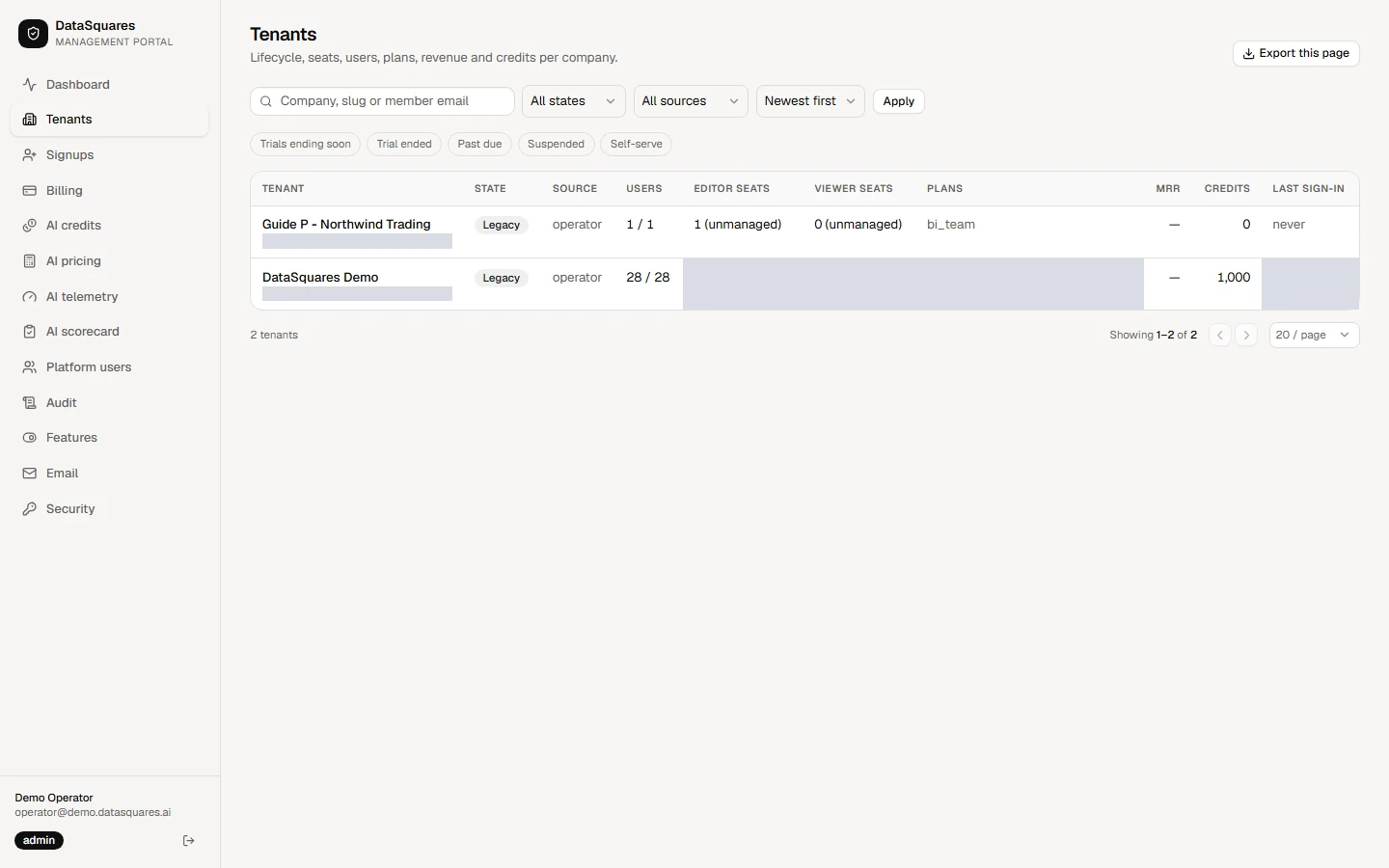
Search by company name, slug or a member's email. Narrow by Lifecycle state and Signup source (Self-serve, Operator or Setup wizard), and use the quick chips below for trials ending soon, past due or suspended tenants. Then choose Apply.
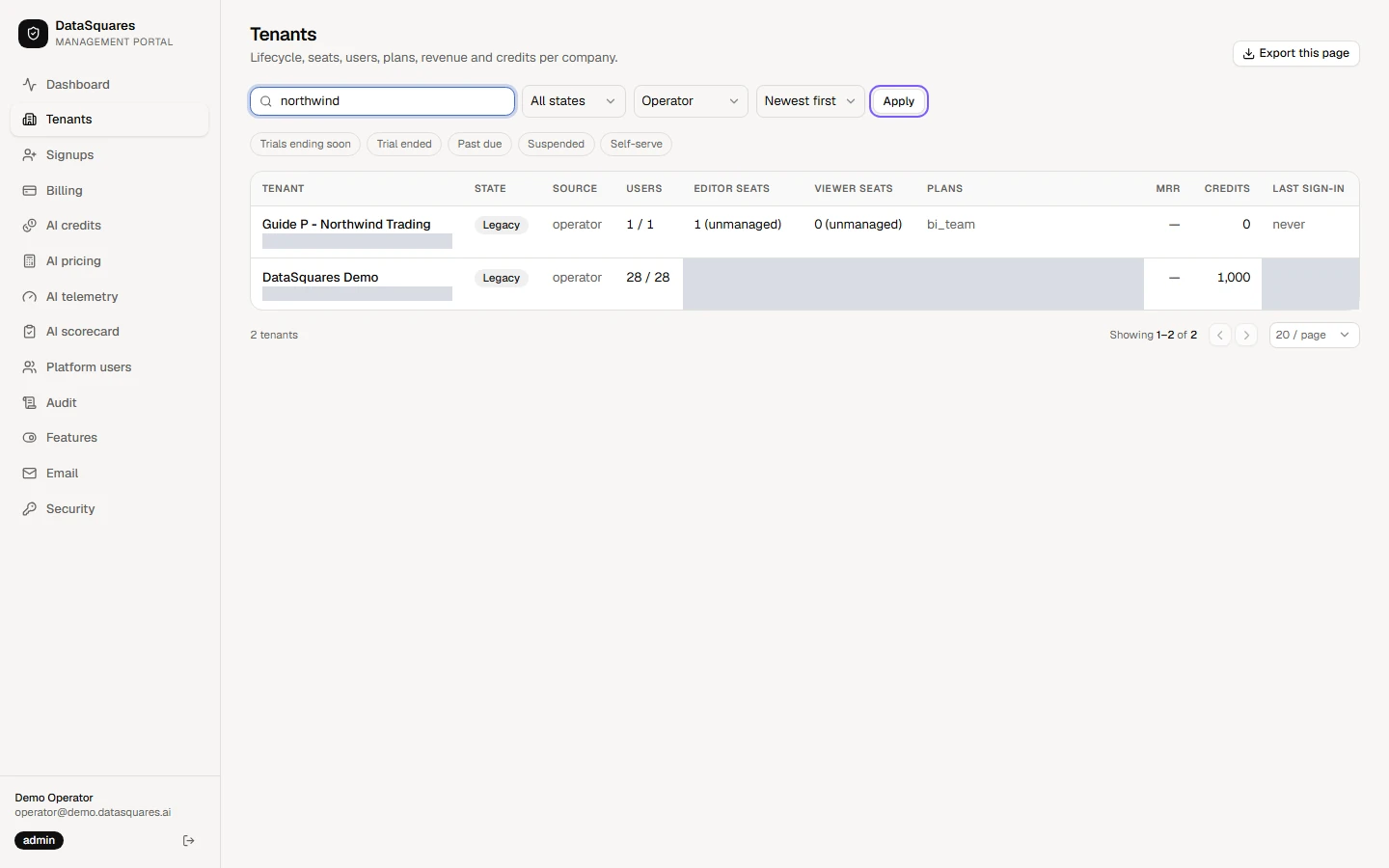
Use Sort to order by newest first, name, last sign-in, MRR or trial end. Choose Export this page to download the rows shown as a CSV file.
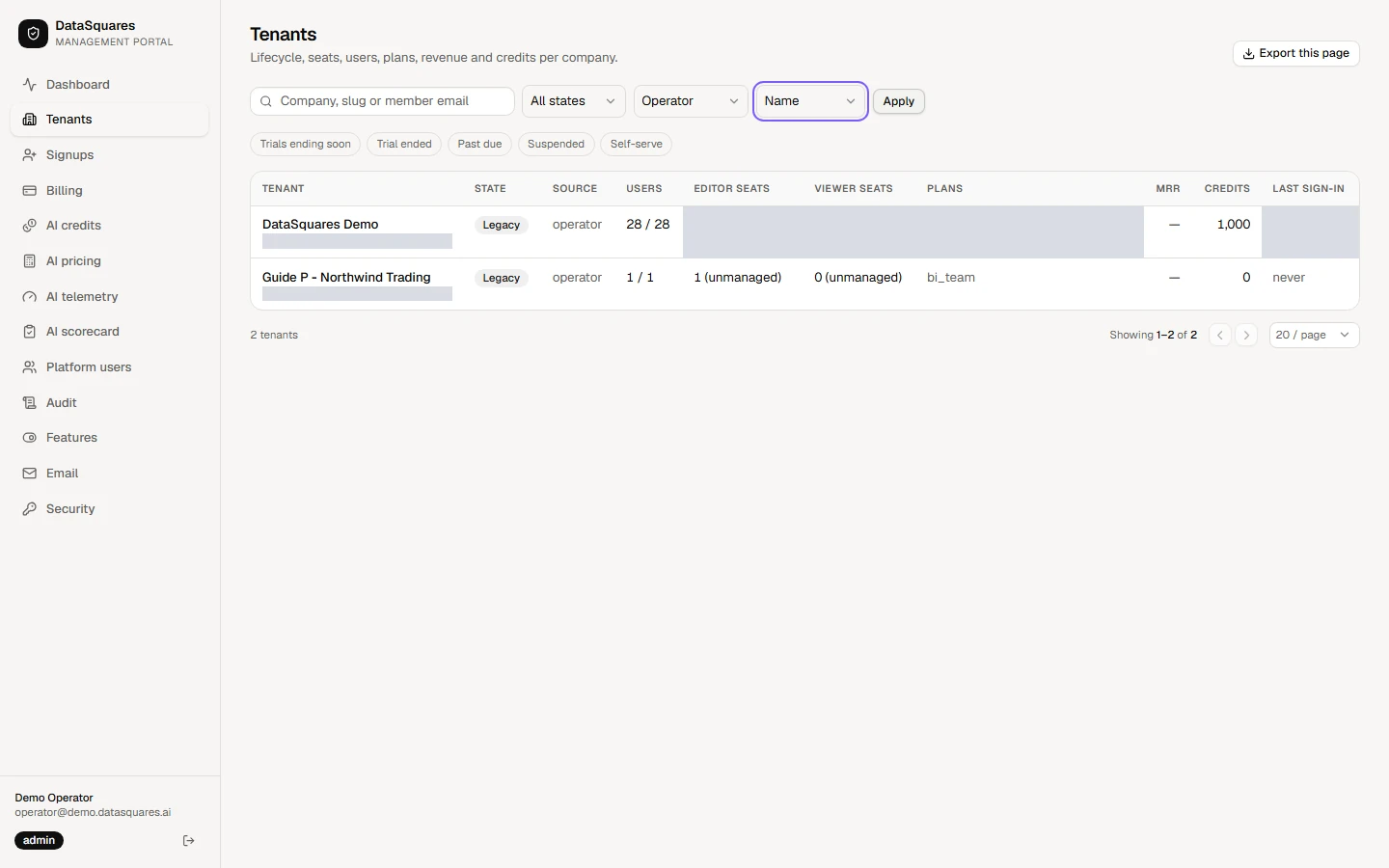
Select a tenant to open its detail page.
Read a tenant
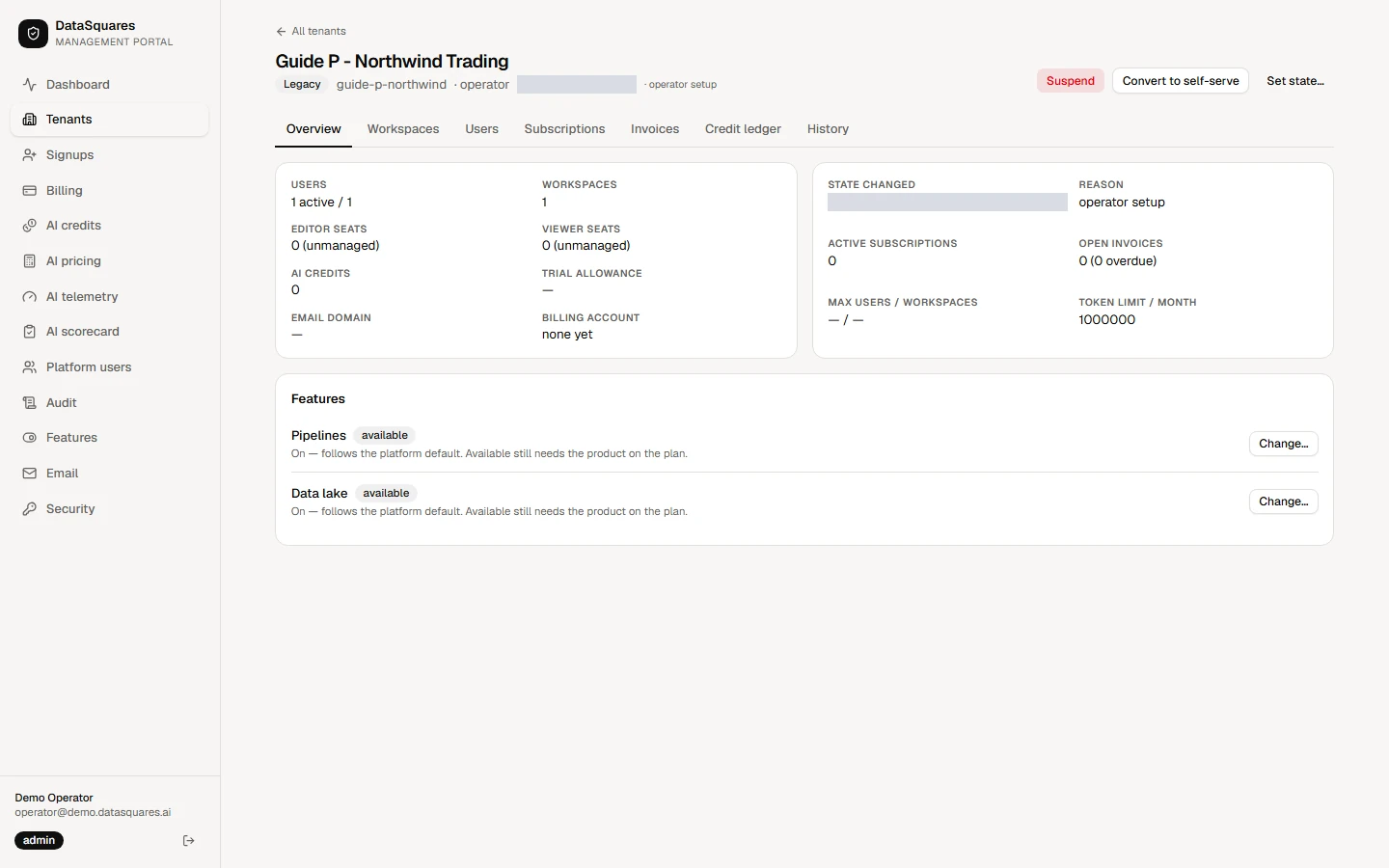
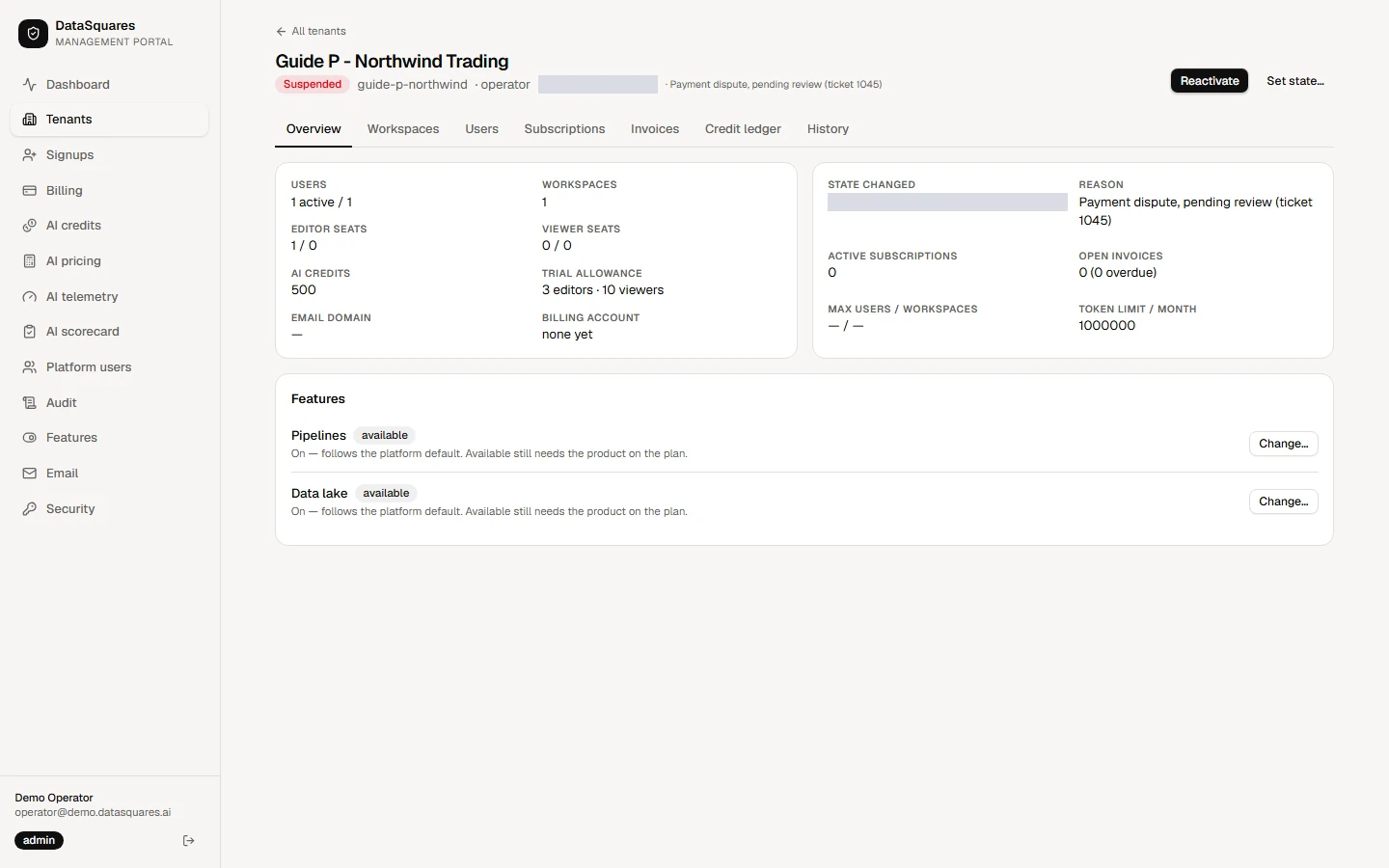
Section titled “Read a tenant”Open a tenant from the Tenants list. The header shows its lifecycle state and the actions you may take. The tabs under it hold the detail: Overview covers users, workspaces, seats, AI credits, the billing account and the product switches.
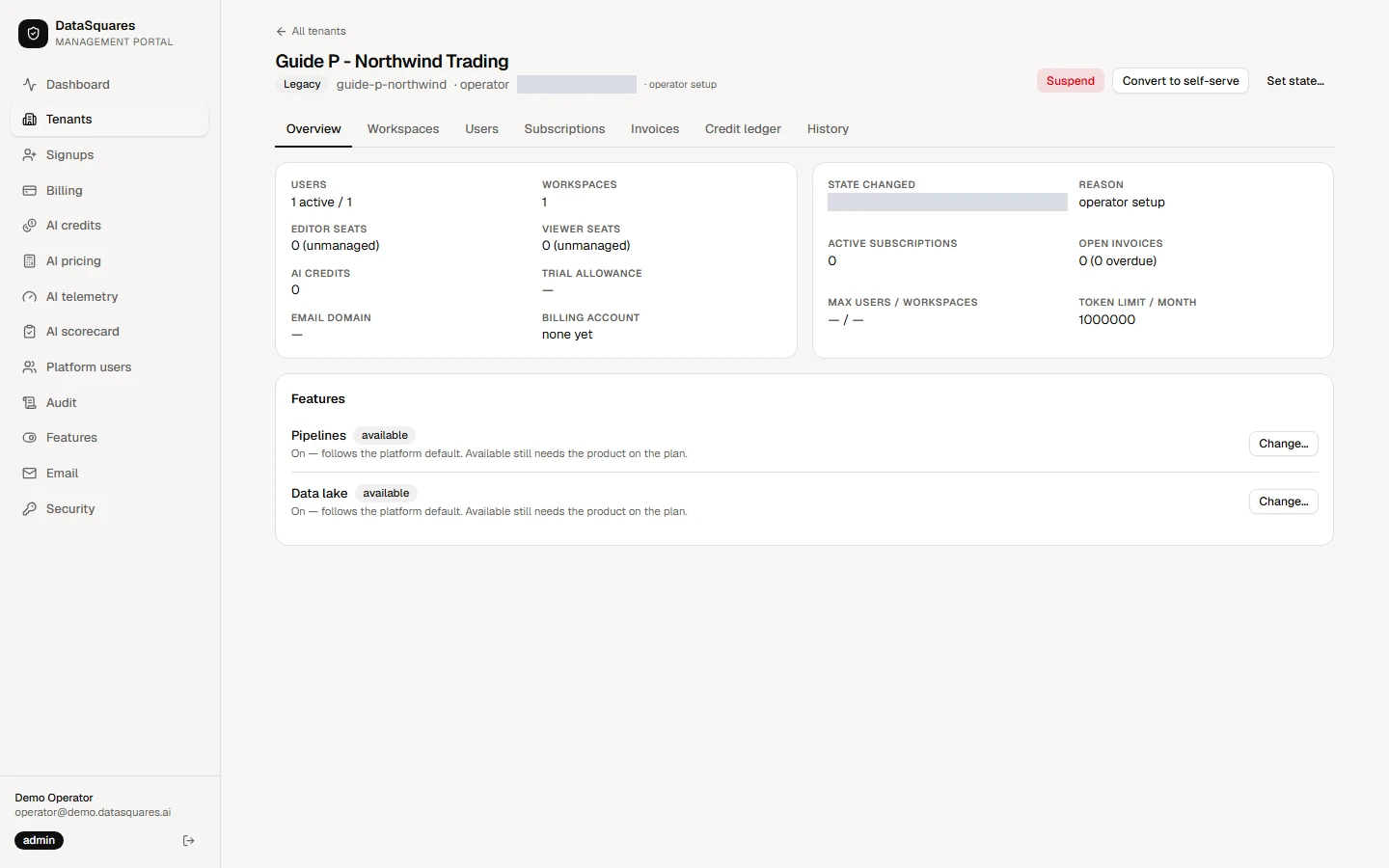
Workspaces lists each workspace with its plan, seats and AI credit balance. Adjust credits sits here, beside the workspace it applies to.
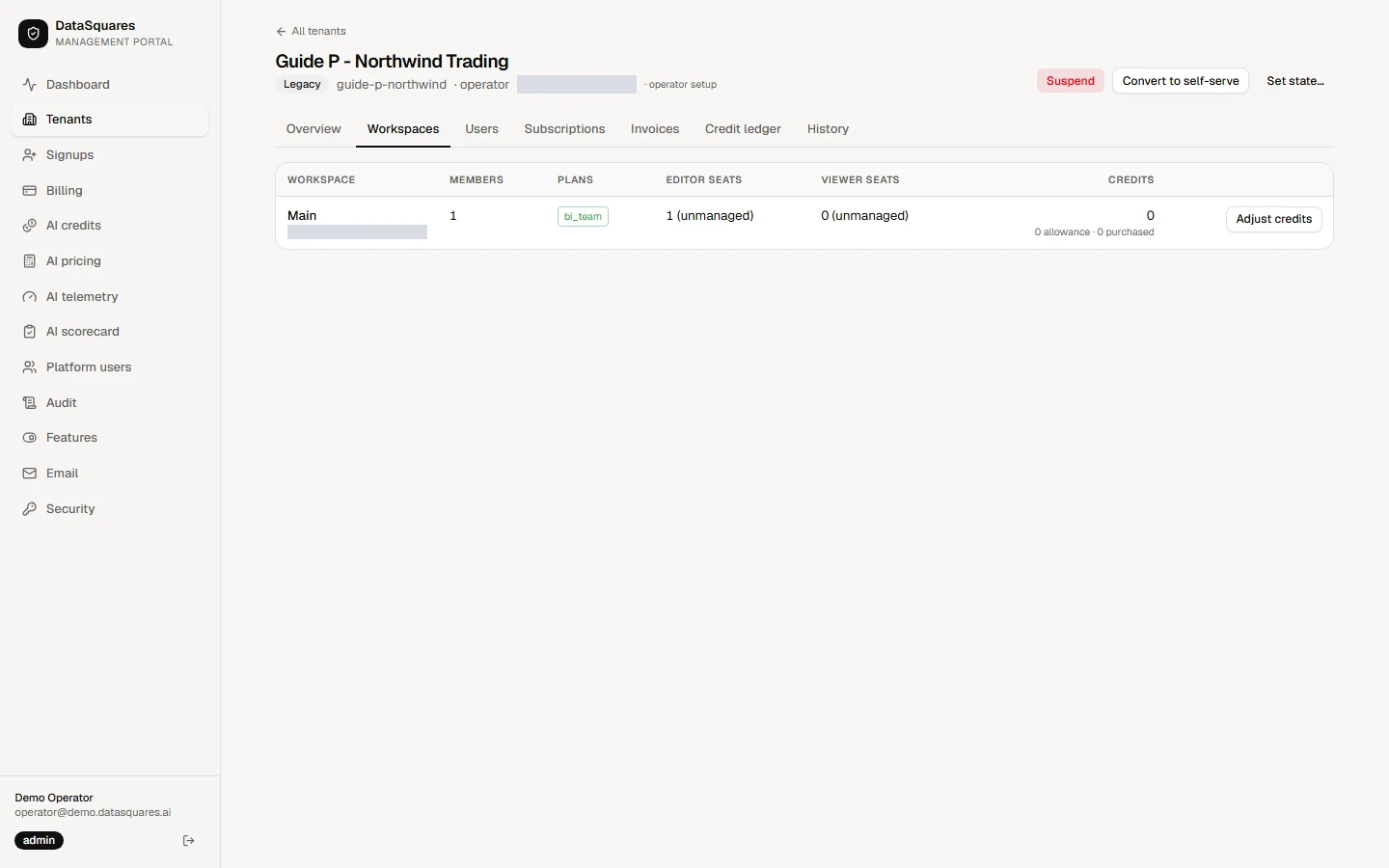
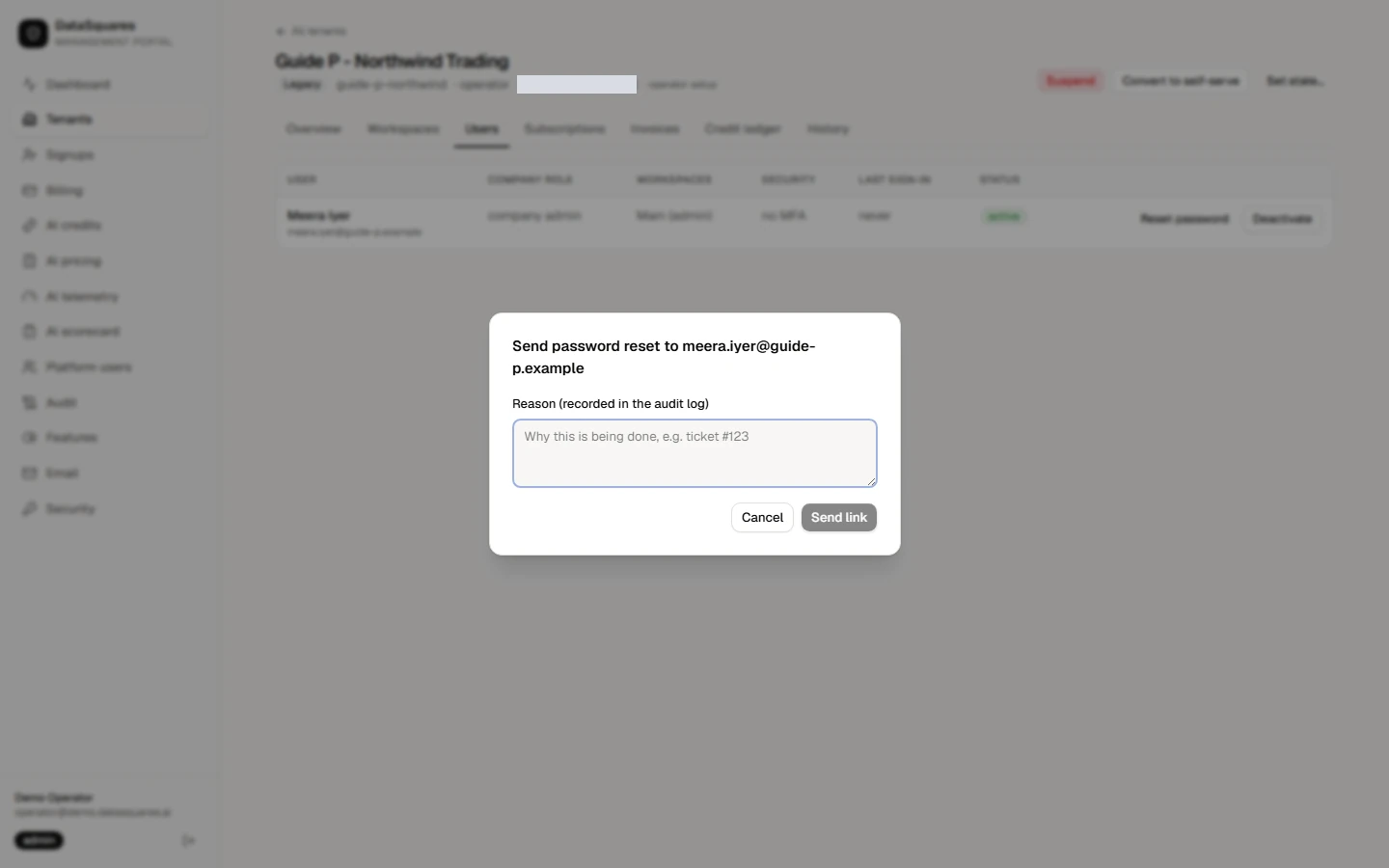
Users lists the tenant's members. Choose Reset password beside a member to send them a reset link, or deactivate a member who should no longer sign in.
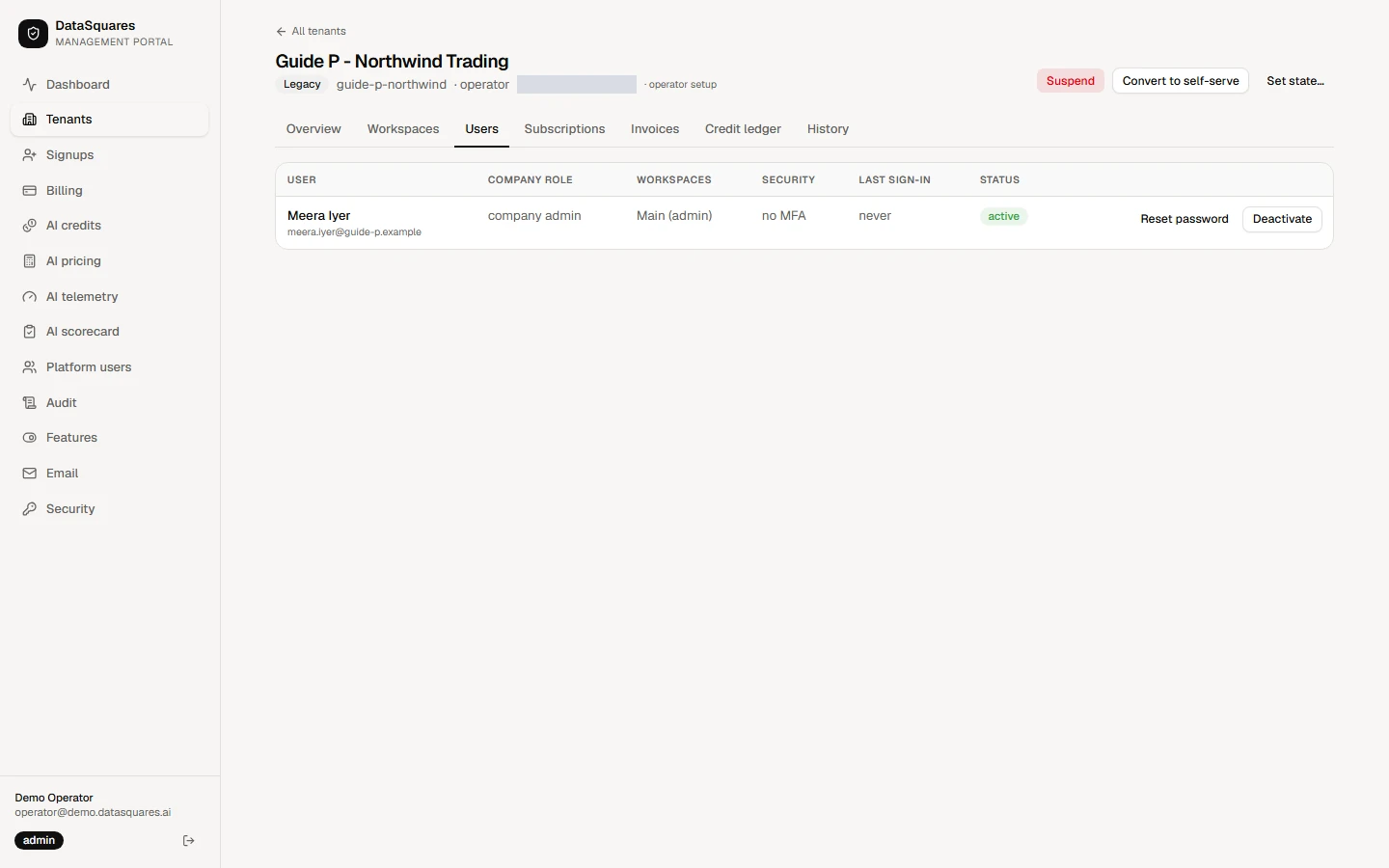
Every change asks for a reason, which is recorded in the audit log. Cancel here unless you mean to send the link.
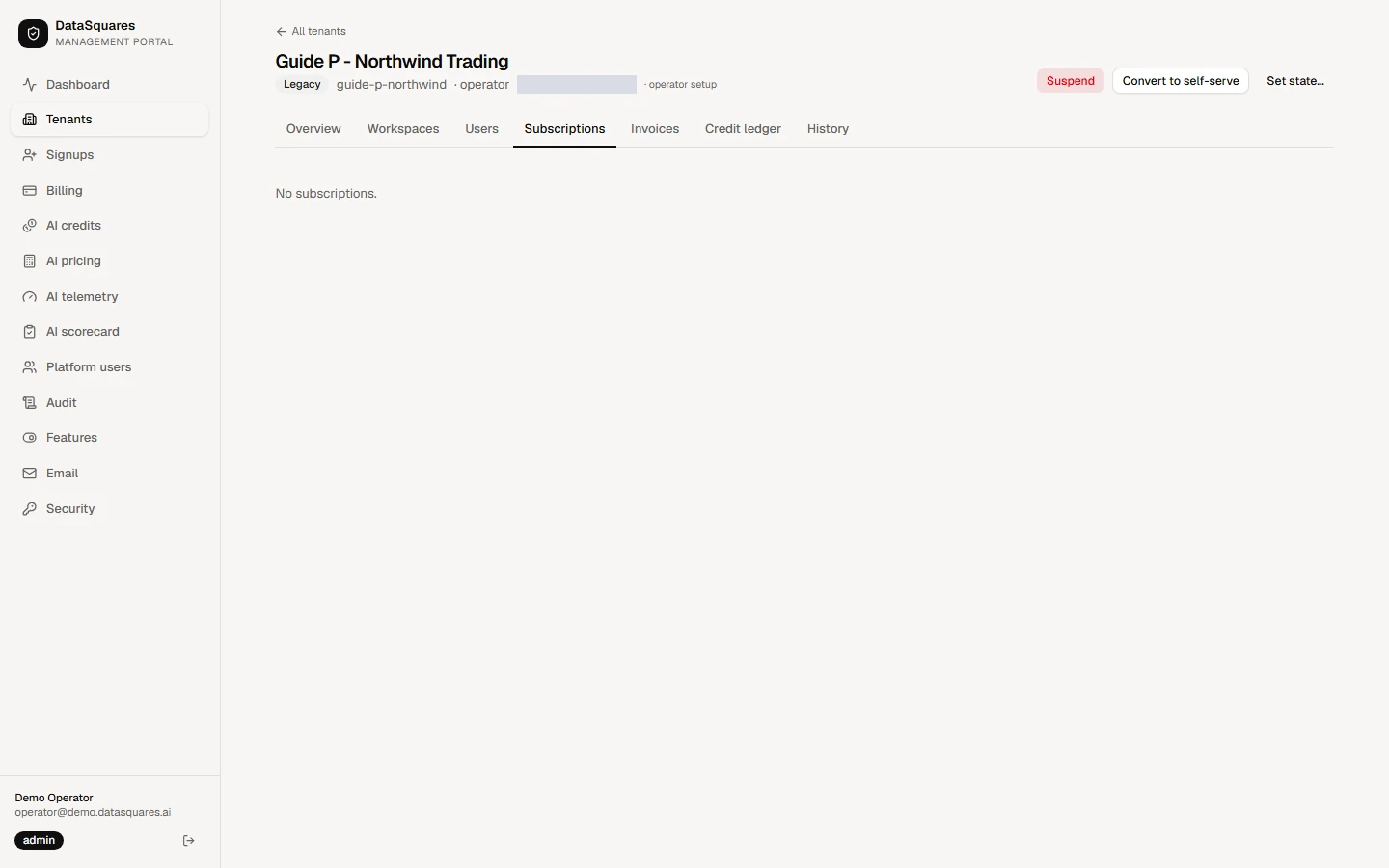
Subscriptions, Invoices and Credit ledger show what the tenant is paying for and how its AI credits have moved. A tenant on a manually granted plan has none of these yet.
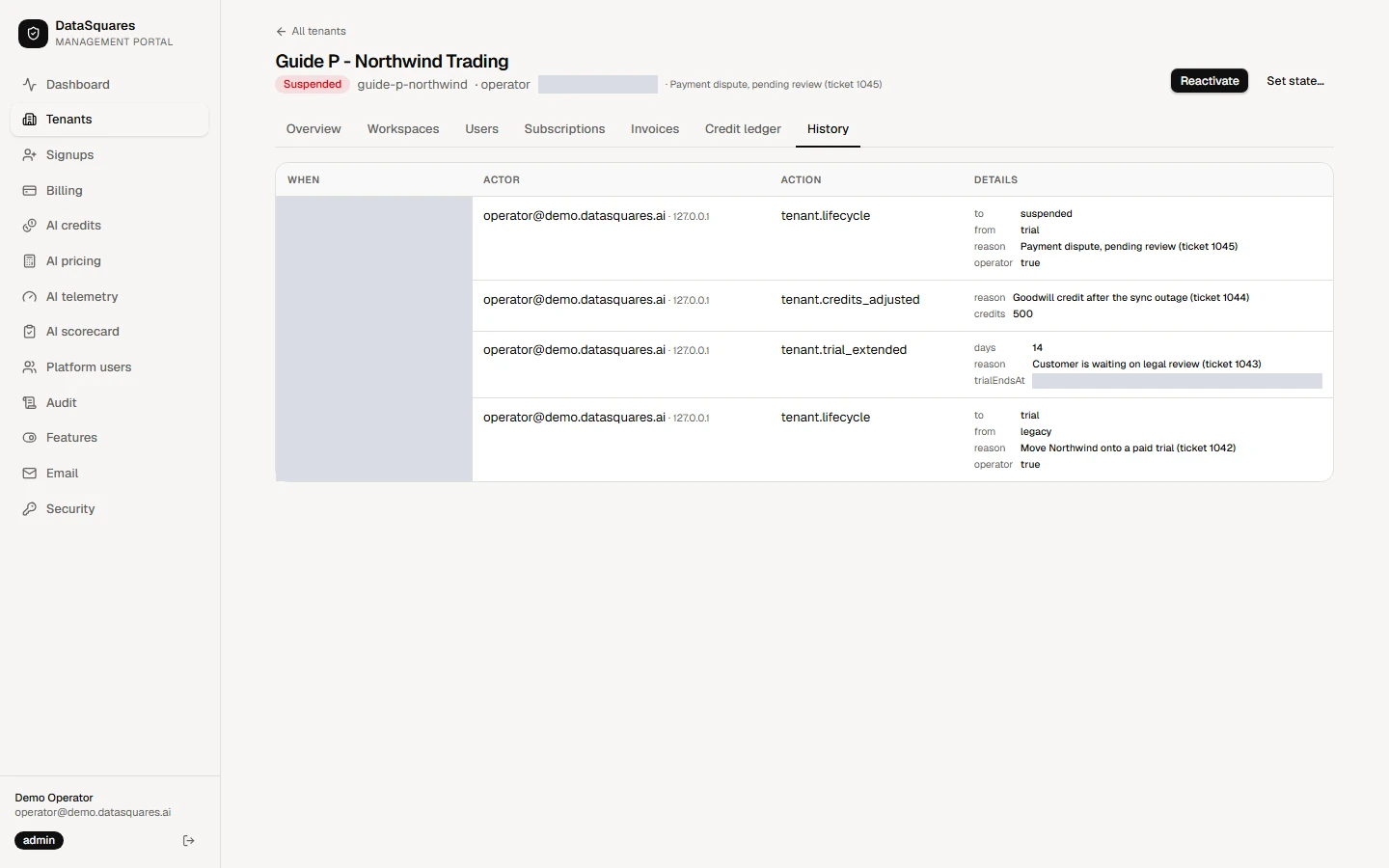
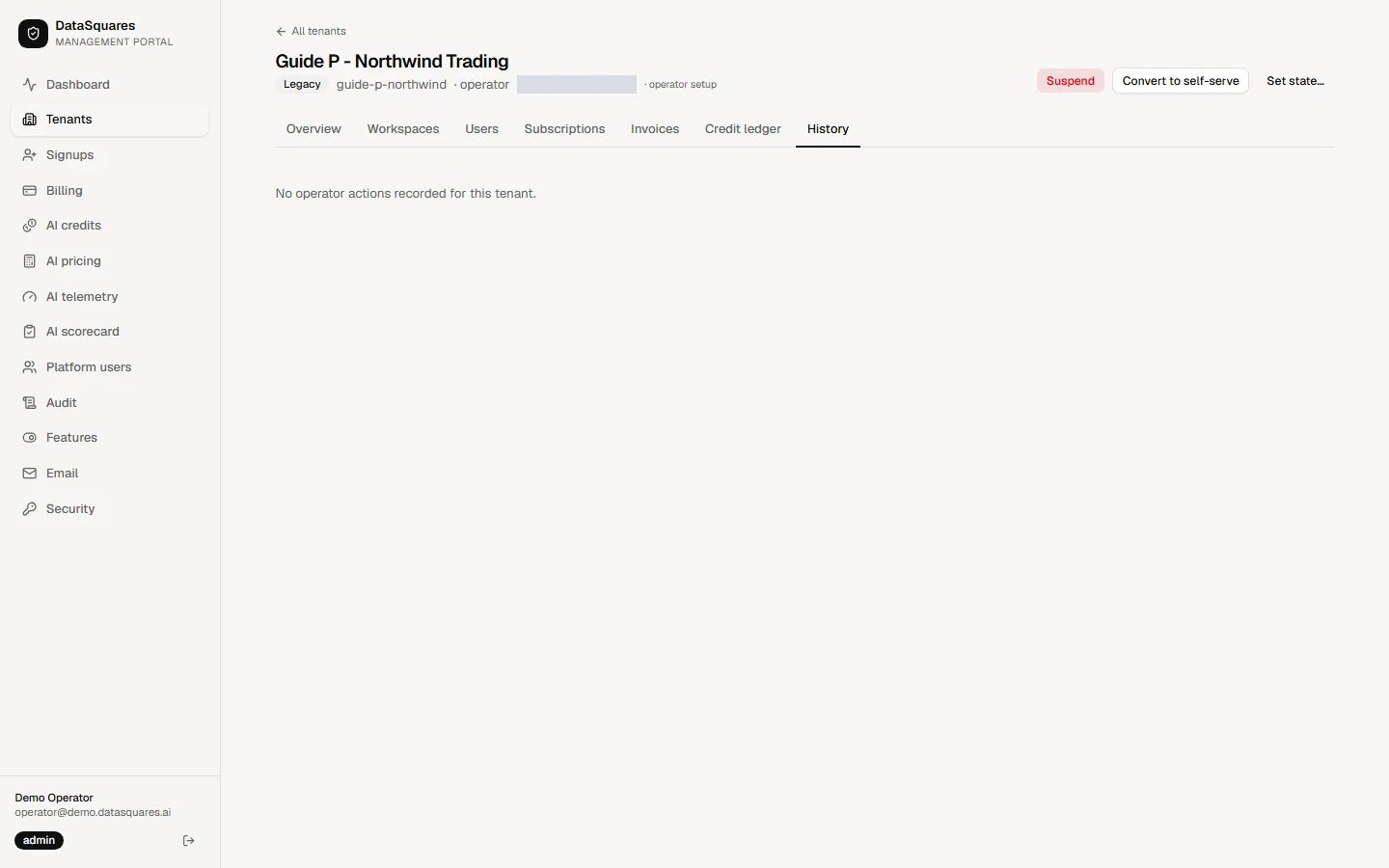
History lists every operator action and automatic lifecycle change for this tenant, newest first.
Suspend, extend, convert and adjust credits
Section titled “Suspend, extend, convert and adjust credits”Each action asks for a reason and lands in the audit log. Suspend, Extend trial and Convert to self-serve change the tenant’s state; Adjust credits changes one workspace’s balance.
On a tenant page the buttons at the top right are the actions you can take: Suspend, Set state, and either Convert to self-serve (for a tenant an operator created) or Extend trial (for a trial).
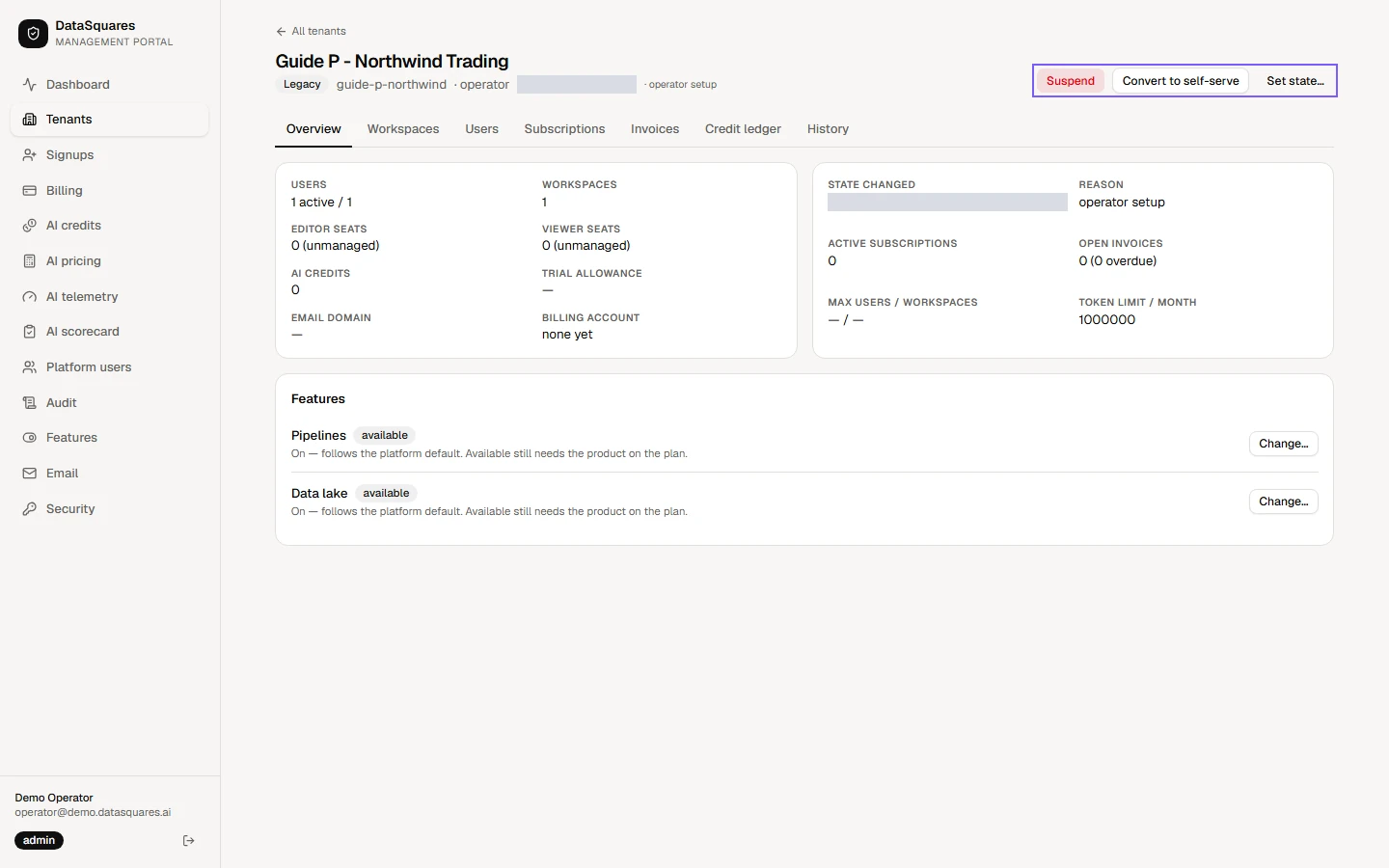
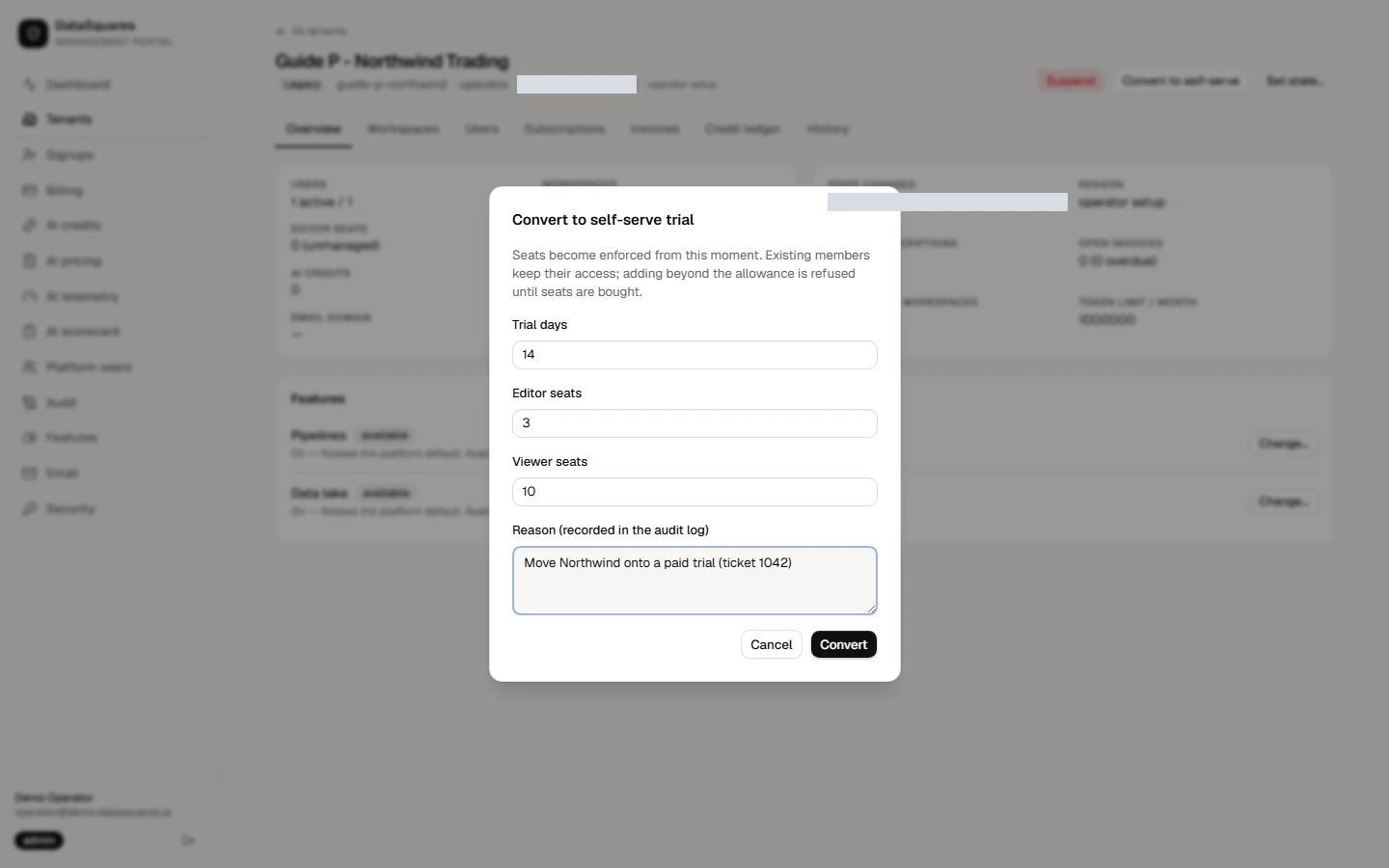
Convert to self-serve moves an operator-created tenant onto billing. Set the trial length and the editor and viewer seats it starts with, give a reason, and confirm. Seats are enforced from that moment.
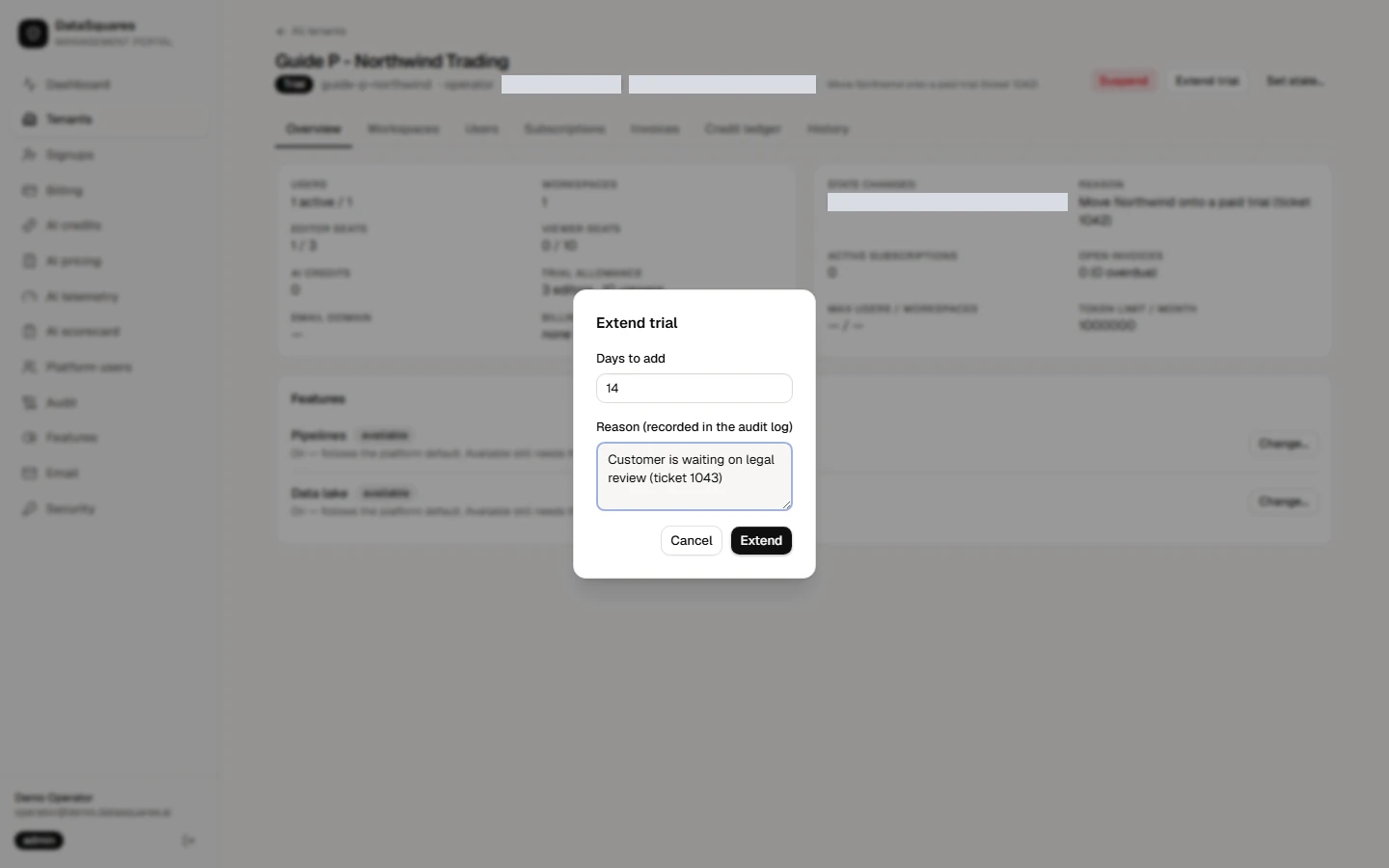
Extend trial adds days to a trial that is running or has just ended. Enter how many days and a reason.
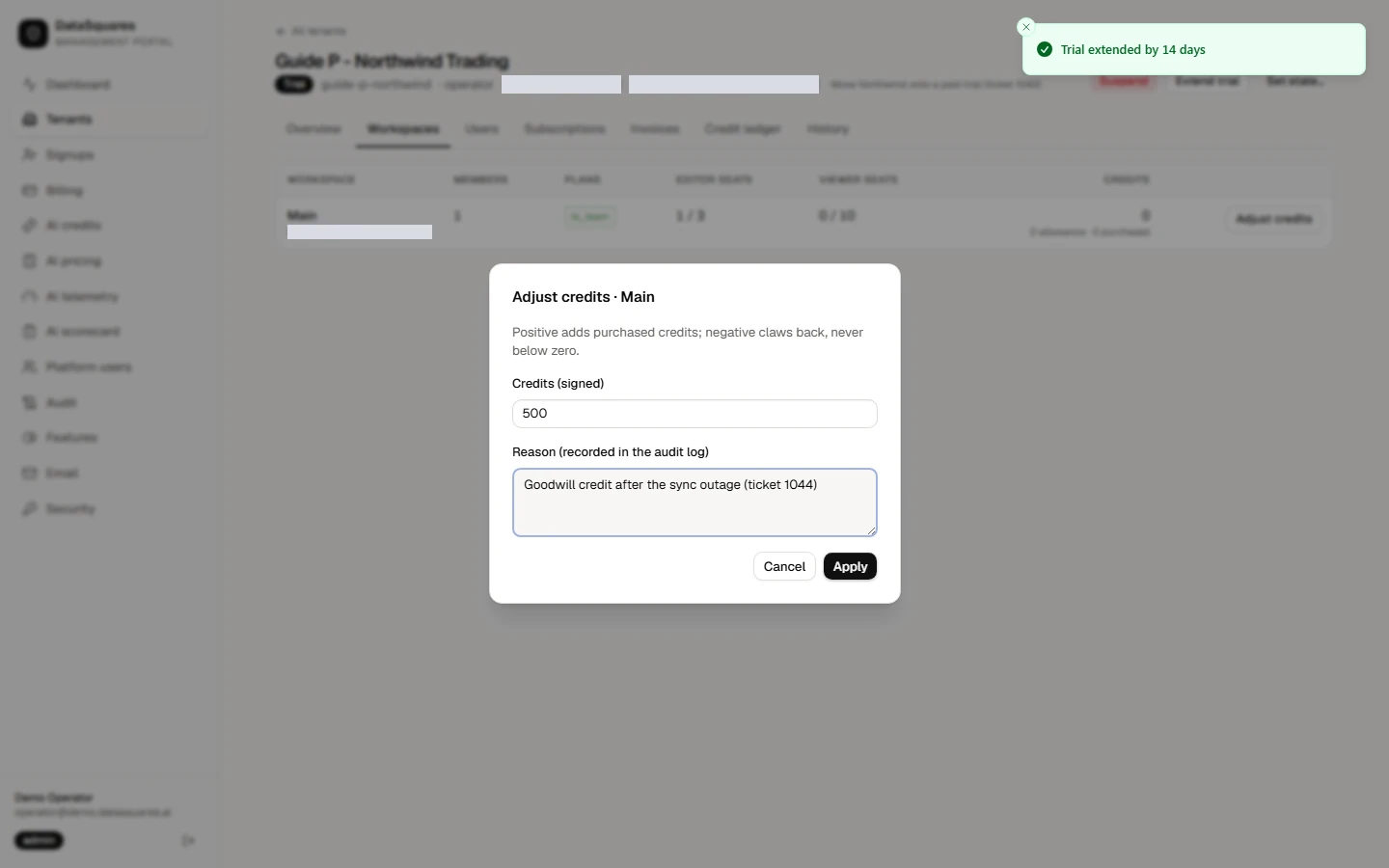
Adjust credits, on the Workspaces tab, adds purchased AI credits to one workspace, or claws them back with a negative number, never below zero. A reason is required.
Suspend refuses every user of the tenant at sign-in until you reactivate it. Their data is kept. Give a reason and confirm.
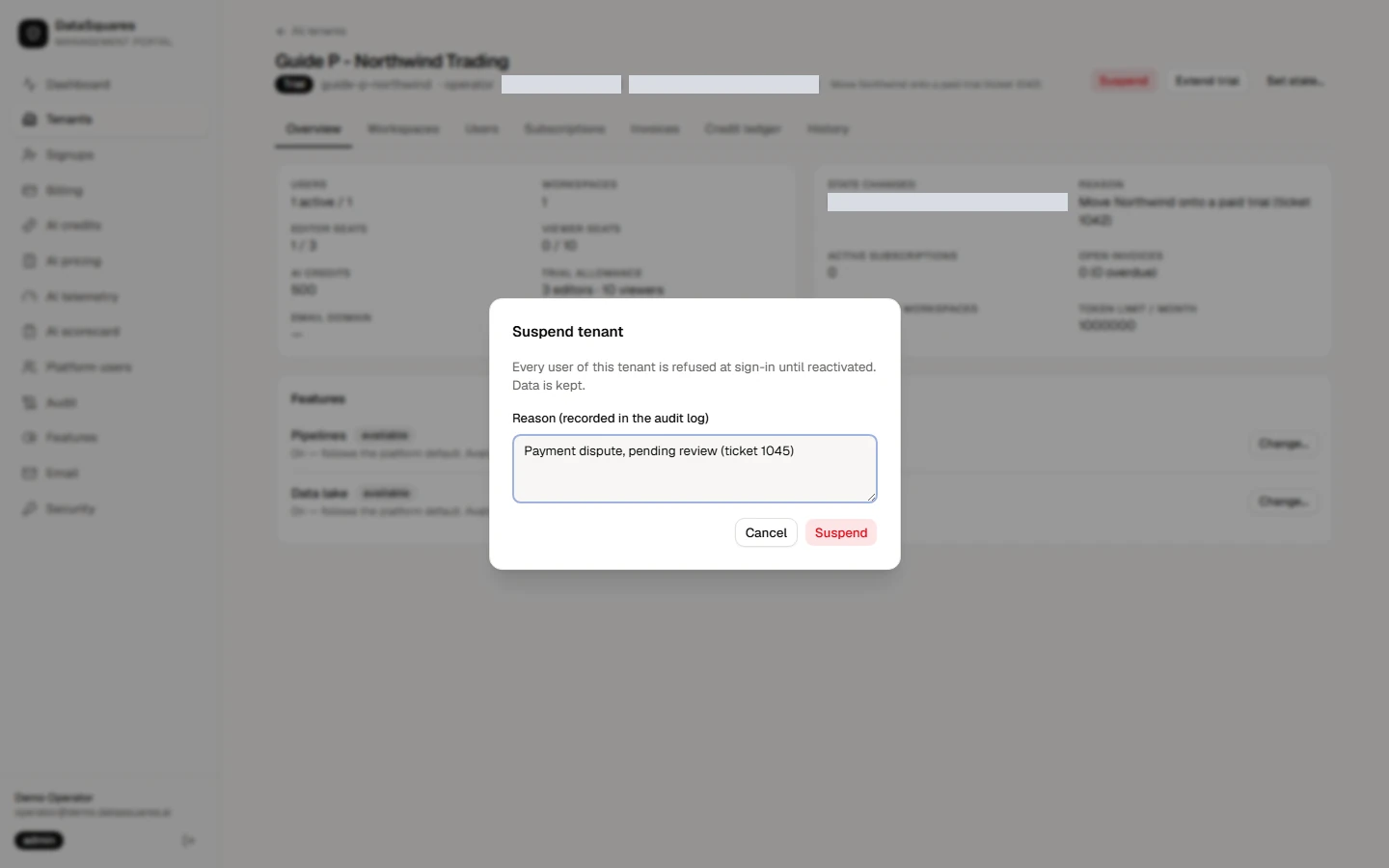
The tenant now reads Suspended and the Suspend button becomes Reactivate, which returns the tenant to the state it left.
Every action lands in the tenant's History tab and in the portal Audit log, with who did it and the reason they gave.