Presentations
Publish and versions
A deck has a draft, which its makers edit, and a published version, which its readers open. Publishing checks the saved draft on the server, makes the next version with its check report, and records the values shown. Until you publish again, readers keep the version they have, whatever happens to the draft.
Publish
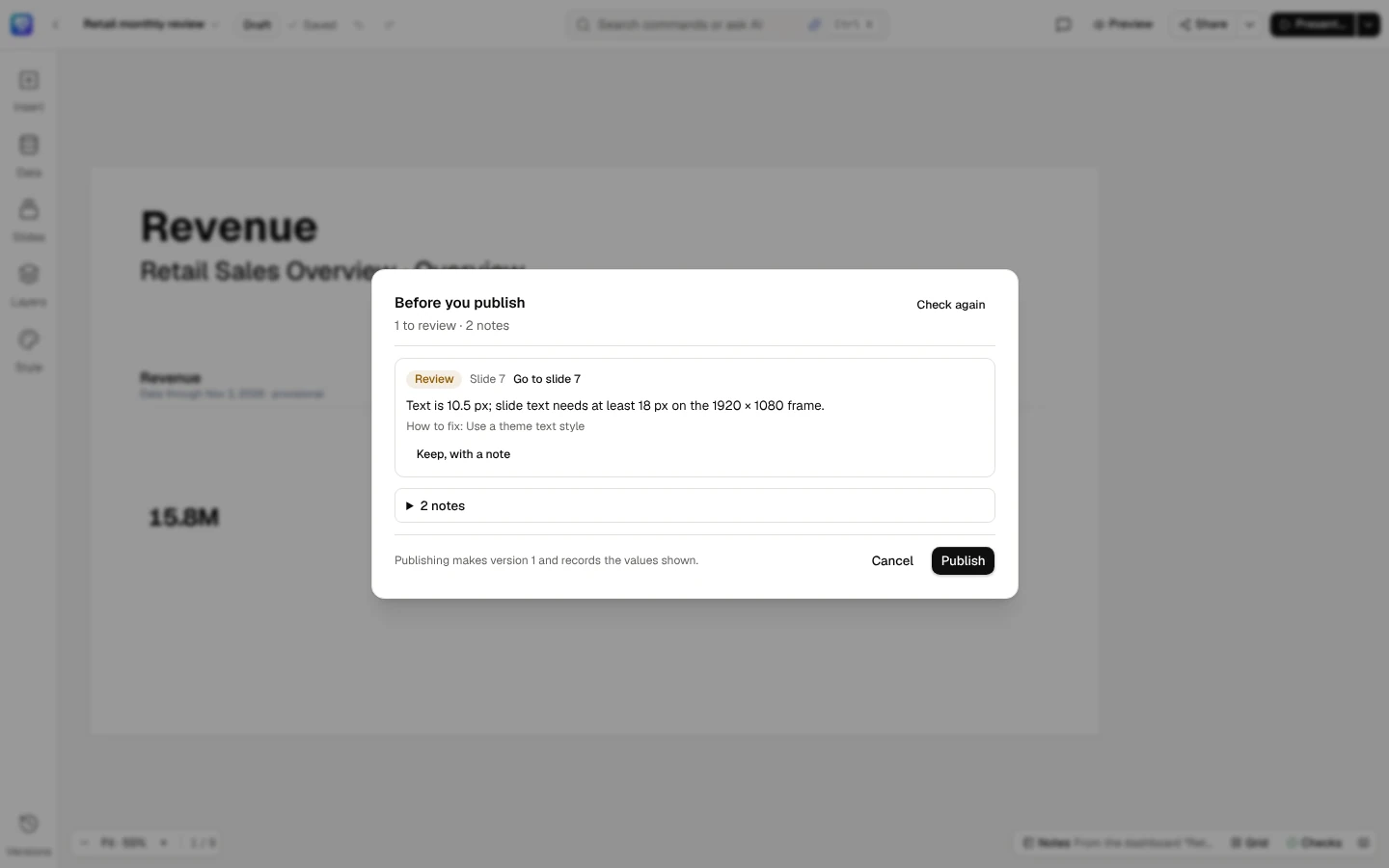
Section titled “Publish”Publish…, first in Share…’s menu in the top bar (its arrow, More sharing actions; editors and the owner), opens Before you publish. It saves what is waiting, then runs every check on the saved draft, reading each figure with your access: Checking every figure as you see it…
- Must fix findings are listed first, each with its slide, what it found, How to fix and Go to slide, which closes the dialog and selects the element. While one is open the dialog says Fix 1 item to publish and Publish stays off. Fix it on the slide (the Checks panel has the one-click fixes), then publish again.
- Review findings can be kept: Keep, with a note, write Why it stays (up to 1,000 characters), Keep. A kept note goes into the version’s check report; Don’t keep takes it back.
- What was Fixed for you is said in one line, and notes fold under their count.
The footer says what publishing does: Publishing makes version 4 and records the values shown. Publish makes it, and the status chip reads Published · version 4. If someone saved the draft while the dialog was open, it checks the new draft again first; the server refuses to publish while a finding that must be fixed is open, and the dialog then shows the findings it refused with.
Each publish writes a record of the values you were shown, under your access.
Publish… opens Before you publish: every check runs on the saved draft. A finding that must be fixed stops publishing until it is fixed; one to review can be kept with a note.
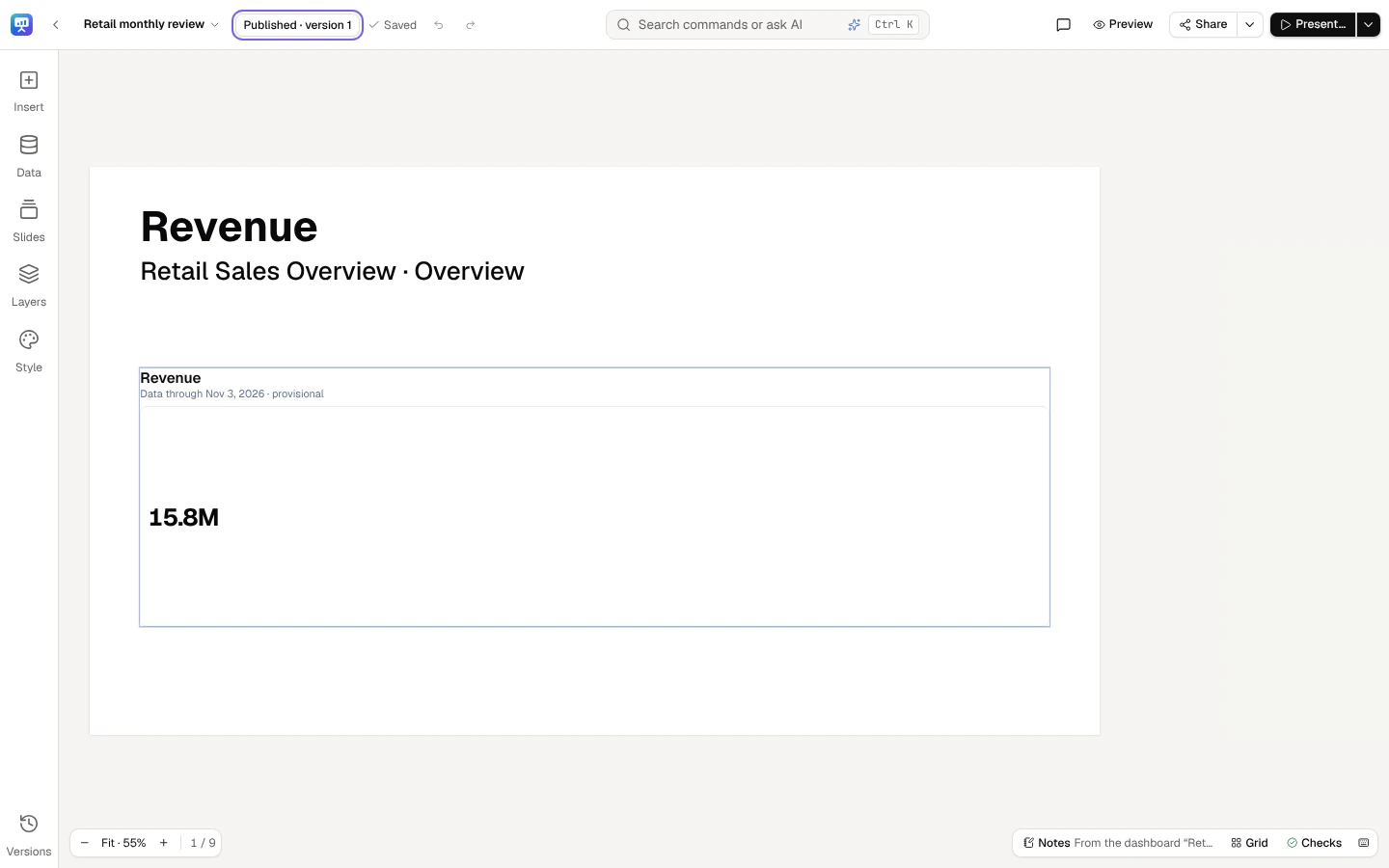
Once published, the status says which version readers see.
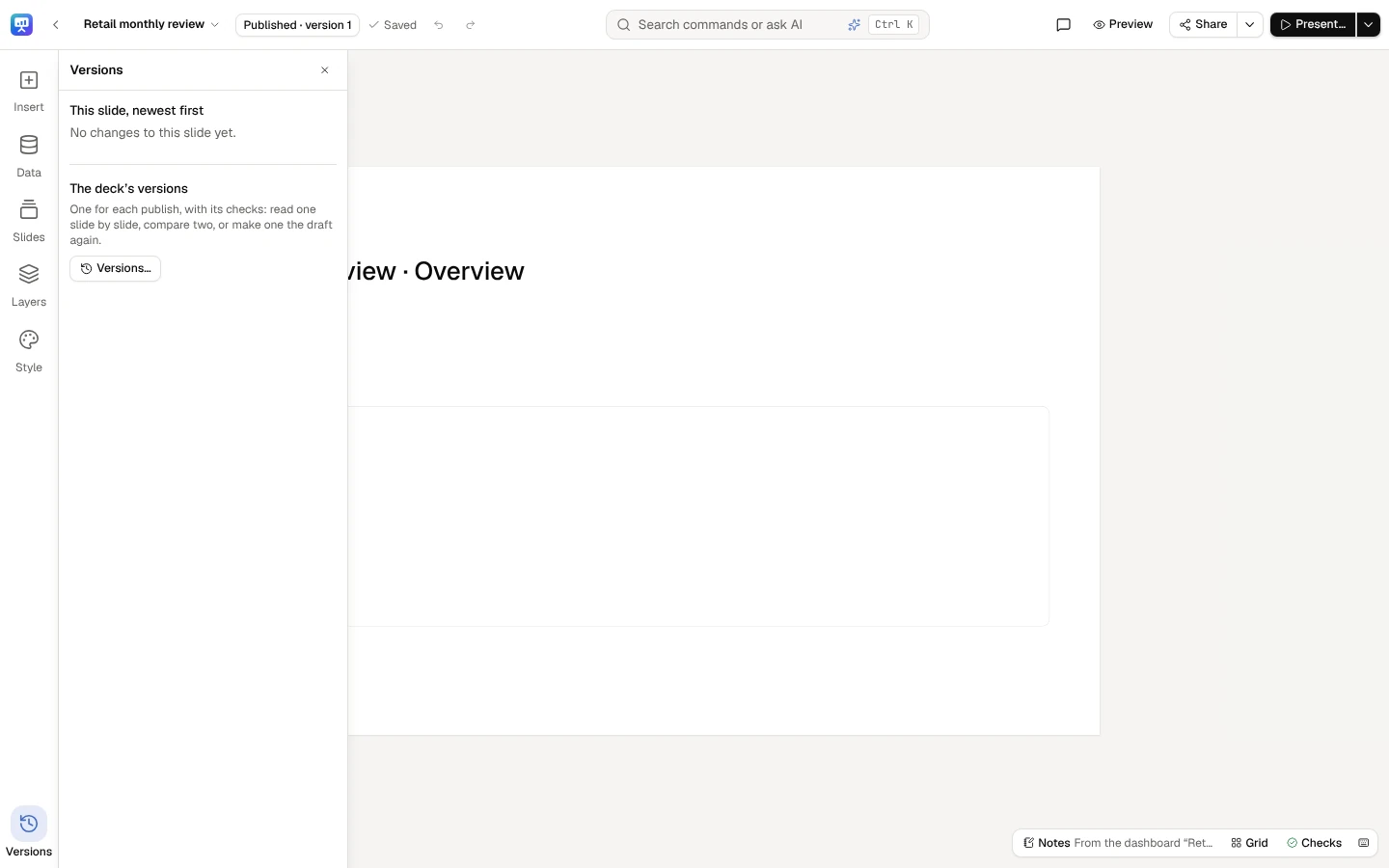
Versions, at the rail’s foot, lists this slide’s changes, newest first; Versions… opens the deck’s versions, one for each publish.
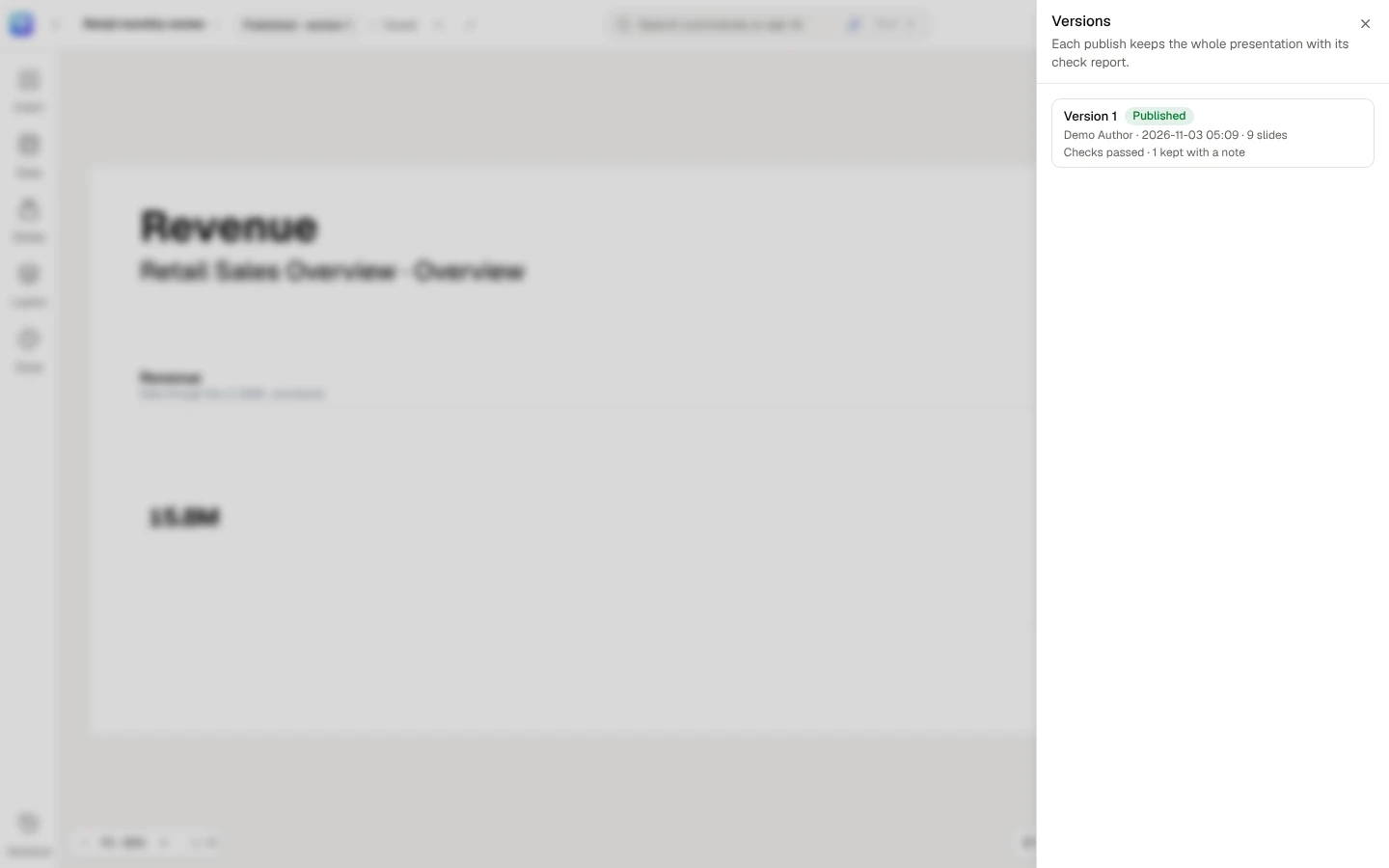
The deck’s versions, each with its checks: read one slide by slide, compare two, or make one the draft again.
Review before publishing
Section titled “Review before publishing”A review is optional: ask for one when a deck should be read by someone else before it reaches its readers.
Ask for review… in Share…’s menu (its arrow, More sharing actions; editors and the owner) opens Ask for review. Find people by name and pick them: a reviewer needs Can contribute or above on the deck. Someone with less is listed and says so (Needs contributor access: share the presentation with them first). Add a note if you like (check the Central numbers before Thursday), then Ask for review. The reviewers are told, in the app and by email as their notification settings say (Settings → Notifications → Presentation work).
While the review is open, a banner under the top bar says where it stands, In review · 1 of 2 approved, who asked and each reviewer’s decision.
- A reviewer chooses Approve (a note is optional) or Ask for changes and says what should change. The person who asked, and the owner, are told who decided what; never the note.
- Whoever asked, and the owner, can Cancel review, or Ask again after changes were asked for. Asking again replaces the round: the reviewers start afresh.
- A review is of the draft as it was when it was asked for. Edit the deck after that, and the banner says The draft changed after the review was asked for (or after it was approved): the reviewers’ decisions no longer stand for it, and a decision can’t be added until it is asked for again.
Publishing waits for the review
Section titled “Publishing waits for the review”While a review is open and not approved for the draft as it is now, Before you publish says so (Review isn’t finished: 1 of 2 reviewers approved., or The draft changed after it was approved. Ask again, or publish anyway.) and Publish waits. The server refuses too, with the same words.
The owner can publish anyway: Publish anyway…, say why (Why publish before the review is finished, 10 to 1,000 characters), then Publish anyway. It is on the record: the review keeps that it was published before it was finished and why, and the deck’s activity and the audit log say so.
Publishing closes the review. Its reviewers and the person who asked are told who published which version, and whether it was before the review was finished.
Edited since publishing
Section titled “Edited since publishing”After a publish, the makers go on editing the draft. The status chip says Edited since publishing once the draft has moved on; readers still open the published version. Publish again when the draft is ready for them.
Versions
Section titled “Versions”Versions…, in Versions at the foot of the rail (contributors, editors and the owner), lists every version, newest first: who made it, when, how many slides, and its checks (Checks passed · 1 kept with a note). The one readers open is marked Published. Choose a version to read it slide by slide, its figures read for you as that version holds them. On a frozen deck, the frozen version is read with its frozen values, as its readers see it.
Compare two versions
Section titled “Compare two versions”Choose a version, then Compare with and another version. The earlier of the two is compared with the later:
- A line says what changed: 2 slides changed · 1 added · 1 removed · 1 moved.
- Changed slides lists each slide that changed, with what changed in words: Words changed · 1 element moved · speaker notes changed, Added, Removed, Moved from slide 3. An element can be added, removed, moved (its place or its layer), resized, restyled, bound to other data, or have its words changed. That the speaker notes changed is said, never their words.
- Choose a slide to see it in both versions side by side, each drawn with its figures read for you as that version holds them, with the changed elements outlined. The words that changed are shown below, struck through and underlined; a live number in them is shown as [number], never the value it was written with.
- Published values lists each figure whose published value changed between the two, from the records publishing wrote: Revenue · Sep 2026 · slide 2: $4.81M → $4.90M. Values are compared unrounded, so a figure whose rounded display didn’t move can still be listed. A chart or a table is compared whole, every row and value, and listed with its number of rows: Revenue by region · slide 3: 2 rows · values changed.
Published values are shown only to the deck’s owner and editors, and only while their own access is the access that read both records. Anyone else is told why, and a version that holds no record of its values (the draft kept before a restore) says so.
Restore (editors and the owner) makes a version’s slides the draft again. Your current draft is kept as a version first, so restoring is never a one-way door; the toast names both (Restored version 2. Your draft was kept as version 5.). Readers keep the published version until you publish again.
Who reads the published deck
Section titled “Who reads the published deck”The deck’s owner chooses it in Share, under Who reads it once published:
- Everyone in the workspace who can view Presentations — they read it and comment on it; the people it is shared with get what their role there says.
- Only the people it is shared with — nobody else reads it, whatever their workspace role.
A deck that has never been published, or is archived, is open only to its owner, admins, and the contributors and editors it is shared with: its figures have not passed the checks. See Share and comment.
Freeze for a meeting
Section titled “Freeze for a meeting”A published deck is live: each reader is shown every figure as it is now, read with their own access, and each publish and each presentation records what was shown. Before a meeting, its editors and owner can keep the published version’s values as they are now, so the deck says the same numbers on the day as when it was prepared.
Freeze for the meeting… in Present…’s arrow (More presenting actions; editors and the owner, on a published deck) opens Freeze for a meeting. It says what freezing does: The values on every slide stay as they are now, for readers whose access is the same as yours. Others see live values and are told so. Records of what was shown are kept either way. Name the meeting if you like (up to 200 characters; readers see it beside when the values were frozen) and choose Freeze. Every figure of the published version, on every slide and in the speaker notes, is read with your access and kept exactly as you were shown it.
Nothing is frozen while a figure can’t be kept as it is: it has no value for you, its source failed and it shows only its last value, or it was cut short by a row limit or a timeout. The dialog lists each one with where it is (Slide 2 · KPI tile) and why. Fix them and freeze again, or choose Freeze anyway, keep these live: those figures stay live and say so, and every other figure is frozen.
The status chip then says when and for which meeting, Frozen 5 Oct 2026, 18:00 · Board meeting, and the deck’s card on the Presentations home says Frozen 5 Oct. The draft is always read live: freezing keeps the published version.
Who sees the frozen values
Section titled “Who sees the frozen values”The frozen values are shown to readers whose access is the same as yours was when you froze the deck: the same row security and the same masking, for every frozen figure. Access is compared, never the person, so a colleague with the same access sees the frozen values. Anyone whose access differs, for example narrower row security or a masked field, is shown live values read with their own access, and the deck tells them so in one line: Live values: this presentation was frozen with access different from yours. It is all or nothing for the deck, and a frozen value is never shown to someone whose access is not the one it was read with.
A frozen figure’s details, and Sources in the presenter window, say Frozen 5 Oct 2026, 18:00. Presenting the frozen version shows a presenter whose access matches the frozen values, and the presenter window says Frozen; the record of each slide holds the values shown, with when they were frozen. Anyone else presents live values, which are recorded as usual.
What changed, and exports, of a frozen deck
Section titled “What changed, and exports, of a frozen deck”What changed compares a frozen deck’s live values with the values it was frozen with, for readers whose access is the access that froze them; anyone else compares it with a record they may read. An export of the frozen version draws the frozen values for the same readers, and its stamp says Frozen 5 Oct 2026 for Board meeting; anyone else’s export draws live values and says so.
Publishing a frozen deck
Section titled “Publishing a frozen deck”A frozen deck’s values belong to its frozen version, so a new version can’t be published while it is frozen. Publish says so instead of running the checks: Frozen for Board meeting: go back to live to publish. (The server refuses too: This presentation is frozen for Board meeting. Go back to live before publishing a new version: its frozen values belong to version 6.) A copy for next period, and a deck started from a template saved from it, start live.
Go back to live
Section titled “Go back to live”Back to live… in Present…’s arrow (More presenting actions; editors and the owner) asks first: Every reader sees live values again. The frozen values are deleted; the records of what was shown are kept. Then the deck is live, and you can publish again.
A frozen deck that is deleted and then restored from the bin comes back as a live draft, as every published deck does: its frozen values are deleted, and its records are kept.
Freezing is a workspace setting
Section titled “Freezing is a workspace setting”You can freeze a deck only where a workspace admin has turned on Frozen stories and presentations (Admin → Workspaces → Edit), the same switch as for frozen stories. While it is off, Freeze for a meeting says so and freezes nothing. Turning it off returns every frozen deck in the workspace to live and deletes its frozen values; no record of what was shown is deleted. See Workspace settings.