Start a free trial
On the hosted service you can create a workspace yourself. No card, no sales call: verify your email and you are in, with a 14-day trial of the BI Team plan for you and a small team.
-
Open the signup page. Go to app.datasquares.ai/signup or choose Create an account on the sign-in page. Enter your name, your email, your company or team name, a password and your billing currency (INR or USD — this is only used when you later buy a plan; when you do, your billing country decides it: India in INR, every other country in USD).
-
Verify your email. We send a single-use link that works for 24 hours. Click it and DataSquares creates your company, a workspace called Main, and signs you in as its administrator. If nothing arrives, check spam, then use Re-send link on the page you left open.
-
Bring your data. The onboarding wizard connects your first database or accepts a CSV or Excel file. From there the Quickstart takes you to a shared dashboard.
-
Invite your team. Under Administration → Users send invites. The trial includes 3 editor seats and 10 viewer seats; the counts are shown next to the member list, and an invite that would exceed them is refused at acceptance with a clear message rather than silently.
-
Choose a plan when you are ready. The banner at the top of the app counts down the trial. Administration → Billing → Plans lets you buy editor and viewer seats or a workspace product; payment is through Razorpay and your workspace is activated the moment the payment is confirmed.
Walkthrough: the two form steps
Section titled “Walkthrough: the two form steps”The pictures show the two sign-up steps. The verification email that follows is described in the last caption.
Open the sign-up page. Step 1 asks for your work email, a password and your agreement to the terms.
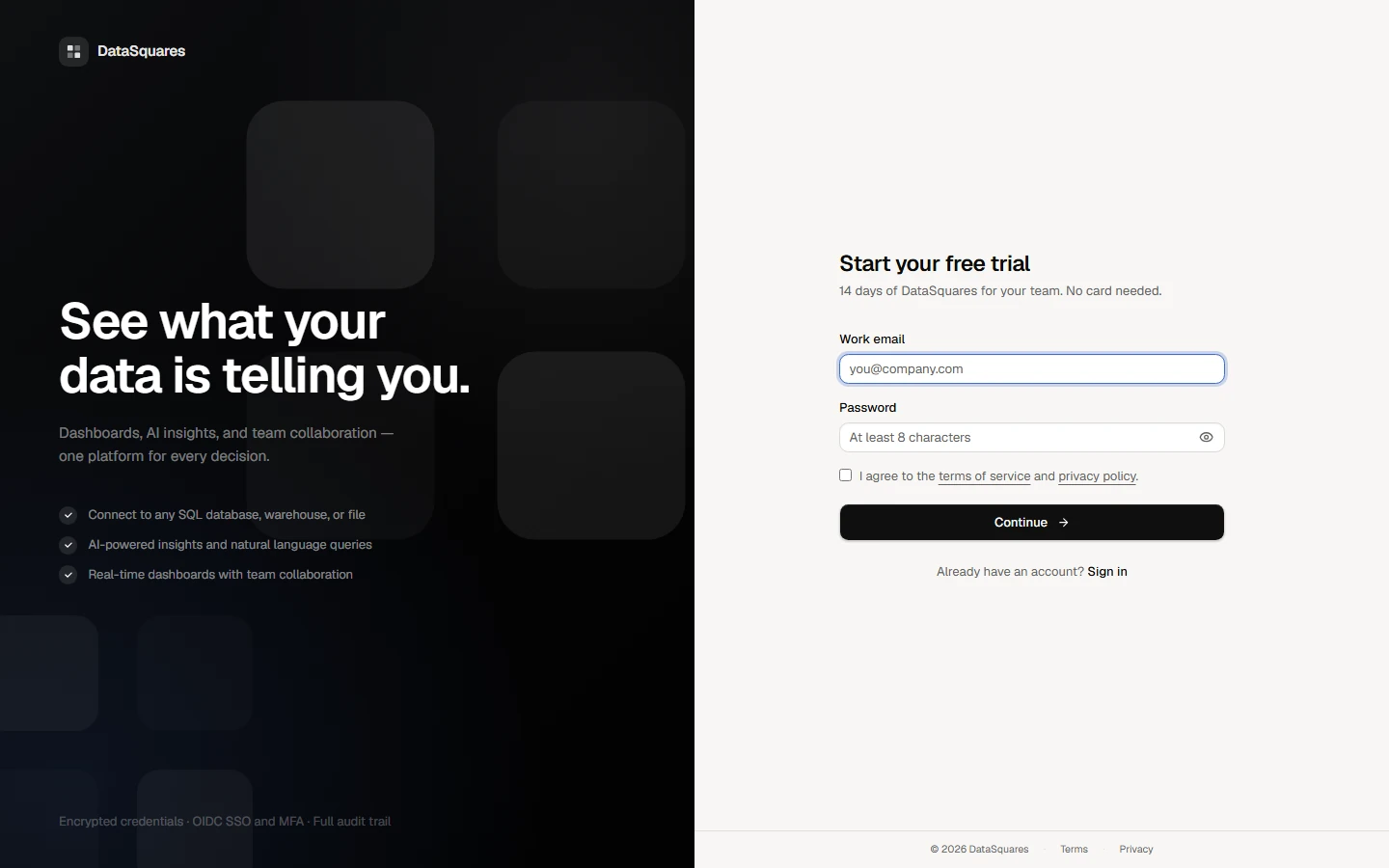
Fill in the email and a password of at least 8 characters, tick the terms, and choose Continue. The password field is masked.
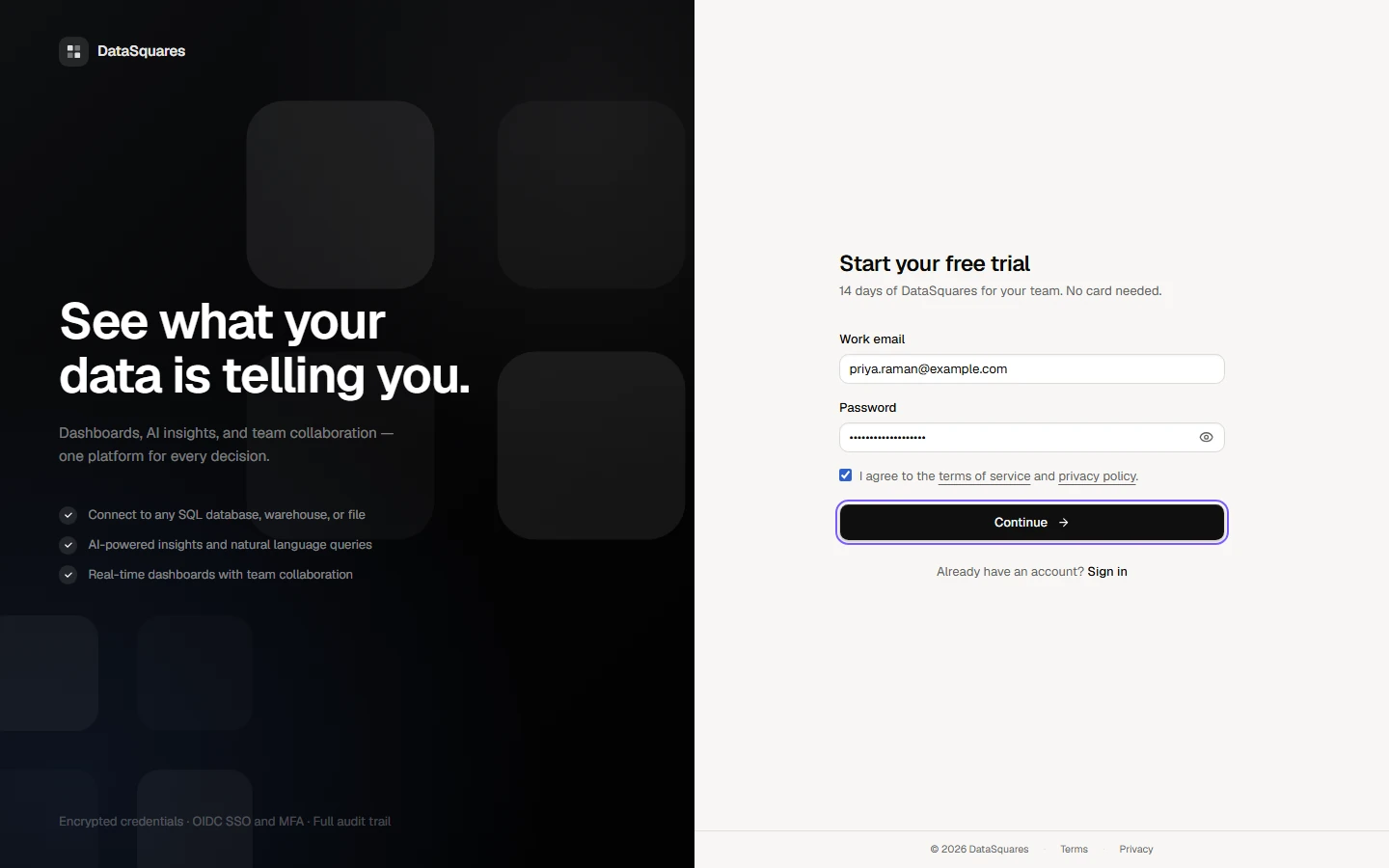
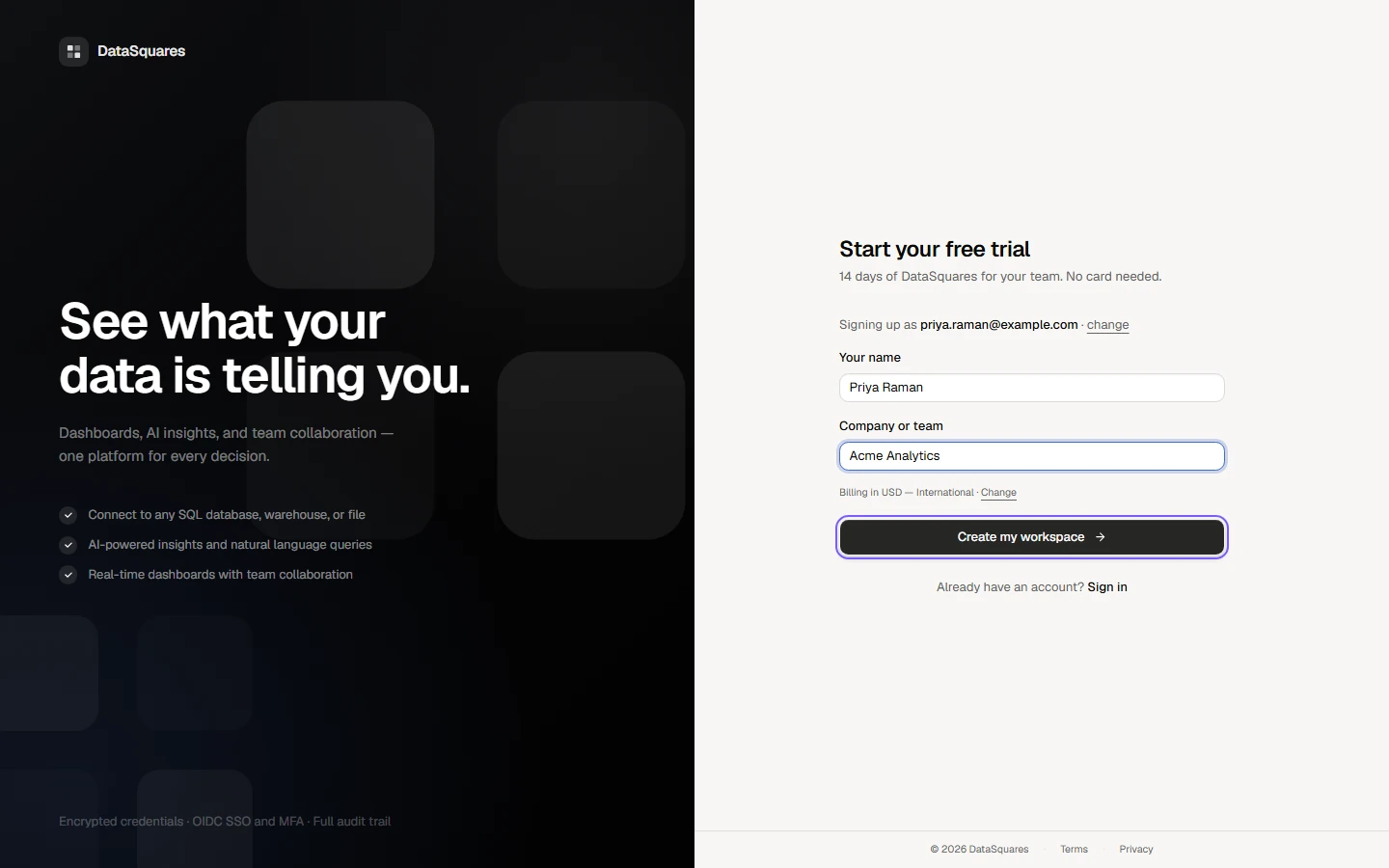
Step 2 asks for your name and your company or team, and says which account it is creating, with a way back. The billing currency is one line with Change: India defaults to INR with GST, everywhere else to USD. Choose Create my workspace: the page then says Check your email and DataSquares emails a verification link that works once. The trial starts when you open it; Re-send link asks for a new one if nothing arrives.
Joining by invitation
Section titled “Joining by invitation”The /register page explains that a workspace is joined by invitation, and points to sign-in or to the invitation link you were sent.
Open
/register. Registration is by invitation: choose Sign in to your account if you already have one, or Accept invitation if you were sent an invite link.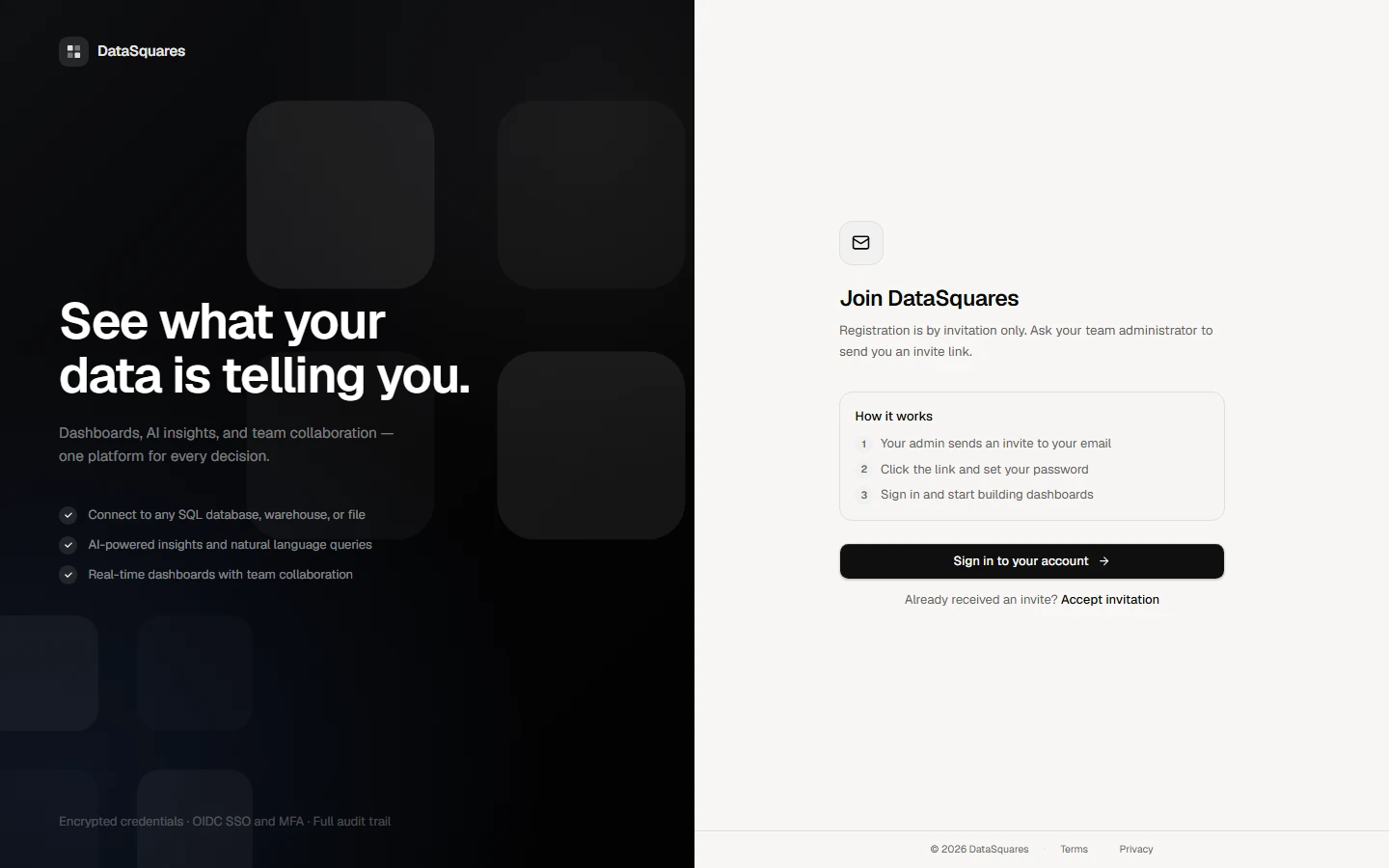
What happens when the trial ends
Section titled “What happens when the trial ends”Nothing is deleted and nothing is charged. Authoring features close until a plan is chosen; dashboards stay readable, and the billing pages stay open so an administrator can buy seats and pick up exactly where the team left off.
Email addresses
Section titled “Email addresses”Any mailbox that can receive email works. Disposable addresses are not accepted. If you sign up with a personal mailbox, you can still invite colleagues from any domain.
Already have an account?
Section titled “Already have an account?”Signing up with an address that already belongs to an account does not create a second one — we email a reminder with a sign-in link and a password reset instead.
Forgot your password?
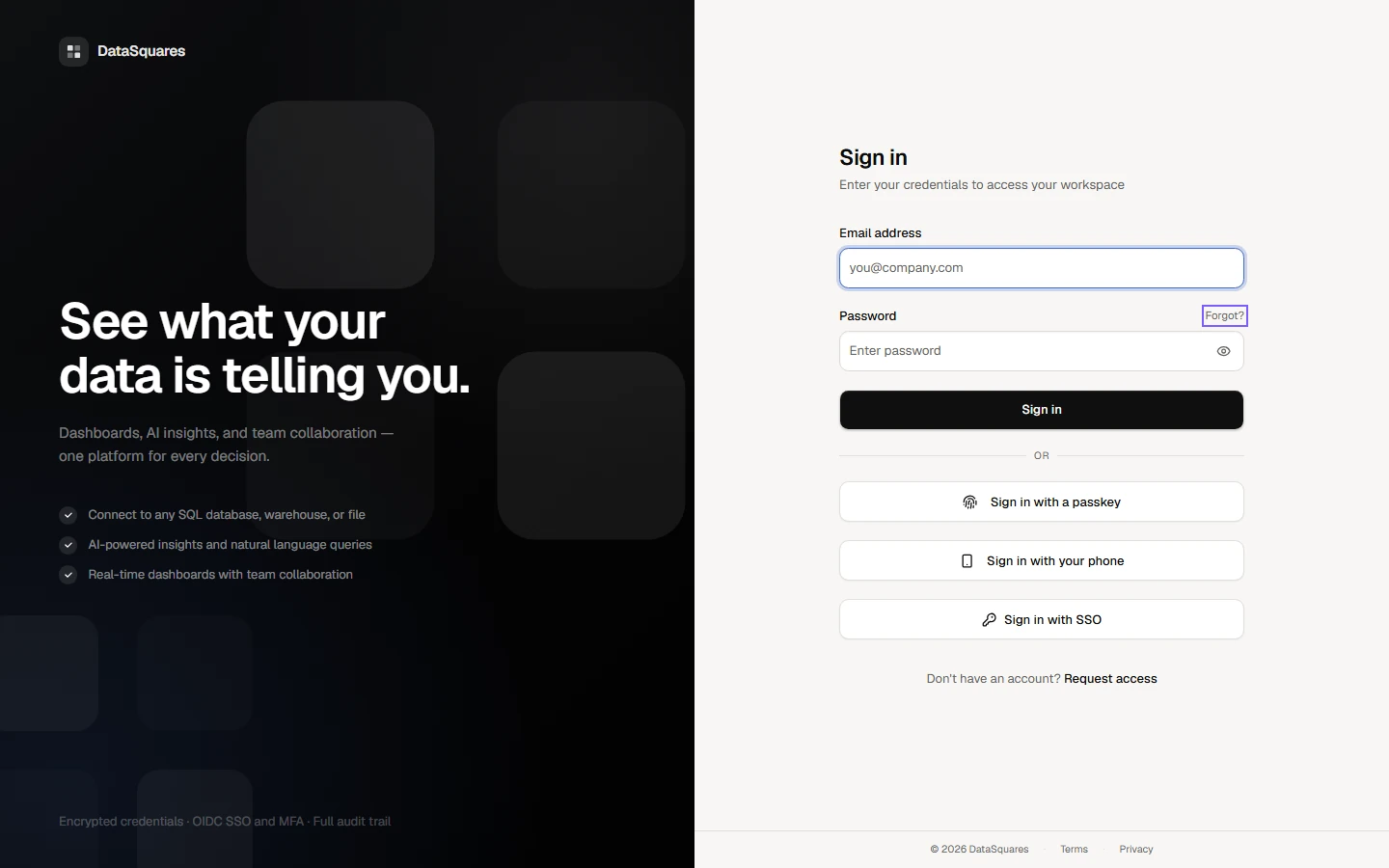
Section titled “Forgot your password?”Choose Forgot? on the sign-in page and enter your email address. The page answers the same way whether or not an account exists for it.
On the sign-in page, choose Forgot? next to the password.
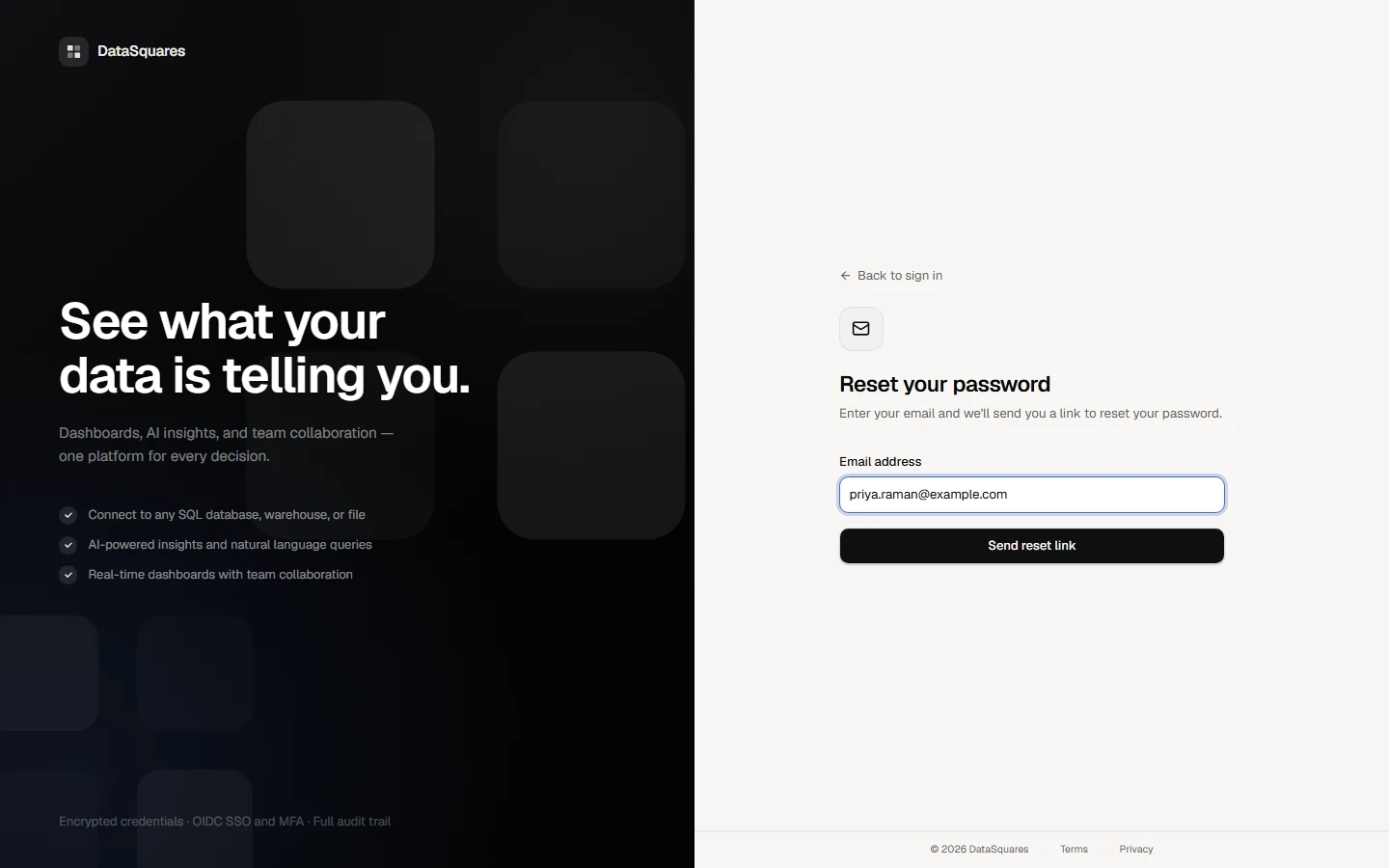
Type the email address you sign in with and choose Send reset link.
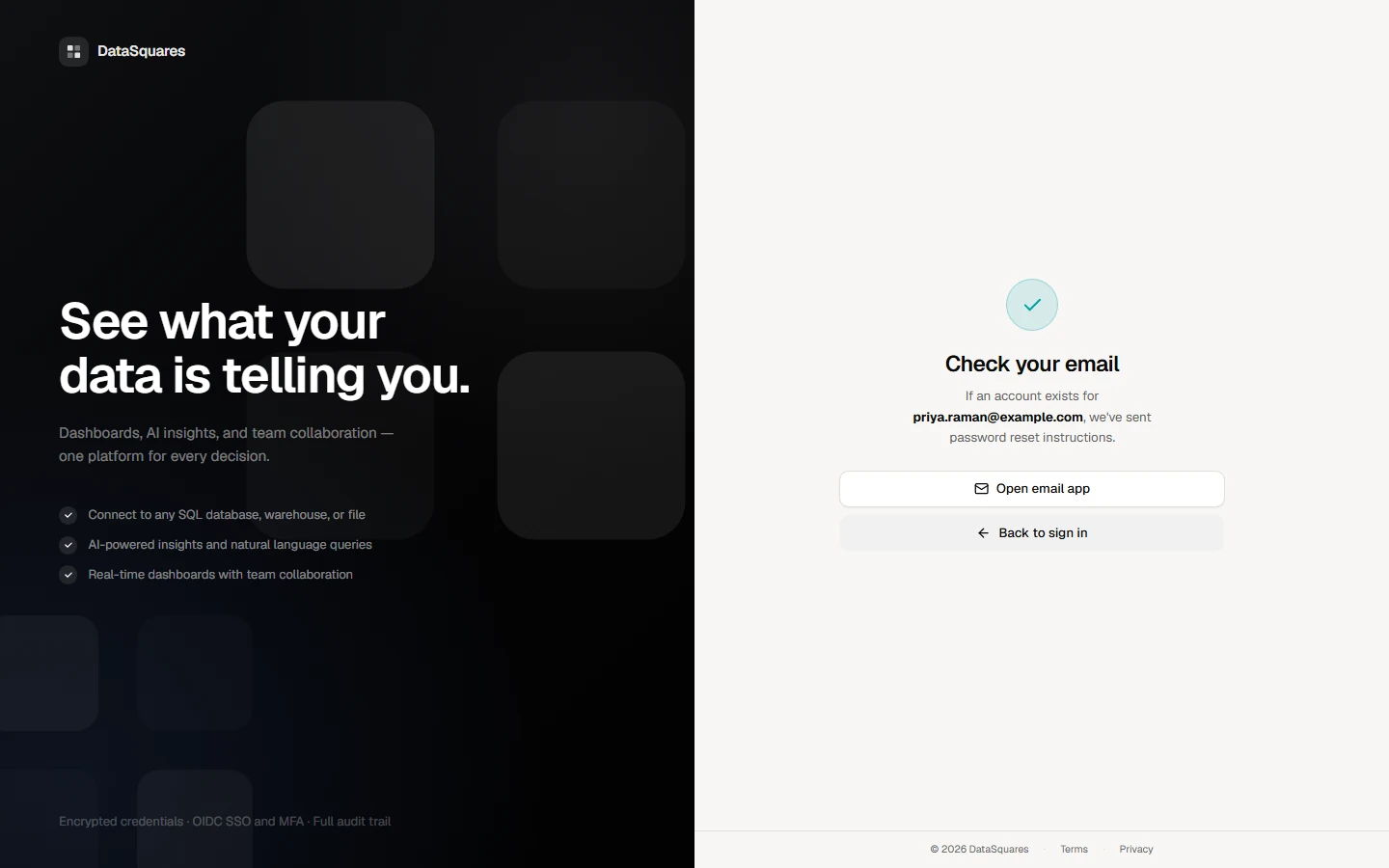
The page says Check your email. It gives the same answer whether or not an account exists for that address, so it never reveals who has an account. When an account exists, DataSquares emails the reset link.
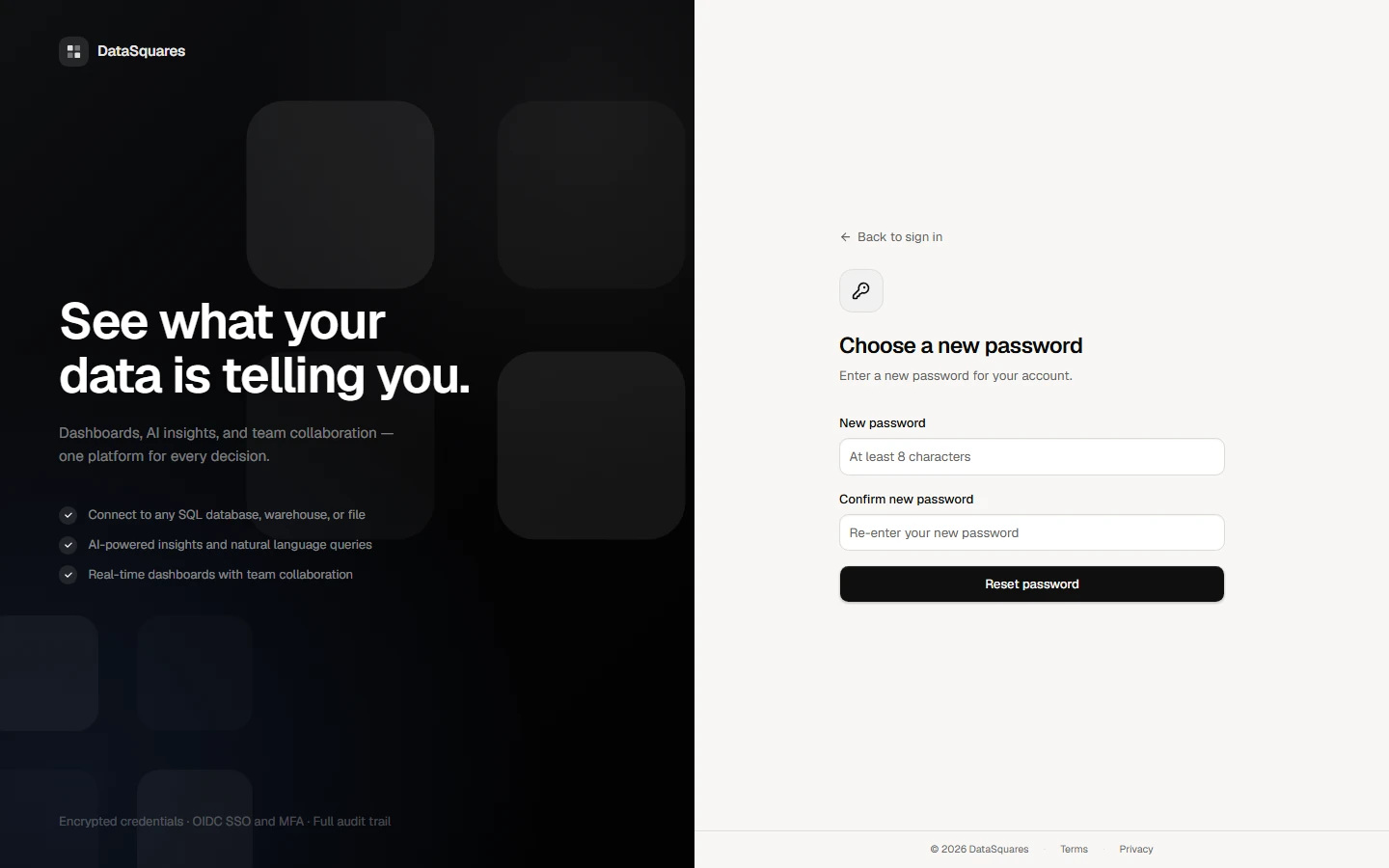
The link in the email opens this page. Enter the new password twice and choose Reset password; the page then confirms Password updated and you sign in with it. The link works once and expires. (The token here is a placeholder: no email is sent by the capture stack.)
Related
Section titled “Related”- Seats, plans and AI credits — what you are buying and how seats are counted.
- Users, roles and invites — managing who can do what.