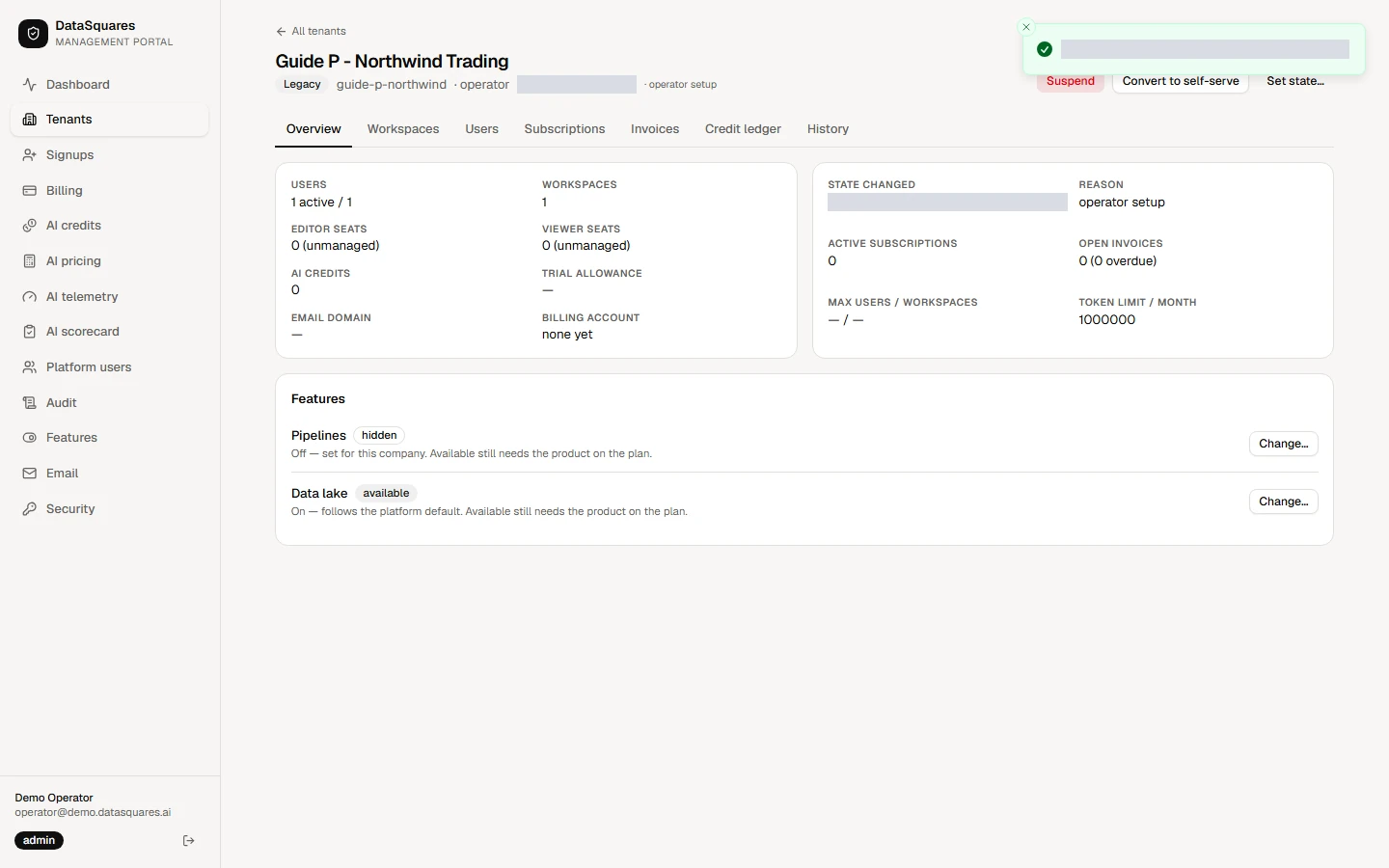
Product switches
A switch here can only take a product away. A company still needs the product on its plan for it to be available.
Choose Features in the sidebar. Each switch sets a product for every company that follows the platform default. Under it, the page counts the companies that have been set on their own.
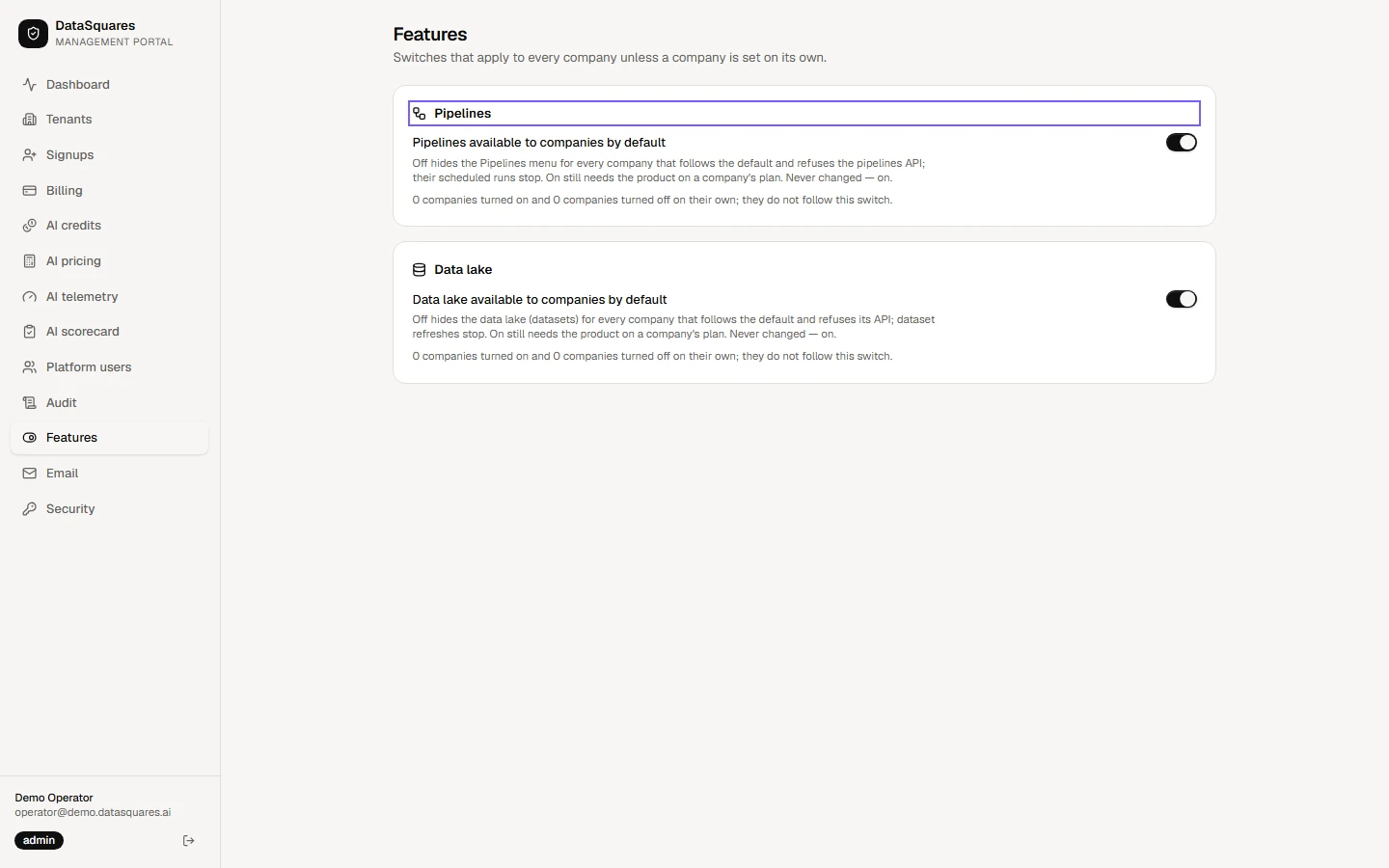
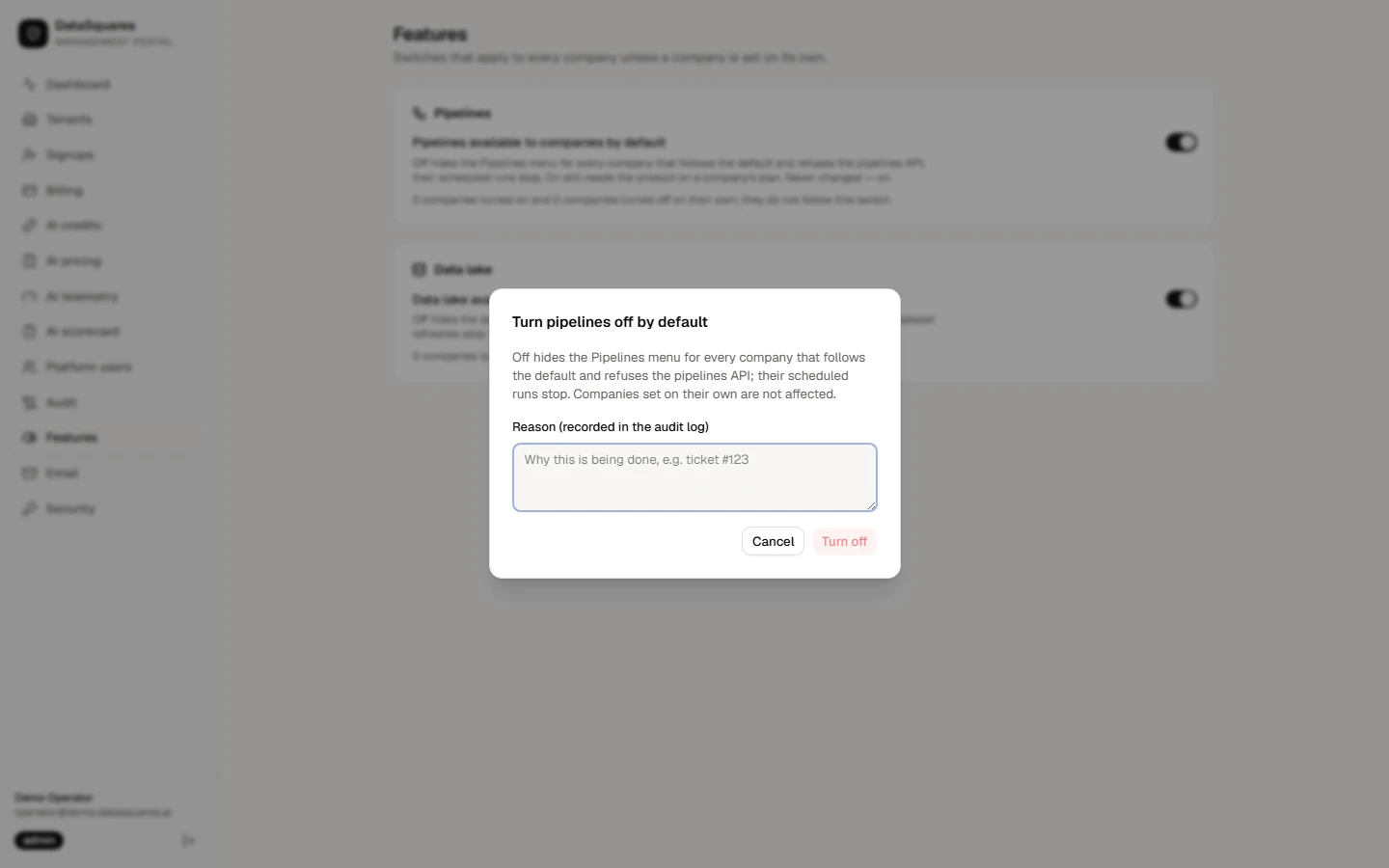
Flipping a switch asks you to confirm, because it applies to every company that follows the default. Turning Pipelines off hides the menu and stops scheduled runs. Cancel here to leave it on.
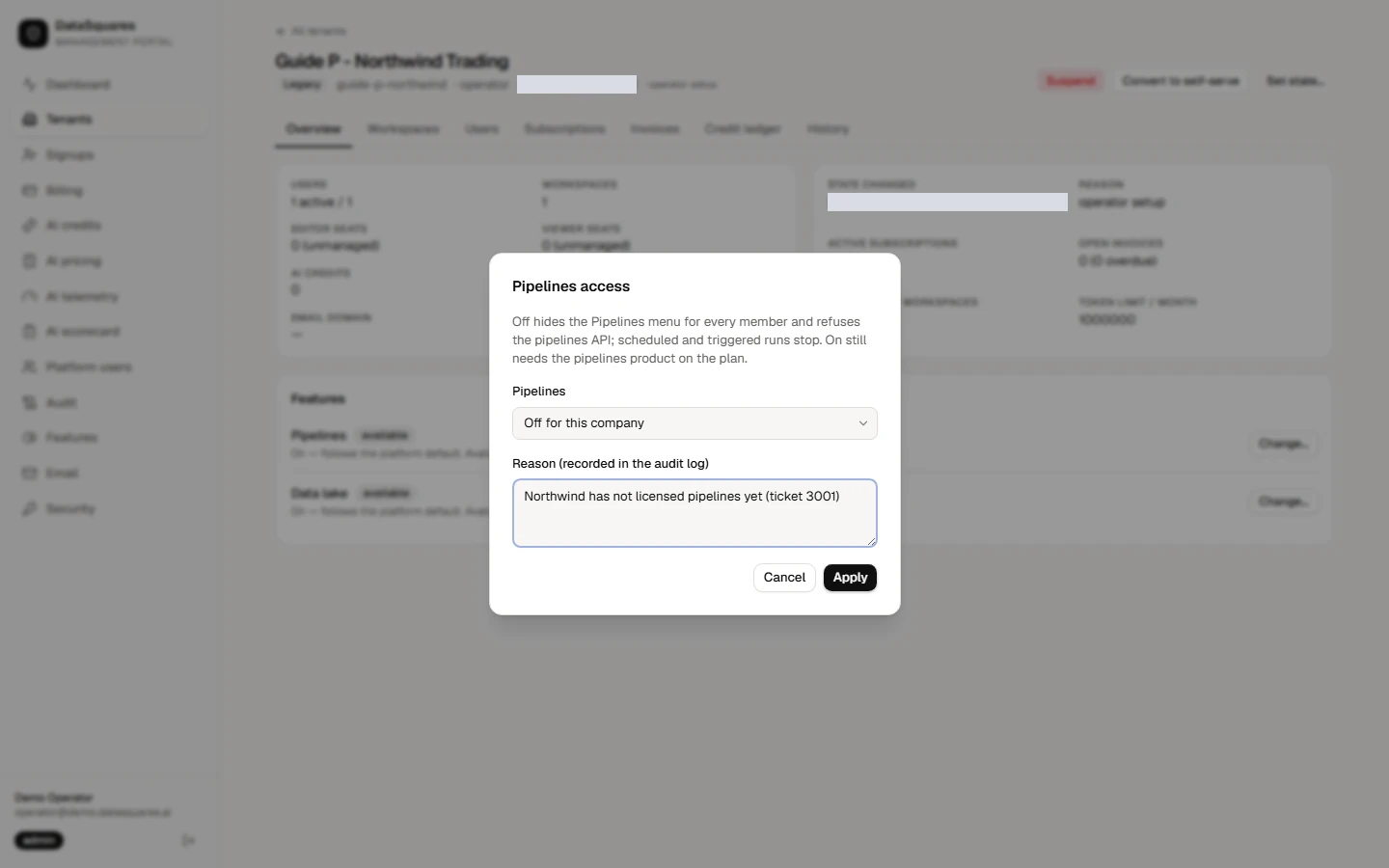
To set one company on its own, open the tenant and choose Change beside the product. Follow the platform default, turn it on or off for this company only, and give a reason.
The tenant now shows the product as hidden for this company. The company count on the Features page goes up by one, and the change is recorded in the audit log.