Model Data
Prep for AI
Prep for AI shows how ready a data model is for the DataSquares AI assistant
and what to do next. Descriptions help the assistant find the right tables and
fields, above all where column names are short codes such as cust_nm or
ord_sts_cd; known joins keep it from guessing how tables relate. Prep for AI can
draft the missing descriptions with AI, for you to approve, edit or reject: nothing
is published until an editor approves it. It is also where the model’s owner
reviews the AI’s notes about the model’s tables
before others use them, and where you can have the AI
explore the model before its first questions.
Open Prep for AI
Section titled “Open Prep for AI”You need permission to create or edit data models.
- Open the model in the Data model editor.
- Choose More → Prep for AI.
Prep for AI reads the tables and fields in the model’s AI scope: what the AI may use. Opening it uses no AI credits.
Prep for AI scores how ready the model is for the AI out of 100, from its described tables and fields, the joins that reach its tables and its size, and says what to do next.
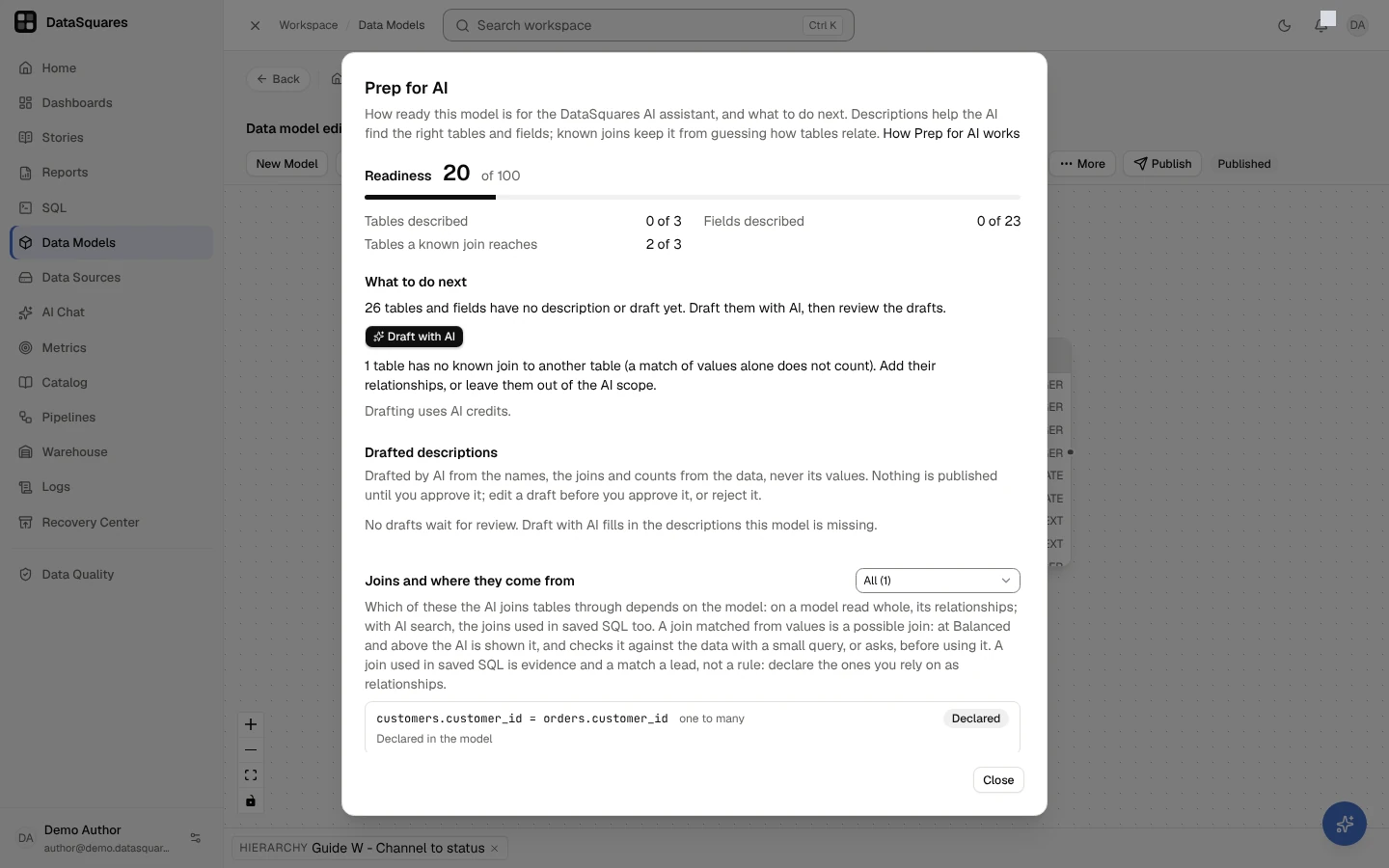
The readiness score
Section titled “The readiness score”A score from 0 to 100, from four parts (three where AI search does not run, see Size):
| Part | Weight | What counts |
|---|---|---|
| Tables described | 30 | Tables in the AI scope that have a description |
| Fields described | 30 | Fields in the AI scope that have a description (hidden fields don’t count) |
| Tables a known join reaches | 25 | Tables joined to at least one other table by a relationship or a join your saved SQL uses (below). A table only a match of values reaches doesn’t count: the assistant checks such a join before using it |
| Size | 15 | Only where AI search runs: small enough to read whole, all of it; large enough for AI search with a one-line overview of its tables, half; too large for an overview, none. Where AI search does not run, the assistant reads the model through a compact listing, the whole of it up to what the answer’s effort reads at once (how the assistant reads a model), and the score leaves the size out |
What to do next
Section titled “What to do next”Prep for AI lists what would raise the score, most useful first:
- Drafted descriptions wait for review: approve, edit or reject them (below).
- Tables and fields have no description or draft yet: draft them with AI, then review the drafts.
- Tables and fields still have no description, and their draft was rejected or left out: they aren’t drafted again; describe them in the model editor.
- The model is too large for an overview of every table (where AI search runs): choose the tables the AI may use in the AI scope. A tighter scope helps AI search, and a model whose scope becomes small enough is read whole again.
- Most column names are short codes (where AI search runs, on a model too large to be read whole): a company administrator can turn search by meaning on in Administration → AI, where it is off (see AI search).
- Tables have no known join to another table (a match of values alone doesn’t count): add their relationships, or leave them out of the AI scope.
Draft descriptions with AI
Section titled “Draft descriptions with AI”You need permission to create data models, and the AI feature Description drafts (on for every role but Viewer until an admin changes it; see AI controls).
- In Prep for AI, choose Draft with AI.
- The AI drafts a description for each table and field in the AI scope that has none, up to 10 tables at a time, one table after another. This can take a minute. A request drafts for up to 4 minutes: tables it has no time left to start wait for the next one.
- Prep for AI says how many it drafted, how many drafts it left out and why, and how many tables still have something to draft: choose Draft the next tables (or Draft the rest, when tables waited) to go on.
Drafting runs once at a time on a model. While it runs, Draft with AI on the same model, from another editor or from you again, says who started it and when instead of drafting the same tables twice; its drafts appear for review when it finishes.
When the server is already drafting for several other models, Draft with AI says it is busy right now: nothing was drafted or charged. Try again in a few minutes.
What the AI reads to draft. For each table: its name, alias and schema, its number of rows, its known joins (relationships, and joins your saved SQL uses) to the other tables and fields in the AI scope, the descriptions it already has, and for each field its name and type, how many values a short code list holds (value hints) and the counts of the latest data-quality profile of that table (distinct values, the share left empty, lengths). Never a stored value: an approved description goes into the AI catalog, which never holds your data. Nothing is read for a field labelled sensitive but its name and type, nor for a field that reads a labelled column, such as a second field over it, whether this model labels the column or another model of the same source does. Tables and fields outside the AI scope, and hidden ones, are never named.
What is kept. A draft is one plain sentence of up to 300 characters. A draft
is left out, and its text not kept, when the AI gave none, when it is longer
than that, when it looks like personal details, a secret or an instruction, or
when it quotes a code stored in the table’s short code lists that the AI could
only have copied: a code that mixes letters with digits or underscores, such as
ZQX7 or IN_TRANSIT. The AI is never sent a stored value, so an ordinary word
or name it writes, such as “Open” or “Sales”, is its own, even where a code list
happens to store it. Prep for AI says how many drafts it left out and why.
A table or field with a draft waiting gets no second one, and one whose draft was rejected or left out is not drafted again: What to do next lists them, for you to describe in the model editor.
AI credits. Drafting uses AI credits, one quick AI step a table, shown as Description drafts on the Usage page and in the AI ledger.
Review the drafts
Section titled “Review the drafts”You need permission to edit data models. Under Drafted descriptions, each draft waits, table by table:
- Approve it as it is, or edit the text first (editing approves it).
- Reject it to keep it out.
- Approve all approves every draft shown.
Then choose Save decisions. An approved draft becomes the table’s or field’s description, the same as one you typed, and the AI reads it within a few minutes. A table or field that got a description another way since it was drafted keeps that one: its draft is set aside, never written over it. Nothing else changes, and nothing is published without an editor’s approval. Reviewed drafts, and the record of drafts left out, are deleted after 90 days, so a table or field still without a description is drafted again after that; the audit log keeps who drafted and who decided.
Review the AI’s notes about the tables
Section titled “Review the AI’s notes about the tables”Where the server turns them on, the DataSquares AI assistant keeps notes about your tables: what one row of a table means, its key and date column, the filters it usually needs, what a column’s codes mean, how tables join, and questions with the tables that answered them. It learns them from the answers people were happy with and from Explore this model, and people write their own. A note applies only to the person whose note it is until the model’s owner approves it. Facts the AI checked against your data (a key that is unique, a join that repeats rows) are shared with the workspace at once.
You need permission to edit data models. Deciding is for the model’s owner (whoever made the model, unless someone who can edit models chose another under Ownership & domains in the catalog) and for workspace admins; a model with no owner is reviewed by a workspace admin. Under Notes about this model’s tables:
- Waiting for review lists the notes, oldest first, each with where it came from
(learned from an answer, found by Explore this model, or written by a person) and
its table. It never says whose answer a note came from.
- Approve shares a note with the workspace: everyone who may see its tables uses it from then on, and it replaces a note shared about the same thing before.
- Edit the text first to approve it in your own words. Your words are checked as every note is: text with personal or secret details, data values or instructions to the AI is refused whole, with the reason, and nothing is saved.
- Reject keeps it from everyone, the person whose note it was included.
- Approve all shown approves the notes on the page; then Save decisions. Your decisions are kept as you move between pages, and one save sends them all.
- One note is shared about the same thing (a table, a column’s codes, a join or a question). Notes waiting about the same thing say so, and you approve one of them: approving another takes the first one’s approval back, and Approve all shown approves one of them and leaves the others for you.
- A note whose table changed since it was written (its columns, keys, relationships or AI scope) says so: approving it sends it back to review instead, until the AI learns it again.
- Shared lists what the workspace shares: the facts the AI checked and the notes approved. Remove takes one out of use for everyone; the person whose note it was is told.
- A note that names a field labelled sensitive is listed, and decided, only by people who may read labelled values in clear, and only they use it once approved.
- Another model editor sees how many notes wait and who decides them, not the notes.
The person whose note it was sees what you decided under Settings → Memory, on its Table notes tab, and gets one notification for your review, with the counts and whether the model’s owner or a workspace admin decided: also when you remove a note of theirs that was shared, or approve another note that replaces it. The audit log keeps who decided. Reviewing uses no AI credits.
Explore this model
Section titled “Explore this model”Explore this model has the AI learn every table of the model in your AI scope before the first questions on it: in the background, it opens the tables a few at a time, checks what one row means and how the tables join with small read-only queries on your data, and drafts notes about each table. What it infers waits for the model owner’s review above; facts its checks prove are shared at once. It is offered where the server turns it on, on a model too large for the AI to read whole: a model small enough is read whole, so there is nothing to learn.
You need permission to create data models, and the AI feature AI search (see AI controls).
- In Prep for AI, under Explore this model, read the estimate: about how many AI credits it uses for the tables in your AI scope, in whole credits.
- Choose Explore this model, then Start exploring.
- Prep for AI shows its progress: the tables explored, the notes for review so far and the AI credits used so far. Closing Prep for AI doesn’t stop it. Stop stops it at its next step; what it learned stays.
- When it ends, Prep for AI says how: all the tables explored, or where it stopped and why, with the notes it drafted, the facts it shared and the AI credits it used.
One exploration runs on a model at a time. Exploring the model again goes over every table again.
It runs as you. It reads only what you may see: the tables and fields of your AI scope, and a field labelled sensitive only if you may read labelled values in clear. Its checks of the data run as you, read-only, each returning a few rows; where row-level security applies to you on the source, it checks nothing in the data and learns from the tables’ structure only. The notes it infers are yours until the model’s owner approves them, like the notes from your answers.
AI credits. It is charged to your workspace’s AI credits for what it used, as one line, Explore this model, on the Usage page and in the AI ledger, a stopped one included. The estimate is arithmetic on the model’s size; what it uses is what is charged. It doesn’t start, and nothing is charged, when:
- the estimate went up since you read it (the model grew): read the new one, then start;
- AI or AI search is off in the workspace, or this month’s AI credit budget (the workspace’s or yours) is used up or has less left than the estimate;
- the workspace’s AI credits are used up, past what may go below zero;
- your memory is paused: what it infers would be kept as your notes, so resume it first;
- it already runs on the model: follow it, or stop it;
- the server is exploring other models right now: try again in a few minutes.
On its way, it stops, keeping what it learned, when AI or AI search is turned off, a budget or the credits run out, or the AI can’t be reached.
Joins and where they come from
Section titled “Joins and where they come from”Every join between the tables in the AI scope, with how many rows of one table meet one row of the other (many to one, one to many, one to one, many to many) and where it comes from:
| Where it comes from | What it means |
|---|---|
| Declared in the model | A relationship of the model |
| Detected from the source’s keys, not confirmed yet | A relationship a rule found from the source’s keys that nobody accepted or changed yet |
| Used in saved SQL | The workspace’s saved SQL queries join these columns, and how many queries do |
| Matched from values | The two columns hold the same values: how sure the match is, and how many of the values checked were found (never the values themselves). A possible join: the assistant checks it before using it. See joins matched from values |
| Suggested by AI | A join the AI suggested that an editor approved. DataSquares doesn’t suggest joins this way today, so none is listed |
Which of them the AI joins tables through depends on the model’s size and the answer’s effort:
- A model small enough to read whole: its relationships, declared or detected.
- AI search, at every effort: the relationships and the joins used in saved SQL. Two relationships between the same two tables are two different joins, never one; the assistant uses the one your question means, or asks you.
- AI search at Balanced and above also shows the assistant the joins matched from values, as possible joins: it checks one against your data with a small query, or asks you, before it writes a query on it. At Quick they aren’t used.
A join used in saved SQL is evidence, and a match of values a lead, not a rule: declare the ones you rely on as relationships.
The API
Section titled “The API”GET /api/models/{modelId}/prep-for-ai: the score, its parts, what to do next and every join with where it comes from. Model editors.POST /api/models/{modelId}/ai-descriptions/drafts: drafts the missing descriptions of up to 10 tables (tableIds, or the next tables with something to draft; naming a table drafts its rejected or left-out drafts again). More than 10 is refused. Answers how many it drafted, how many it left out (dropped, anddroppedFor: why, in counts), how many tables failed and how many still have something to draft. AI credits; refused for an API key.GET /api/models/{modelId}/ai-descriptions/drafts: the drafts waiting for review (state=alladds the reviewed ones).PUT /api/models/{modelId}/ai-descriptions/drafts: approve (withtextto approve your own wording) or reject, up to 200 decisions a request, all or none.GET /api/models/{modelId}/ai-notes: the AI’s notes about the model’s tables waiting for review (state=pending, the default) or shared (state=shared), paged (limit1 to 100,offset), with both counts, the model’s owner and whether you may decide (canReview). Model editors; the notes waiting for review are listed only to the owner and workspace admins.PUT /api/models/{modelId}/ai-notes/review:approve(withtitleorbodyto approve your own words),reject, orremovea shared note, up to 200 decisions a request, all or none; approving two notes with the sameplace(about the same thing) is refused. The model’s owner and workspace admins.GET /api/models/{modelId}/ai-notes/explore: whether Explore this model can run and why not, its estimate in whole AI credits, and the running or latest exploration with its progress and the credits it used.POST /api/models/{modelId}/ai-notes/explore: starts it, withconfirmCredits, the estimate you were shown (409 ESTIMATE_CHANGEDwhen it is now higher);202.POST /api/models/{modelId}/ai-notes/explore/stop: stops it at its next step.
Drafting descriptions, the notes and Explore this model are App only: an API key gets 403. The readiness
(GET …/prep-for-ai) and the drafts’ list and decisions (GET and PUT …/ai-descriptions/drafts) also answer an
API key whose owner may edit the model.
Related
Section titled “Related”- The AI scope — choose the tables and fields the AI may use.
- Notes about your tables — what the AI keeps about your tables, and what you see of yours.
- AI search on large models — how the assistant finds tables on a large model.
- Data models & relationships — declare the joins you rely on.
- How the AI uses your data — what the AI is sent.