Studio - bring in data
Studio copies data into a local extract inside the project, so charts draw from your machine and keep working offline. Nothing you do here changes the original file or database.
Import a file
Section titled “Import a file”Choose Import file (CSV / Excel / Parquet), pick the file, and Studio adds it to Extracts. See CSV files for how the same files behave in the web product.
In the project panel select Import file (CSV / Excel / Parquet). Until something is imported the window says "Import data to see it here."
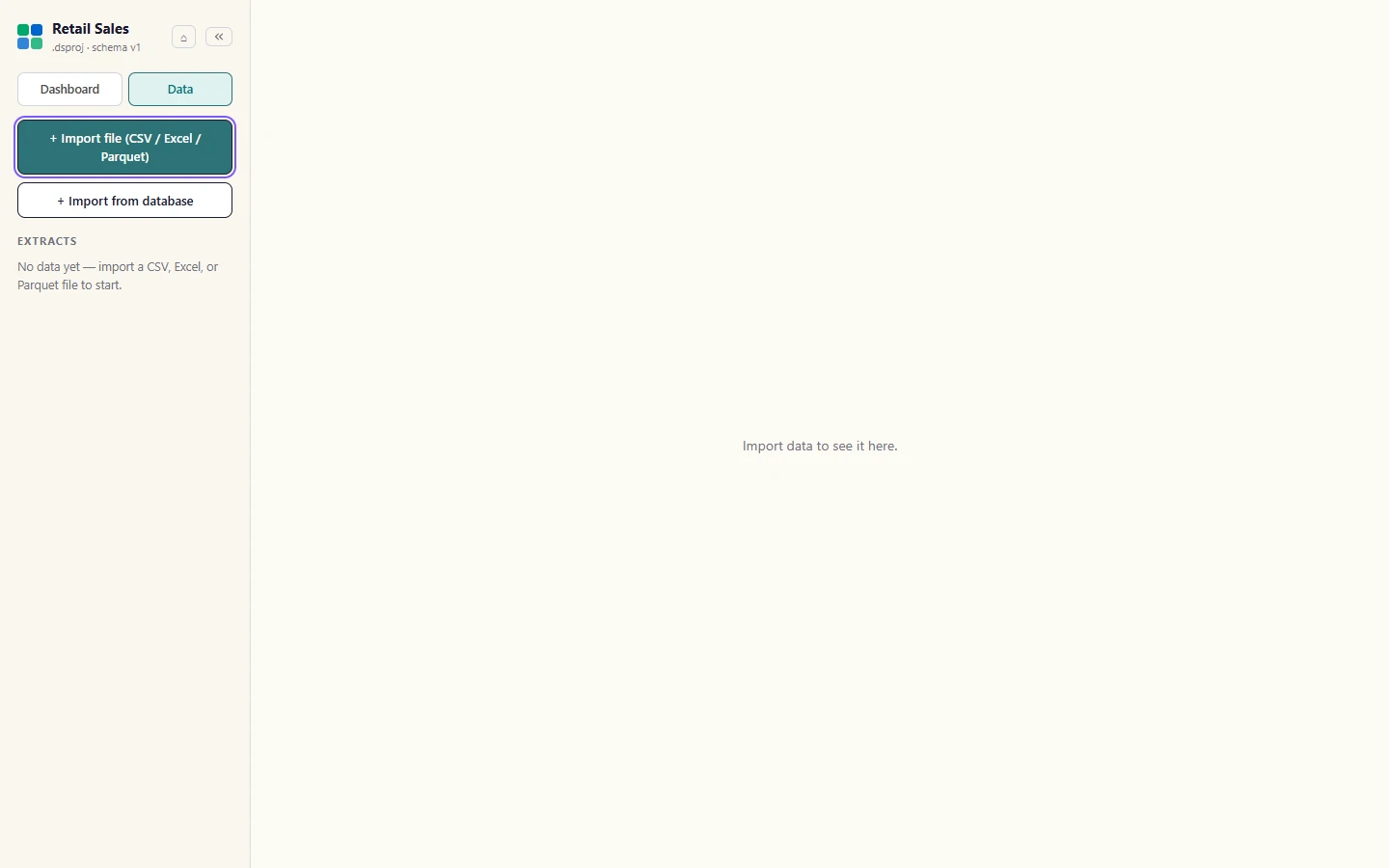
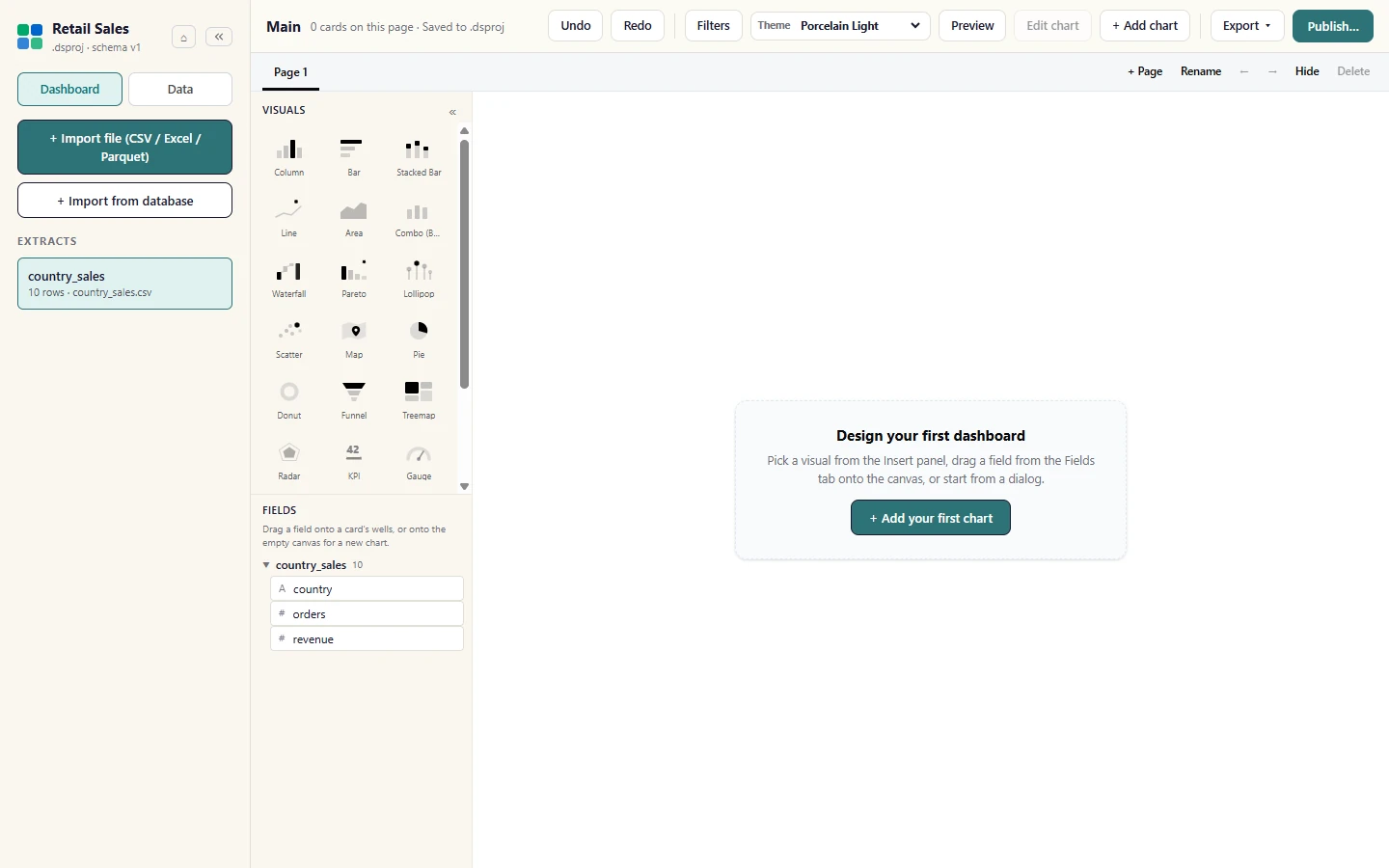
Choose the file. Studio copies it into a local extract (a progress bar shows while it runs). The table is listed under Extracts in the project panel, and its columns appear under Fields. The original file is never changed.
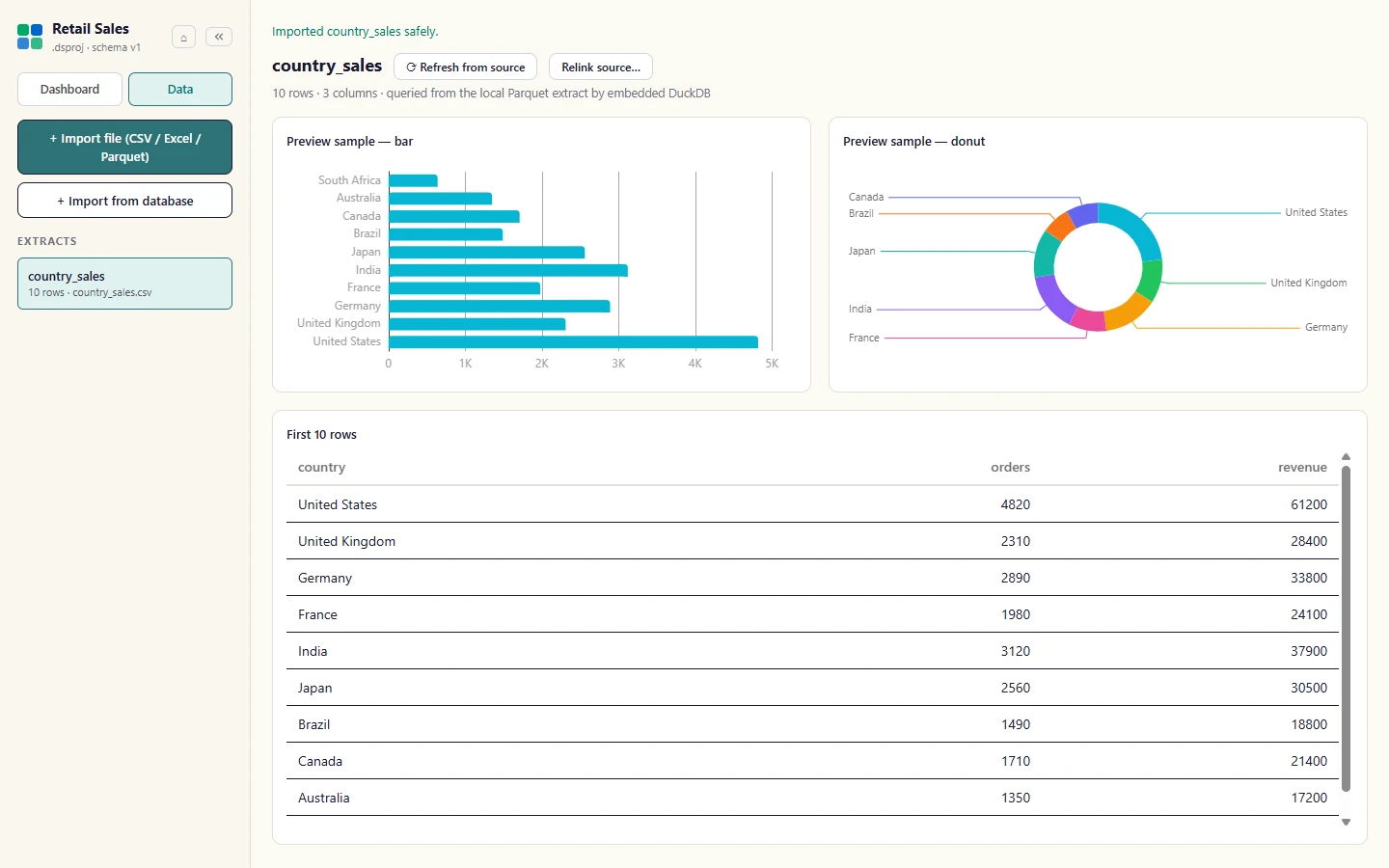
Switch to the Data view to check the import: First 10 rows shows the data, with a preview chart above it.
Import from a database
Section titled “Import from a database”Studio can copy one table from PostgreSQL, MySQL or SQL Server. The connection is always encrypted; the default policy verifies the server’s certificate, and the option to skip host verification shows a warning. The password is kept in your operating system’s secure credential store and is never written into the project. See PostgreSQL for the database side.
Select Import from database. Pick the Engine: PostgreSQL, MySQL or SQL Server.
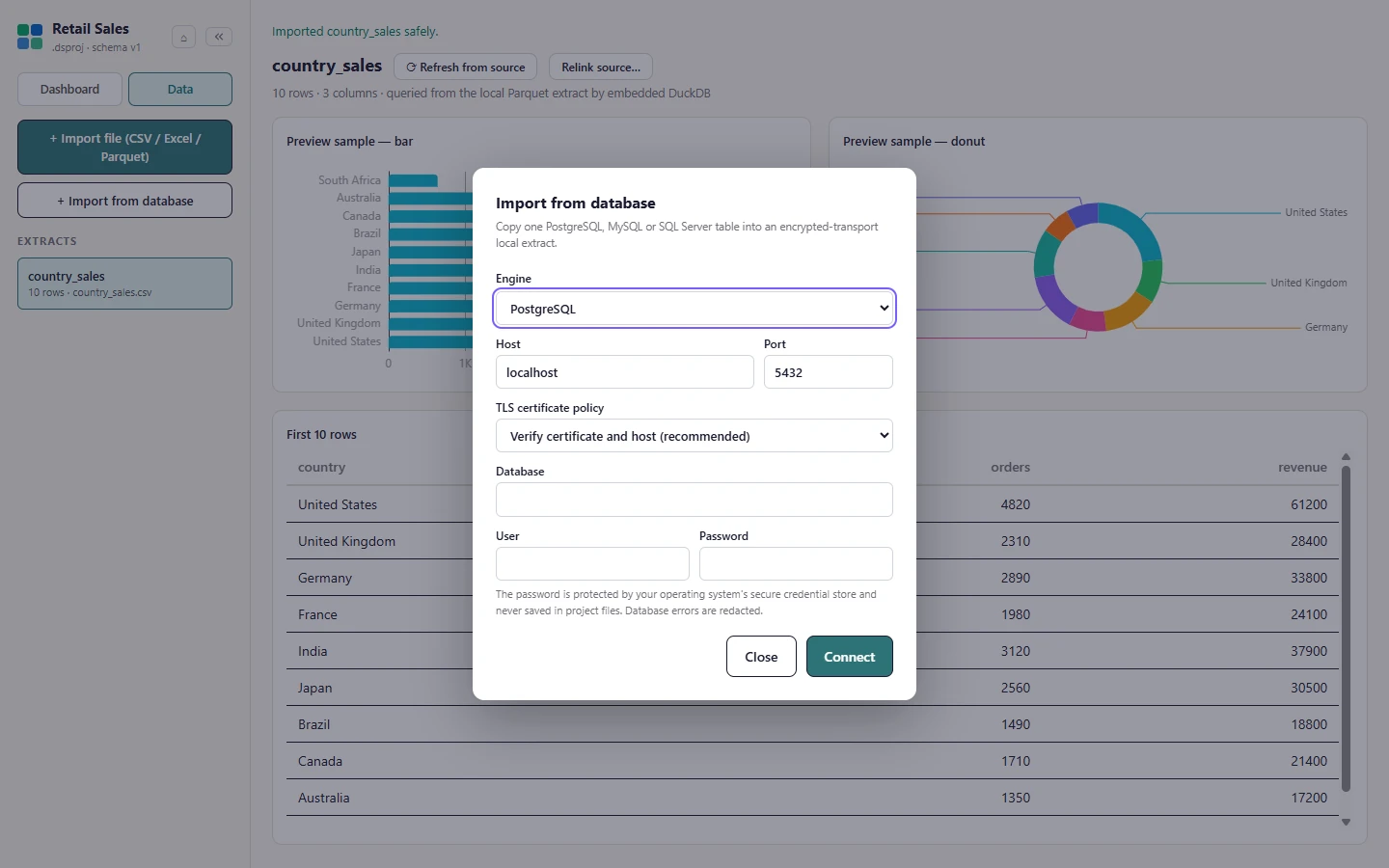
Fill in the host, port, database, user and password. The default certificate policy verifies the server; Encrypt without host verification (shown here) keeps the connection encrypted but shows a warning, so use it only on a network you control. The password goes to your operating system's secure credential store, never into the project files.
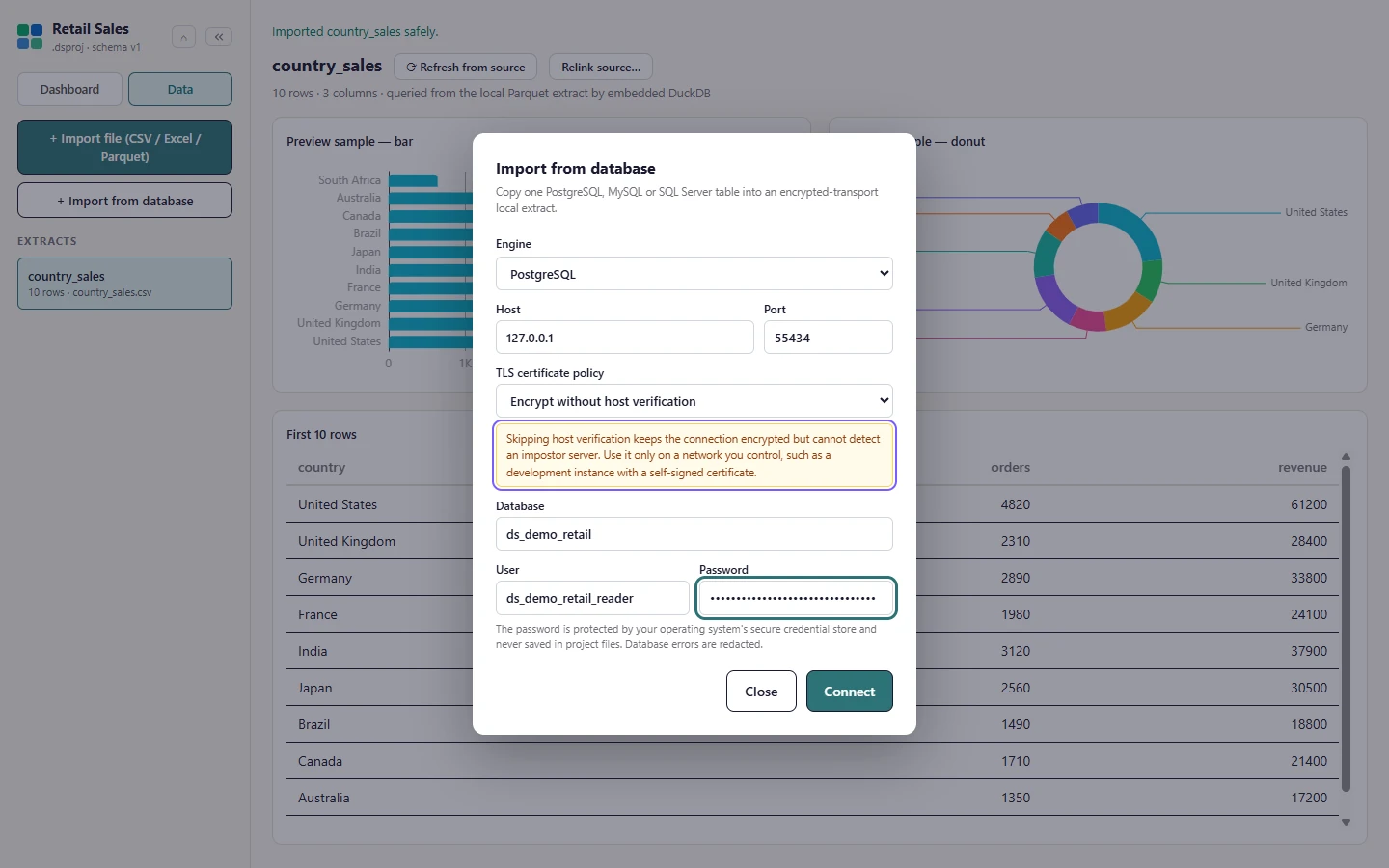
Select Connect. Studio lists the tables it can read; pick one and select Import table.
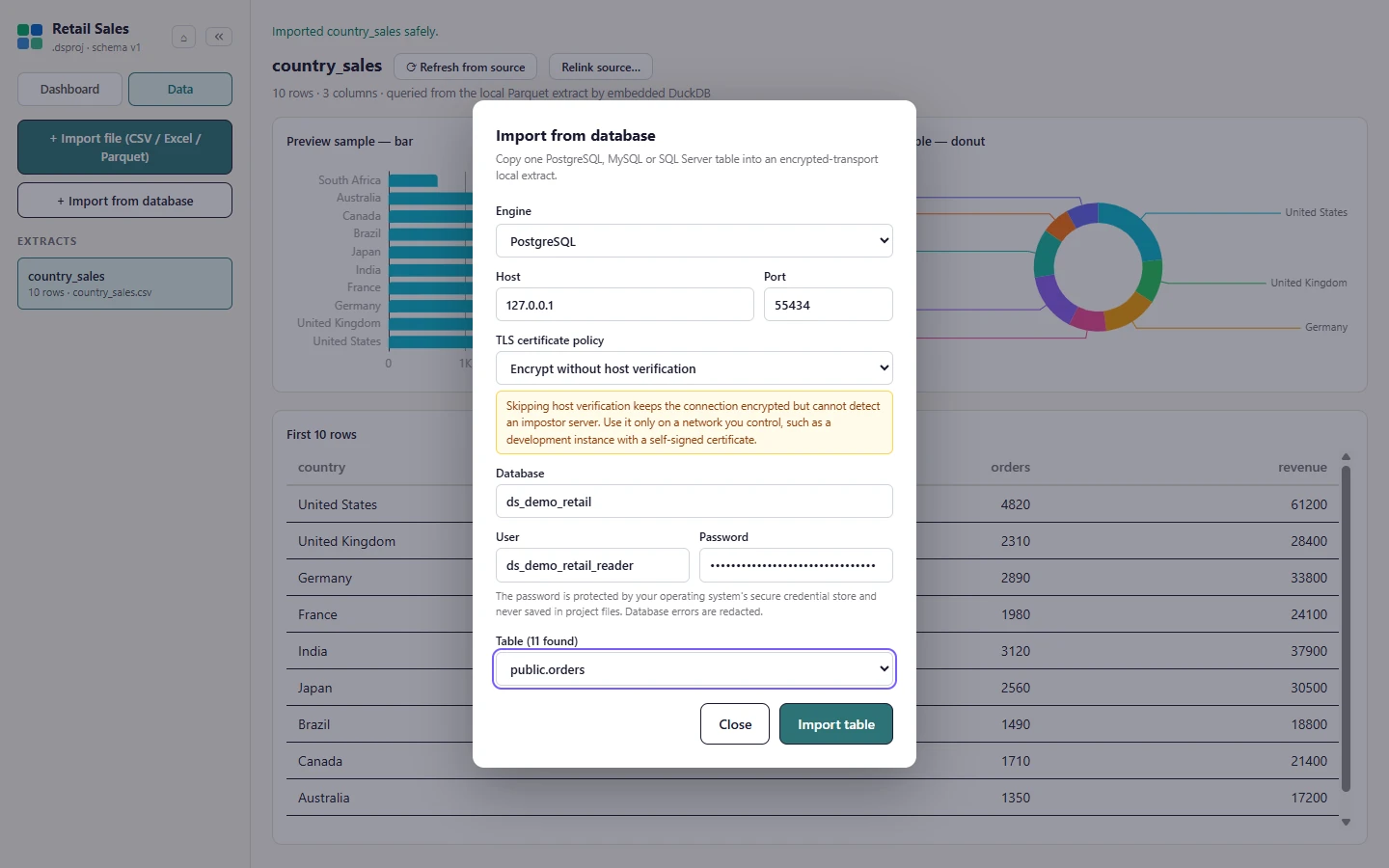
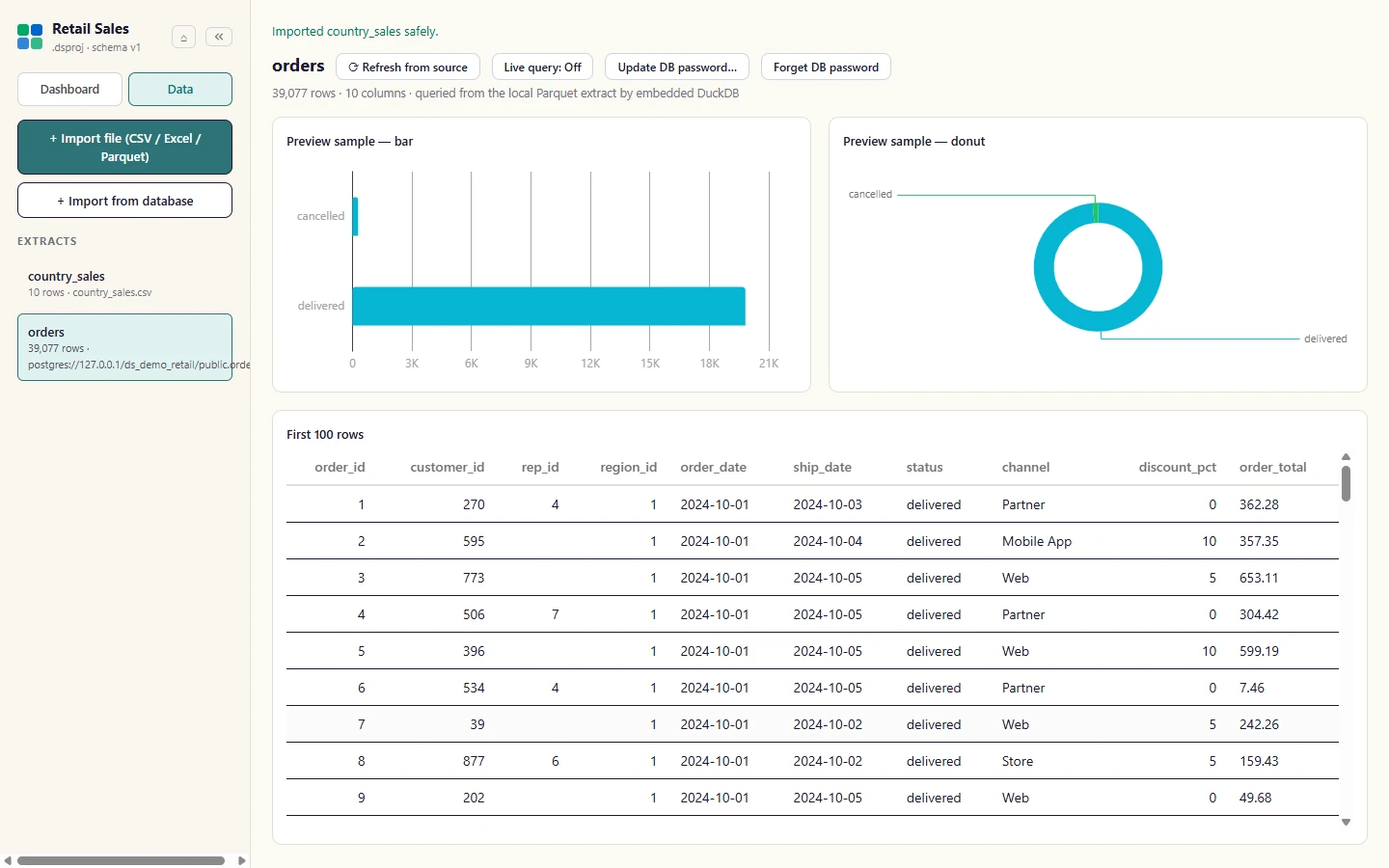
The table is copied into a local extract and listed under Extracts. Everything you build from here runs on your machine, offline.
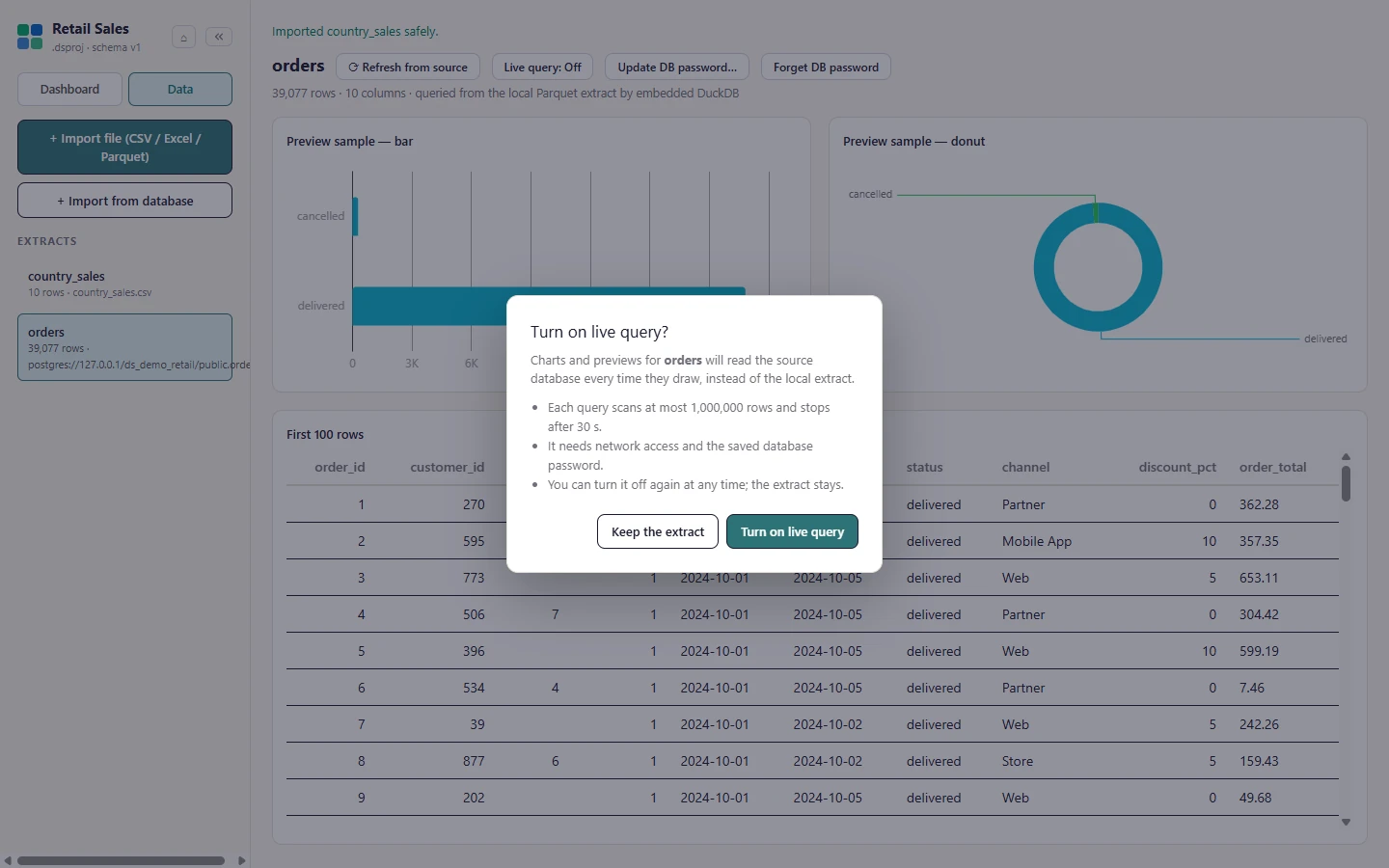
Turning on Live query asks first. The dialog says charts will read the source database on every render, that each query scans at most 1,000,000 rows and stops after 30 seconds, and that it needs network access and the saved database password. Keep the extract cancels.
Optionally turn on Live query for a table: charts then read the source database on every render (at most 1,000,000 rows are scanned, with a 30-second limit) instead of the local extract.
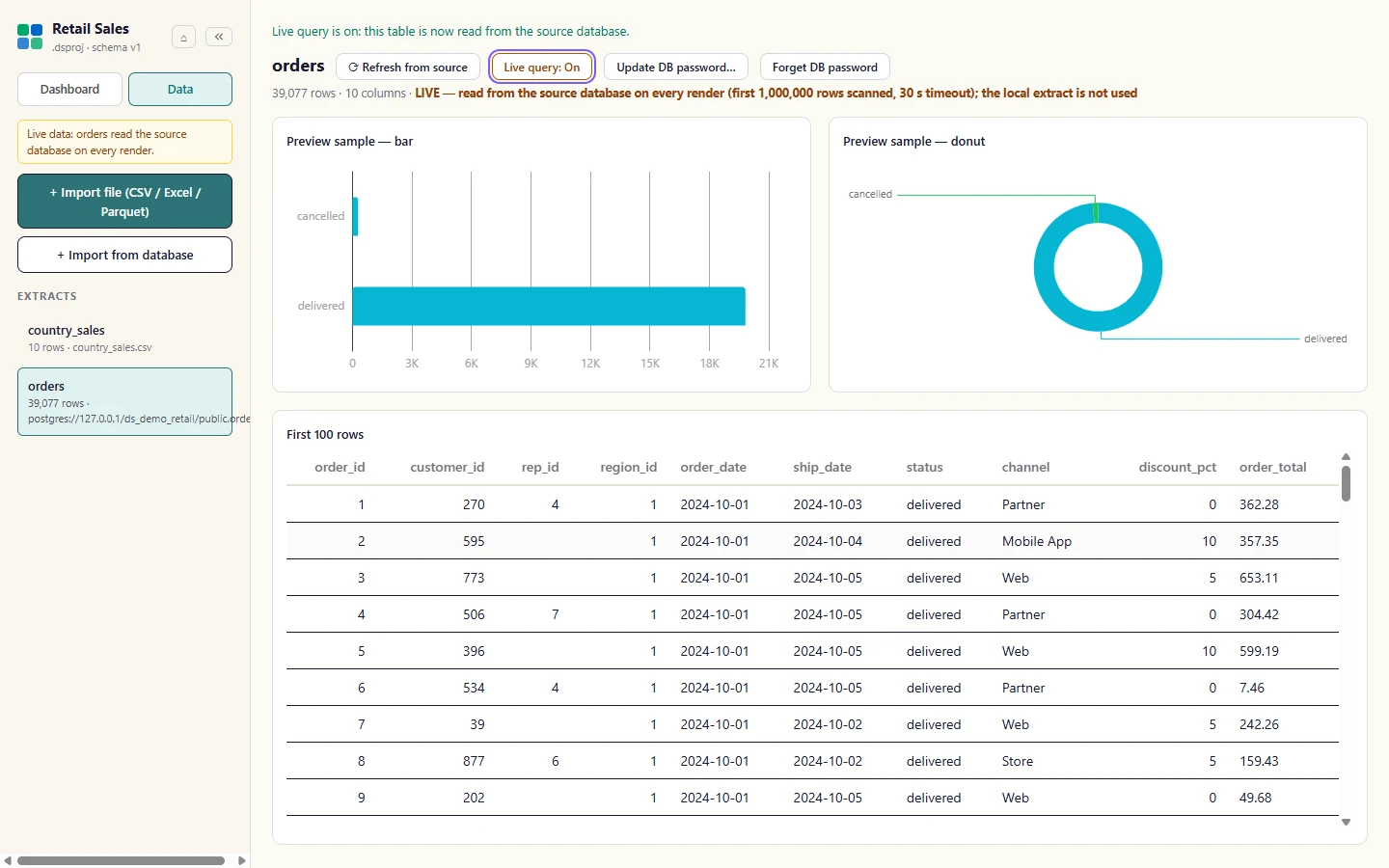
Live query reads the source database on every render instead of the local extract. It scans at most 1,000,000 rows per query with a 30-second limit, and it needs network access, so leave it off for work you want to do offline.
Refresh, and update a password
Section titled “Refresh, and update a password”Refresh from source re-imports a table from where it came from. When a database password changes, Update DB password… tests the new one first and stores it only if the test passes.
Select a table in the project panel. Refresh from source re-imports it from where it came from (the file, or the database with its saved password).
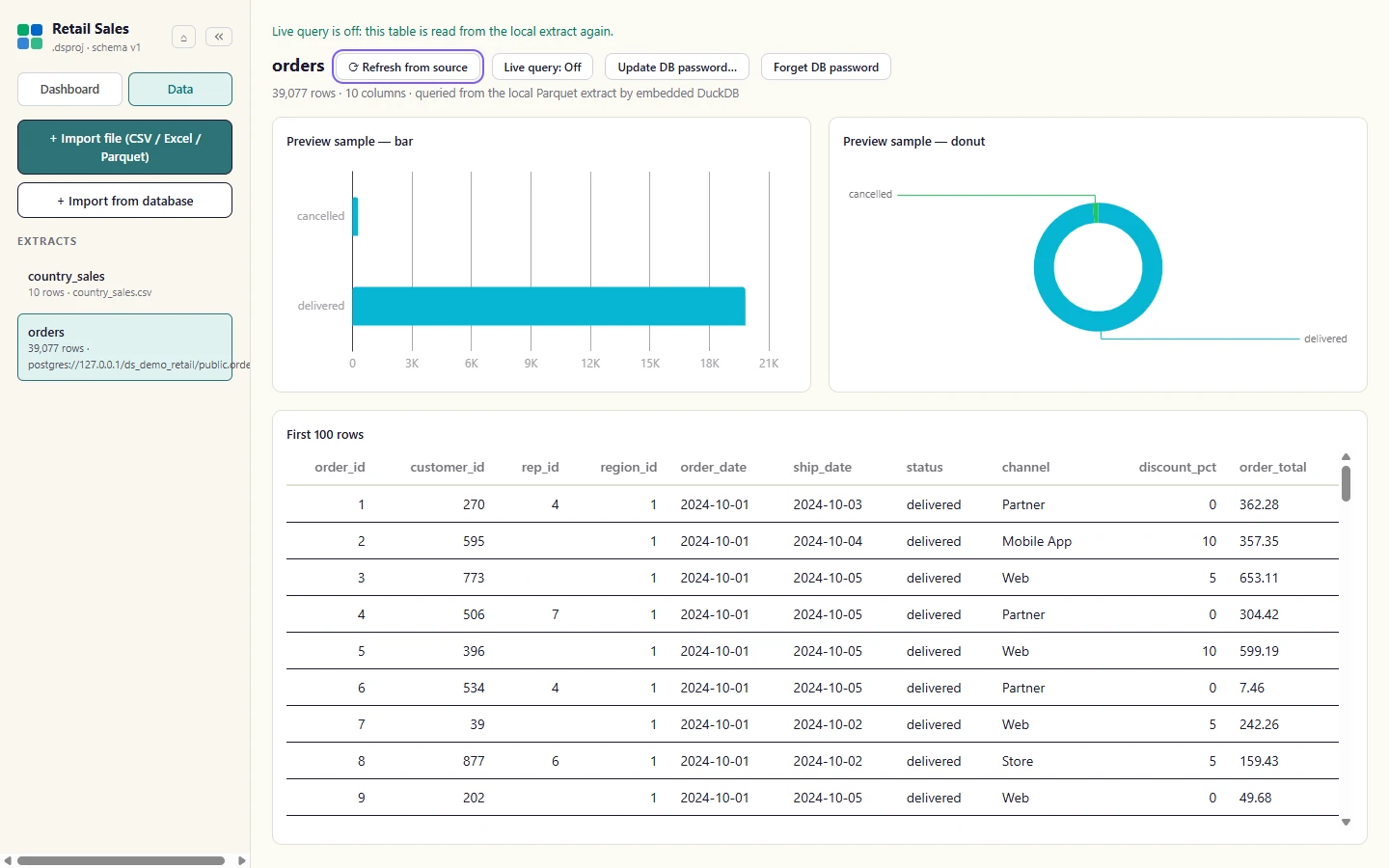
When the refresh finishes, Studio confirms it above the table. The dashboard reads the new rows straight away.
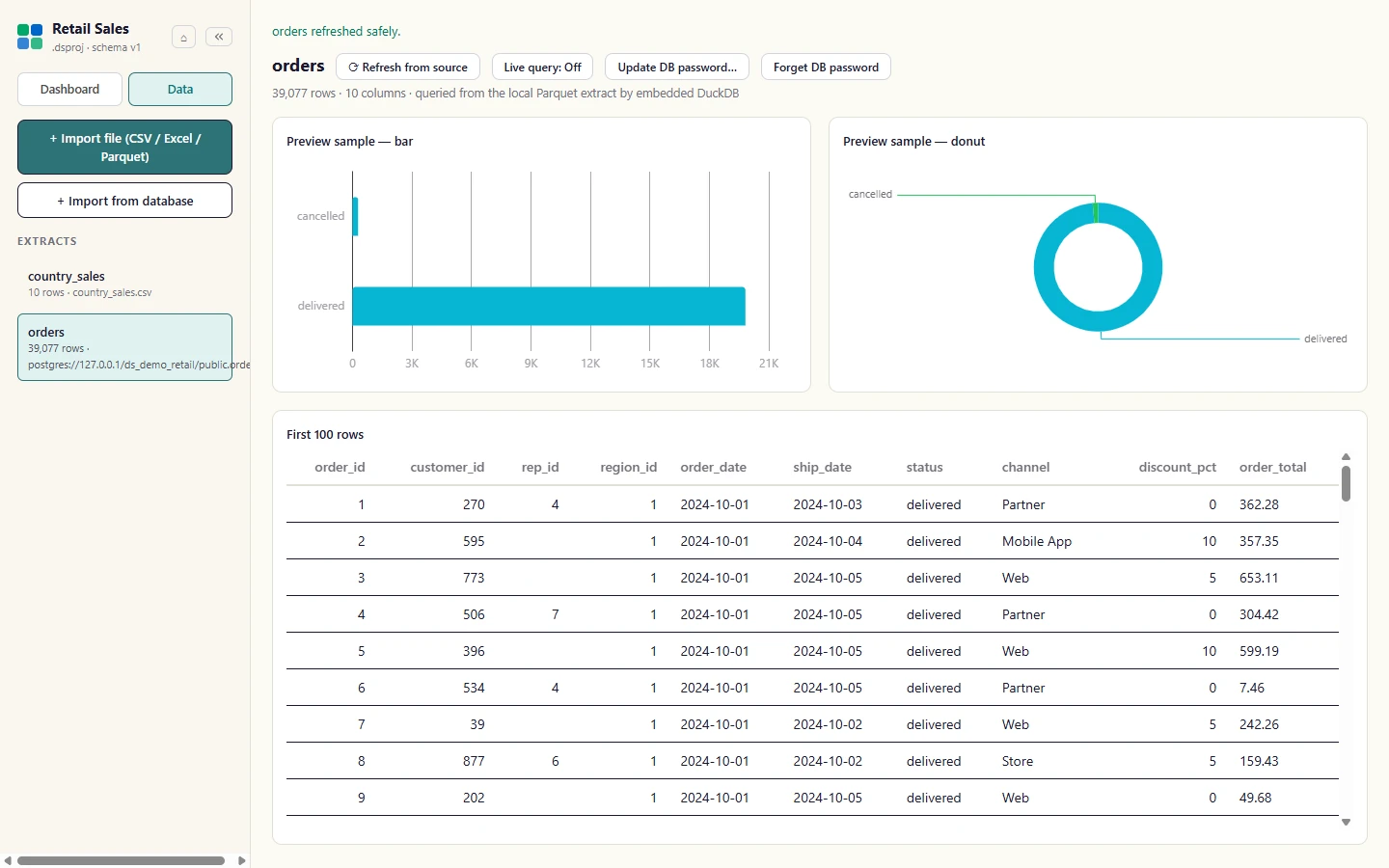
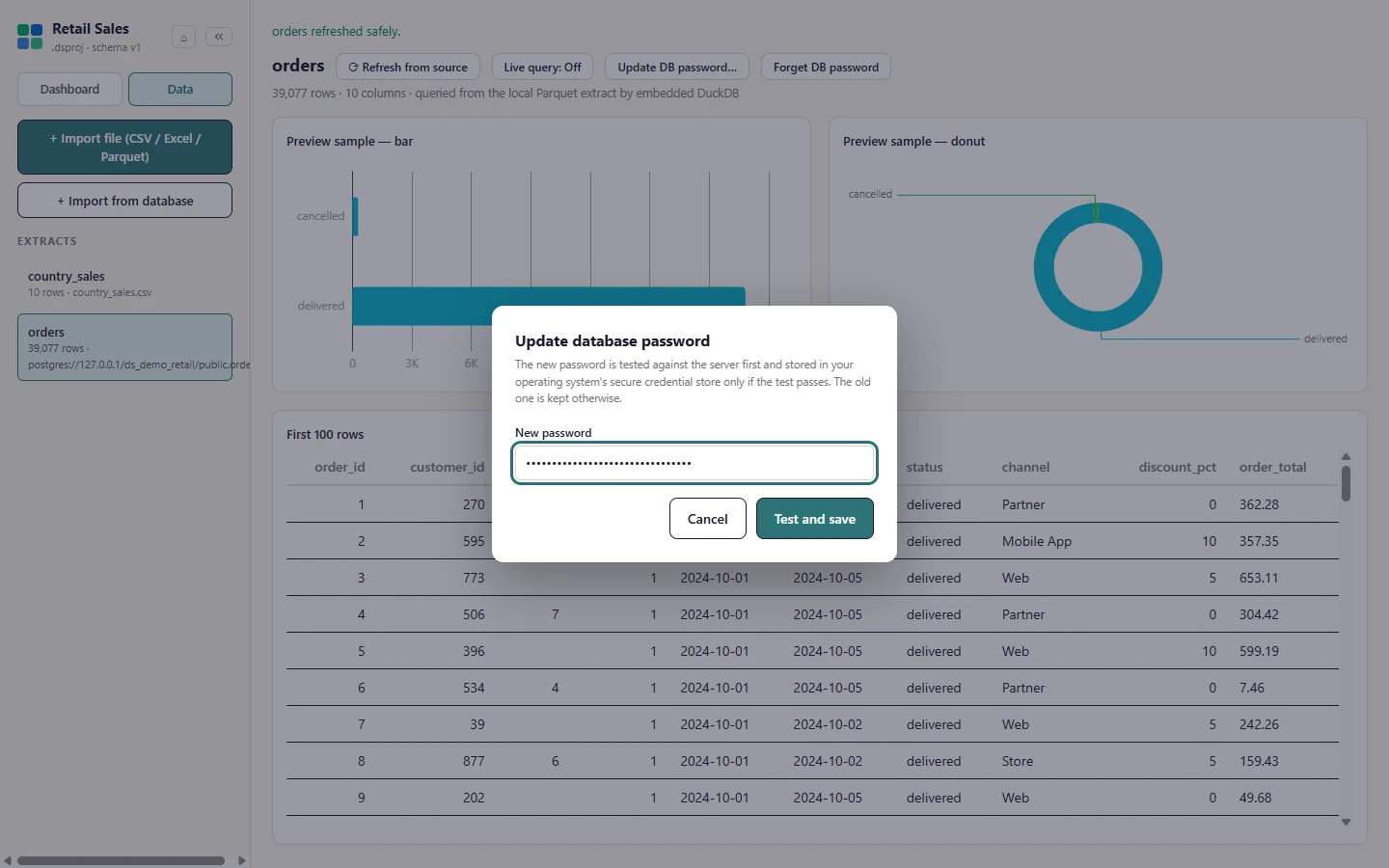
When the database password changes, choose Update DB password.... The dialog explains that the new password is tested first.
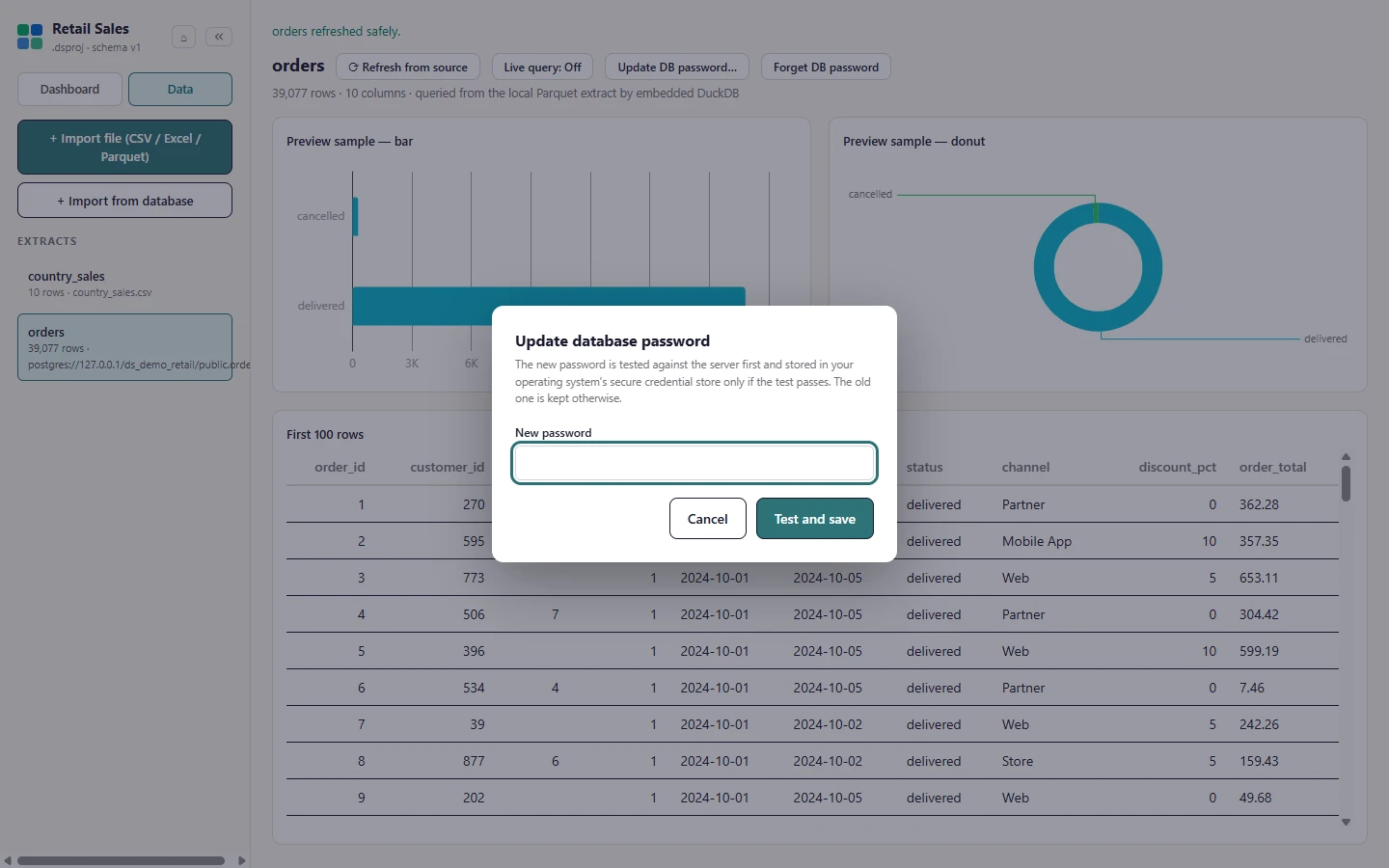
Enter the new password and select Test and save. Studio tests it against the server first; if the server rejects it, an error shows and the old stored password stays in place, so a typo cannot lock you out of refresh.
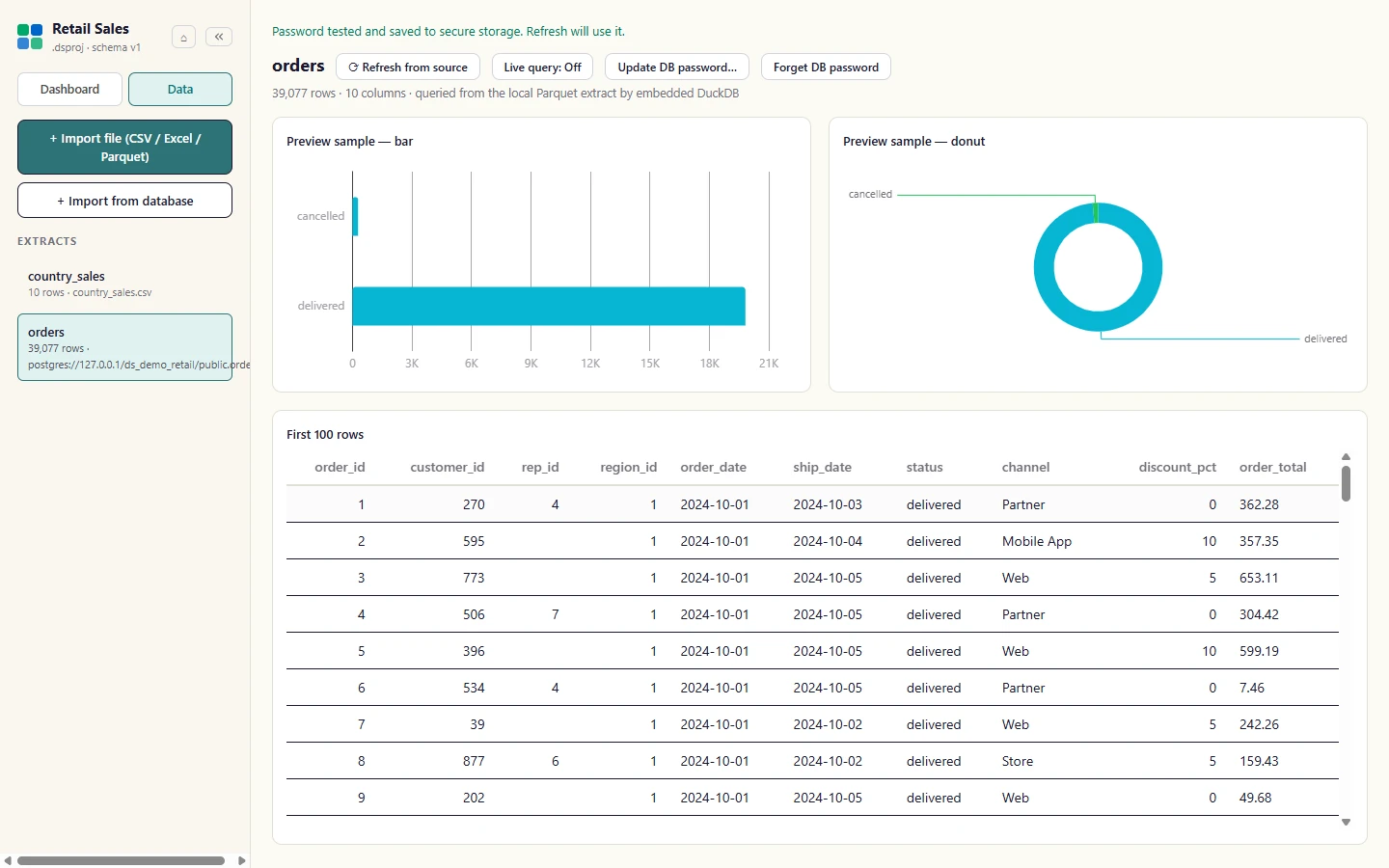
A password that passes the test is saved to your operating system's secure credential store, and the next refresh uses it.
Next: build a dashboard.