Presentations
How the checks work
Presentations checks a deck the way a careful analyst would before a board meeting: an unbound figure, a bar chart that doesn’t start at zero, a partial month compared with a whole one, a claim word its figure contradicts, text too faint or too small to read. The checks reference lists every check; this page is about using them.
The checks are one set of rules, run in the editor as you work and on the server whenever a deck leaves the editor, so the editor and the publish dialog always give the same answer for the same slides and values.
Levels
Section titled “Levels”| Level | What it means |
|---|---|
| Must fix | Blocks publishing and exporting until it is fixed. It can’t be kept or waved through, by anyone. |
| Review | Asks you to look. Fix it, or keep it with a note that says why it stays. |
| Fixed for you | Already handled on the slide — a subtitle generated from the binding, a rounding note, one colour per series — and noted so you know. |
| Note | Tells you something worth knowing, such as a sort that would read better. |
Where you see them
Section titled “Where you see them”- In Slides. A slide with an open finding carries a mark in the rail’s Slides: red for one that must be fixed, amber for one that needs a look.
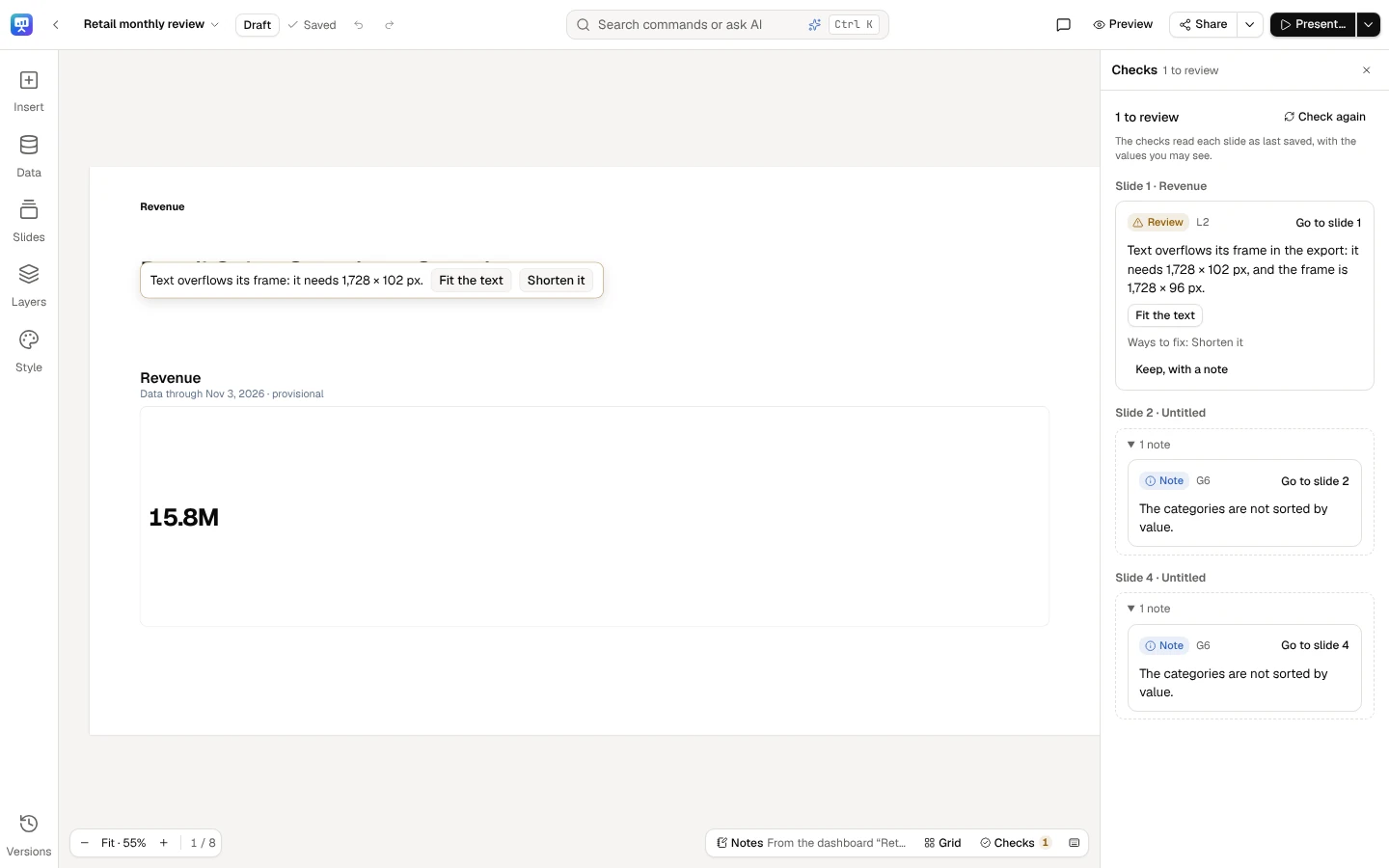
- In the Checks panel. Checks, the pill at the slide’s foot (and in Share…’s menu, its arrow More sharing actions), opens the deck’s checks in the selection’s panel’s place: it counts what must be fixed and what is to review, then lists the findings by slide (Slide 4 · Customers, or The whole deck), the most serious first. Each says its level, its check’s id, what it found in words about your slide, and Go to slide. Red findings block publishing, links, exports and schedules until they are fixed.
- In the publish dialog and when an export is refused: the same findings, read on the saved draft. The dialog names each fix and takes you to the slide; the one-click fixes are in the Checks panel.
The panel reads each slide as last saved, with the values you may see, and checks again after each change; Check again runs it at once.
Checks, at the slide’s foot, opens the deck’s findings by slide, the most serious first, each with how to fix it.
Fix a finding
Section titled “Fix a finding”Where the fix is mechanical, it is a button that changes the element, as one step of the slide’s history:
| Button | For |
|---|---|
| Start at zero, Dots or a line | Bars, columns or areas whose axis does not start at zero (G1) |
| A linear scale | Bars on a log scale (G8) |
| Bars instead | A part-to-whole chart whose parts overlap or are negative (G5) |
| Lines | Stacked areas that can’t be read (G12) |
| Sort by value | Categories left unsorted (G6) |
| Use the last complete period | A period that isn’t complete yet (N7) |
| The absolute change only | A percent change from a small, zero or negative base (C4) |
| Year on year | A change on the month or quarter before of a measure whose same change repeats every year (C18) |
| Switch to the certified metric | An uncertified source where a certified metric computes the same thing (N6) |
| The theme’s text colour | Slide text below 4.5:1 contrast (L3) |
| Fit the text | Text that would overflow its frame in an export (L2) |
| Add alt text | A picture without alt text (L4): type it in the finding and Save alt text |
| Rebind (opens the element’s binding in the Figure tab) | A broken binding (N4) |
| Bind this number (asks Add data for the figure a typed number is) | A number typed in slide text (N1); the typed number becomes a live number of what you choose |
| Remove the element | A broken binding (N4), or a result cut short (N9) |
Undo takes a fix back like any other change. A locked element is never changed by a fix: the finding says The element is locked. Unlock it to fix it here.
A fix that needs your choice — which figure to bind, what to write instead of a claim the data contradicts — is never made for you. The finding names it (Ways to fix: …) and Go to slide takes you to the element.
Checks that look beyond the slide
Section titled “Checks that look beyond the slide”A few checks need more than the values on the slide, and read it only when they need it, with your access, as every figure is read, in the Checks panel and the publish dialog. They only ever ask for a review, so an export and a scheduled send, which show only what must be fixed, don’t run them:
- When a slide’s text claims a rise or a fall about a chart over time (grew, declined, an upward trend, trending down), the chart’s values are read over a longer range too: its own window and twice its length before it, 120 periods at most. A window that starts at the longer range’s lowest point for a rise (its highest for a fall), or ends on a jump, asks for a review, quoting the words it read (C8). A title that only names a trend, such as Monthly revenue trend, claims no direction, and one that denies it (Revenue is not trending up) claims neither, so neither is read as a claim.
- When a figure is compared with the month or quarter before, the same change is read for that month or quarter of the two years before, the base period’s own change, and the measure’s average change a month or quarter over the two years. A change is seasonal only when it stands out from that average the same way in this year and each of the two before, each time by 5 points at least (5% of the level for a change in units) and by about as much: then you are asked to compare with the year before. A measure that grows steadily, or moves by chance from month to month, is never called seasonal, nor is a change near zero. A change that mostly undoes the base period’s own change says so (C18). When there isn’t enough to be sure, nothing is said.
These two never hold anything up. When what they compare with can’t be read, or takes too long to read, the Checks panel and the publish dialog say how many charts and figures were not checked (C8 and C18 could not read what they compare with … for 2 charts, so they were not checked) and go ahead. Check again reads it again.
A frozen deck’s draft is read live, so it is checked like any draft. Only its frozen version’s values hold no live ranges to compare with: where the Checks panel reads those frozen values, nothing is read for these two, and it says that C8 and C18 compare with live values a frozen deck’s values do not have, and how many charts and figures that leaves unchecked.
Keep a review finding
Section titled “Keep a review finding”A Review finding can stay when you have a reason: Keep, with a note, write Why it stays as it is, and Keep. The note is saved with the deck, shown to everyone who edits it (Kept with a note by and their name), and carried into the check report of the version you publish. Review it again takes the note back. A Must fix finding has no such button.
When the checks can’t run
Section titled “When the checks can’t run”If the deck’s values can’t be read, the tab says so in words, with Check again, instead of a count: it never reports a pass it could not check. Publishing and exporting check on the server in any case, so a deck can’t leave the editor unchecked.