Mobile app - account and settings
Account
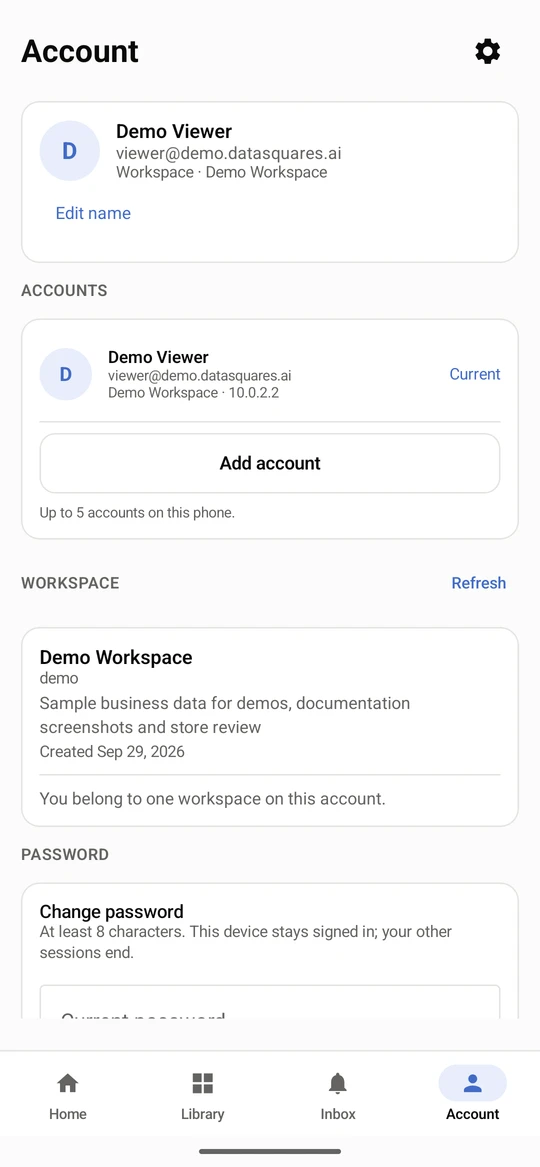
Section titled “Account”The Account tab shows who you are signed in as, the accounts on this phone (up to five), your workspace, and the security controls: password, two-factor authenticator and the devices signed in to your account.
The Account tab shows who you are signed in as, the accounts on this phone and your workspace. Edit name changes how you appear.
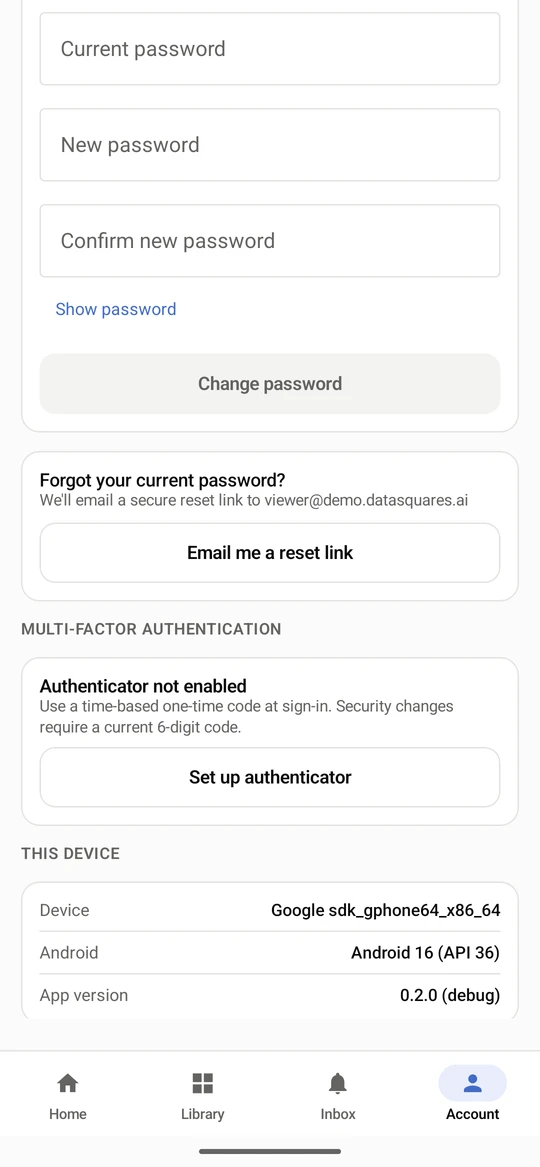
Further down: Change password (at least 8 characters; your other sessions end) and Set up authenticator for two-factor sign-in.
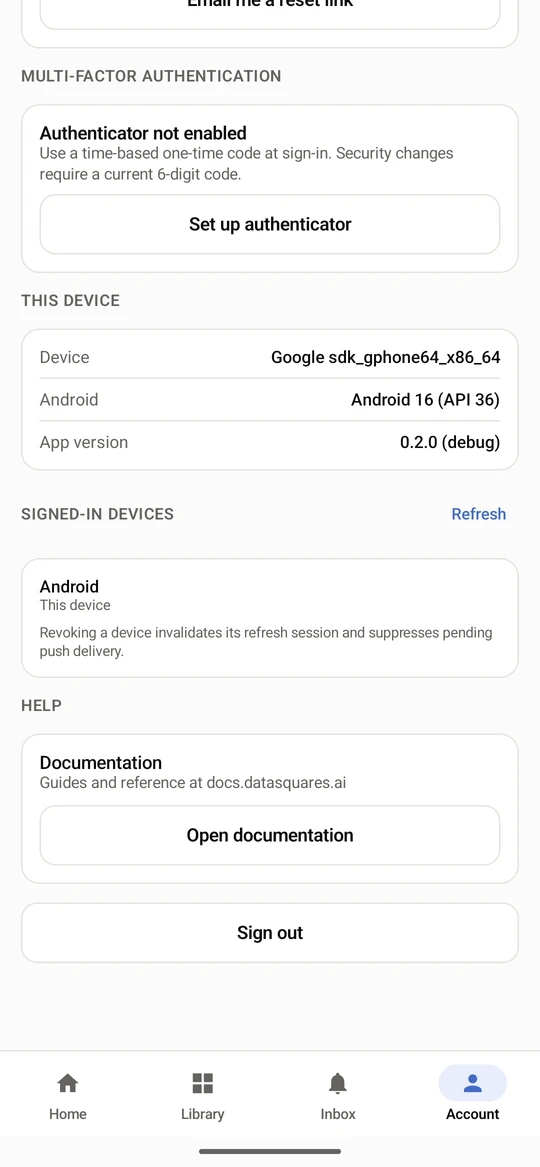
Sign out ends the session on this phone.
Settings
Section titled “Settings”Open Settings from the gear on the Account tab. Notification switches follow what Android allows: with notifications off for the app they stay off.
Open Settings from Account. Choose a Theme (System, Light or Dark) and the page the app opens on.
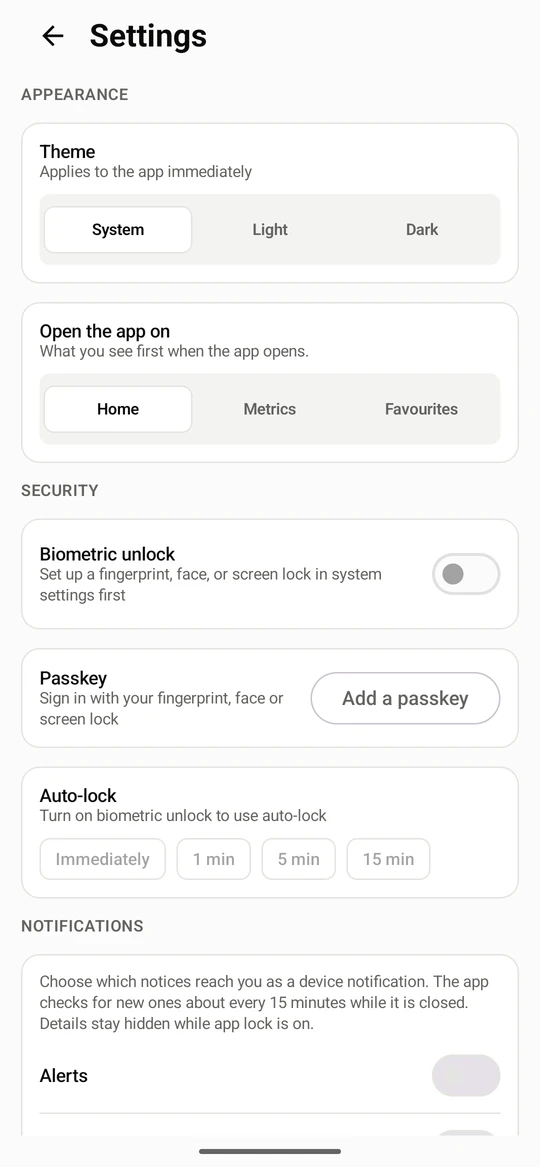
Choosing Dark switches the whole app at once. Choose System to follow the phone again.
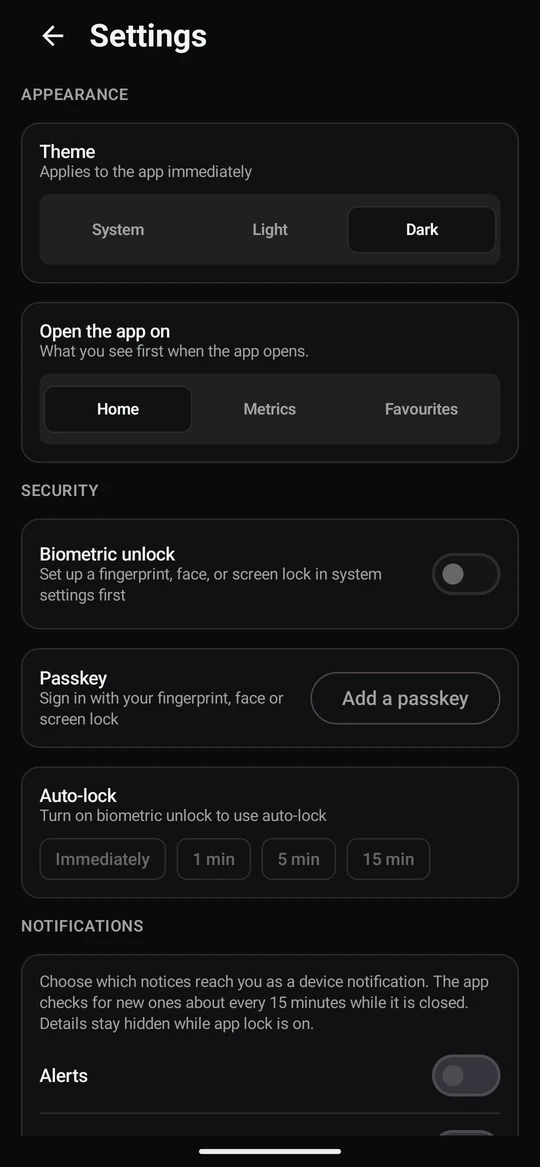
Security sets biometric unlock, a passkey and the Auto-lock delay. Notifications picks which notices reach the device.
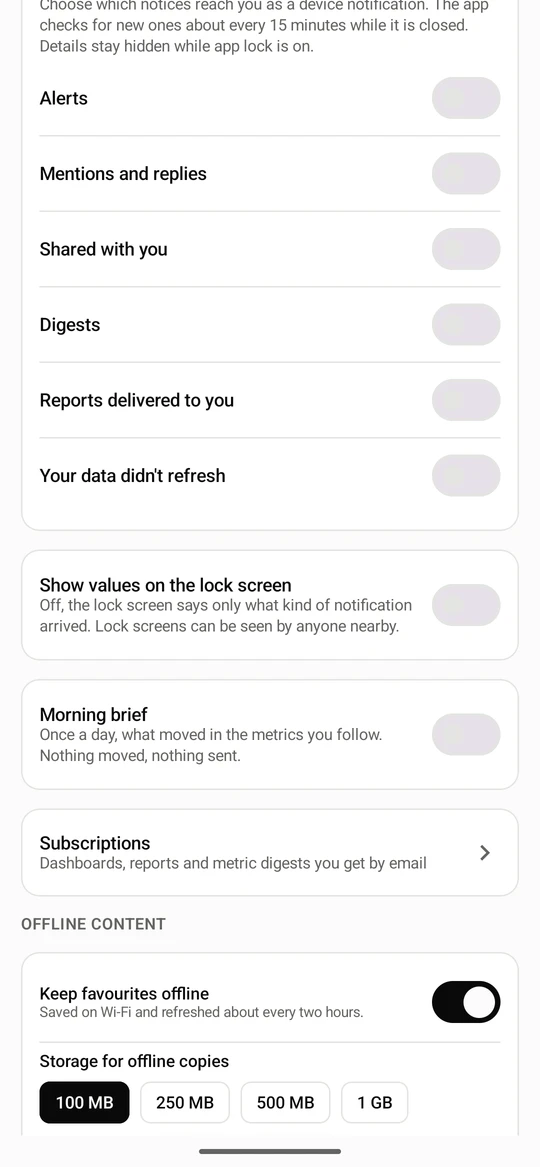
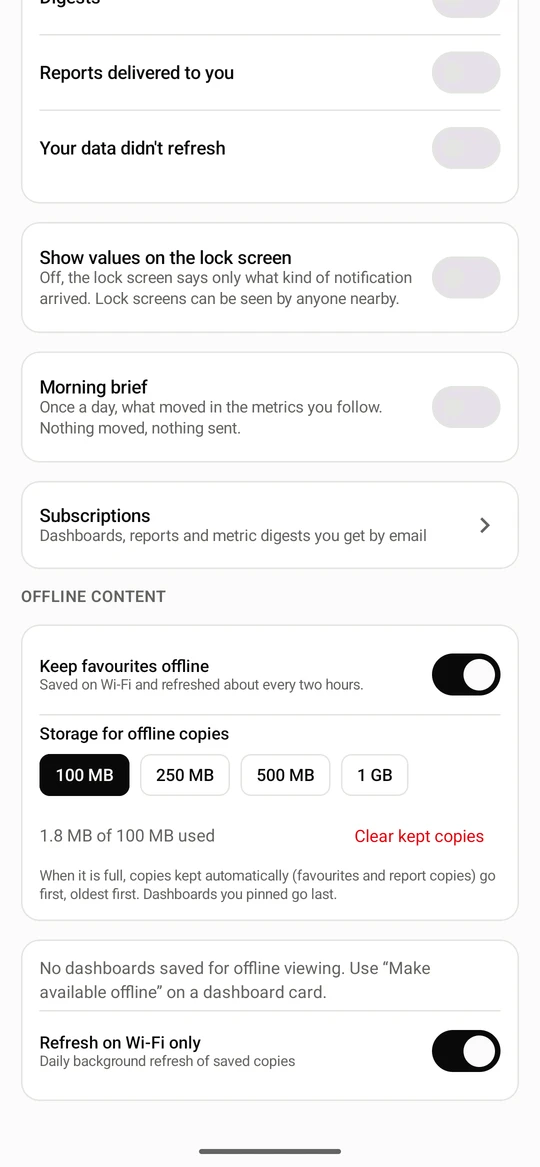
Offline content shows the storage used by saved copies, with Clear kept copies; Morning brief sets the daily digest.
Set up two-step verification
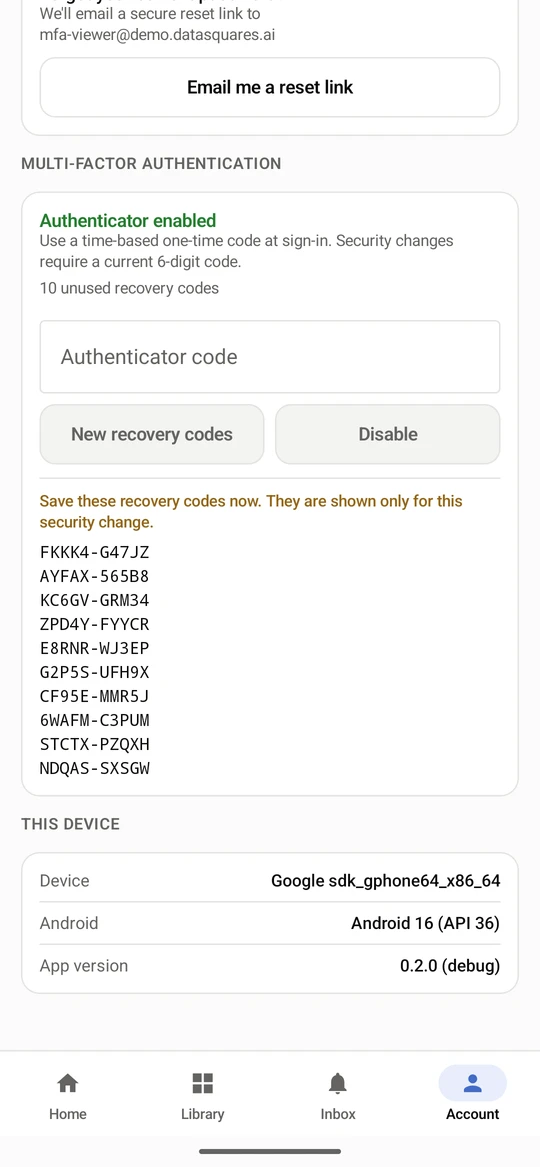
Section titled “Set up two-step verification”Under Multi-factor authentication on the Account tab, Set up authenticator shows a key to add to an authenticator app. Type the 6-digit code it gives you to turn two-step verification on. The app then shows ten one-time recovery codes, once; save them, because each works one time if you lose the authenticator. New recovery codes and Disable ask for a current code. Signing in with the code is in Get started.
Open Account and scroll to Multi-factor authentication. It says Authenticator not enabled. Select Set up authenticator.
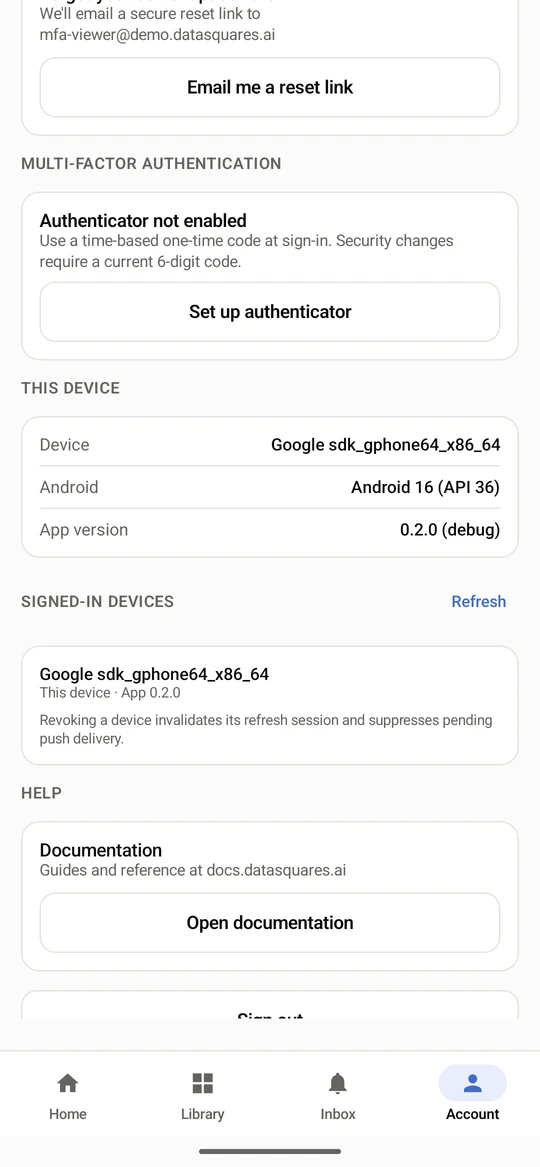
The app shows the key for this account. Type it into an authenticator app on this or another device, or choose Open authenticator app. The app then shows a 6-digit code that changes every 30 seconds.
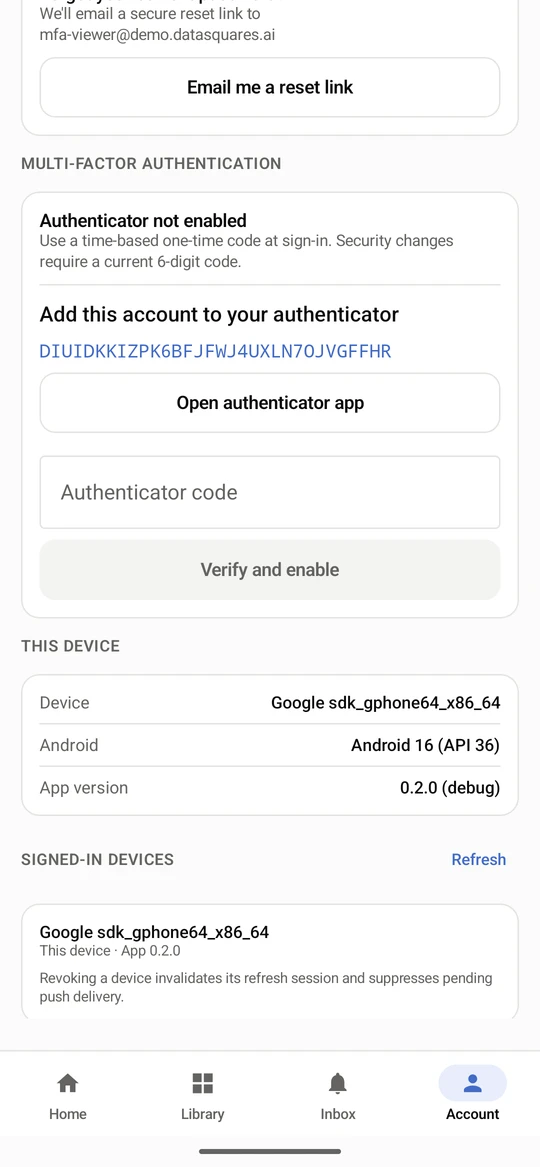
Type the current 6-digit code into Authenticator code and select Verify and enable.
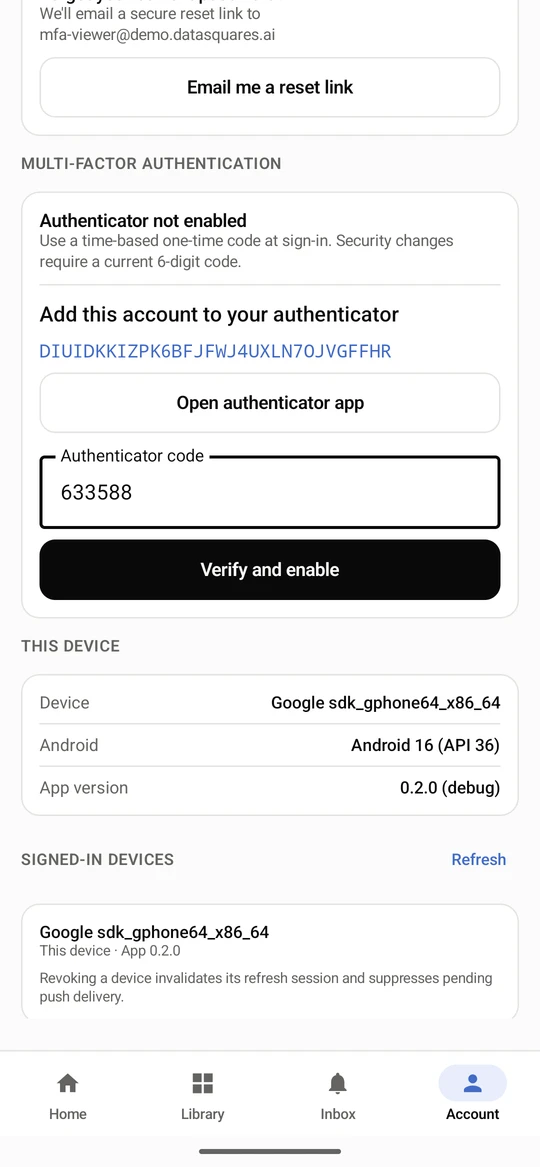
Two-step verification is on. The app shows ten one-time recovery codes, once. Save them somewhere safe: each works one time if you lose your authenticator. Afterwards New recovery codes and Disable ask for a current code.