Presentations
Headlines and speaker notes from a slide's data
On a slide you can change, the AI can write two things from the figures the slide shows: a headline for the slide’s title, and the slide’s speaker notes. The AI writes the words; every figure in them is a live number DataSquares fills from your data, under your own access. The AI never types a number of its own, and nothing on the slide changes until you use what it wrote.
Where to find them
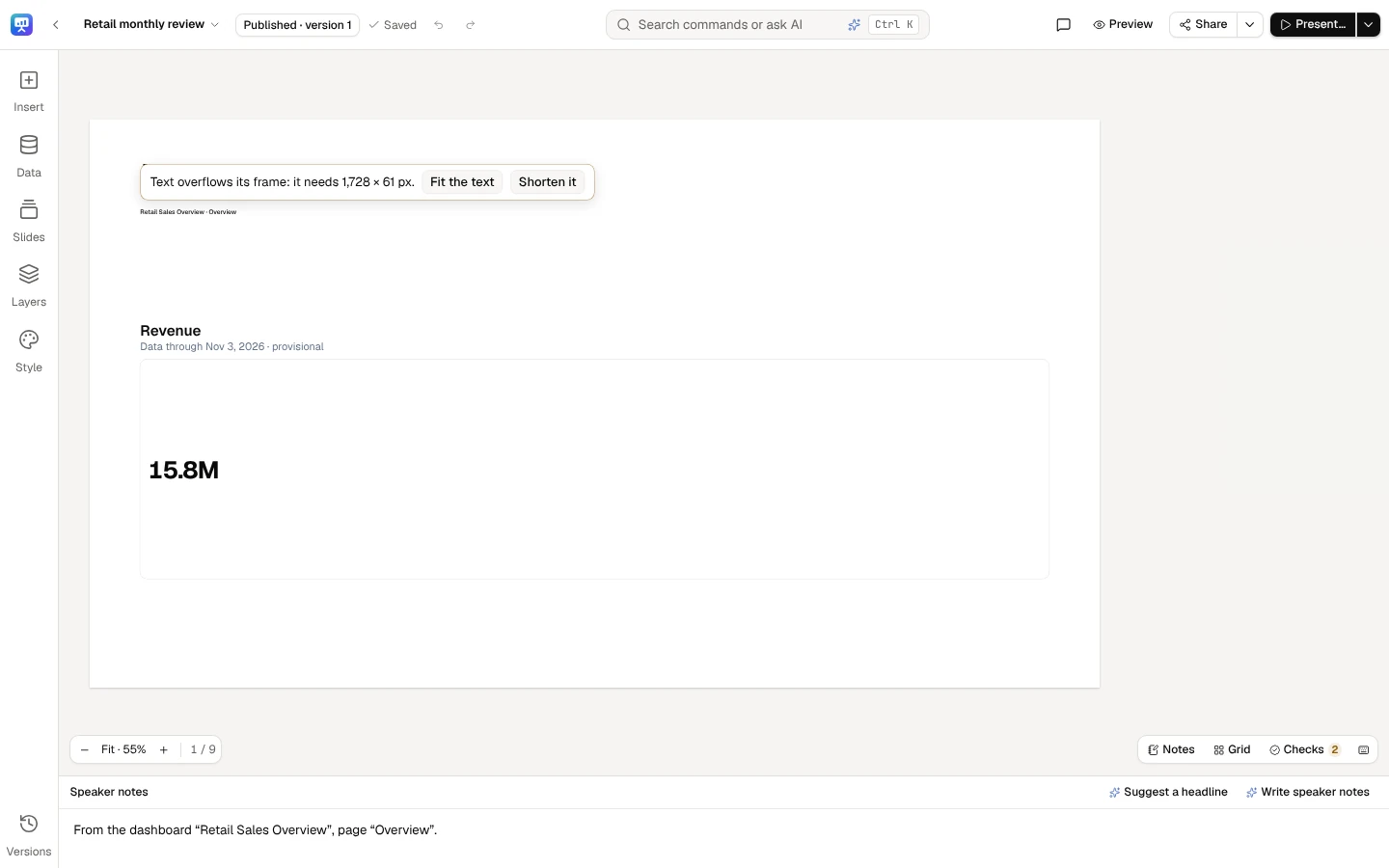
Section titled “Where to find them”Below the slide, the Speaker notes bar has Suggest a headline and Write speaker notes (if the notes are closed, choose Notes at the slide’s foot). They are offered on a slide you may change: as a contributor, the slides you added or were given; as an editor or the owner, any slide, while no one else is editing it. Each opens a panel above the notes; choose it again, or Close, to put it away.
A slide’s ⋯ menu in Slides offers both too: Suggest a headline and Write speaker notes open that slide with its panel, as above.
Notes, at the slide’s foot, opens the slide’s speaker notes under it.
For several slides at once
Section titled “For several slides at once”Select slides in Slides, on the rail: hold Ctrl (Cmd on a Mac) and click a slide to add it or take it out (the slide you are on is in the selection first), hold Shift and click to select every slide from the last one you chose, or press Shift+Space on a slide there. Esc, or a click on a slide, clears the selection. Then open the ⋯ menu of a selected slide and choose Suggest headlines for 3 slides or Write speaker notes for 3 slides.
One dialog lists each slide with the figures it writes from, and shows one estimate for them all, with how many credits you can use, before anything runs. A slide whose figures can’t be read is left out, with why. Choose Suggest 3 headlines · about … credits (or Write notes for 3 slides) once: each slide is then written in turn, at its own estimate, so what is charged is what was shown. If one slide’s estimate has gone up, the dialog stops there, runs nothing more, and shows the new estimate for the slides left; what was written is kept. Each slide’s result reads as it will on the slide, labeled AI-written, with what the checks refused said, by the same rules as below. Untick a slide you don’t want, then choose Use on 3 slides: each headline goes into its slide’s title, or each slide’s notes are replaced (the dialog names the slides whose notes you would replace). Each is a change Undo takes back.
You can stop a run at any time: Stop while it runs, or Cancel or Esc. Stopping never starts another slide, so nothing more is charged, and the dialog says Stopping after slide 1… at once. The slide already being written when you stop finishes and is charged. After Stop, what was written so far stays in the dialog to use, and the slides left can still be written at their own estimates. After Cancel or Esc, the dialog waits for that slide, then closes.
Discard closes the dialog, and nothing changes on the slides. Whenever closing would lose something written, the dialog asks first: Keep the 2 written for later? They are not on the slides yet. Keep them, or Esc, keeps them in the dialog to use; Discard them closes it.
People whose role doesn’t include AI for Presentations, or whose workspace turned it off, are told so when the panel opens (AI controls).
What it writes from
Section titled “What it writes from”The panel lists the slide’s figures first, each as it reads for you now:
- its KPI tiles, each with its change against what the tile compares with (the period before, or the same period a year before);
- the live numbers in its text boxes and in its speaker notes, each with its change against the period before, when it is read for a period.
What you changed on the slide is saved first: the AI writes from the slide as it is saved. A chart’s values are not used. A slide with no figure (only words, pictures or charts) has nothing to write from: the panel says so; add a KPI tile or a live number and ask again. A figure you may not read, or that can’t be read now, is left out, and the panel says which.
The AI sees these computed figures, their names and the slide’s title, never your rows (what the AI sees).
Credits, before it runs
Section titled “Credits, before it runs”The panel shows what the step uses, in whole AI credits, and how many credits you can use, before anything runs. The AI runs only when you choose Suggest a headline · about … credits or Write speaker notes · about … credits. A step is charged whether or not you use what it wrote, and when DataSquares leaves out words it refuses (below).
If the estimate has gone up since you saw it, nothing runs, and the panel shows the new one to run again if you want. If it is more than what is left of your monthly AI credit budget, or the workspace’s, it doesn’t run, and the message says how many credits are left and when the budget starts again. When no credits are left, the step doesn’t run, and the panel says an administrator can buy credits in Billing. See AI credits.
What comes back
Section titled “What comes back”The headline, or the notes a line at a time, read as they will on the slide, labeled AI-written with the date. Each figure is underlined with dots, as live numbers are on the slide:
- every figure is a live number, read for each reader with their own access;
- a period such as Q3 2026 is a period token that moves with the period;
- a word that says which way a figure moved (rose, fell, held steady) follows the figure, so it never stands beside the opposite;
- what a change is compared with (the period before, the same period a year before) is written by DataSquares.
The same rules as Draft from data keep the AI’s words honest. A headline, or a line of the notes, that types a figure of its own (in digits, or in words such as twelve, third or doubled), names a date or a period (September, last year), says in its own words which way a figure moved, how it ranks, a record, a comparison or a target (grew, highest, a new high, on target), denies the word DataSquares writes for which way a figure moved (did not, never, could not have been, far from, nobody believes, it is false that before it; which is false, was not the case or in name only after it; or a next sentence, or a next line of the notes, that denies it, such as That is not true. or Hardly. on its own), puts one figure’s change under another figure’s name (Orders rose 12.4%, Orders: up 12.4%, For orders, it rose 12.4% or Up 12.4% in orders where it was revenue that rose), puts a sign such as a minus before a figure, or quotes a figure the slide doesn’t show, is left out whole, never cut. A hedge stands (It is not yet clear why orders fell 3.1%, not only, would not be up … without the new region, might not yet be up, Nobody expected revenue to be up 12.4%), and so does a figure named after the change as its cause (It rose 12.4% on larger orders). The panel says what was left out and why, such as Line 2 left out: It typed a figure that is not from your data (“330”)., and that the credits were used all the same. When every line, or the headline, was left out, there is nothing to use: Try again asks again at the estimate shown.
Use it
Section titled “Use it”- Use as the slide’s title puts the headline in the slide’s title: the words of its title box (or of the first text box that opens with a heading) are replaced, in the same style. A slide without a title gets one.
- Use these notes makes the notes the slide’s speaker notes. When the slide has notes of your own, the button says Replace the notes: yours are replaced.
Either is a change like any other: Undo takes it back, and your own title or notes are yours again, not marked AI-written. Discard closes the panel, and nothing changes. Try again writes another, at the estimate shown. Before it runs, the panel says what the step uses and that what the checks refuse is charged all the same.
AI-written headlines and notes
Section titled “AI-written headlines and notes”A headline you use is marked AI-written in its text box, as the text Draft from data writes is: select it, and the Figure tab shows AI-written with its date. Speaker notes the AI wrote show AI-written with the date in the Speaker notes bar.
The mark stays when you edit the words, and comes back when you undo, paste or copy them, on any slide of the deck. Undoing the step that placed them brings back the words you had, without the mark (recorded, as a rewrite is). A template made from the deck keeps the mark on both, and so does a copy for the next period. The checks read it: in AI-written text, every figure must be a live number (W1), in the editor and in every export. When the words are your own, say so: I’ve rewritten these in the Speaker notes bar or among the finding’s fixes in Checks for the notes, I’ve rewritten this among a finding’s fixes for a text box. The mark is removed, the words are kept, and the change is recorded; a figure typed in them is then checked as yours.
Speaker notes are for the deck’s contributors, editors and owner: viewers and commenters never receive them.