Seats, plans & AI credits
This page is for workspace administrators on the hosted service. It explains the numbers you see under Administration → Billing and next to your member lists, and what changes when a trial ends or a payment is late.
Walkthrough: see your plan and recent invoices
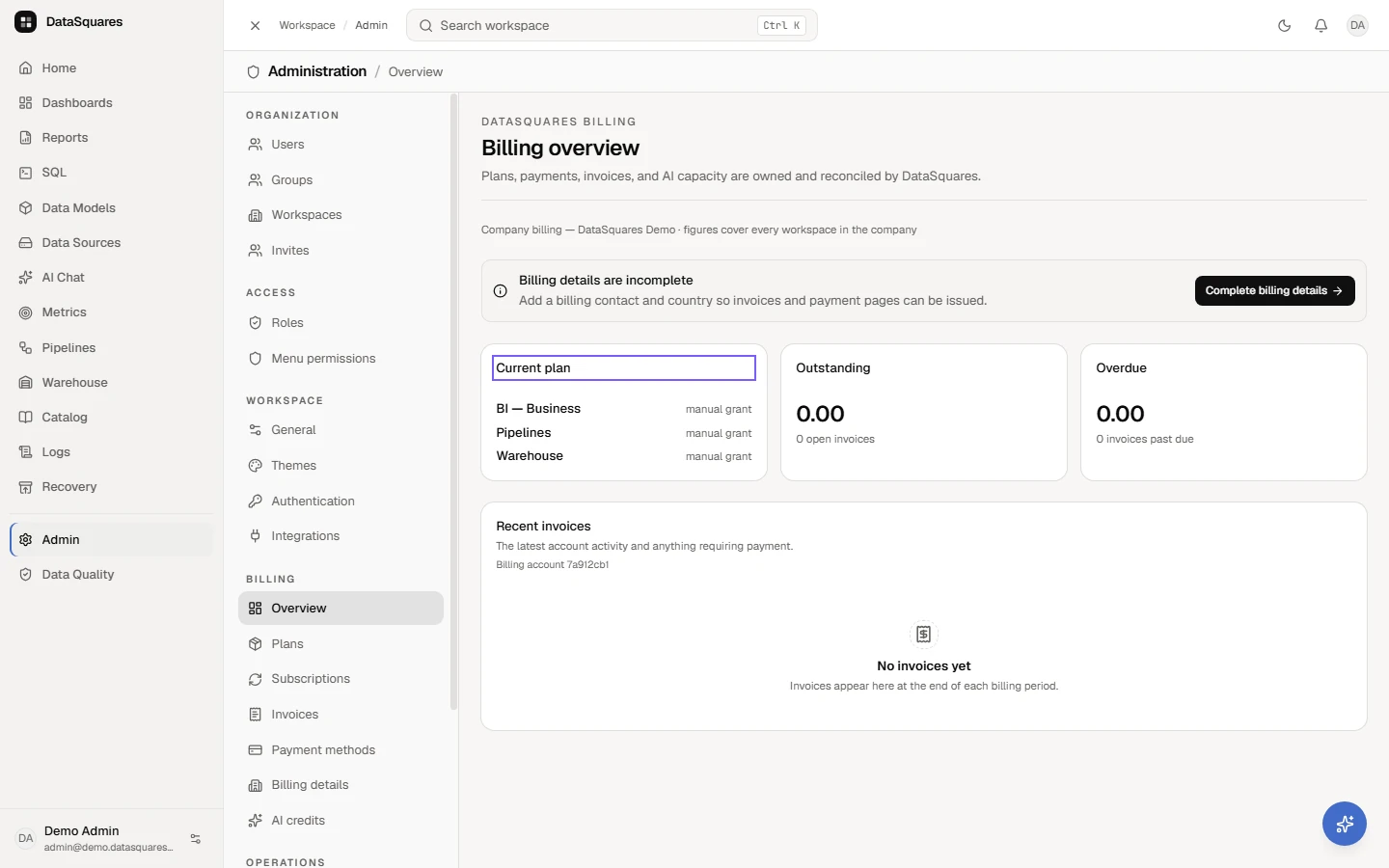
Section titled “Walkthrough: see your plan and recent invoices”Billing Overview shows the plans the company holds, what is outstanding and the latest invoices.
Open Admin, then Overview under Billing. Current plan lists the plans this company holds. Outstanding shows anything awaiting payment and Overdue anything late.
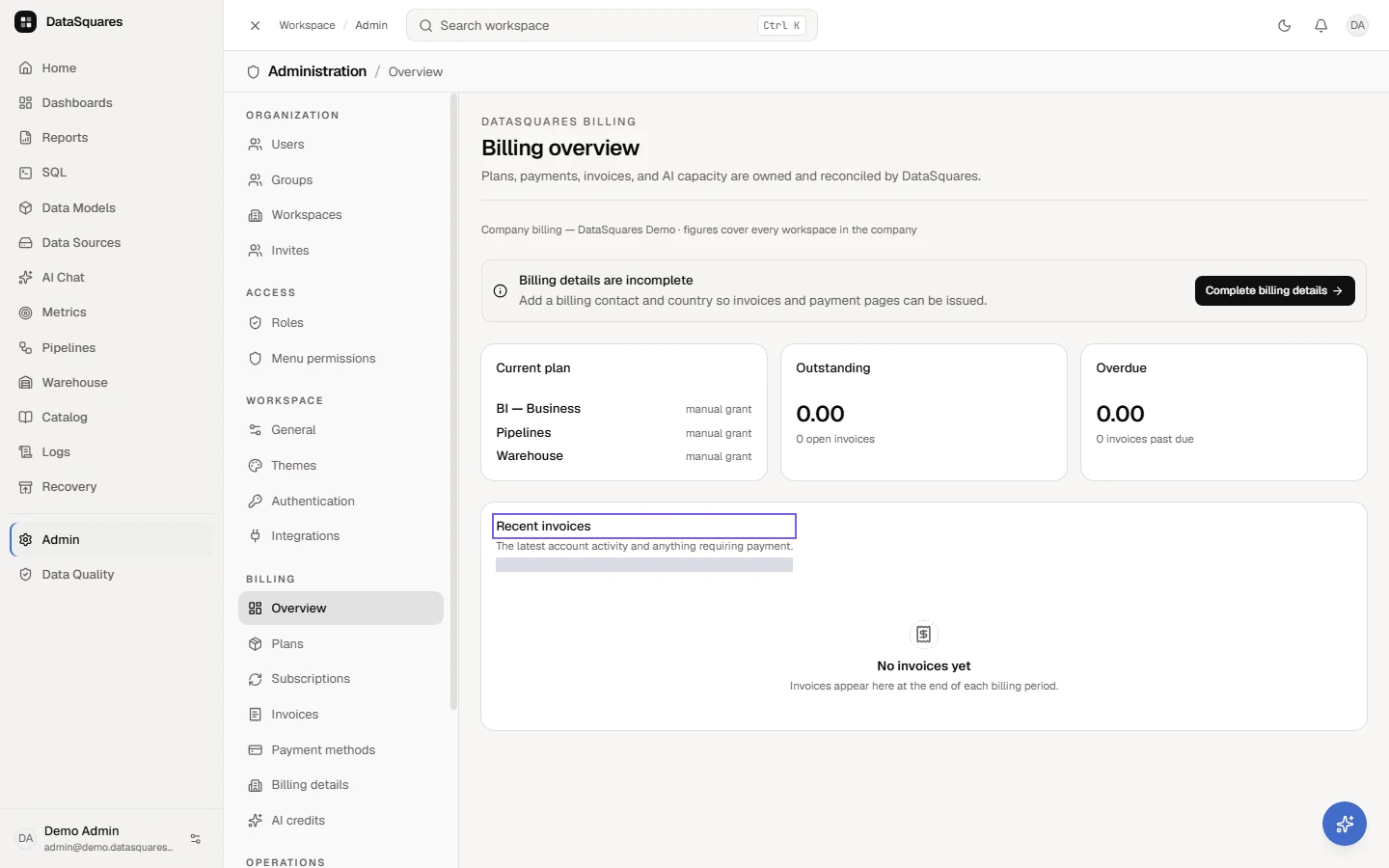
Recent invoices lists the latest invoices and anything that needs paying. Use the Invoices section for the full list.
Plans and seats
Section titled “Plans and seats”DataSquares sells seats for the BI products and workspace products for Pipelines and the Warehouse:
| What | Unit | Who consumes it |
|---|---|---|
| BI Team / BI Business editor seat | per user, monthly or annual | every active member with the admin or editor role (or any custom role) |
| BI Team / BI Business viewer seat | per user | every active member with the viewer role |
| Pipelines, Warehouse, Platform | per workspace | the workspace itself; no seats involved |
Your billing country decides the currency: India is billed in rupees (INR), every other country in US dollars (USD). On Admin → Billing → Choose a plan, the Country picker above the plans shows the country the prices are for — your billing country if you have saved one, otherwise the one your browser suggests (India by its time zone or an Indian language setting, elsewhere the country your browser’s language names). Change it there, or under Billing details; the prices switch at once. The country is saved with your first purchase, because it also decides the tax on your invoices. Once an invoice has been issued the currency is fixed — the plans card then says Billed in INR (or USD), and changing the country no longer changes the currency.
How seats are counted
Section titled “How seats are counted”For each workspace, three numbers are kept per seat kind:
- Purchased — the quantity on your active subscription lines (or the trial allowance while you are on a trial: 3 editors, 10 viewers).
- Assigned — active members who hold that seat kind.
- Available — purchased minus assigned.
You will see them as Editor seats 4 / 5 next to the member list. The check runs when a seat would be consumed: adding a member, changing a viewer into an editor, accepting an invite into the workspace, and reactivating a member. A full pool refuses the action with No available editor seats and two ways out: Buy seats, or free one by deactivating a member who no longer needs access. Deactivating frees the seat immediately. Pending invites do not hold seats.
Reducing a seat line below the number currently assigned is refused; deactivate members first.
Walkthrough: compare Team and Business
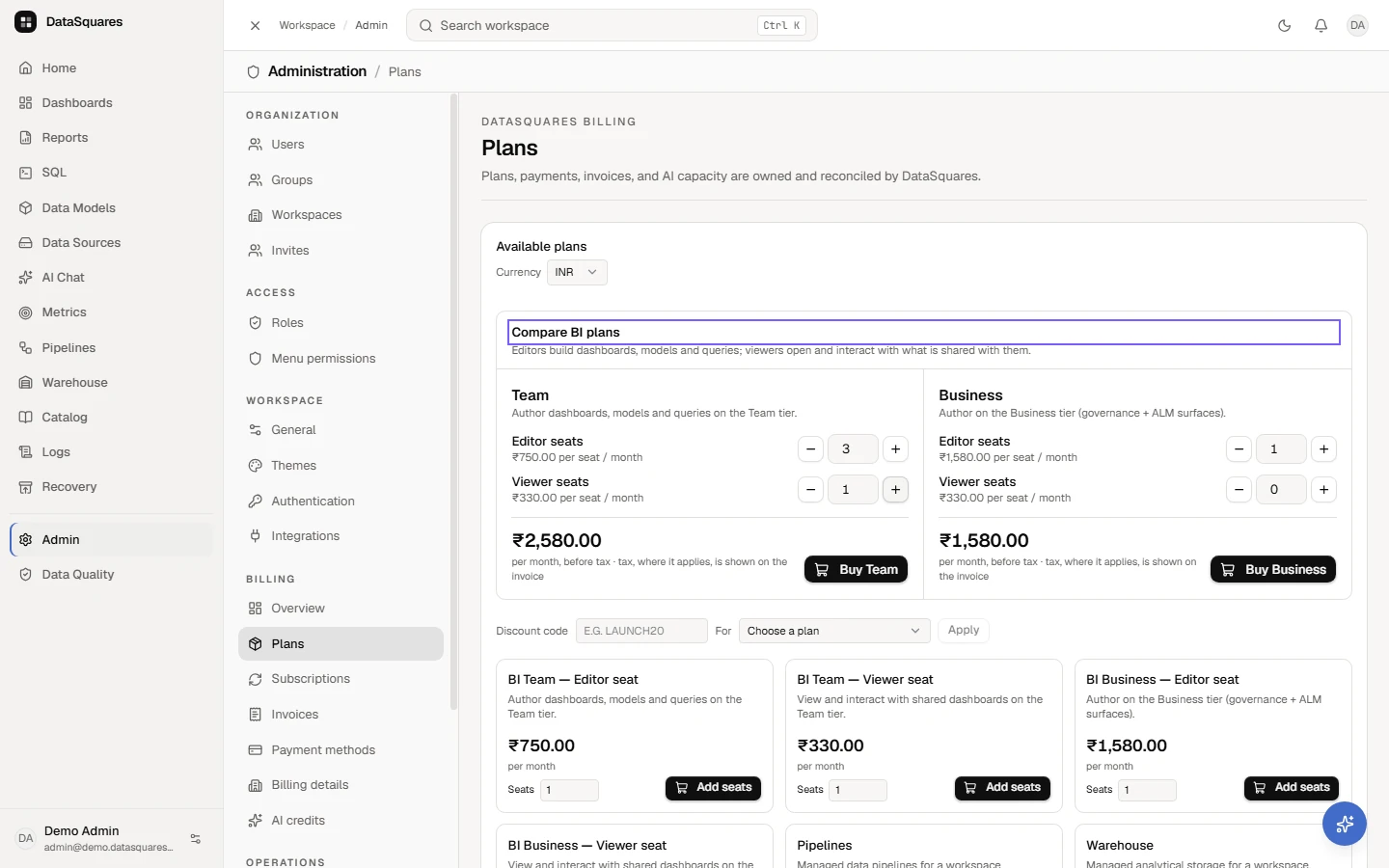
Section titled “Walkthrough: compare Team and Business”Set the seats you need and see the price before tax. Nothing is bought until you choose Buy.
Open Admin, then Plans under Billing. Team and Business sit side by side, each with its own editor and viewer seats.
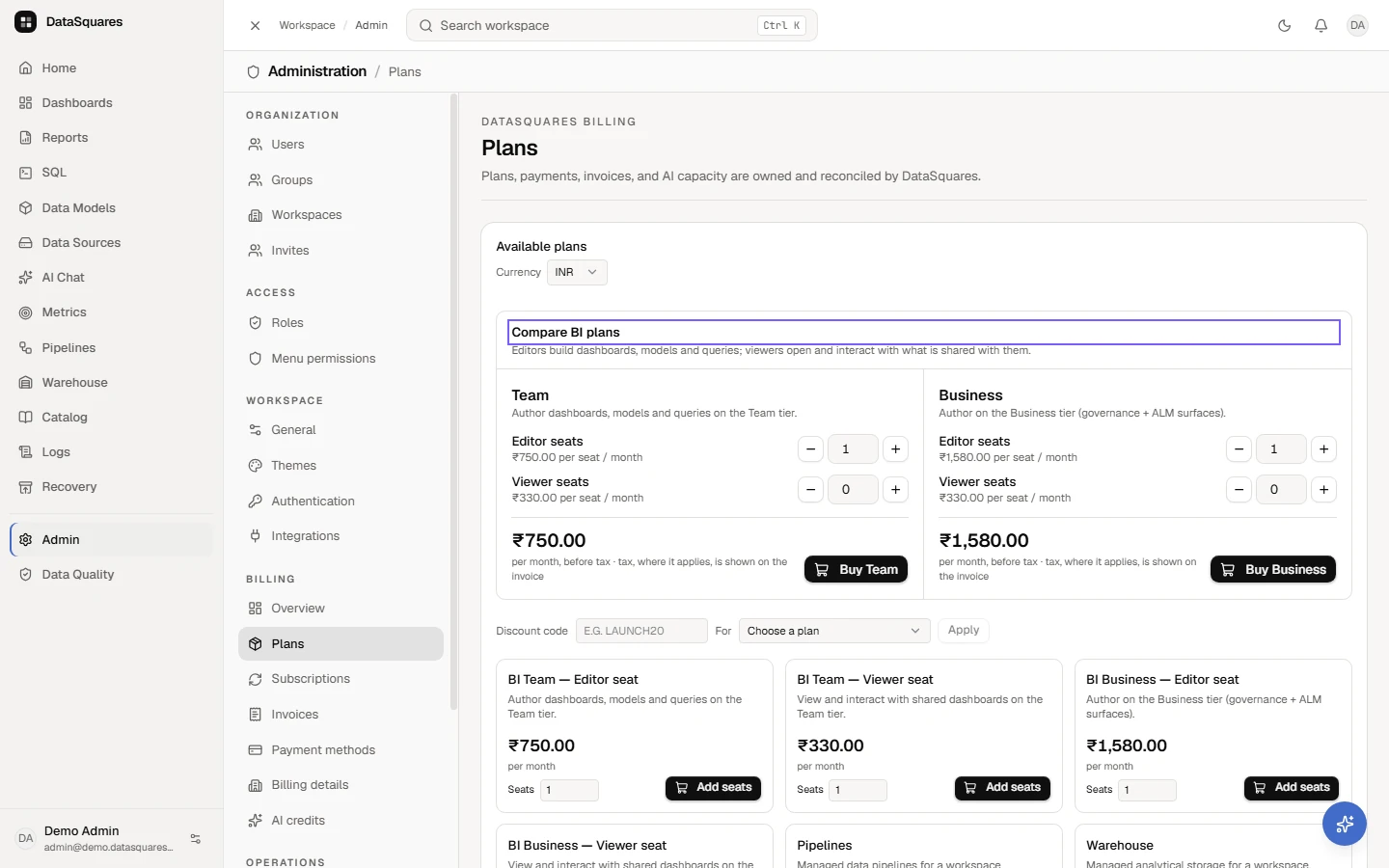
Use the steppers to set how many editor seats and viewer seats you need. Each tier shows its per-seat prices and a running total before tax.
Buying and changing plans
Section titled “Buying and changing plans”Administration → Billing → Plans shows the catalogue with seat steppers. Choosing a plan creates an invoice and opens a Razorpay payment page; when the payment is confirmed your subscription becomes active and the seats are available at once. Upgrades mid-term are prorated and charged immediately; downgrades take effect at the next renewal.
Renewals are charged automatically when you have saved a payment mandate under Payment methods; otherwise you receive a payment link before the renewal date.
Walkthrough: see your subscriptions
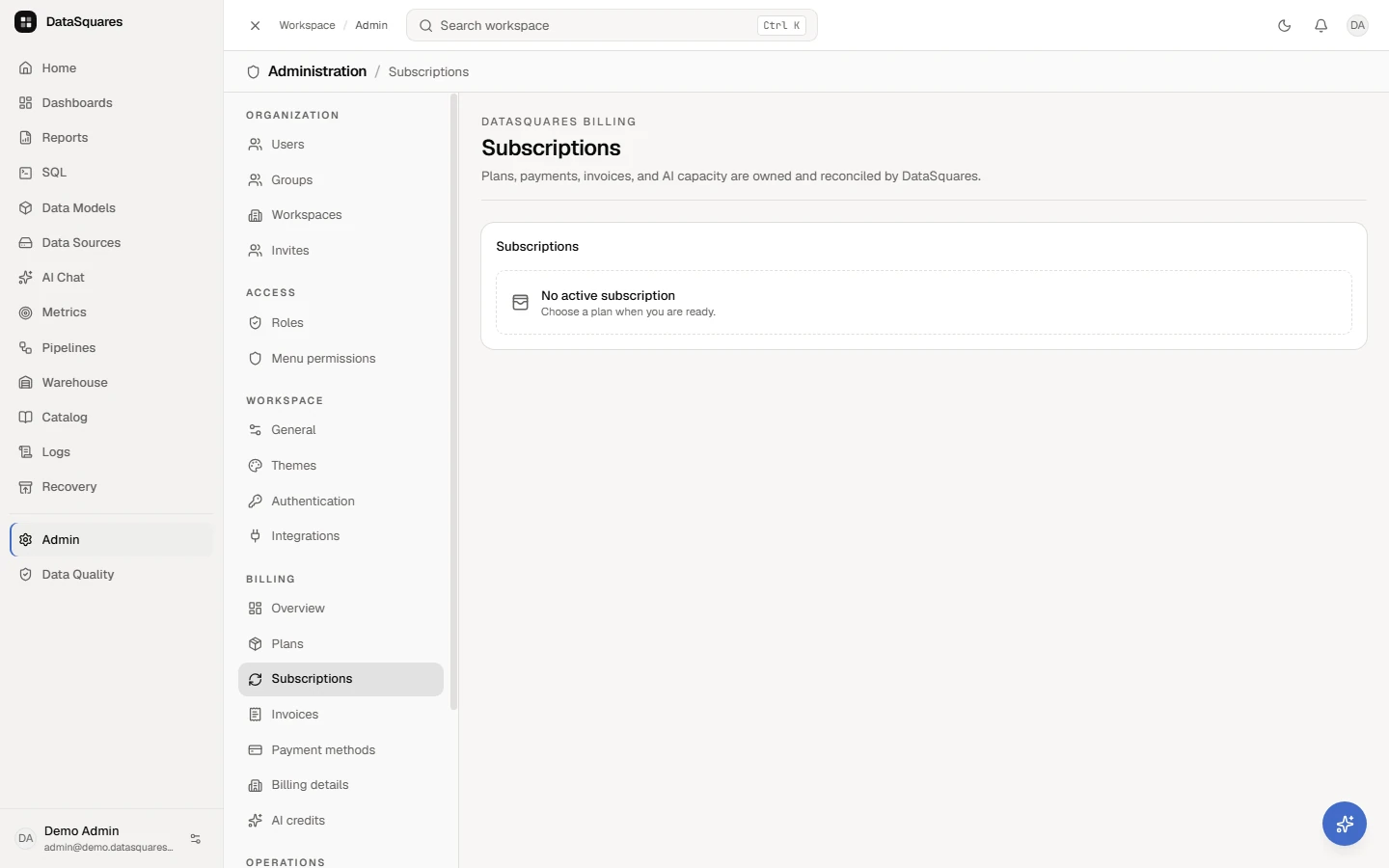
Section titled “Walkthrough: see your subscriptions”Open Admin, then Subscriptions under Billing. Each active subscription is listed here with its plan, the number of editor and viewer seats and when it renews; you can change the seats or cancel at the end of the period. This workspace has no paid subscription yet, so the page says so and points to Plans. Subscriptions that have ended are kept under a count.
Walkthrough: payment methods and automatic renewal
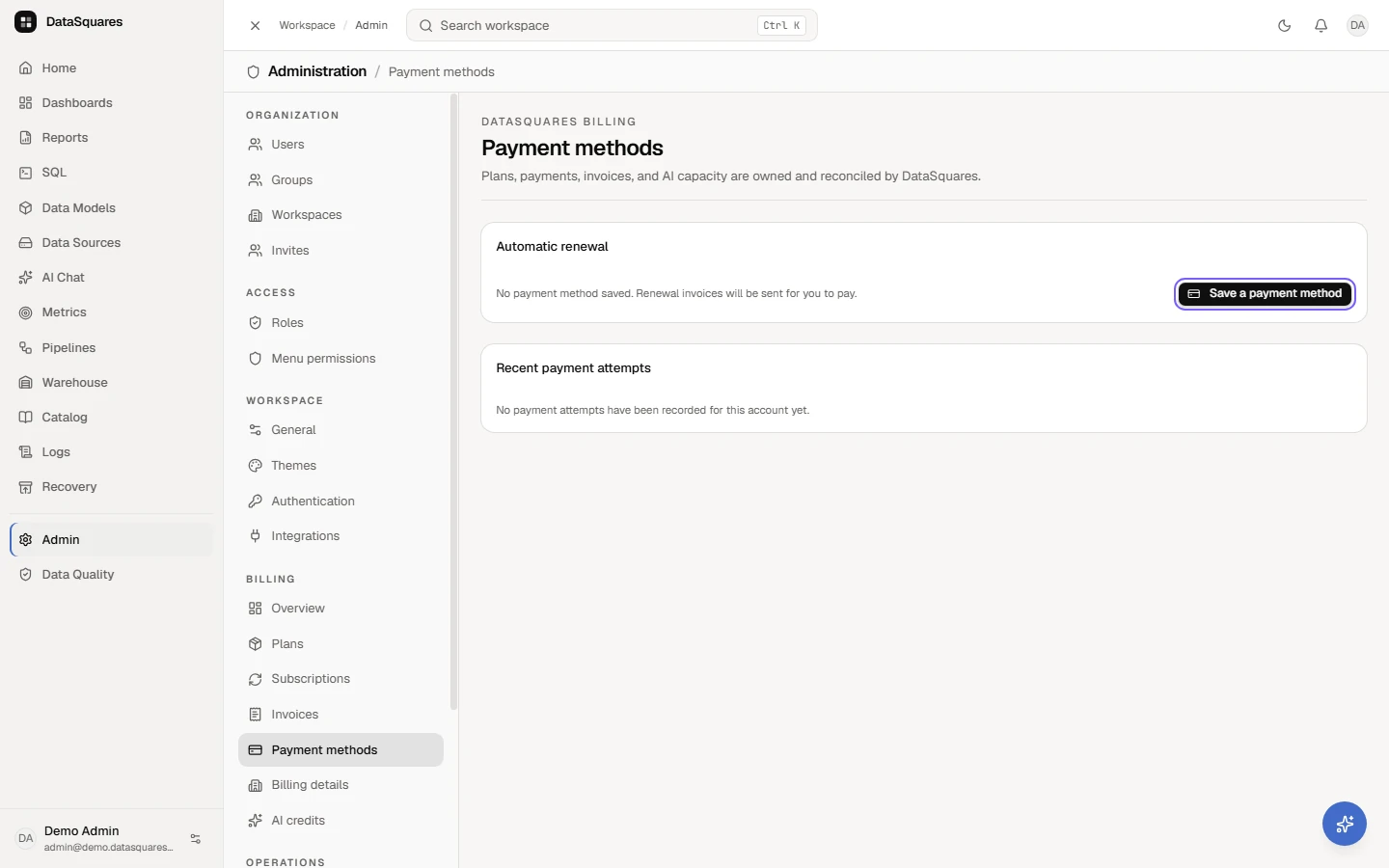
Section titled “Walkthrough: payment methods and automatic renewal”Open Admin, then Payment methods under Billing. With no payment method saved, renewal invoices are sent for you to pay. Save a payment method sets up an automatic-renewal mandate with the payment provider; once it is active, automatic renewal shows as on, and you can turn it off or remove the method. Recent payment attempts are listed below.
Account states
Section titled “Account states”| State | What you see | What still works |
|---|---|---|
| Trial | a countdown banner | everything in the trial plan |
| Trial ended | an amber banner with Choose a plan | viewing dashboards, all billing pages |
| Active | no banner | everything you have purchased |
| Past due | a red banner with Pay now | sign-in and billing; paid features are paused until the open invoice is settled |
| Suspended | sign-in is refused | contact your billing administrator or support |
A past-due account is suspended only after a further grace window, and paying the open invoice restores it automatically at any stage.
The billing Overview names the one step that needs attention next — an overdue invoice first, then a payment your bank must approve, a saved payment method that failed, a payment under review, an open invoice, a cancelled renewal you can still resume, low AI credits, incomplete billing details, and finally choosing a plan — with a link straight to the page (or invoice) that resolves it. If part of the account could not be loaded, the Overview says so rather than showing a zero or “paid”.
Renewal can be cancelled only on an active subscription with no overdue invoice; a paused (suspended) or past-due subscription must be paid first. A cancelled renewal can be resumed until its paid period ends.
AI credits
Section titled “AI credits”Walkthrough: AI credits, balance and packs
Section titled “Walkthrough: AI credits, balance and packs”Open Admin, then AI credits under Billing. The runway card shows the credits available, how many the plan includes and how many were purchased, when the monthly allowance resets, the daily burn and the projected runway. Recharge credits lists the packs you can add on top of the allowance, each at one price per credit. Choosing Recharge on a pack takes you to the payment provider to pay, and the credits are added when the payment is confirmed; the top-up then appears under credit activity. Auto-recharge can top up for you when the balance runs low.
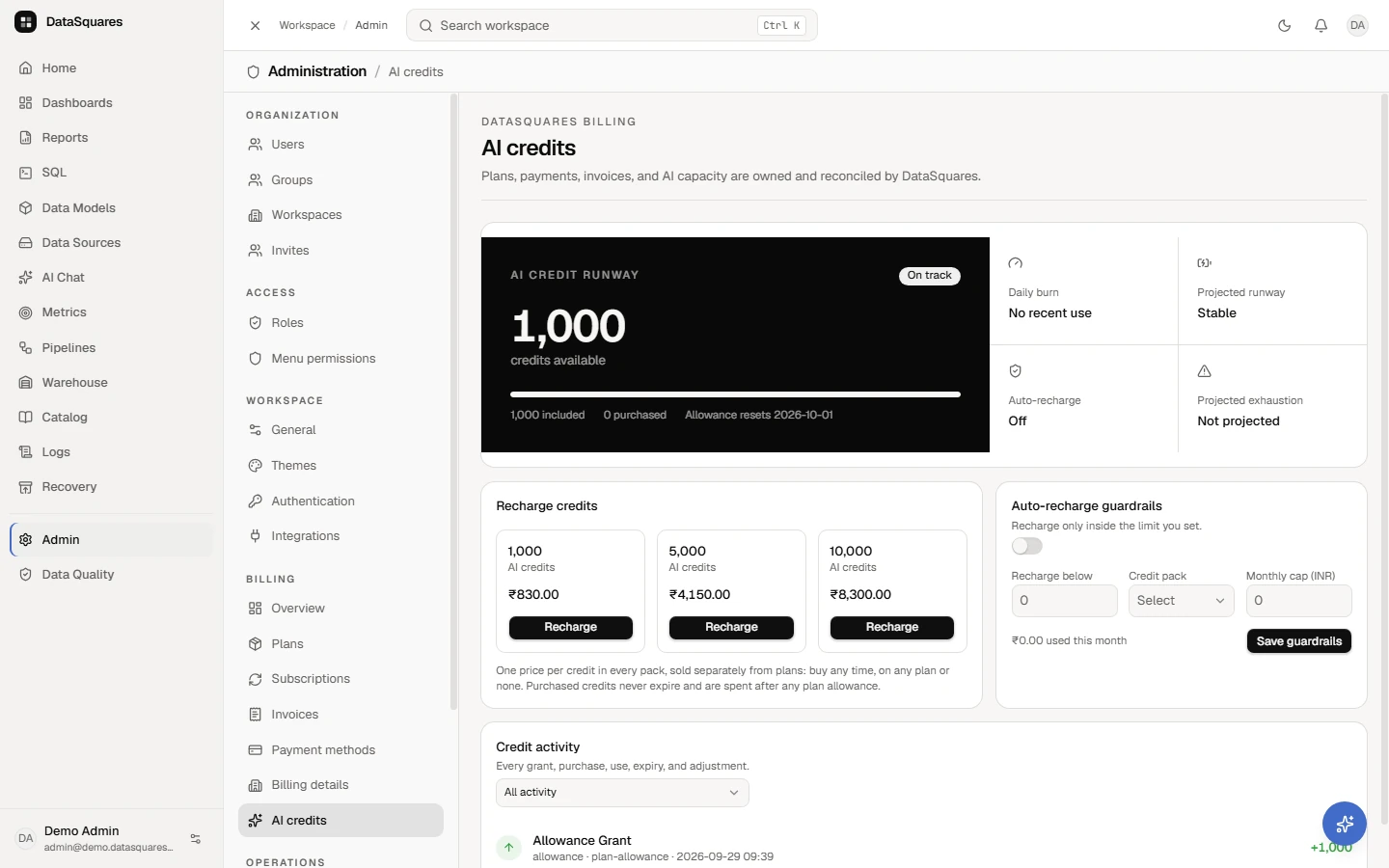
Every AI feature (chat, insights, the dashboard generator, MCP tools) spends the same AI credits, and a credit has one price: 1,000 credits cost $10 (₹830) — in every pack, for everyone. What a request costs in credits depends on how much the AI reads and writes and how deeply it reasons for that feature; a typical question about your data costs about 5–15 credits, a long analysis more. Each request is rounded up to whole credits, and a request that fails is never charged. DataSquares picks the AI capability behind each feature for you — there is no model to choose and none to keep track of; credits are the only unit you see.
- Monthly allowance. BI Team includes 500 credits a month, BI Business 1,000 and Platform 1,500 (Pipelines and Warehouse include none). The allowance resets each month and does not roll over. A trial receives its plan’s allowance on day one.
- Credit packs of 1,000, 5,000 or 10,000 credits ($10, $50, $100) are sold separately from plans: an administrator can buy one at any time, on any plan or none. Packs never expire and are used after the allowance.
- Auto-recharge (Administration → Billing → Credits) buys a pack automatically when the balance drops below a threshold, using a saved mandate, within a monthly cap you set.
- When the balance reaches zero the next AI request is refused with a Recharge action for administrators; nothing else in the product is affected.
The Credits page shows the balance, the 30-day usage by feature and the ledger of every grant, purchase, debit and adjustment.
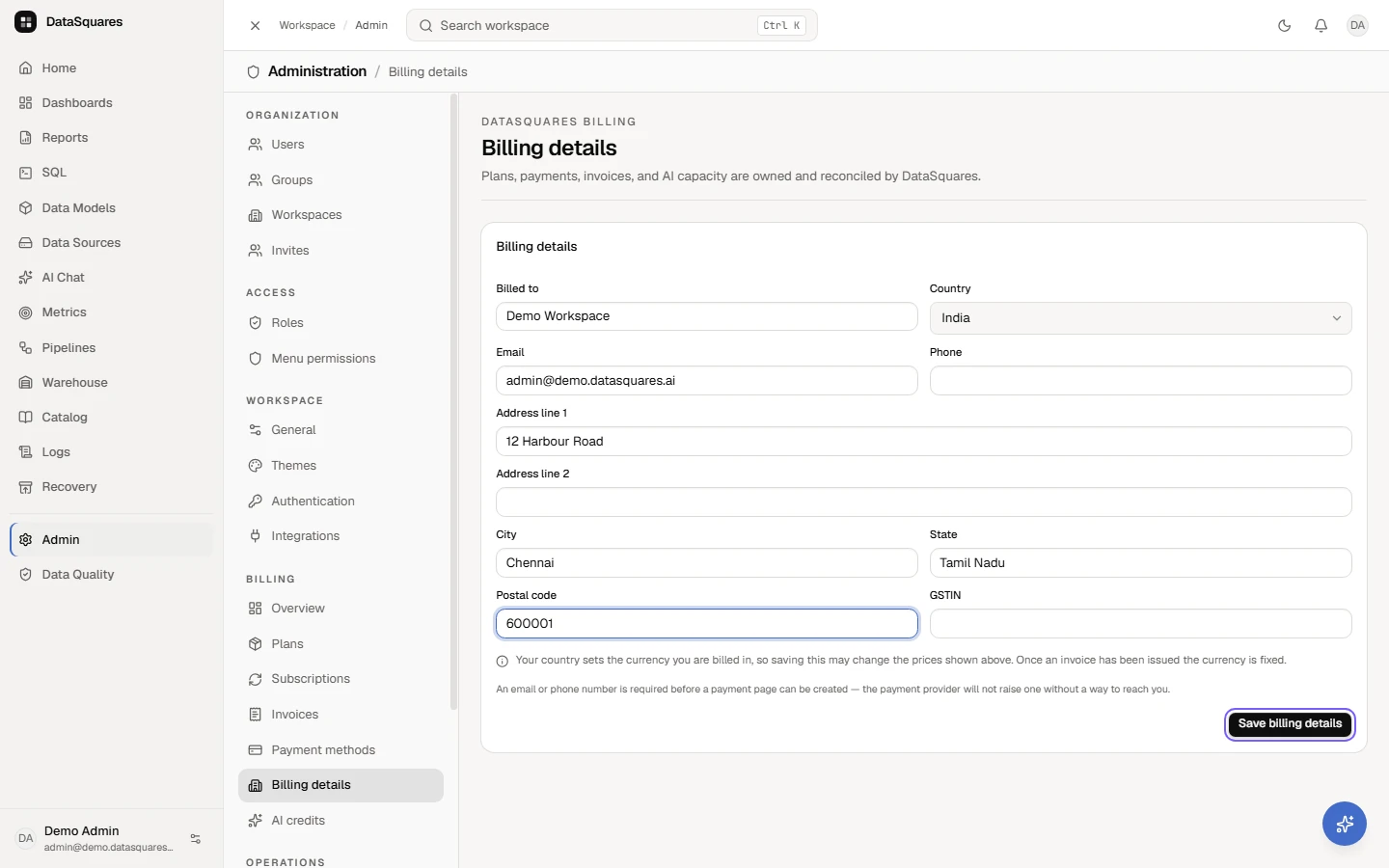
Walkthrough: set your billing contact and tax details
Section titled “Walkthrough: set your billing contact and tax details”The contact, address and tax number printed on invoices.
Open Admin, then Billing details. This is the contact and address printed on your invoices.
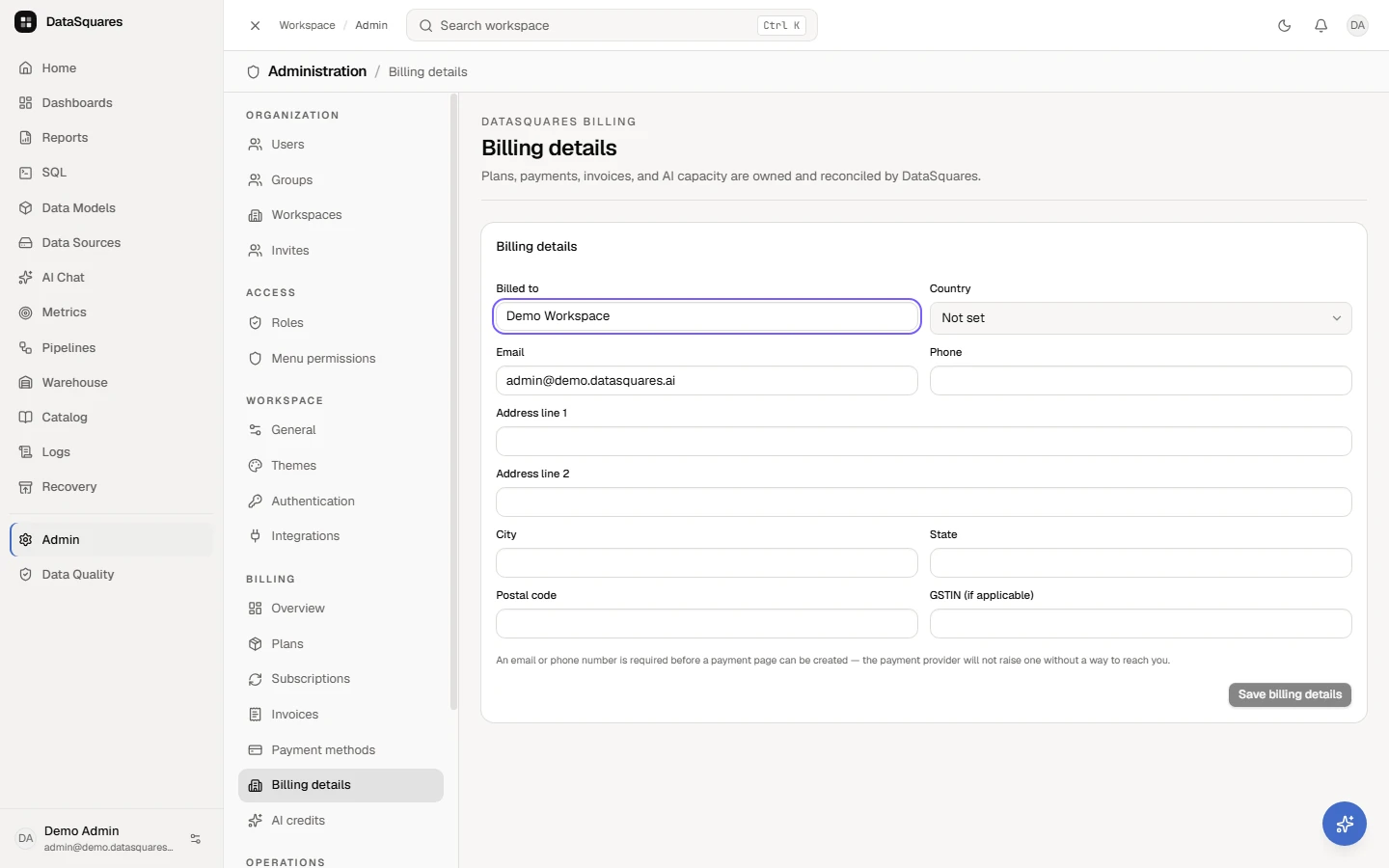
Fill in the address and, where it applies, your tax number (GSTIN in India, VAT elsewhere). An email or phone number is required before a payment page can be created. Then choose Save billing details.
Invoices and tax
Section titled “Invoices and tax”Walkthrough: find invoices
Section titled “Walkthrough: find invoices”Open Admin, then Invoices under Billing. Filter by status (Open, Overdue, Paid or Void) and by date range. Invoices appear here at the end of each billing period; open one for its detail, download its PDF or pay one that is due. This workspace has none yet. Below, Account activity lists everything on the account, newest first: invoices, payments, refunds, credit notes and payment attempts. A payment attempt is not a payment; only a confirmed payment counts.
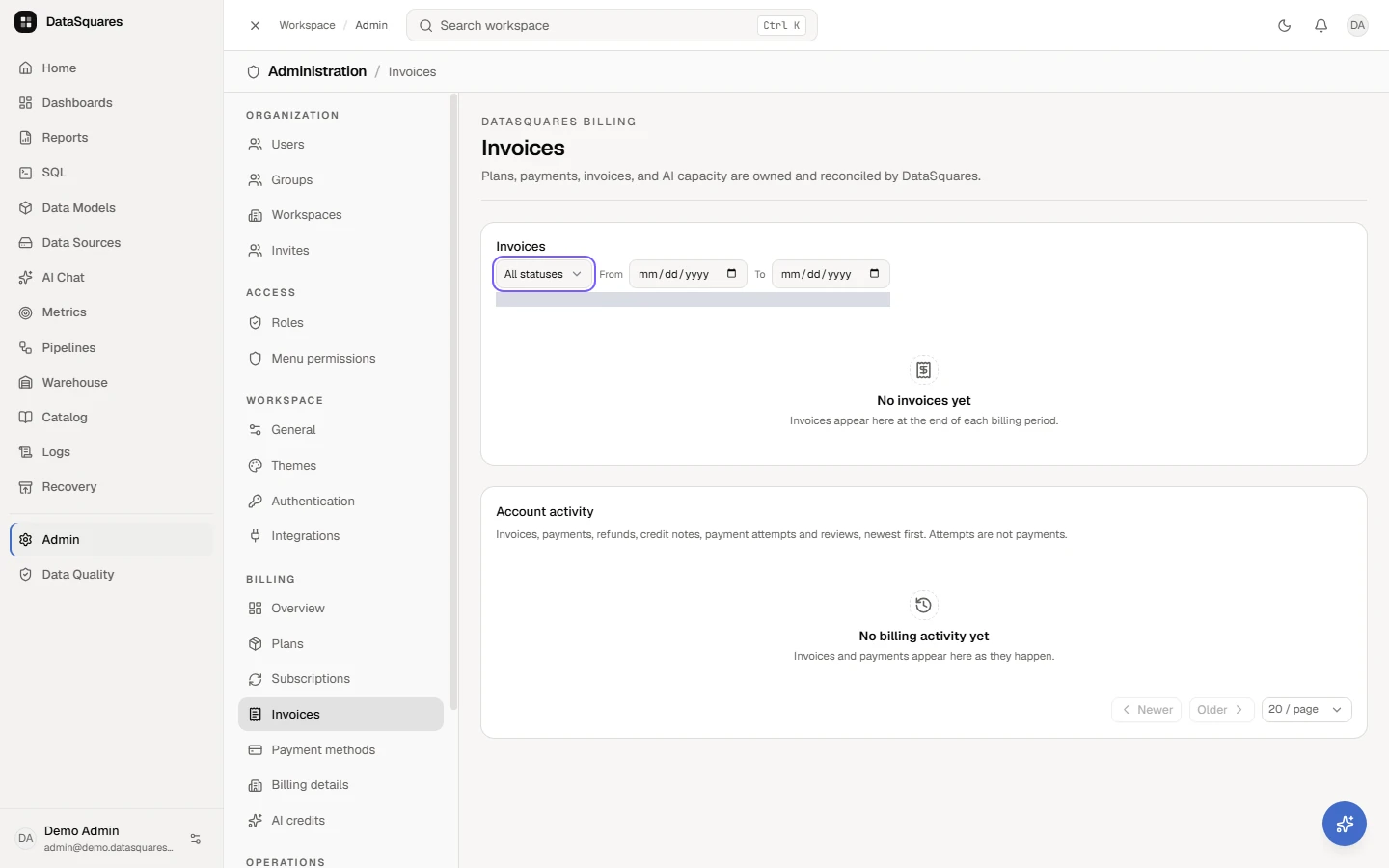
Invoices are issued per subscription period and for each credit pack, with a PDF you can download.
Below the invoice list, Account activity shows everything that happened to the billing account in one list, newest first: invoices issued, payments received, refunds, credit notes, payment attempts (a page opened, an automatic charge, a retry) and payments under review. Only invoices, received payments, completed refunds and credit notes are money; an attempt is shown with its amount but is never a payment, and one still waiting on the provider reads Not confirmed yet.
Prices are tax-exclusive. DataSquares (Digisquares Technologies Private Limited, GSTIN
33AAICD2660A1Z8, Tamil Nadu) adds GST for customers in India: CGST 9% + SGST 9% when
the place of supply is Tamil Nadu and IGST 18% for any other state. The place of
supply is the state of your GSTIN when you have entered one, otherwise the state in your
billing address — so enter your GSTIN (it is checked as you save) and pick your state from
the list under Billing details. The invoice prints both GSTINs, the place of supply with
its state code, each tax separately and the SAC code (998315). Customers outside India are
invoiced without Indian tax, as an export of service. On the plans card a buyer in India sees
this before paying — Prices in INR + 18% GST, and each plan’s total with the GST and the
amount that will be charged.
Refunds and credit notes
Section titled “Refunds and credit notes”If you paid an invoice twice, paid more than it asked, or are owed money back for a paid invoice, contact DataSquares. A refund is approved by the DataSquares team and goes back to the original payment method through Razorpay.
Open the invoice to follow it. One line says where things stand:
| The invoice says | What it means |
|---|---|
| You paid more than this invoice | the extra amount is being reviewed for a refund |
| A refund is in progress | the refund was sent to Razorpay; the money has not reached you yet |
| Refunded to the original payment method | Razorpay confirmed the money moved |
| A credit note reduces this invoice | a credit note was issued with the refund |
A refund reads Refunded only once Razorpay confirms the money moved. When
the refund returns money you paid for the service itself (not an overpayment),
a credit note is issued with it: a numbered tax document (DSCN-000001)
that names the original invoice, splits the refunded amount into its taxable
value and each tax (CGST and SGST, or IGST) the same way the invoice did, and
downloads as a PDF from the invoice. The original invoice is never changed. In
Account activity, a completed refund and its credit note cancel each other
out.
Refunds apply to paid invoices.