Presentations
Turn a deck into a story and back
A deck and a story can tell the same analysis two ways: slides to present, a document to read. You can turn one into the other in either direction. Nothing is copied as a figure along the way: every number, KPI tile, chart and table stays bound to the same metric or saved query, so each reader of the story, or of the deck, sees their own figures.
Make a story from a deck
Section titled “Make a story from a deck”On the Presentations home, open a deck’s ⋯ menu and choose Make a story, or choose Make a story… in the menu on the deck’s title in its editor, or Make a story when you are only reading the deck. You need to be able to read the deck and to create stories. In the editor, what you changed is saved first, so the story is made from the deck as you see it. If a change can’t be saved yet (the network is down, or a slide you are editing together hasn’t stored it), the dialog says so before anything is made from the draft: Your latest changes are not saved yet: the story will be made from the last saved version. Try again saves once more and shows the draft as it is then.
Make a story… turns the deck into a story, each slide a section, its numbers still bound to their data.
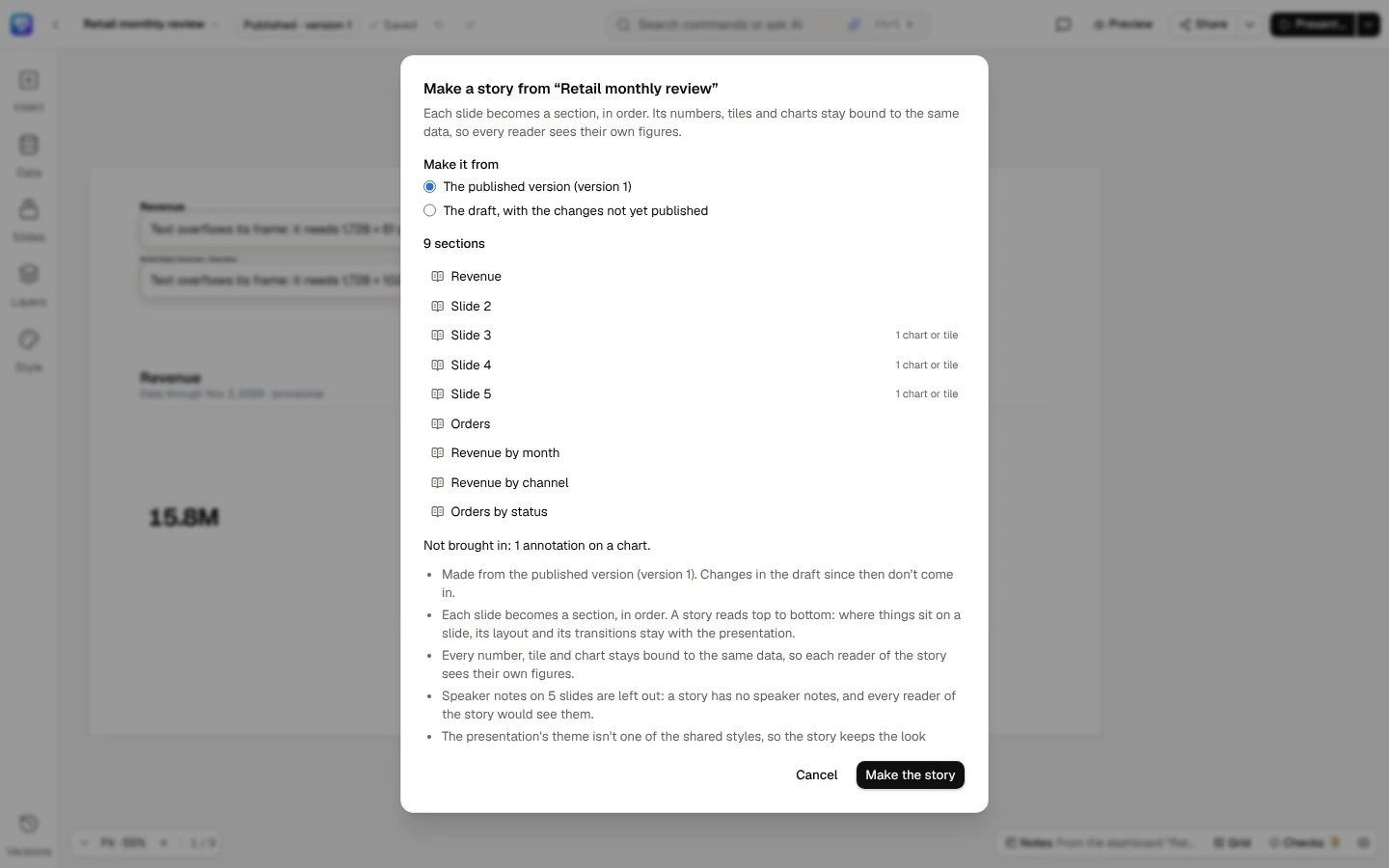
Which version
Section titled “Which version”- The published version is what a story is made from, unless you choose otherwise. Changes made in the draft since it was published don’t come in.
- The draft is offered to the people who make the deck (its contributors, editors and owner), beside the published version when there is one. A deck that has never been published is made from its draft, and the dialog says so.
Readers of a deck get no choice: the story is made from the version they can read.
What comes in
Section titled “What comes in”Each slide that isn’t hidden becomes a section, in order:
| On the slide | In the story |
|---|---|
| The slide’s title (its first text box, when that is a heading) | The section’s title. A slide with no title of its own takes the name of the deck’s section it is in |
| Text: headlines, body text, lists | The same text, with its live numbers, periods, claim words and figures typed by hand, bound as they are |
| KPI tiles, charts and tables | The same tile, chart or table, bound to the same data with its filters, period, comparison and format, drawn as the deck draws it |
| A dashboard visual | A dashboard card block, read through its dashboard’s access as on the slide |
| Pictures | Copied into the story as its own pictures, with their alt text, crop and picture options. They are private to the story, as its attachments are: only the story’s readers see them, never through a link anyone could open |
Elements come in the slide’s reading order (the order Layers lists them in). The story wears the deck’s style when its theme is one of the shared styles, such as Meridian or Ledger; otherwise it keeps the look stories have.
The story’s own pictures
Section titled “The story’s own pictures”The pictures stay the story’s own wherever its words go:
- Moved to another section of the story, a picture says Saving the section shows this picture until that section is saved with it, then shows as before.
- Pasted into another story, a picture is copied into that story as its own, as long as you can still read the story it came from and the picture is still there. One that can’t come is left out of the paste, and you’re told so.
- Saved as a template, the story’s pictures are copied into the template, and a story started from the template gets copies of its own.
- Deleting the story hides its pictures with it. It waits in the Recovery Center for the workspace’s recovery window, and an admin who restores it brings its pictures back too. Once the window has passed, the story can’t be restored and its pictures can’t be opened by anyone.
What stays with the deck
Section titled “What stays with the deck”A story reads top to bottom, so some things don’t come in. The dialog names them, with how many, before anything is made:
- where each element sits on its slide, the slide’s layout, and its transitions;
- builds while presenting, and annotations on charts;
- shapes, lines and icons;
- hidden slides (said to the deck’s makers only: anyone else converts the slides they can see);
- speaker notes: a story has no notes for presenters, and every reader of the story would see them;
- the deck’s sections whose every slide has a title of its own, by name (2 presentation sections (Outlook, Appendix));
- an element a story can’t hold as it is, such as a KPI tile saved before today’s rules that compares its figure with an earlier period it doesn’t have: it is named by its slide and what it is (1 KPI tile on slide 3), with why, and the rest of its slide comes in;
- the deck’s links, kiosk and screen settings, comments and versions.
The dialog also says how many pictures are copied and that only the story’s readers see them. A deck frozen for a meeting says when it was frozen: the story reads live figures. A deck that writes its figures with Indian digit grouping (en-IN) says that the story’s figures follow the story’s own format.
What you get
Section titled “What you get”Choose Make the story. The story is your own draft in the same workspace: nothing is shared or published, and its readers are whoever you share it with later. Its activity says it was started from a presentation. A section whose text the AI wrote on the slide is marked AI in the story (AI · edited when only some of it was); nothing a person wrote is marked.
The story remembers which of its paragraphs the AI wrote, so the mark follows the AI’s words when the story is turned into slides again:
- A paragraph the AI wrote stays the AI’s however much you edit it in the story.
- A paragraph you cut and paste elsewhere in the section stays the AI’s when its words are still the AI’s, or a light edit of them: at most one word in five added, removed or changed. Each of the AI’s paragraphs is matched once, so a copy of one is yours.
- A paragraph you type is never marked, wherever you type it.
- Only I’ve rewritten this, chosen on the slide, takes the mark off.
In the story, a KPI tile, chart or table from the deck shows Live, bound to its data. It is drawn in the story’s own look, as the story’s own charts are: the story’s style, colours and brand kit, its series in the style’s colours in order and then their shades, on the story’s cards. A story with no style draws them in the workspace’s theme, and on paper in its light colours. You can set how wide it is or remove it; what it reads is changed in a deck. See Stories.
Turn a story into slides
Section titled “Turn a story into slides”From a story on the Presentations home turns a story into a deck, one slide per section you can read — see Make a deck. A story made from a deck comes back as the same slides: the same text and the same tiles, charts and tables bound to the same data, in the same order. Where each element sits may differ, and so may the look; the figures don’t.
- Charts, KPI tiles and tables in the story become charts, KPI tiles and tables again, laid out beside the section’s text.
- Dashboard cards become dashboard visuals.
- Text the AI wrote is marked AI-written on the slide, edited in the story or not, so the checks hold it to the rule for AI text; nothing a person wrote is marked.
- The story’s own pictures come back: each picture a deck gave the story is copied into the new deck as its own, private to it as the deck’s pictures are, and placed on its slide with its alt text, crop and picture options. Only the deck’s readers see it, never through a link anyone could open. The preview says how many are copied.
- A picture you can’t read through the story (one the story no longer keeps, or another story’s) is left out and named, with its slide: The picture “The old desk” on slide 2 doesn’t come in. One the story stopped holding between the preview and Create is named when the deck is made, and the rest of the deck is made.
- Pictures shown from a link (the web, the workspace’s files) and pictures inside a list or a line of text don’t come in: the preview names them. Add those to the slides from your files.
- Data blocks from a saved query and the rest a slide can’t hold are named in the preview, as for any story.
Checks after converting
Section titled “Checks after converting”A story made from a deck, and a deck made from a story, are new drafts. Neither carries the other’s published versions, reviews or check results, so each runs its own: a deck made from a story is checked when you publish it, like any deck — see How the checks work.