Presentations
Resize a deck
A deck is on one page size, and every slide of it is laid out on that size. Resize lays a deck out again for another one. It never stretches a slide: text keeps its size, charts, pictures and icons keep their shape, and a wide slide’s columns stack on a tall page. Figures, their data, speaker notes, builds and annotations stay exactly as they are; only where things sit changes.
Page sizes
Section titled “Page sizes”| Size | Slide | Use it for |
|---|---|---|
| Widescreen 16:9 | 13.33 × 7.5 in (1920 × 1080) | Screens, video calls and projectors; every deck starts on it |
| Standard 4:3 | 10 × 7.5 in (1440 × 1080) | Older projectors and rooms |
| A4 landscape | 297 × 210 mm | Board packs and handouts printed on A4 |
| A4 portrait | 210 × 297 mm | Reports printed or read as pages |
| Phone story 9:16 | 7.5 × 13.33 in (1080 × 1920) | Reading on a phone, top to bottom |
Every size is drawn at the same density, so a text size means the same on each, and the checks’ least text size (18 px) holds on every one. The slide’s size is the page size of its PDF and the slide size of its PowerPoint file.
Resize a deck
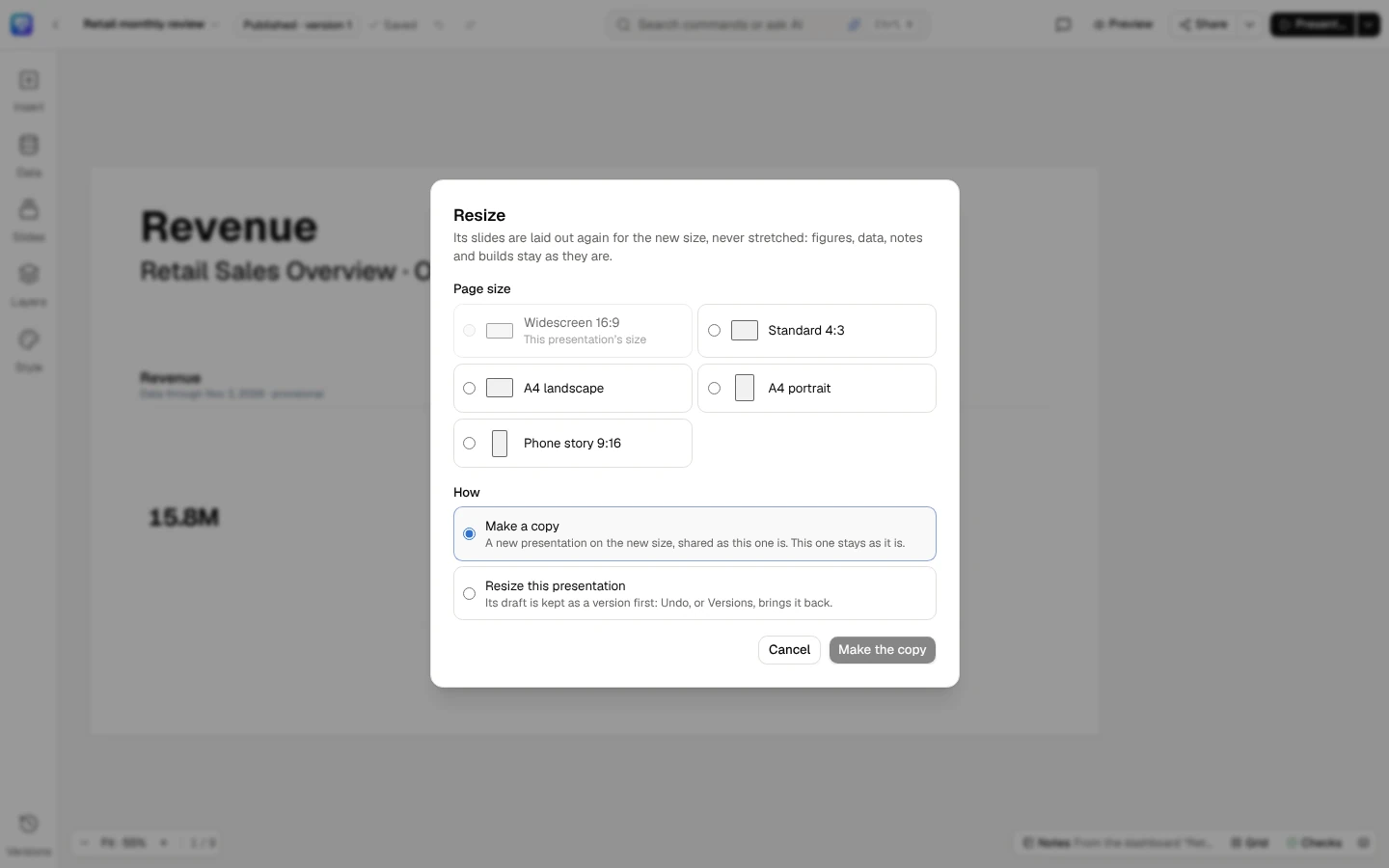
Section titled “Resize a deck”- In the editor, open the menu on the deck’s title and choose Page size…. Its editors and owner see it.
- Choose the Page size. The deck’s own size is shown and can’t be chosen.
- Choose How:
- Make a copy (the default) — a new presentation on the new size, shared with the same people as this one, with the same owner. This deck stays as it is. You need the right to create presentations.
- Resize this presentation — the deck itself. Its draft is kept as a version first (Draft before resizing to A4 portrait), so you can go back.
- Read what the resize would do: how many elements move, and each slide that needs a look, with why. Nothing has changed yet.
- Select Make the copy (it opens when it is made) or Resize this presentation.
Resizing the deck itself is one change: the confirmation offers Undo, which brings the deck back on its old size while nothing has changed since. Once anyone has saved a slide or changed the deck, restore Draft before resizing to … from Versions instead; nothing anyone did since is lost. Both are recorded in the Audit log. Setting a deck’s page size through the API resizes it the same way.
While someone else is editing any slide of the deck, alone or with others, the deck itself is not resized: you are told who is editing which slide, and nothing changes. Try again when they are done; a copy never waits. Someone who can only look at a slide never holds you back. For a moment while we update DataSquares, you may be told that someone is editing a slide together, without a name: try again in a minute. Moves someone made on a slide just before the deck was resized are not kept on the new size: they are told, and the rest of their change is kept; what they move after that is.
Page size… opens Resize: choose a size, then make a copy on it or resize this presentation.
How a slide is laid out again
Section titled “How a slide is laid out again”- Placeholders. Text, charts and tables still where their layout put them take the new size’s layout. Every style has its layouts on every size, made from its 16:9 layouts by the same rule: the master’s logo, footer and slide number keep to their corners, and the logo never goes under its least size.
- Everything else keeps its place in proportion. A chart, a picture, an icon or a round shape keeps its shape; a text box takes the new width and height and its text keeps its size; a rectangle, a line, a table or a KPI tile takes both.
- Onto a tall page (A4 portrait or a phone story) from a wide one, a slide’s columns are stacked top to bottom, read row by row and each row left to right, each across the page. A card keeps the text on it. The stack is shrunk to fit the page when it is longer.
- Text that no longer fits its box shrinks, as text always does, down to the smallest size the deck’s fit allows; text that still doesn’t fit is never cut, and is listed.
What needs a look
Section titled “What needs a look”Before you resize, each slide with something to look at is listed:
- The text of an element no longer fits its box (a text box’s words or a tile’s figure), even at the smallest size the deck’s fit allows.
- Two elements now overlap that didn’t before.
- The logo, where your company locks the brand’s logo: the new size would draw it under its least size, off the slide or under the footer or the slide number.
After the resize, what is left becomes a finding in Checks, on the slide where it is, and the thumbnail of that slide carries its mark:
- A figure that can’t be drawn whole (L1, red): a live number in a text box, or a KPI tile’s figure, that would run into the line next to it or past its edge even at the smallest size. Make its box or tile larger, or move it, before the deck can be published, exported or sent on a schedule: the publish check, exports and schedules stop at it too. A figure drawn whole is never a finding, however tight its tile.
- Words that overflow their text box (L2, Review): move or enlarge the box, or keep it as it is with a note.
- Elements a resize left overlapping (L6, Review): move one of them, or keep them as they are with a note.
Start on another size
Section titled “Start on another size”- A template — when you open a template in Start from a template, Page size lays its slides out for the size you choose and draws them in that shape; Create presentation makes the deck on it. See From a template.
- A PowerPoint file — a 4:3 or A4 file comes in on its own size. See Import a PowerPoint file.
On every screen
Section titled “On every screen”A deck of any size is shown in its own shape everywhere: the editor fits it, present mode, the presenter window, links, embeds and kiosks show it whole, with bars at the sides or above and below on a screen of another shape, and the pen’s ink and the captions follow it. Versions, comparisons and the drift view draw each version on its own size.