Operator security
These settings protect the portal itself. They are separate from a workspace’s own SSO & MFA settings.
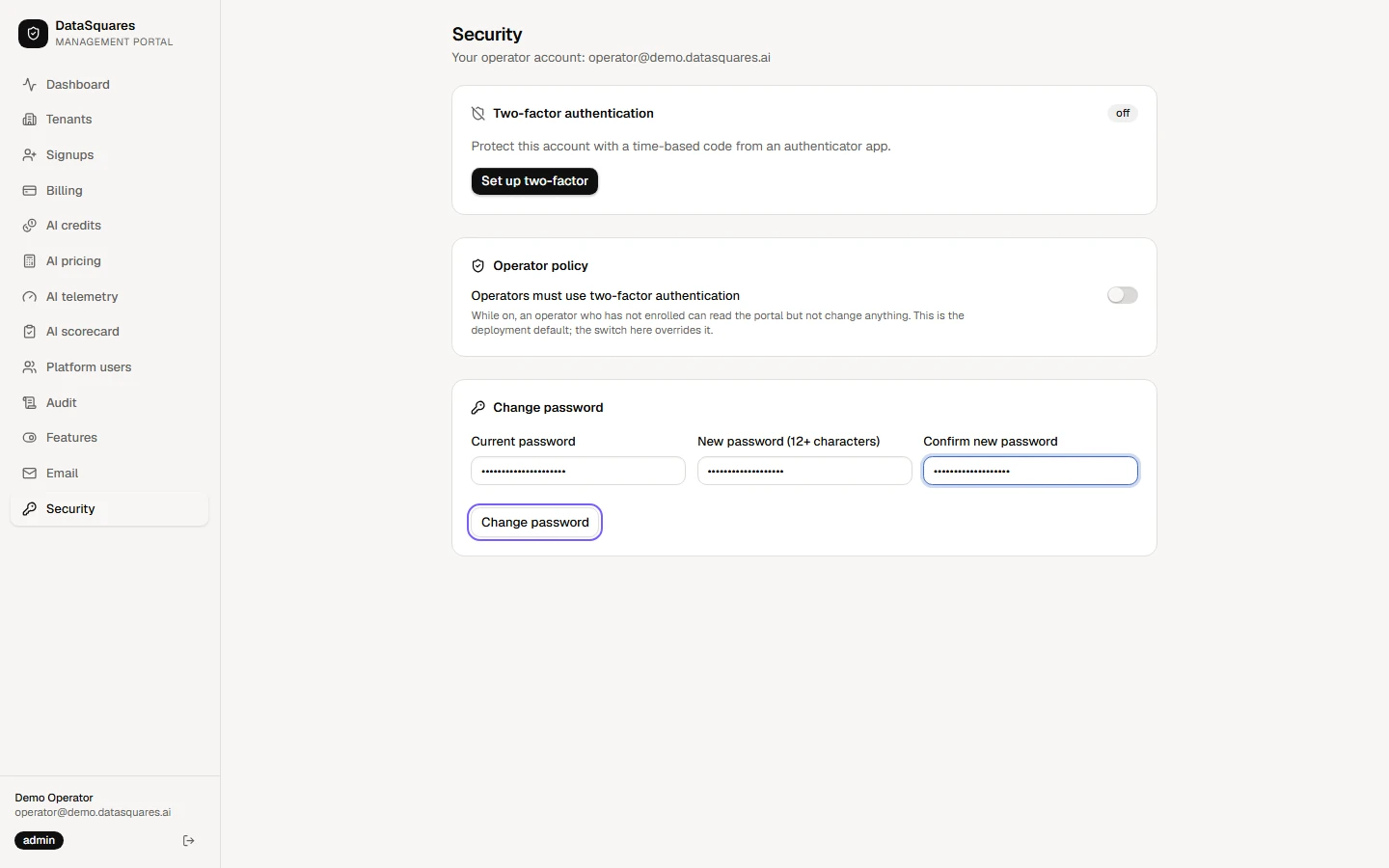
Choose Security in the sidebar. The top card shows whether two-factor is on for your own account; below are the operator policy and the form to change your password.
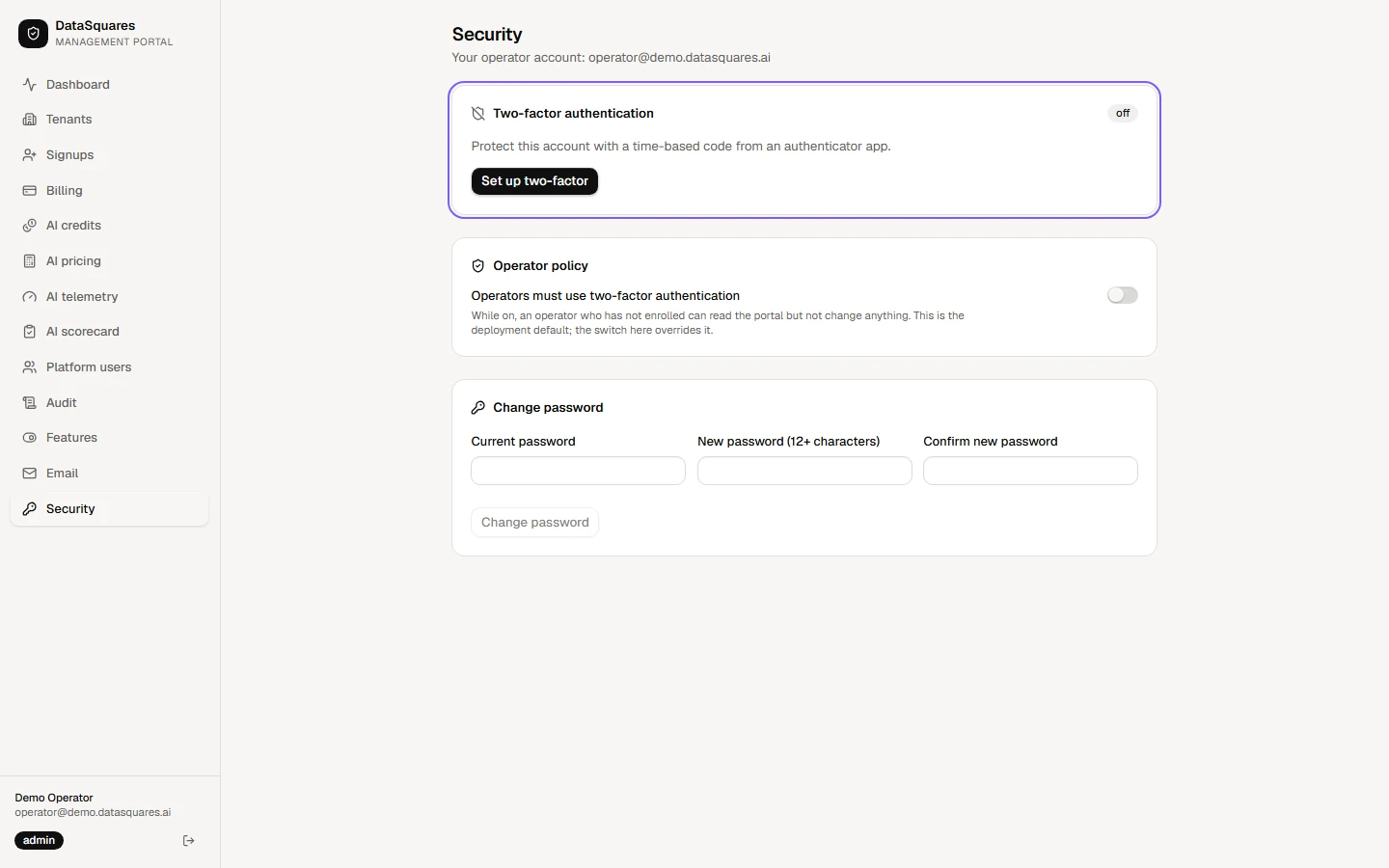
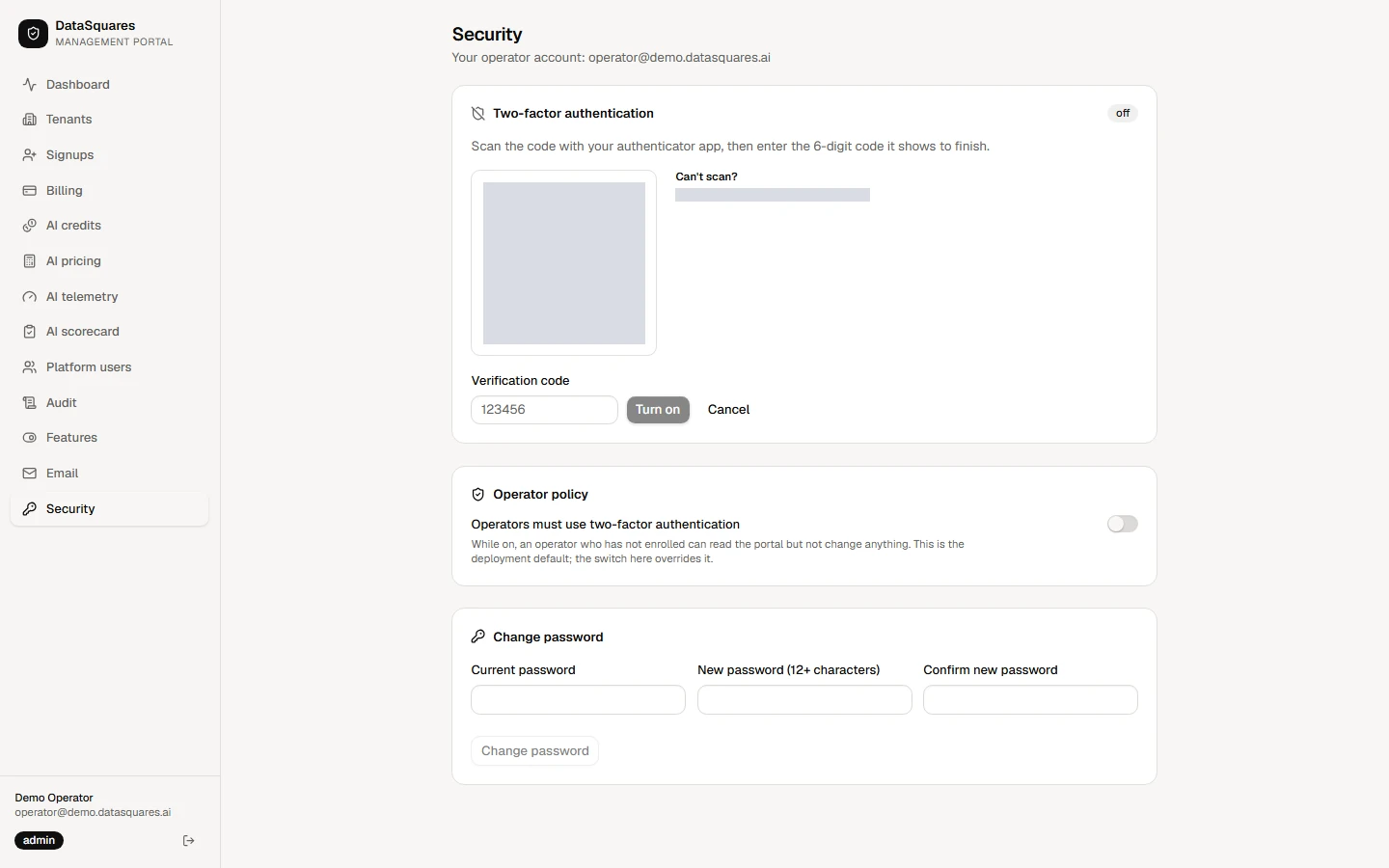
Choose Set up two-factor. Scan the QR code with an authenticator app (or type the key in by hand), enter the six-digit Verification code it shows, and choose Turn on. To switch it off later you need a current code.
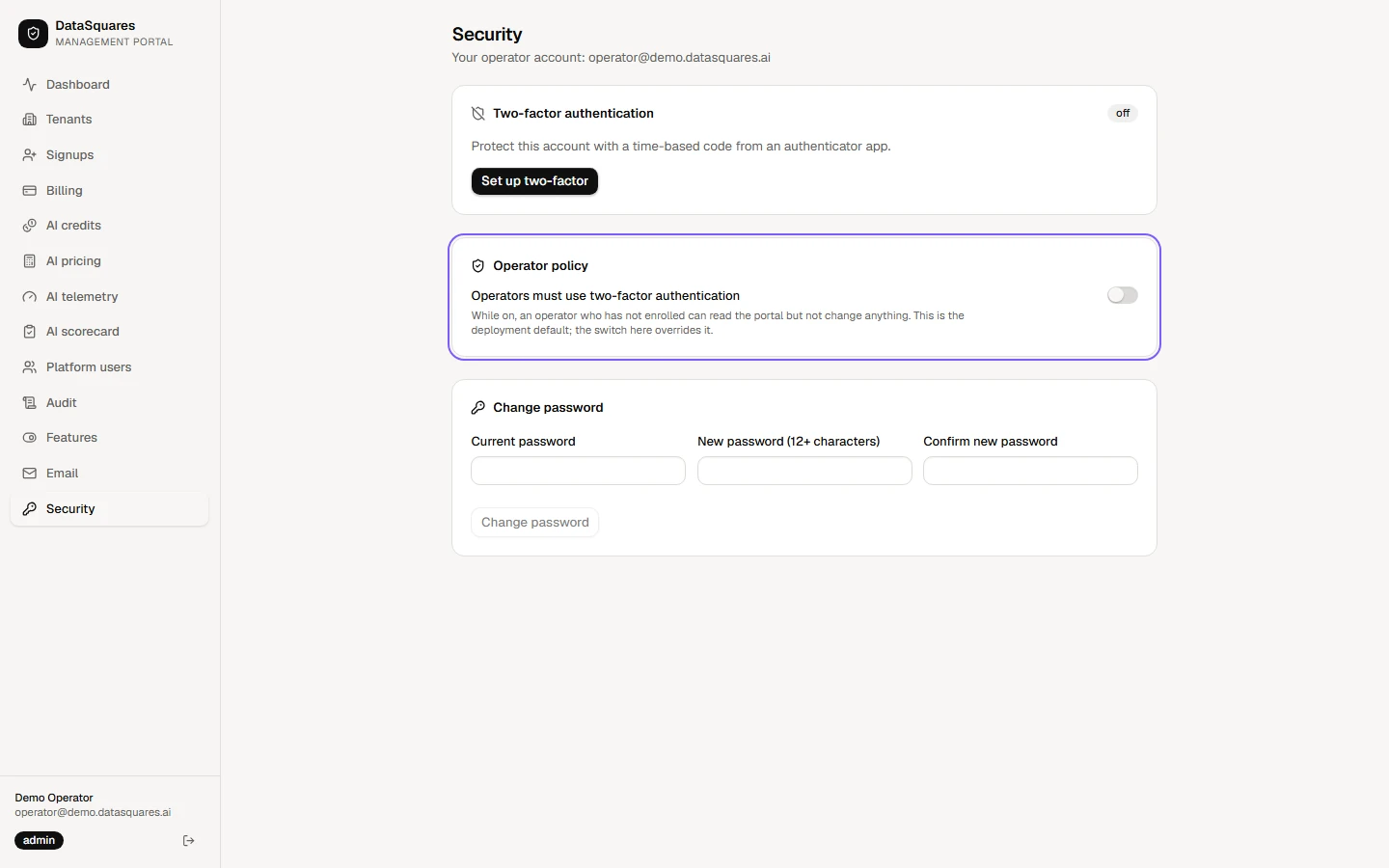
Under Operator policy, "Operators must use two-factor authentication" makes every operator enrol. Until they do, they can read the portal but not change anything.
Change password: enter your current password, then the new one twice. It must be at least 12 characters. Choose Change password to save it.