Billing across tenants
The Billing section reads across every tenant. It complements what a workspace admin sees under Seats, plans & AI credits.
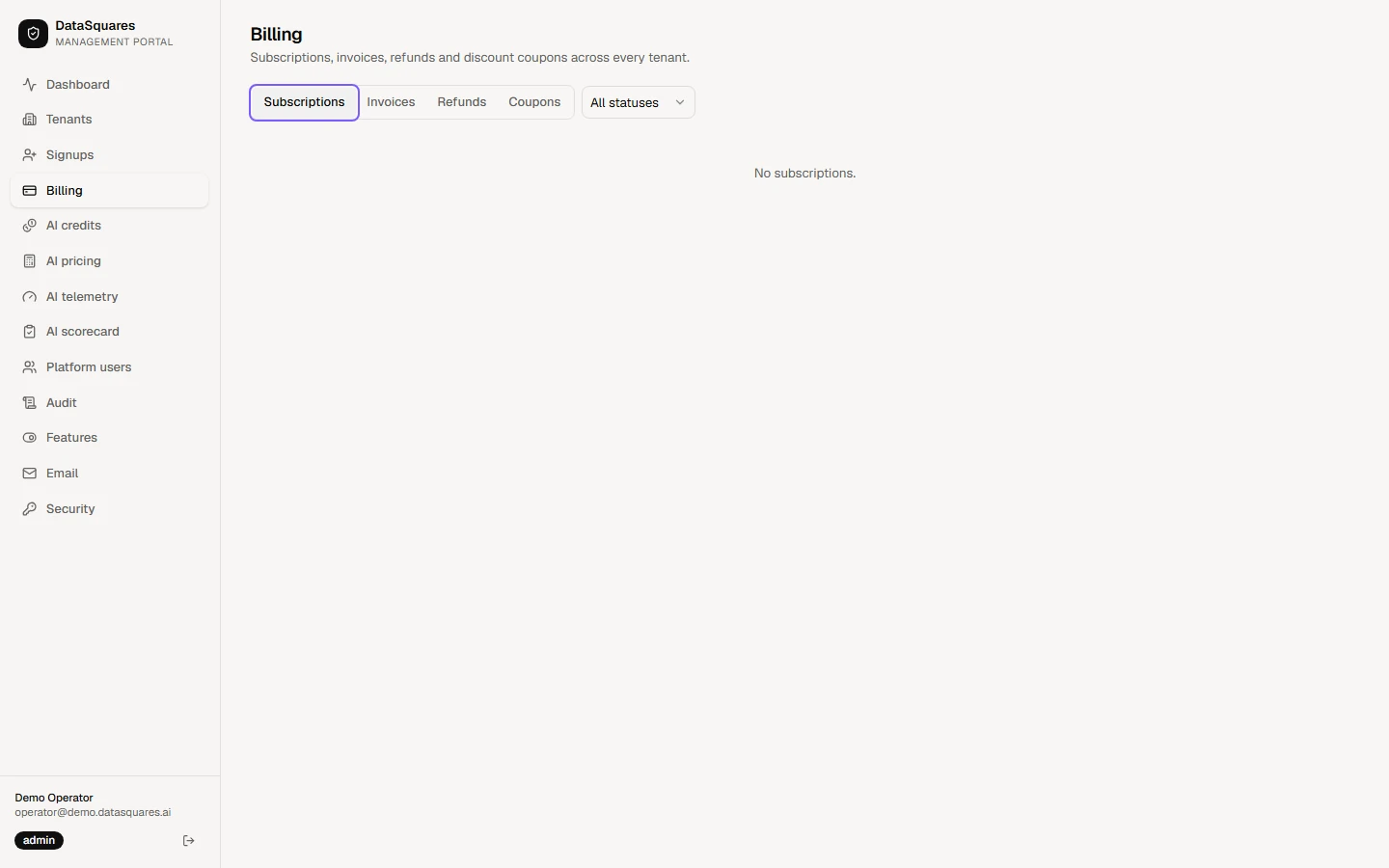
Choose Billing in the sidebar. Subscriptions lists every tenant subscription with its next billing date, mandate and period end. Use the status filter to narrow it.
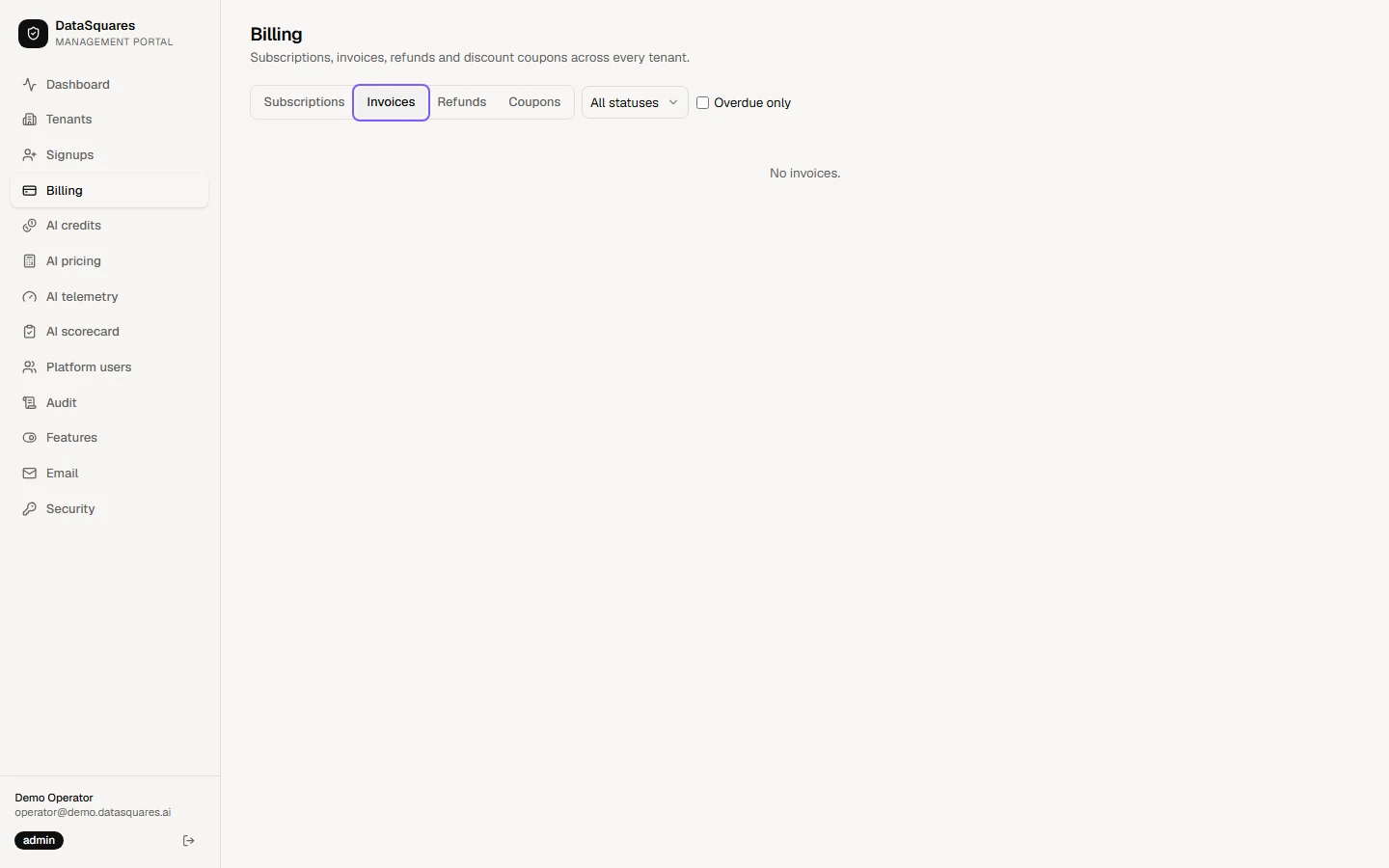
Invoices lists what has been issued: when, when it is due and the total. Filter by status to find what is unpaid or overdue.
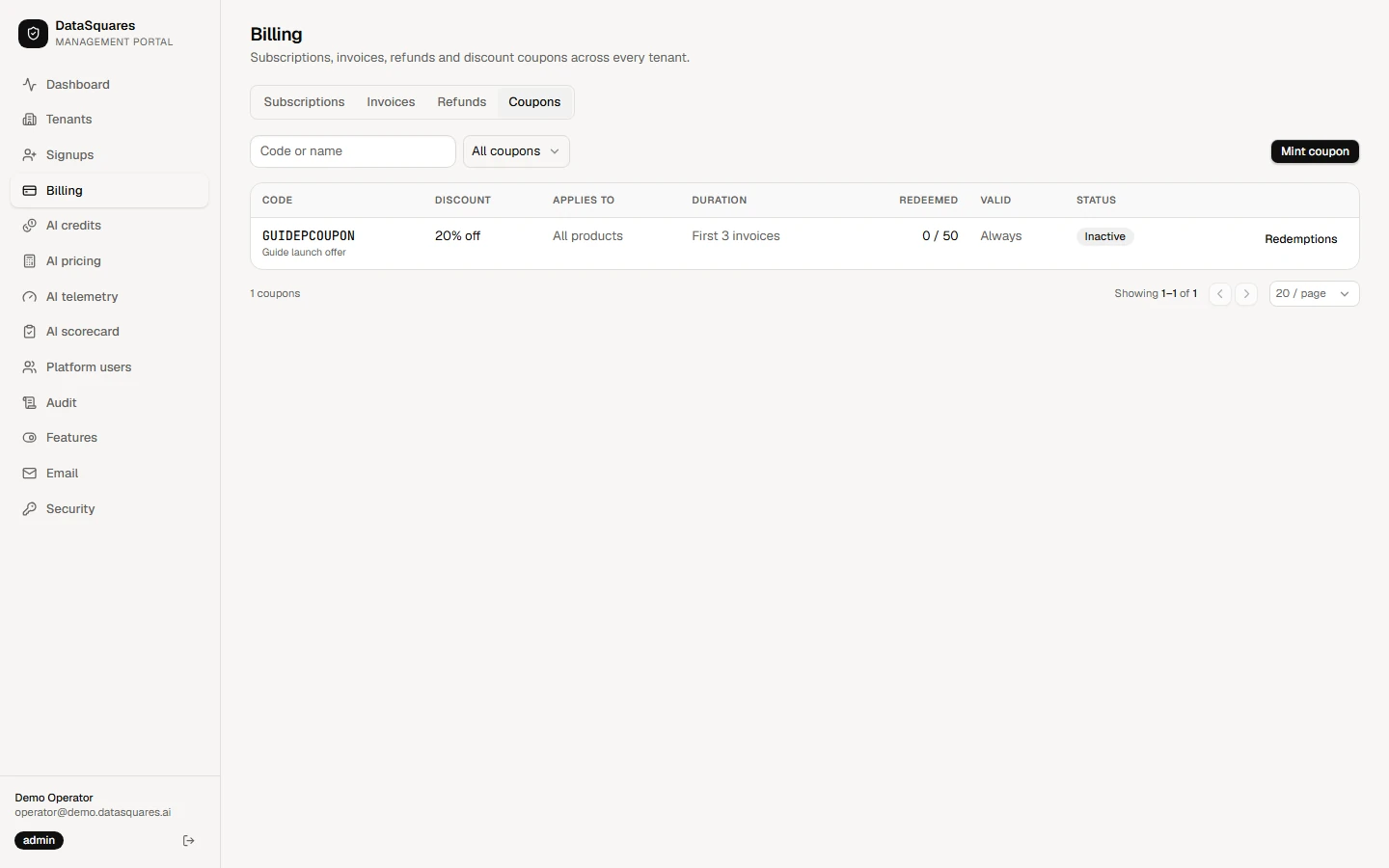
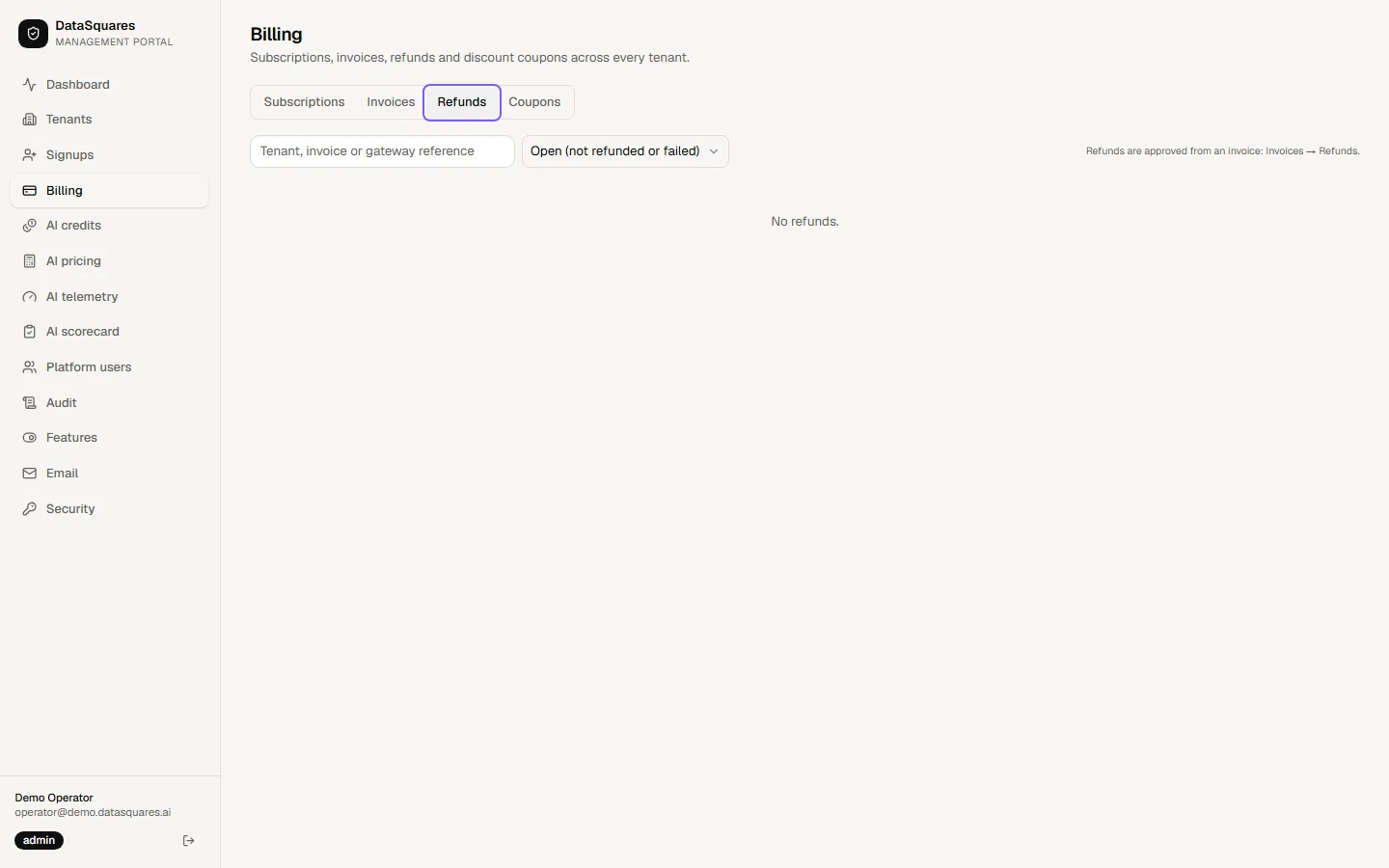
Refunds and Coupons sit beside them. Refunds are approved here before the payment provider is asked to pay them back, and Coupons mints and deactivates discount codes.
Coupons
Section titled “Coupons”Operators mint and deactivate discount coupons on the Coupons tab. Every action asks for a reason for the audit log.
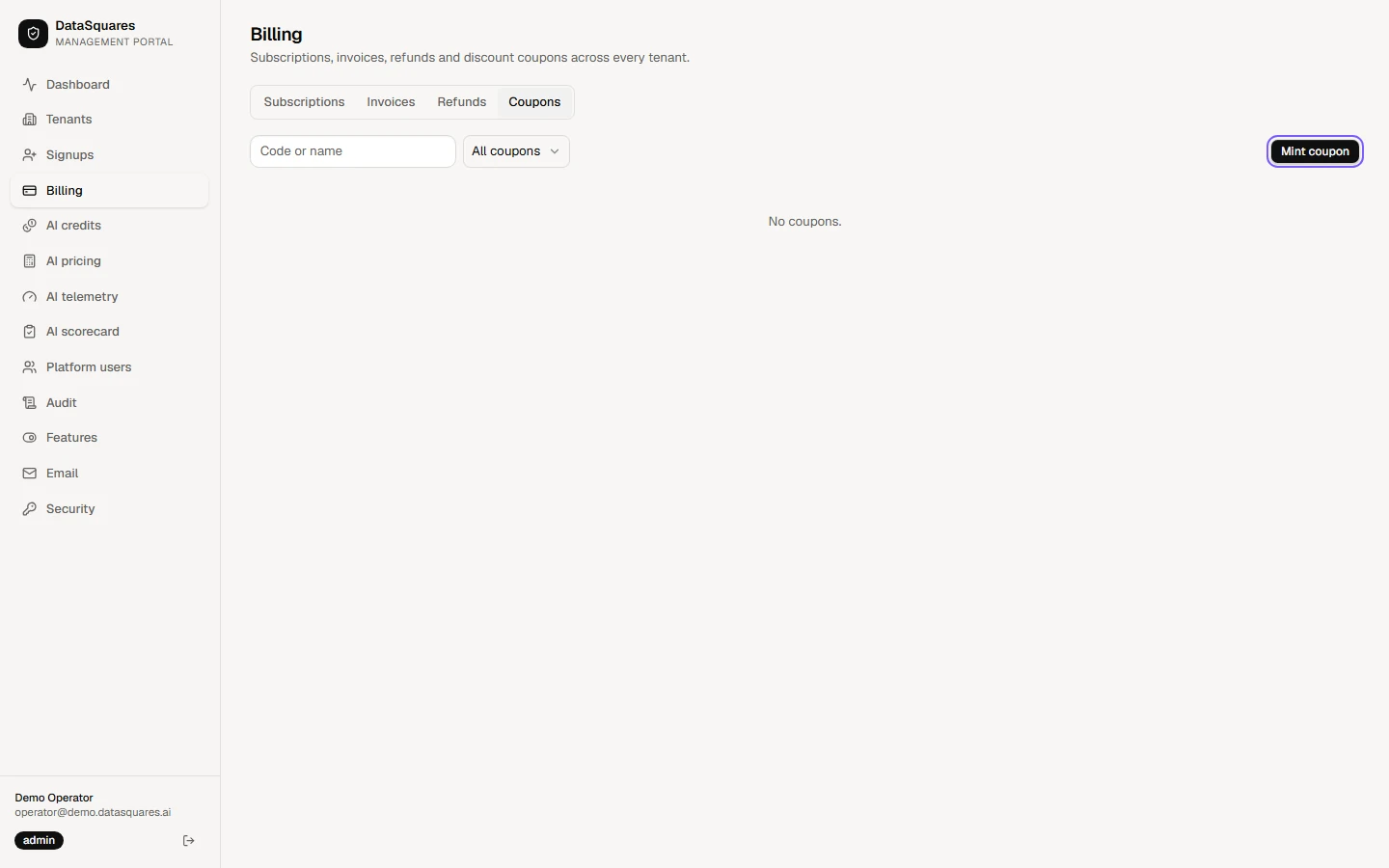
Open Billing in the sidebar, then the Coupons tab. It lists every coupon with its discount, how long it applies, its redemptions and whether it is active. Choose Mint coupon.
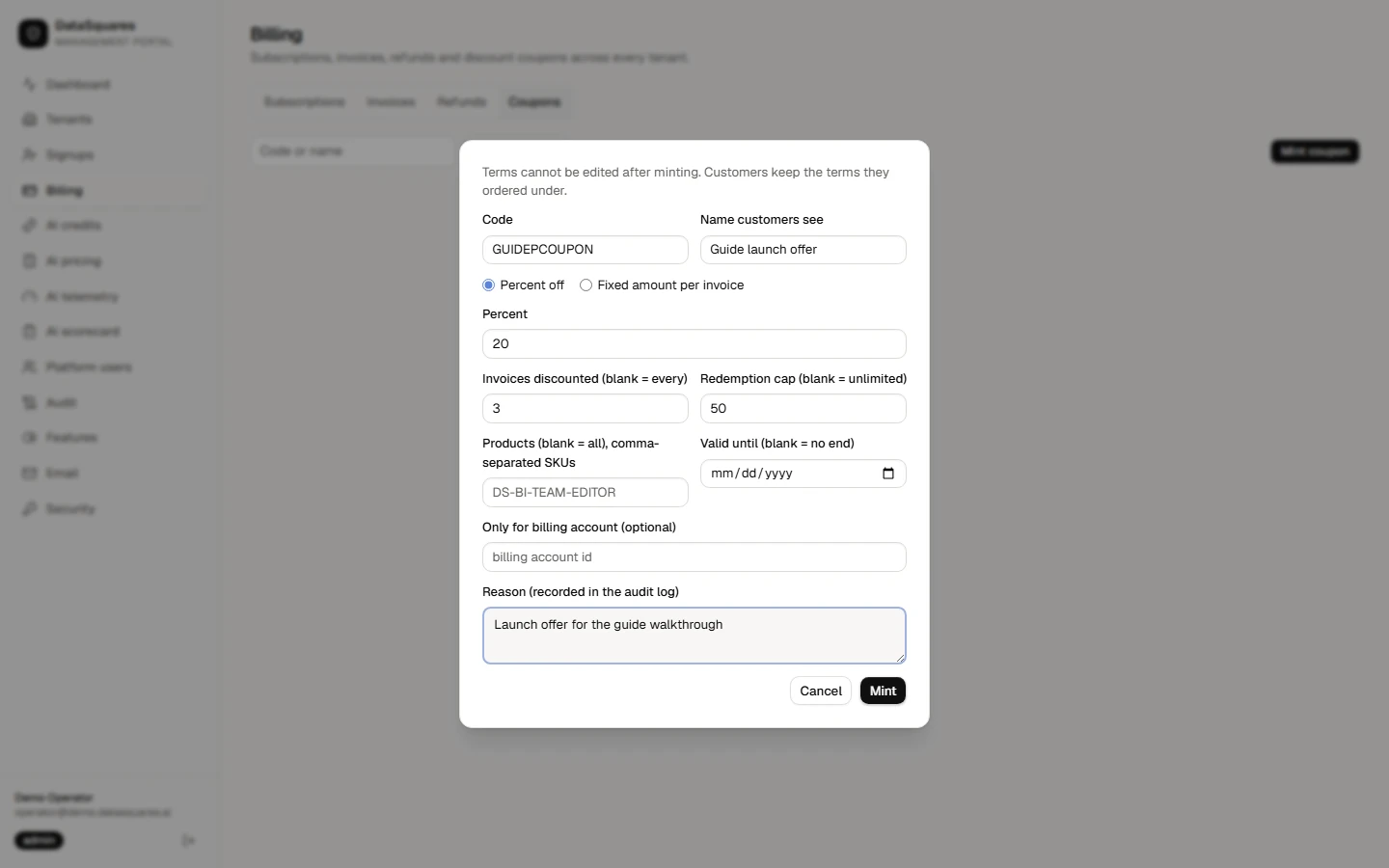
Give the coupon a Code and a name customers see, choose Percent off or a Fixed amount per invoice, and say how many invoices it discounts, how many redemptions it allows, which products it covers and until when. Add a Reason for the audit log. Terms cannot be edited after minting.
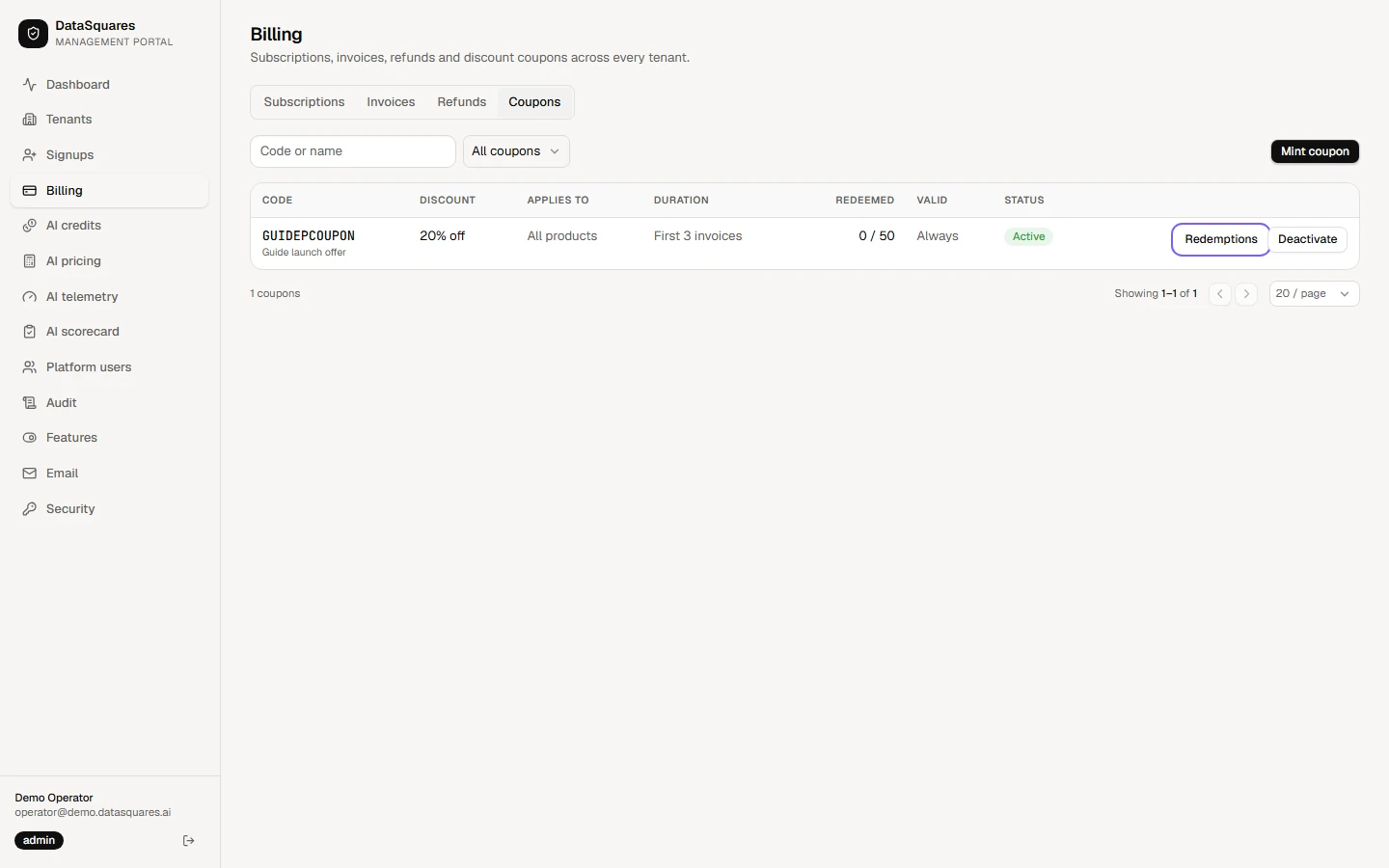
The coupon appears as Active. Redemptions shows who has used it once customers start applying the code at checkout.
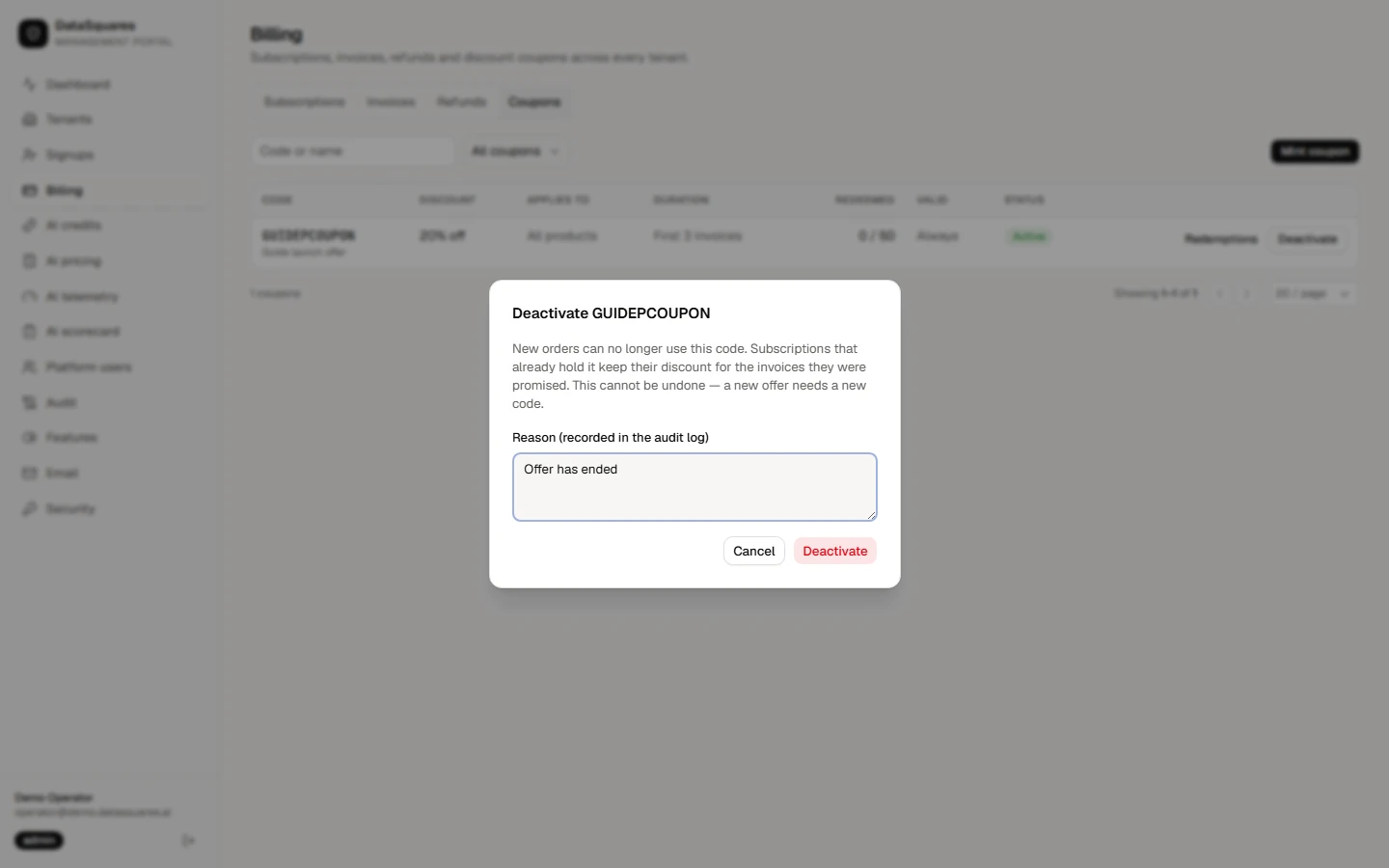
Deactivate asks for a reason for the audit log and stops new orders using the code. Subscriptions that already hold the coupon keep their discount, and deactivating cannot be undone: a new offer needs a new code.
The coupon now shows as inactive. Use the status filter to list Active or Inactive coupons.