Presentations
Use your phone as a remote
When a deck is presented on a laptop or a meeting-room screen, a phone can move its slides. The screen shows a short code; a phone signed in to the DataSquares app pairs with it, and its Next and Previous move the slides as the keys would. The phone moves that screen’s slides and does nothing else: it never shows the room’s slides or their values.
On the presenting screen
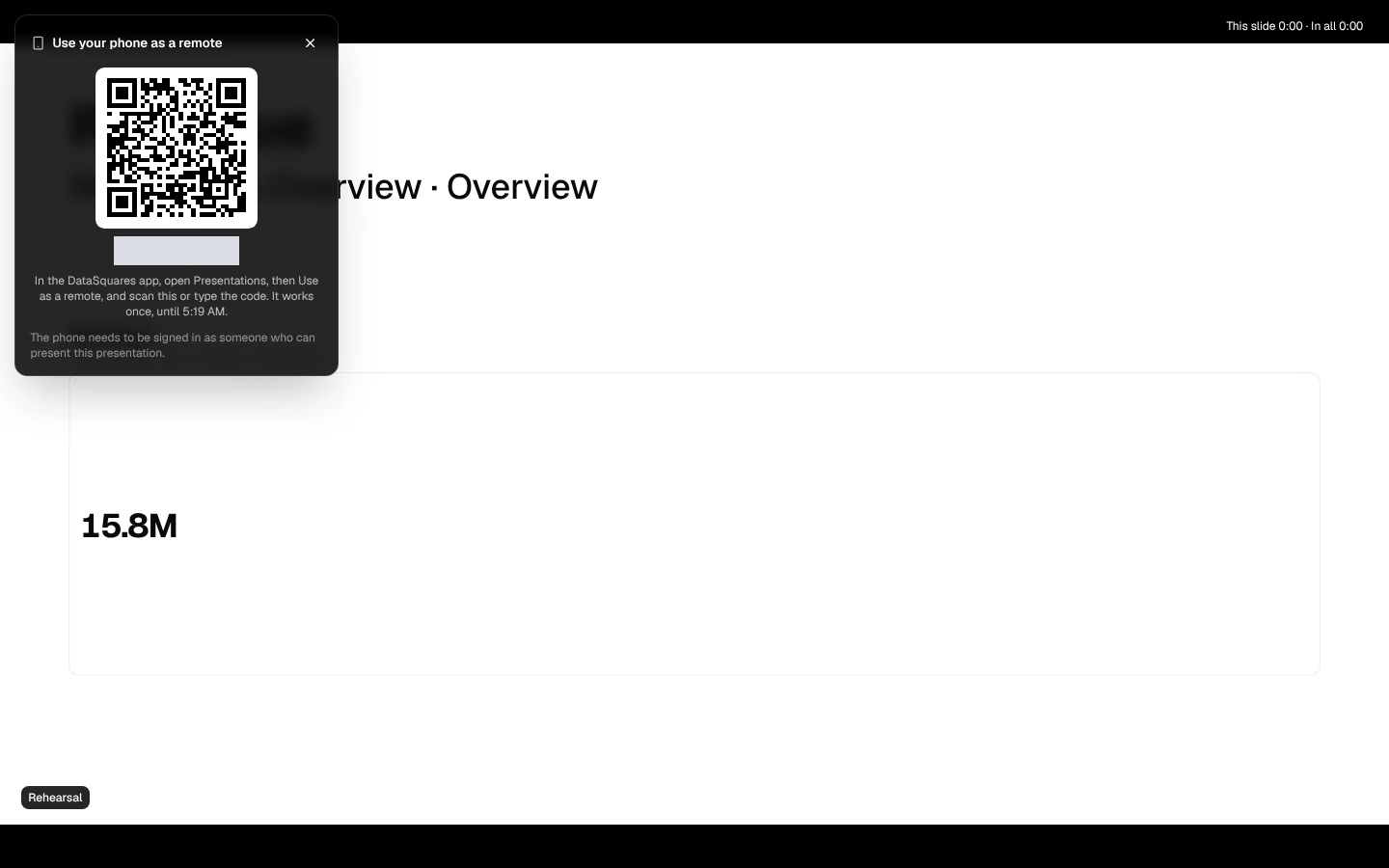
Section titled “On the presenting screen”While presenting, Phone remote in the control bar opens Use your phone as a remote beside the slide and gets a code:
- the code, such as K7M 2QX, and its QR code;
- In the DataSquares app, open Presentations, then Use as a remote, and scan this or type the code. It works once, until 14:35. A code works for 5 minutes and pairs one phone. When it runs out, the panel says This code has run out. and New code gets another;
- The phone needs to be signed in as someone who can present this presentation.
When a phone pairs, the panel shows it under Paired with the person signed in on it (Pixel 8 · Priya Raman), and the screen announces Priya Raman’s Pixel 8 is now the remote for this presentation. Disconnect stops it: the phone says the screen disconnected it.
One phone is the remote at a time. Pair another phone gets a new code, and the panel says Pairing another phone disconnects Pixel 8: when the new phone pairs, the first one says Another phone is now the remote for this presentation.
When the phone stops being the remote without the screen’s Disconnect (its person disconnected on the phone, or left the remote), the panel says so (Pixel 8 · Priya Raman disconnected on the phone.) and the control bar’s button reads Phone remote · phone left until a phone pairs again. If the screen can’t read its remote for a moment, the panel says The phone remote can’t be reached right now; the slides still move from the screen’s own keys.
Close the panel with its × or Esc; the phone stays paired. Reloading the presenting page keeps it paired too: the page follows the phone again by itself, and what the phone sent before the reload moves nothing. The panel is on the presenting screen only, not in the presenter window.
Phone remote opens Use your phone as a remote: a code and its QR code for the DataSquares app, valid once for 5 minutes.
On the phone
Section titled “On the phone”In the DataSquares app, go to Library, then Presentations, and tap Use as a remote. (Presentations shows in the Library when your company has presentations turned on.)
Tap Scan the code and point the camera at the screen’s QR code, or type the code. Letters can be typed in either case, with or without the space.
Then Pair. The phone shows the deck’s title, whether the screen is recording a meeting or rehearsing, and where the screen is (Slide 3 of 12). Next fills most of the screen and Previous sits below it, each felt as you press it. Disconnect ends the pairing from the phone, and so does leaving the remote (Back), signing out or switching account.
A press on the phone does what the same key does on the screen: it moves one slide, through a sources slide’s pages too, and it pauses slides that advance by themselves. The keys follow the screen: Next is off only where the screen’s own Next would move nothing (the last page of the last slide, unless the deck loops), and Previous on the first. Each slide shown is recorded for a meeting as if the presenter had moved to it.
When a press can’t move the slides
Section titled “When a press can’t move the slides”- The presenting screen isn’t following this phone right now, so a press would move nothing. The presenting page was closed, put to sleep or is reloading. The phone stays paired and the press is not kept for later; once the page is back (a reload picks the phone up by itself), the keys work again.
- The screen can’t be reached right now. Your phone is still its remote. The phone has no connection, or the service is busy or restarting. The phone stays paired, asks again a little later, and carries on once it is back. A pairing survives the service restarting.
- The presenting screen no longer knows this phone. Enter a new code from the screen to pair again. The pairing is gone (it was unused for hours, or ended while the phone was away): pair again with a new code.
Who can pair
Section titled “Who can pair”The phone must be signed in, in the same workspace, as someone who can present the deck: anyone with Can view on its published version, or a contributor, editor or owner when the draft is presented (see Roles). Otherwise the phone says why, and nothing is paired:
| The phone says | Because |
|---|---|
| No presentation is waiting for this code. | The code was typed wrong, has run out or has already paired a phone. Ask the screen for a new code. |
| This code is for a presentation in another workspace. | Switch the app to that workspace, then enter the code again. |
| You can’t present this presentation, so this phone can’t move its slides. | The person signed in on the phone can’t present this deck or this draft. |
| The presentation has ended on the presenting screen. | The screen left presenting: the pairing ends with it. |
| This deck was archived; restore it to present it. | The deck was archived while it was presented, which ends the presentation and the pairing. |
| Too many codes didn’t work. Wait a few minutes, then enter the code the presenting screen shows. | Twenty codes that didn’t pair in ten minutes, from any phone signed in as the same person. |
A code refused five times (by people who can’t pair with it) stops working: the panel offers Pair a phone for a new one.
A pairing lasts while the screen presents. It ends when the screen exits presenting, when the screen disconnects the phone, when another phone pairs, or when the phone disconnects or leaves the remote. The code and the QR code’s link carry nothing but the code: they give no access to the deck or its numbers. Pairing and disconnecting are recorded in the workspace’s audit log.