Studio - get started
DataSquares Studio is a desktop designer that works fully offline: import
local files or a database table, build dashboards on your machine, and publish
to a workspace when you are ready. It is in early access.
A project is a .dsproj folder that holds your data extracts and your
dashboard, so you can open it again or move it to another computer.
Start a project
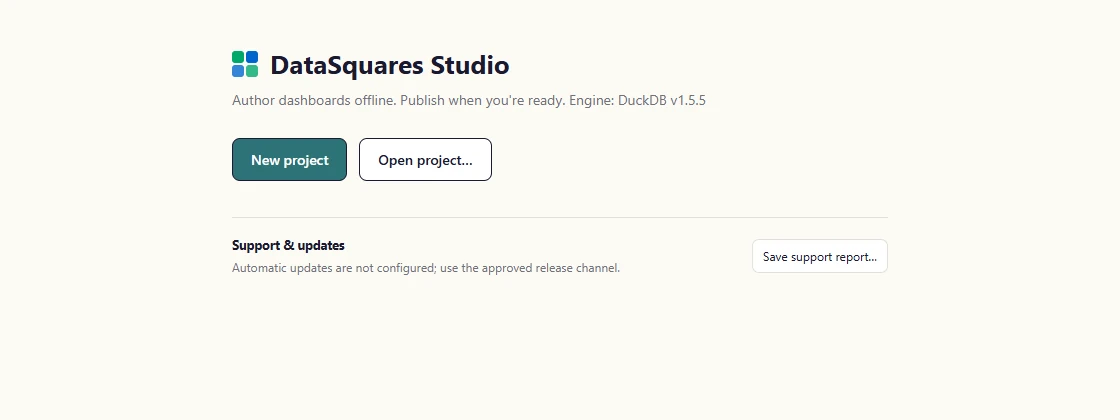
Section titled “Start a project”The start page offers New project and Open project…, and lists your recent projects. Studio also shows the local analytics engine it runs on.
Start DataSquares Studio. The start page names the local engine (DuckDB) and offers New project and Open project.
Choose New project and pick where to save it. Studio creates the project as a
.dsprojfolder and opens it.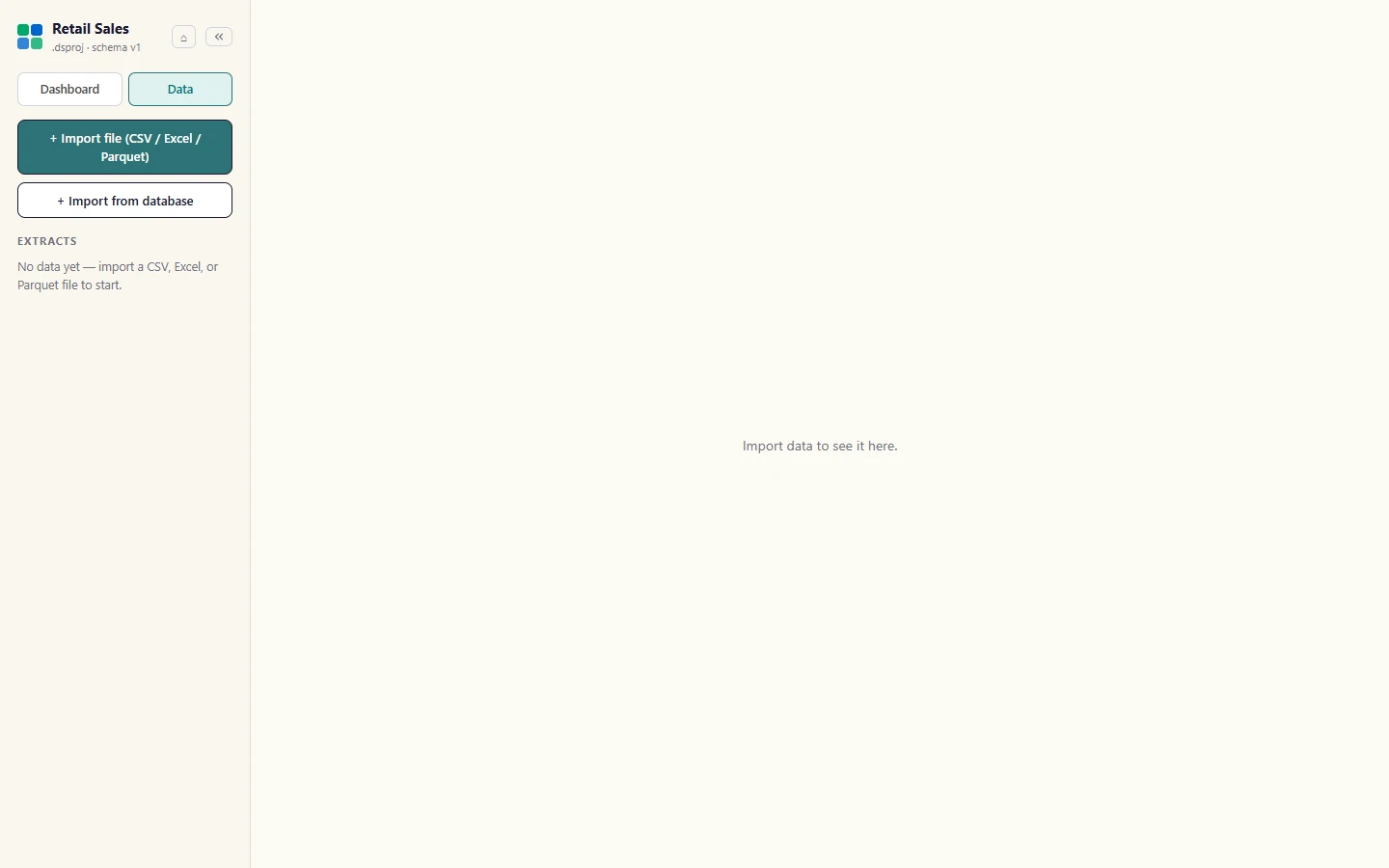
Back on the start page the project is listed under Recent projects. Select it to open it again, or use Open project to find one elsewhere.
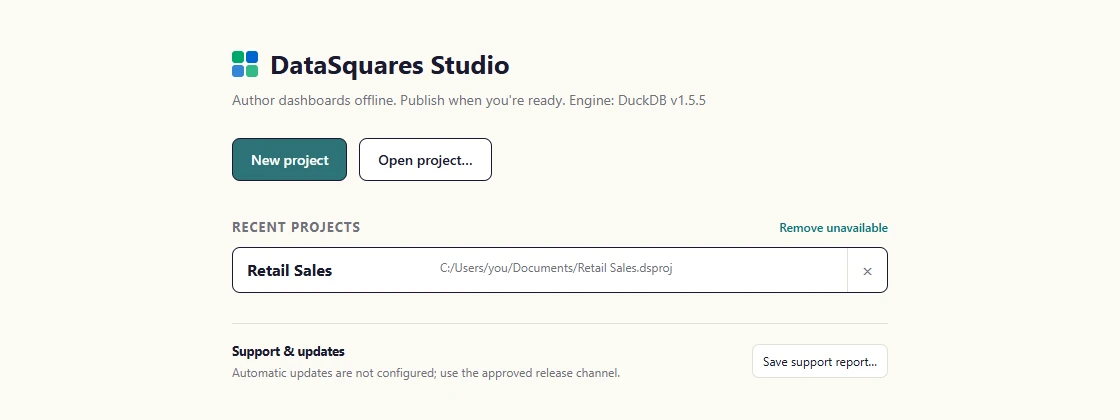
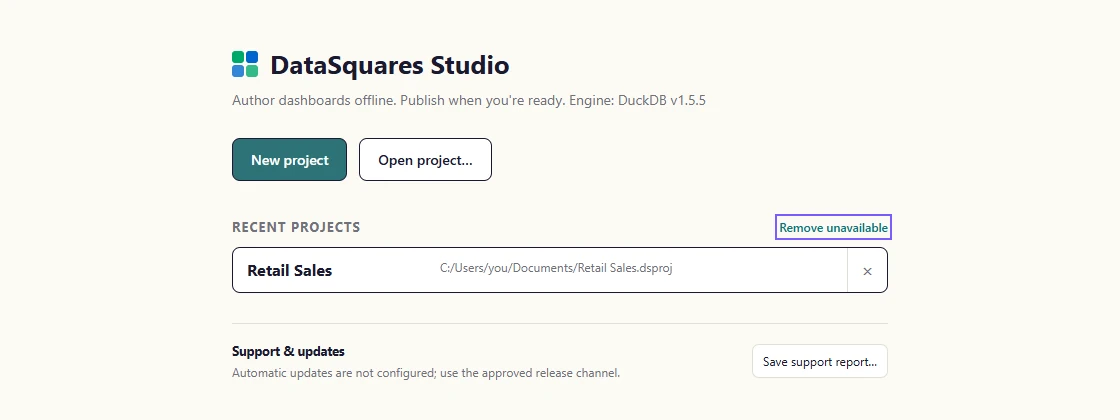
If a project folder was moved or deleted, Remove unavailable clears those entries from the list. The x beside a project removes just that one.
Find your way around a project
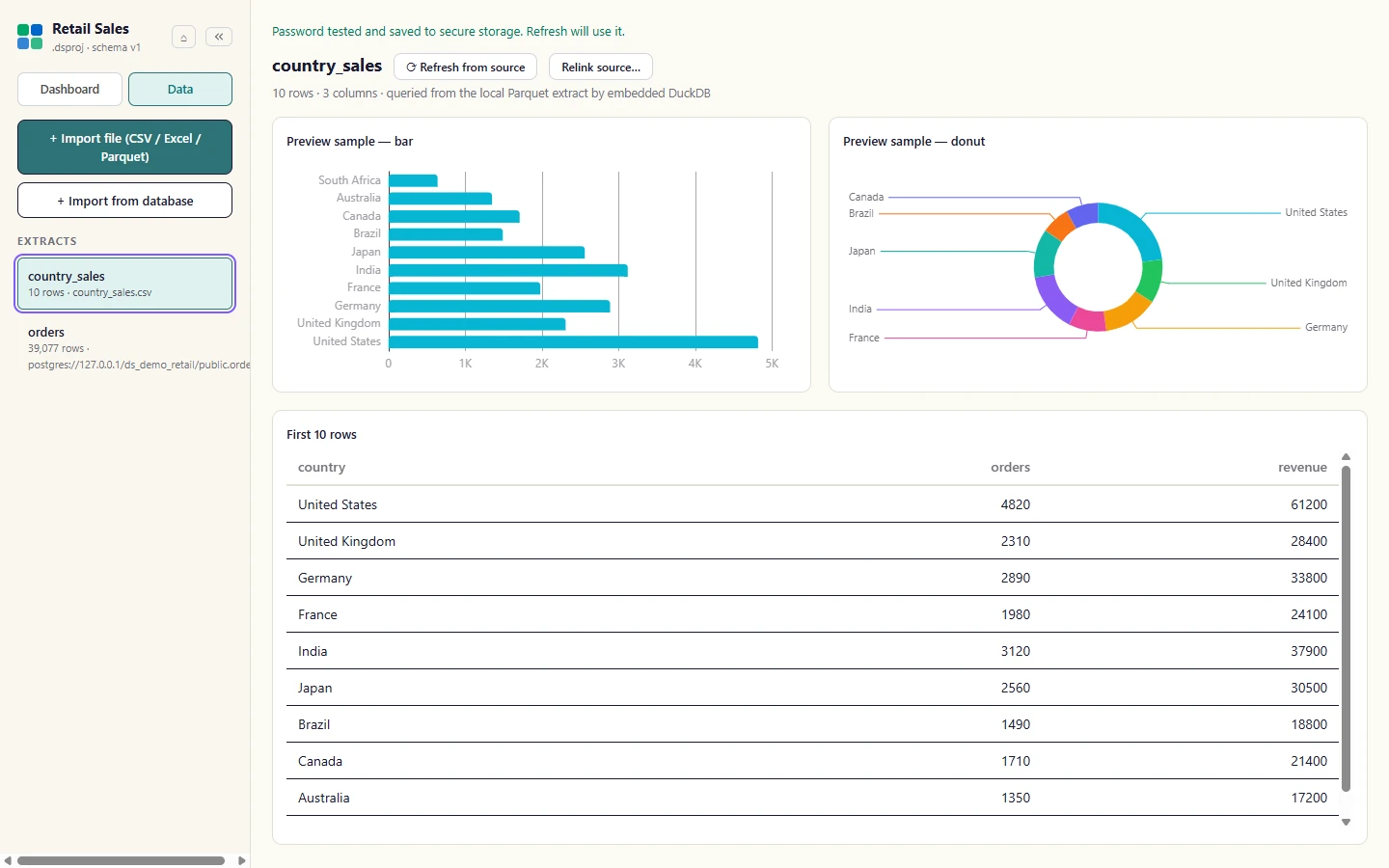
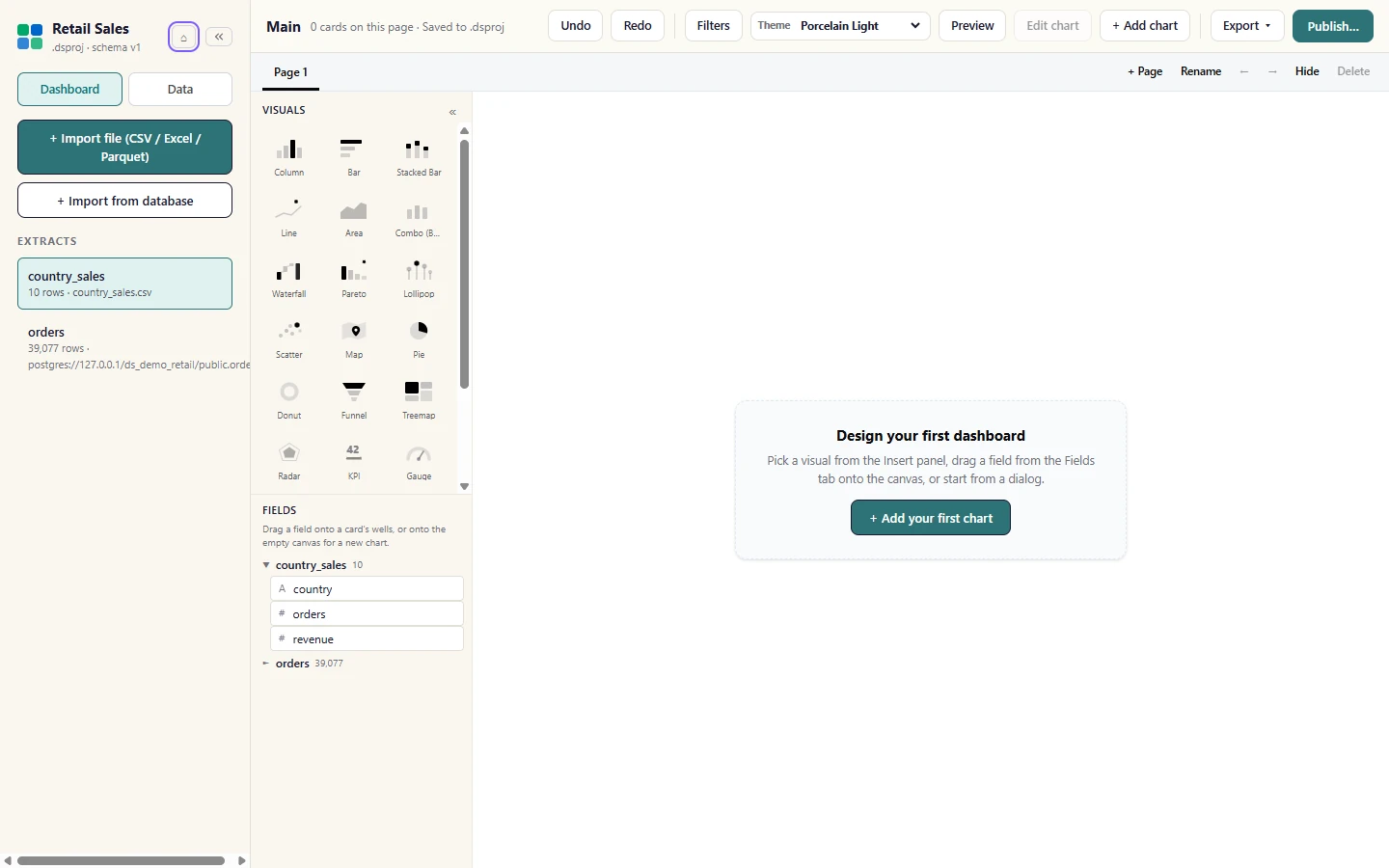
Section titled “Find your way around a project”A project has two views. Data shows the tables you have imported and lets you check them; Dashboard is the designer, with the same canvas, visuals and format panel as the web product (see Canvas basics).
The project panel lists every table in Extracts. Select one and the Data view previews it: a sample bar chart and donut, then the first rows.
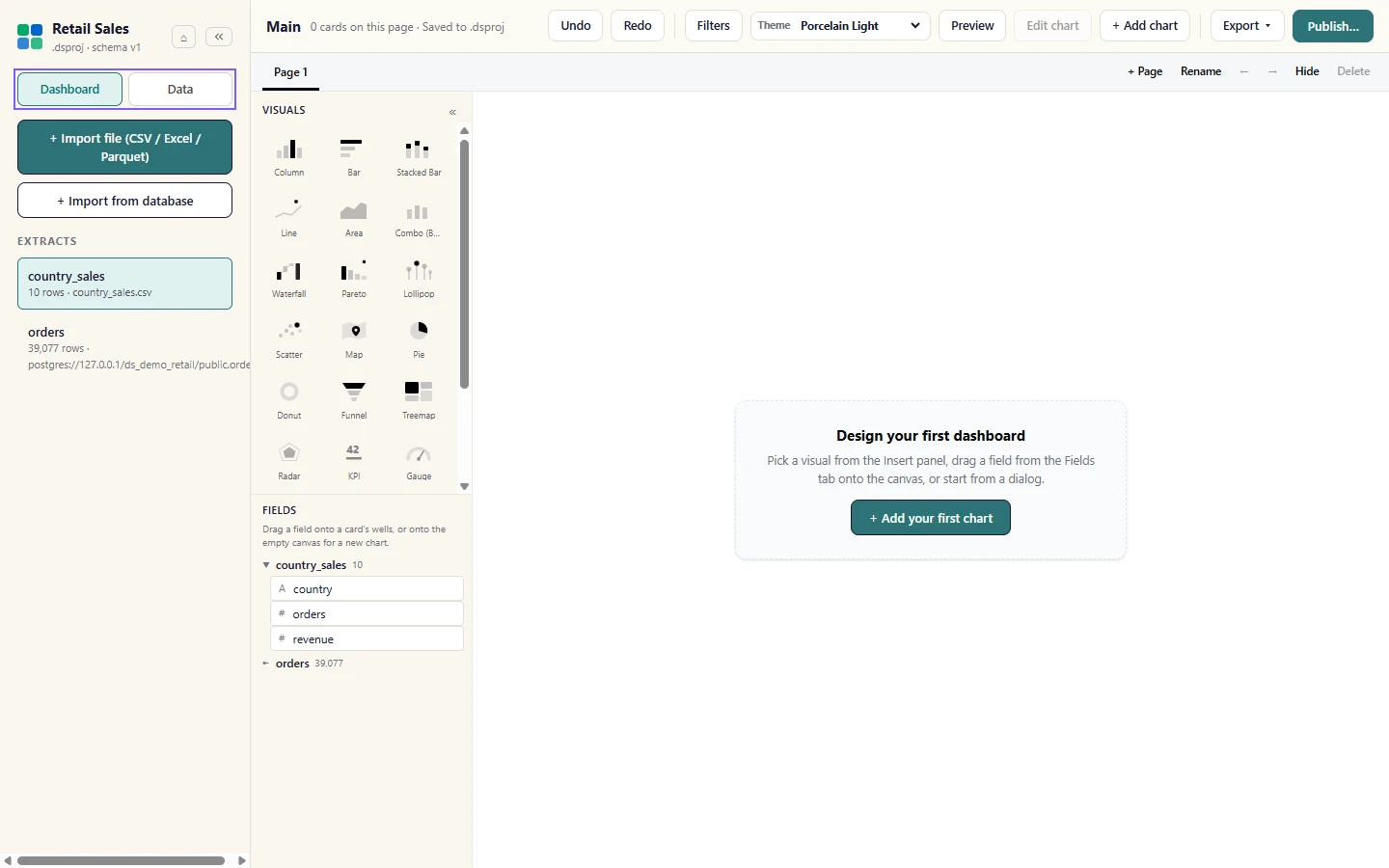
Use Project view to switch between Data and Dashboard. The Dashboard view is the designer: visuals, fields, the canvas and the configure rail.
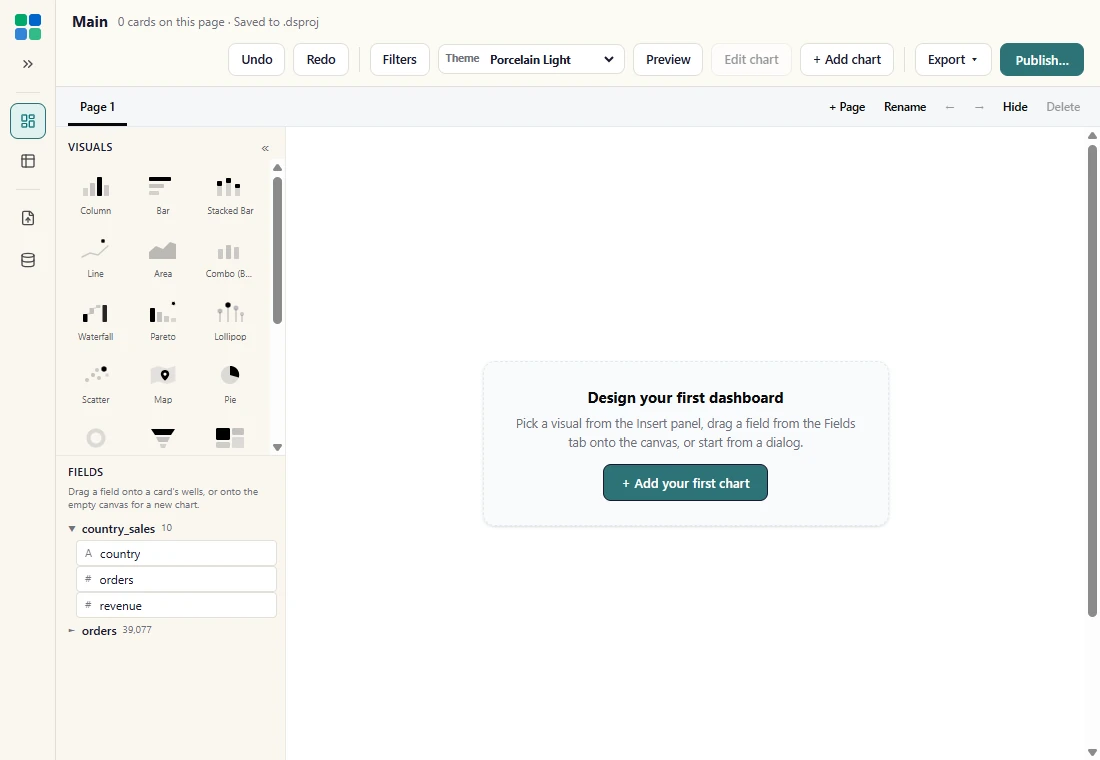
Below 1280 px wide the project panel folds into a narrow icon rail so the canvas keeps the room. The rail keeps the view switch and the two import buttons.
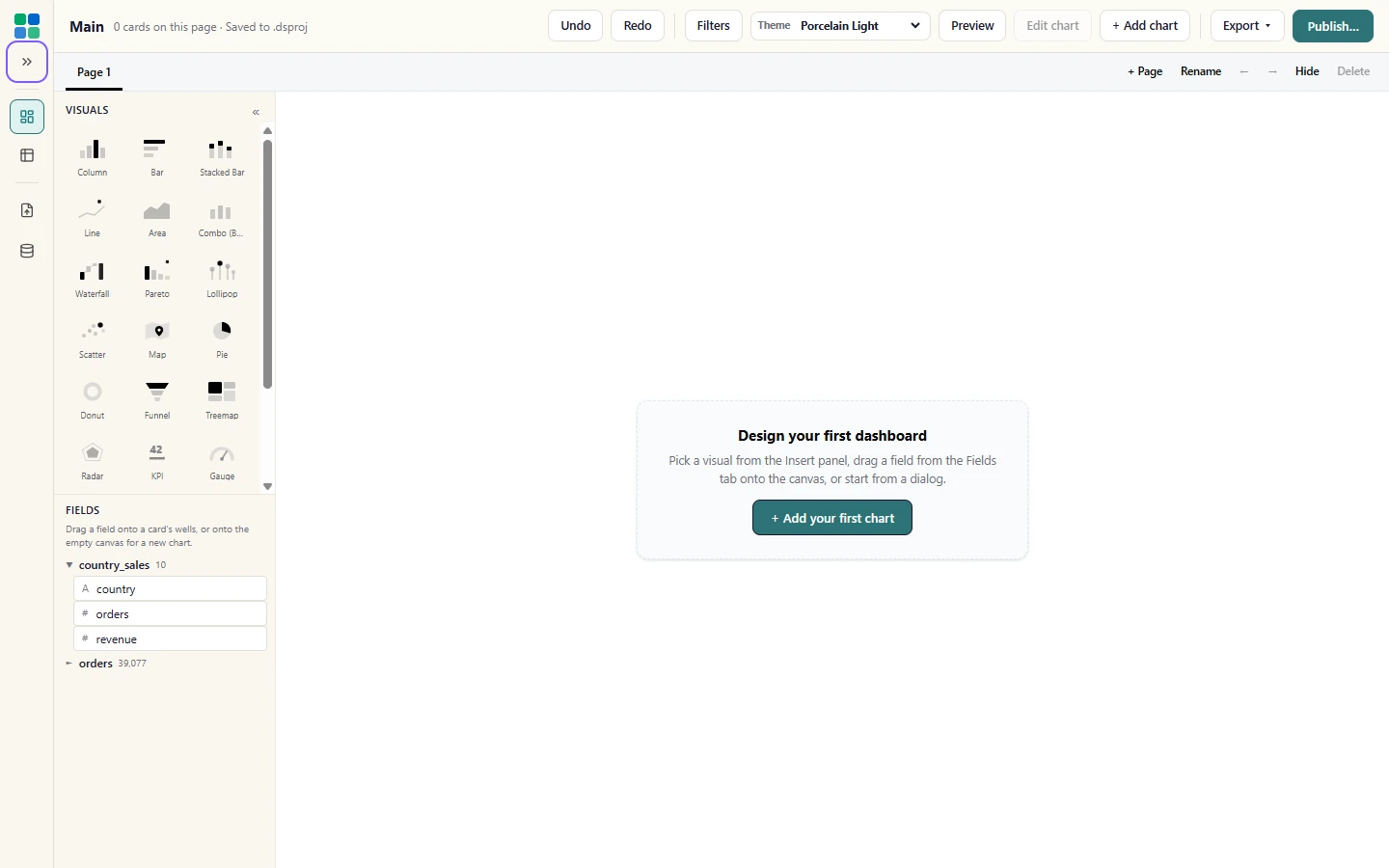
On a wide window you can fold the panel yourself with the Collapse arrow at the top of the panel; Expand brings it back.
The home button beside the project name returns to the start page, where you can open or create another project.
Support and updates
Section titled “Support and updates”Studio has no automatic update feed in this build: install updates only from the release channel your organisation approves. If you need help, save a support report and send it to us.
The Support & updates panel on the start page shows the update status (this build has no automatic update feed; install updates only from your approved release channel). The engine version is under the title.
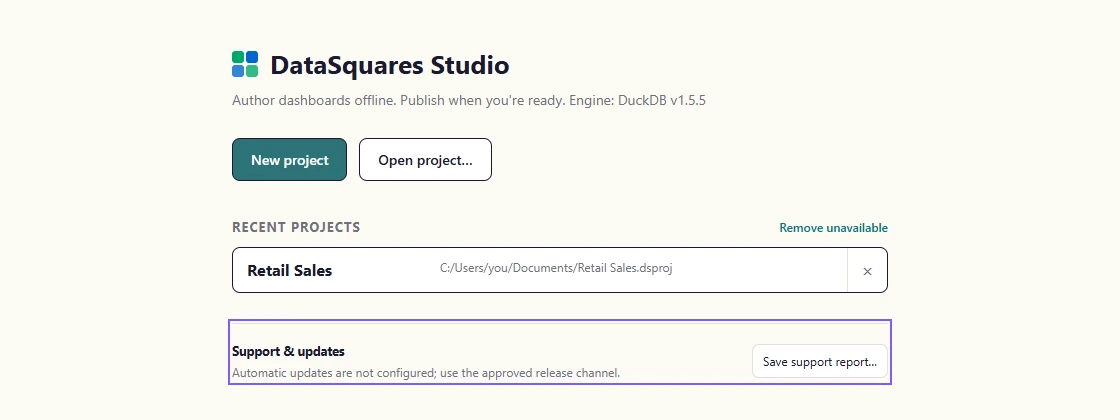
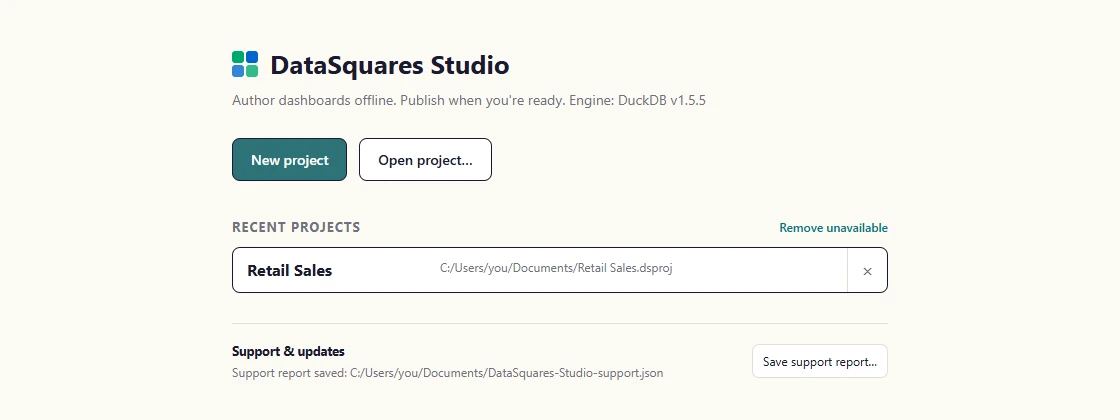
Save support report... writes a JSON file with the app, runtime and build versions for our support team. It holds no project data, no credentials and no workspace details.
Next: bring data into a project.