Presentations
Schedule a deck
A schedule sends a deck on a cadence — every Monday at 08:00, the first of each month — so the people who read it always have a current copy. Each time, it sends the deck’s latest published version, never the draft, as a fresh PDF or PowerPoint file. Every person gets their own copy, read with their own access: the same deck can show EMEA to one reader and every region to another, and each copy says whose access it shows.
Schedules are on every plan, as the deck is. Scheduling a deck needs edit access to it, as exporting does.
Make a schedule
Section titled “Make a schedule”- Open Schedule from the deck’s menu on the Presentations home (⋯ → Schedule) or from Share…’s arrow in the editor’s top bar (More sharing actions → Schedule sends…). Right after you publish, the confirmation offers Schedule a send too.
- Select New schedule. A deck that is not published says Publish the presentation first: a schedule sends the latest published version, never a draft.
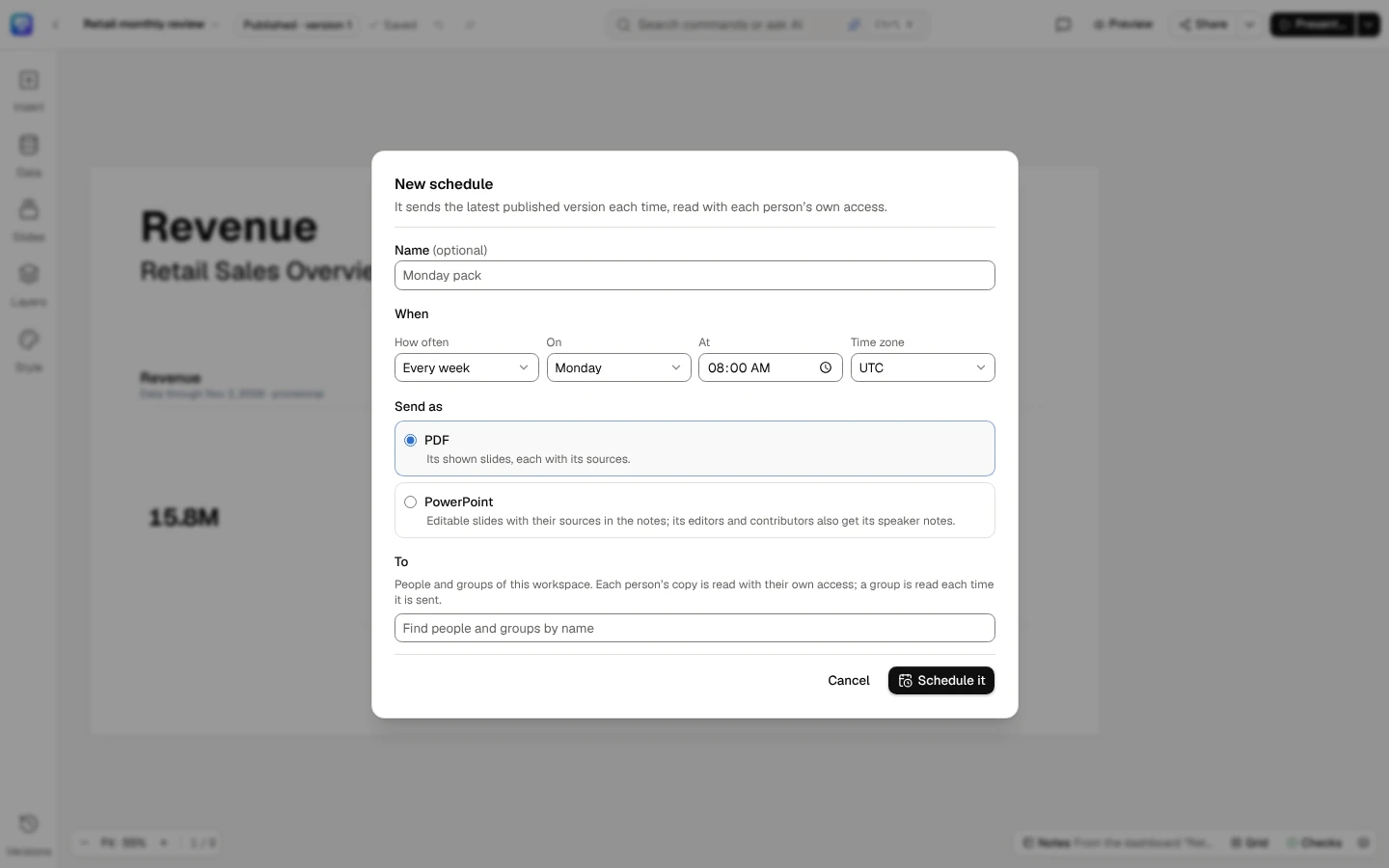
- Give it a name if you like, then choose when: every day, every week on a day, or every month on a day from 1 to 28, at a time, in a time zone. The next send is worked out in that time zone.
- Choose Send as: PDF (the shown slides, each with its sources) or PowerPoint (editable slides with their sources in the notes; the deck’s editors and contributors also get its speaker notes).
- Under To, find people and groups of the workspace by name and choose them — up to 50. A group is read each time the deck is sent, so someone who joins it gets the next copy and someone who leaves it does not. Someone who can’t open the deck can’t be chosen: share it with them first.
- Select Schedule it.
A schedule never sends to an address outside the workspace. Each copy is read with its recipient’s access, and an address on its own has none; to send a deck outside the workspace, use a link.
Schedule sends… → New schedule: who gets it, how often, and in which file.
Each person’s copy
Section titled “Each person’s copy”Every copy is the deck as that person reads it:
- Their figures. Each figure is computed with the recipient’s row security and masking, as when they open the deck. A figure they may not see is a dash with the reason (This figure isn’t available with your access).
- What they may read. Hidden slides are left out. Speaker notes go only to the deck’s contributors, editors and owner, in a PowerPoint file.
- Whose access it shows. Every slide or page is stamped Prepared with Ana Ruiz’s access, says it was sent on that day to her, links to the live deck and says how current its figures are. See Export for the stamp.
- Its published name. The email and the file are named by the title of the version sent: a new title in the draft reaches readers only once you publish it.
People whose access is provably the same — the same role on the deck, and the same row security, attribute values and masking on every figure it reads — share one reading of the figures, so a long list does not ask your data sources the same question many times. Each still gets their own copy with their own name on it. When access differs in any way, each person’s figures are read on their own.
If someone’s access changes while the copies are being made, their copy is not sent that time; the next send reads it again with their new access.
Checked before anything goes
Section titled “Checked before anything goes”Before a single copy is sent, the checks run on what every copy holds: its shown slides, and their speaker notes in a PowerPoint file for the deck’s makers. One open Must fix finding (a typed number, an AI-written number, a claim its figure now contradicts…) or one figure that can’t be read pauses the send for everyone: no copy goes out with a figure missing or out of date, and the schedule’s owner is told why in DataSquares. The schedule list shows it as Paused, with the findings. A finding on a hidden slide, or in speaker notes no copy holds, never pauses a send: the checks also run once on the whole published version, read with the schedule owner’s access, and the owner is told about such a finding when the send goes out (Not in any copy: …), whoever the send goes to. The two checks that compare with more than the slide holds (C8 and C18) only ever ask for a review, so a send doesn’t run them: they run in the editor’s Checks panel and the publish dialog.
Fix what paused it — usually in the editor’s checks, then publish again — and either wait for the next send, which checks again, or select Send again to send the paused one now. The checks run on every copy again first.
A send that already reached some people before it paused — the mail server turned some copies away for a moment, and the checks failed when it tried the rest again — keeps those copies: the people it reached are listed as sent, and the rest wait until Send again or the next send. Nobody is ever sent the same copy twice.
A copy the mail server turns away for now, or can’t take because it can’t be reached, is tried again with the send, up to three times. If it is still turned away after the last try, that person is listed as not sent, with why, and the owner is told; the next send tries them again.
A send that stops part way — the server restarted while it was sending, or it took longer than an hour — is tried again, up to three times. If it still can’t finish, whoever it reached keeps their copy, and the rest are listed as not sent with why: they can no longer open the deck, their account is switched off, their copy was turned away by the mail server, or the send stopped before it reached them. The owner is told why, in words that fit: interrupted three times only when every try was, otherwise what its last try came to. The next send goes to everyone as usual.
A send is skipped, and the list says why, when:
- Presentations is switched off for the company;
- the deck is not published, is archived or was deleted;
- every slide of its published version is hidden;
- the person who made the schedule can no longer edit the deck — someone who can should make it again;
- none of its people and groups can open the deck, or they reach more than 500 people;
- the schedule was turned off.
The schedule list
Section titled “The schedule list”Schedule lists the deck’s schedules: when each sends, in its time zone; its format; its people and groups (with how many people each group holds); whether it is On, Off or Paused, and why; when it last went out, which version (or versions) and to how many people; and when it goes next. From each you can Edit it, see its Sends, Turn off (it sends nothing until you turn it on again), Send again when it is paused, or Delete it. Two people editing one schedule at once can’t overwrite each other: the second is asked to reload.
Every send is recorded
Section titled “Every send is recorded”Sends shows each time the schedule ran, newest first: whether it was sent, sent to some, paused, skipped or failed, and why; the version it sent (or versions: when you publish between two of its tries, the copies made after it carry the new version, and each copy shows its own); and who got no copy and why (they can no longer open the deck, their account is switched off, their access changed while the copies were made, their copy was larger than an email can carry, their account has no address, the send stopped before it reached them, or the mail server turned their copy away for now or couldn’t be reached until the send ran out of tries). A person the schedule names whose account is switched off is listed this way; a group’s member whose account is switched off is no longer one of its members. For each copy sent, it shows from the records:
| Person | Who it was for |
| Copy | The version, the format, its size and its file’s checksum (SHA-256), so a file someone forwards can be matched to the copy sent |
| Read with | Their access, and whether their figures were read once for everyone whose access was the same |
| What the mail server said of that copy, while that evidence is kept |
Each copy also writes a record of the values it holds (a scheduled send), which nothing can change afterwards. Deleting a schedule stops it; what it sent stays recorded.
When the deck is deleted
Section titled “When the deck is deleted”A deleted deck sends nothing. If it is restored from the Recovery Center, it comes back as a draft with its schedules switched off, so publishing it again never starts mailing its people and groups by itself: turn each schedule on again when you want it to send.
Related
Section titled “Related”- Export a PDF, a picture or a PowerPoint file — the same files, made once, for you
- Links, embedding and kiosks — a deck for people outside the workspace
- How the checks work
- Records of what was shown