Mobile app - inbox
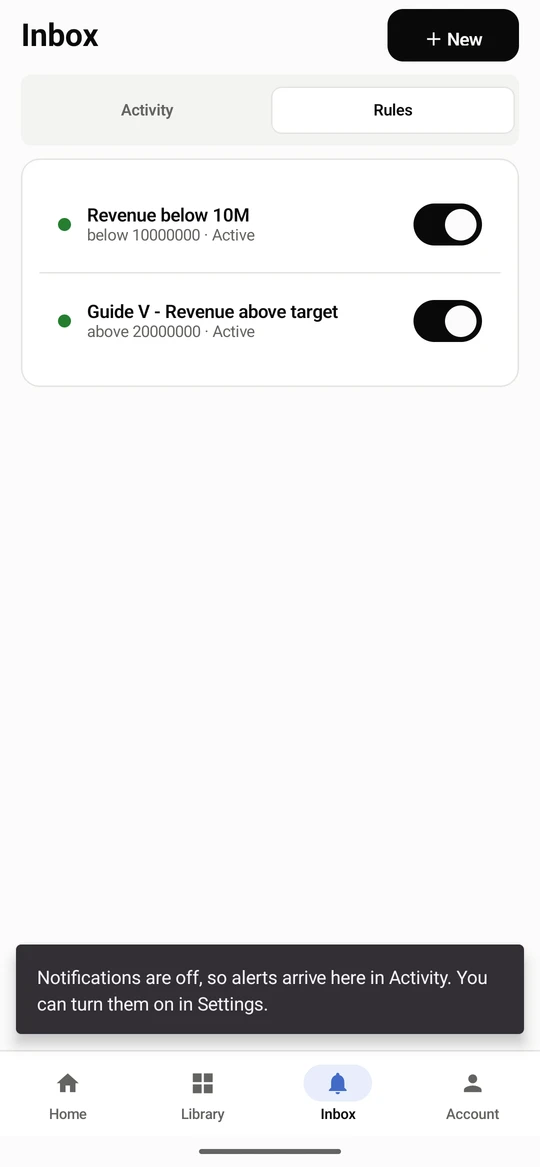
The Inbox tab collects what needs your attention: metric alerts that fired (see Metric alerts), comments that mention you, and items shared with you. A dot marks what is unread and the tab badge counts it.
The Inbox tab collects alerts, mentions and shared items. A dot marks what is unread; Mark all read clears them.
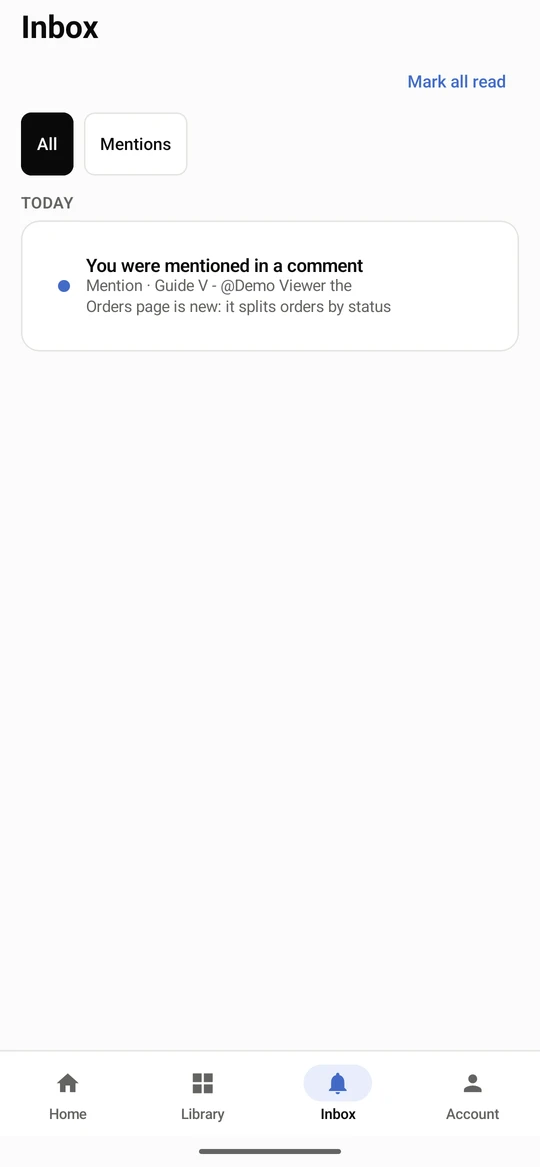
Choose Mentions to see only comments that name you.
Alerts and rules
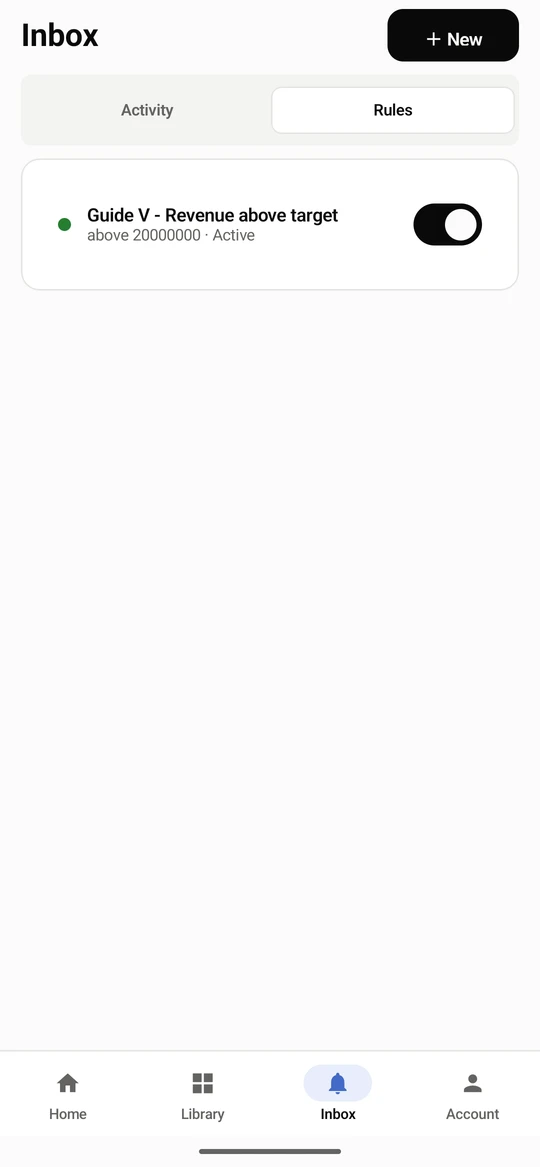
Section titled “Alerts and rules”Roles that may create alerts also see a Rules tab and a New button in the Inbox. Viewers see only Activity. A rule written on the web is edited there; the app can pause it, snooze it for you, or delete it.
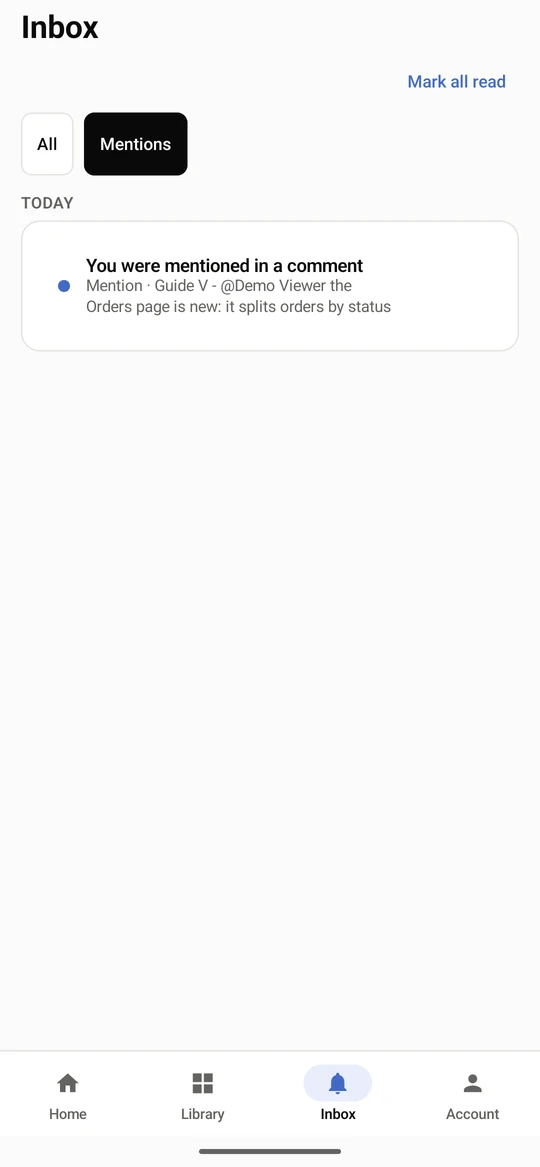
The Inbox starts on Activity: what your alerts have sent. It says so when nothing has fired yet.
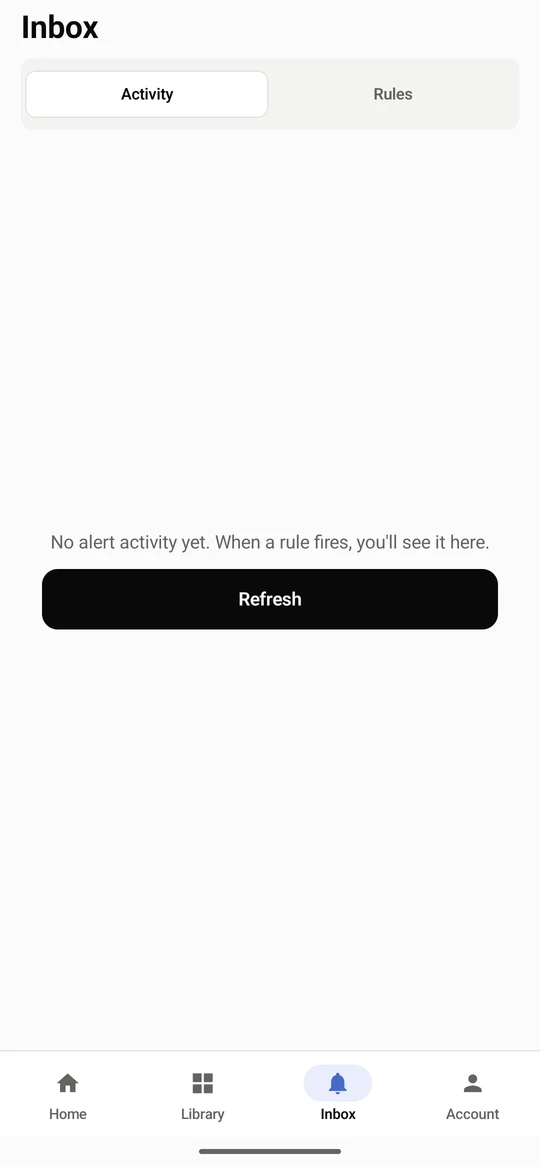
Rules lists the alerts you can see, with the condition and whether each is active. The switch pauses or resumes a rule.
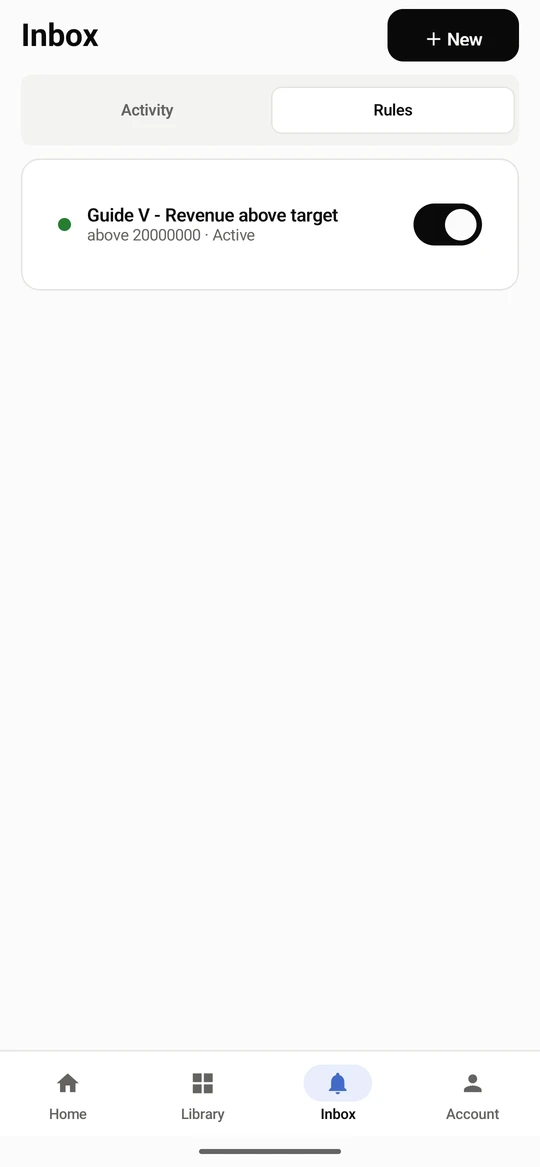
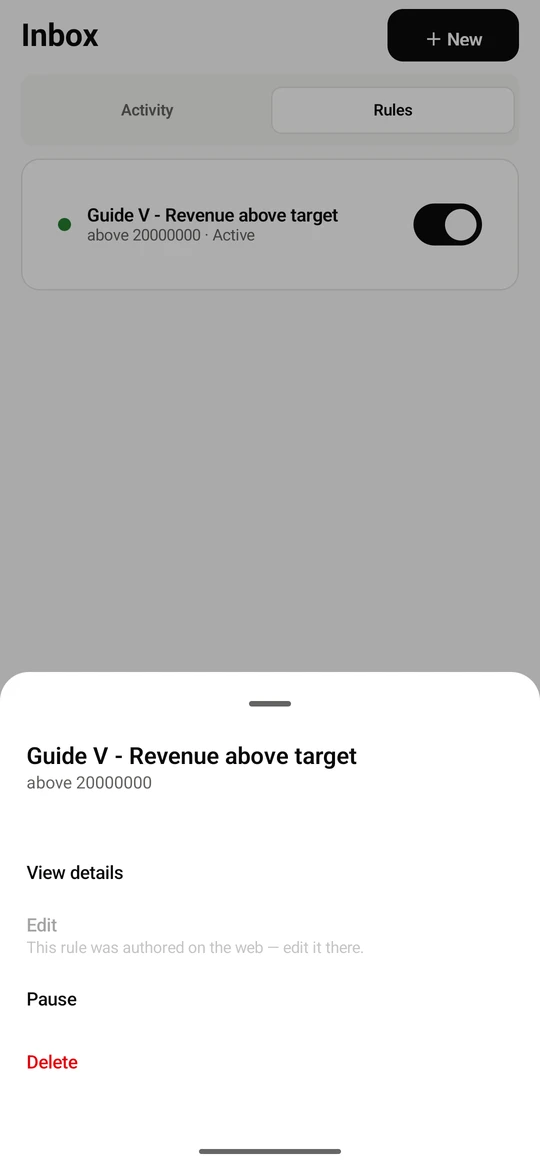
Tap a rule for its menu: View details, Edit, Pause and Delete. A rule written on the web is edited there; the app says so.
The detail page says when the rule fires, how it stands and charts the last 30 days.
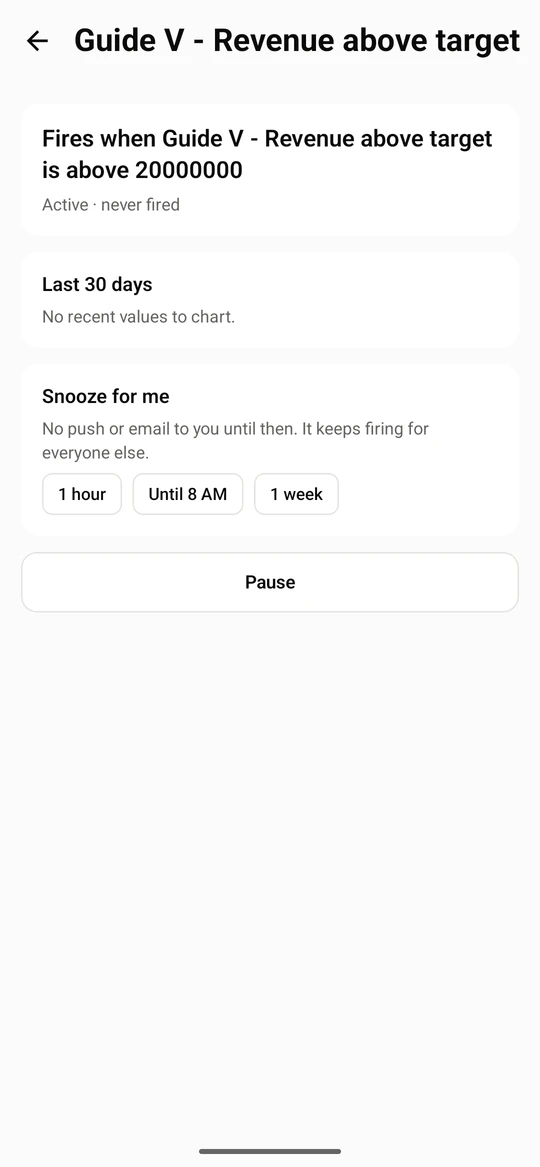
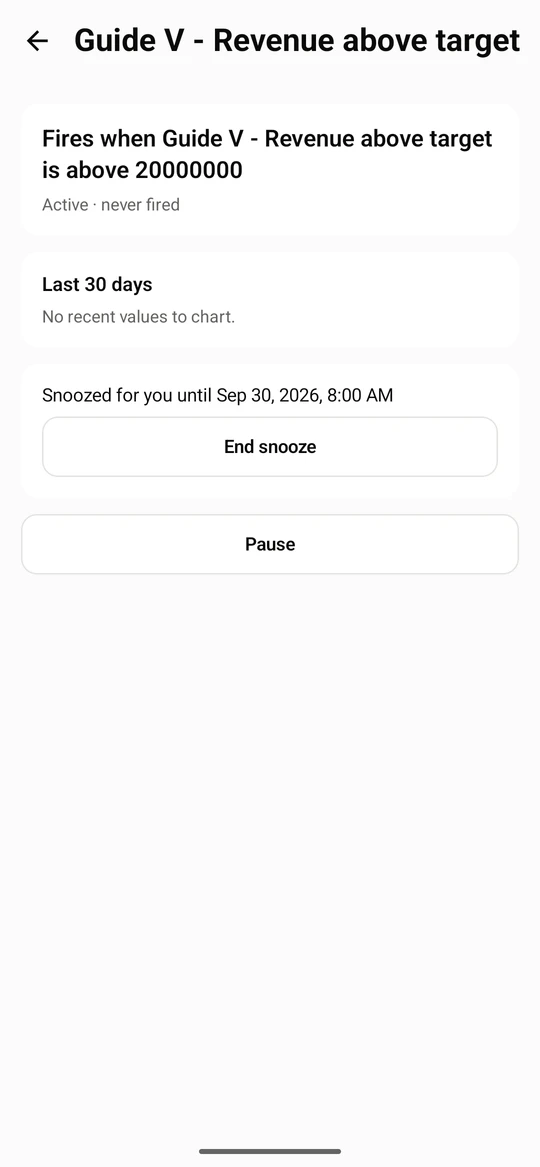
Snooze for me stops push and email to you for 1 hour, Until 8 AM or 1 week. The rule keeps firing for everyone else.
Create an alert
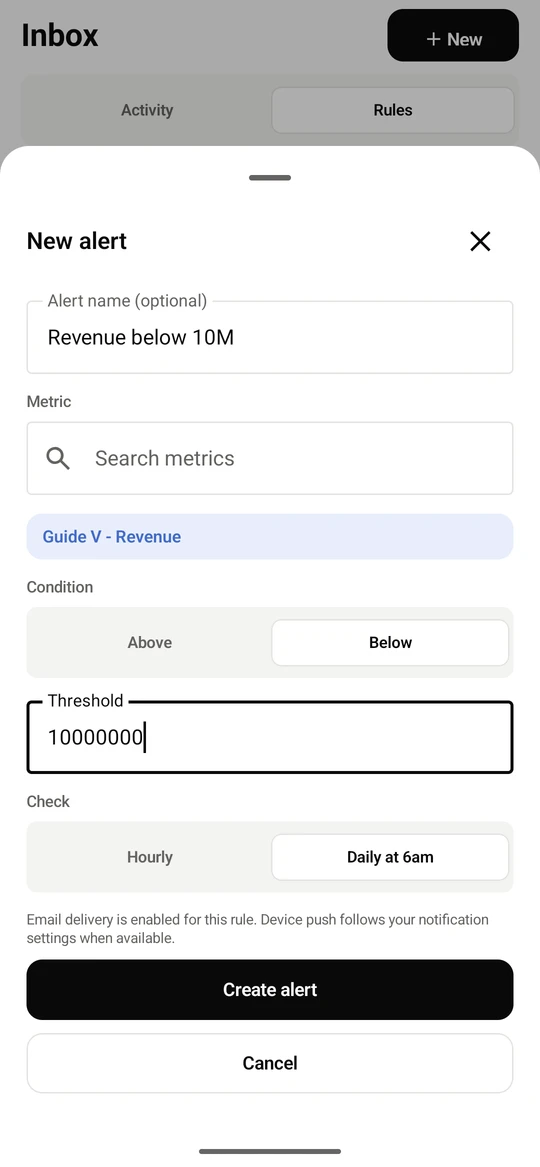
Section titled “Create an alert”New opens a sheet: name the alert if you like, choose the Metric, Above or Below, the Threshold and how often to check (Hourly or Daily at 6am), then Create alert.
Alerts live in the Inbox. Roles that may create alerts see a Rules tab and a New button; viewers see only Activity.
New opens the alert sheet. Give it a name if you like, search for the Metric, choose Above or Below, set the Threshold and how often to Check: Hourly or Daily at 6am.
The first time, Android asks to allow notifications so the phone can tell you when the alert fires.
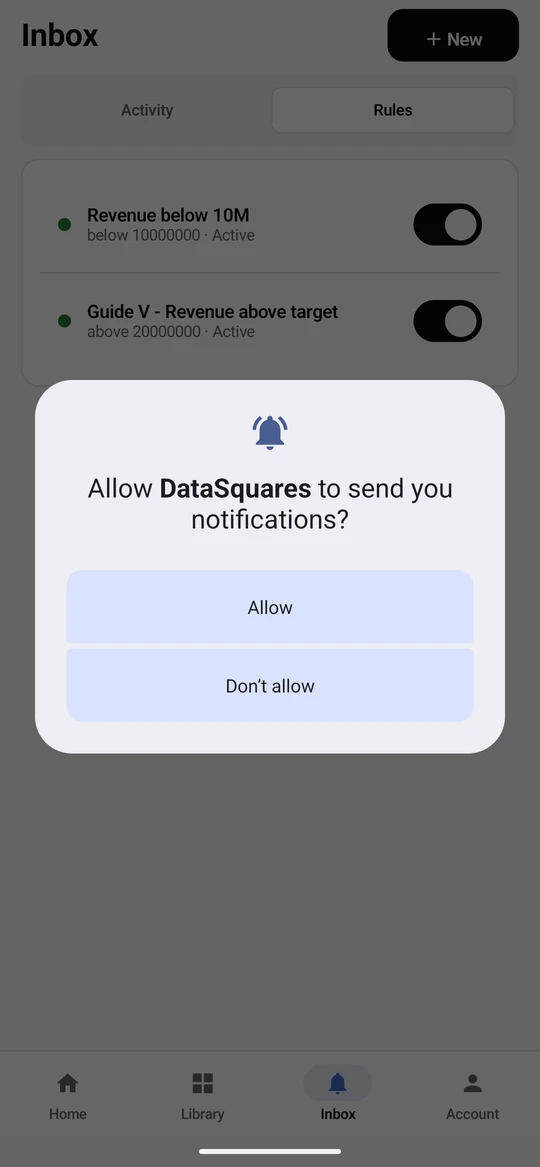
The new rule appears under Rules, active. Use the switch to pause or resume it, or tap it for its details.